Gemini CLI Tutorial: Free Million-Token AI Terminal Tool Installation & Hands-On Guide

Complete guide to installing and using Google's free open-source Gemini CLI command-line AI tool
Google released Gemini CLI, a free open-source command-line AI tool powered by Gemini 2.5 Pro, featuring a 1-million-token context window and 1,000 free daily calls. This article covers installation, authentication troubleshooting, batch file processing, image recognition, MCP protocol integration for browser automation, context compression, session management, and hands-on AI coding — a comprehensive tutorial for developers.
Google recently released an open-source AI Agent tool — Gemini CLI. It's the command-line version of the Gemini large language model, capable of calling Gemini 2.5 Pro directly from your terminal to accomplish various automation tasks. What's even more appealing is that this tool is completely free, supports a 1-million-token ultra-long context window, and provides 1,000 free API calls per day.
This tutorial will walk you through everything from installation and configuration to real-world applications, helping you get started with Gemini CLI step by step.
What Is Gemini CLI: A Free Million-Token Command-Line AI
Gemini CLI is an official command-line AI tool from Google, powered by the Gemini 2.5 Pro model under the hood. Gemini 2.5 Pro is the latest-generation multimodal large language model developed by Google's DeepMind team. As the flagship version of the Gemini series, it ranks in the top tier for reasoning and code generation capabilities across major authoritative benchmarks, competing directly with OpenAI's GPT-4o and Anthropic's Claude 3.5 Sonnet. Unlike ChatGPT's web interface, Gemini CLI runs in the terminal, making it a natural fit for developers and keyboard-driven power users.
It's worth explaining the concept of tokens here: a token is the basic unit that large language models use to process text. One Chinese character corresponds to roughly 1-2 tokens, while one English word corresponds to roughly 1-1.5 tokens. A 1-million-token context window means the model can "remember" approximately 500,000 Chinese characters or around 750,000 English words in a single conversation — equivalent to a full-length novel. This far exceeds the 128K or 200K token limits of most competitors.
Its core advantages include:
- Generous free quota: 1,000 calls per day, more than enough for personal use
- Ultra-long context: 1-million-token window handles large files and long conversations with ease
- Open-source and extensible: Supports the MCP protocol for integrating various external tools
- Multimodal support: Handles not just text but also image recognition
Installation, Configuration & Authentication Troubleshooting
Basic Installation Steps
Gemini CLI is built with TypeScript and requires Node.js (version ≥ 18). After installation, confirm your version with node -v.
The official documentation provides two installation methods: NPX temporary execution and NPM global installation. These two approaches are fundamentally different — NPM (Node Package Manager) is Node.js's official package manager, and global installation (npm install -g) permanently writes the tool to your system path, allowing you to call it like any system command afterward. NPX (Node Package Execute) is a package execution tool built into NPM 5.2+, characterized by "download on demand, delete after use" — it temporarily downloads the latest version each time you run it and leaves no trace on your system afterward. NPX is suitable for occasional experimentation, while NPM global installation is better for tools you'll use frequently. Therefore, NPM global installation is recommended so you can launch it simply by typing gemini:
npm install -g @google/gemini-cli
On first launch, the tool will ask you to select a terminal theme, then proceed to authentication. It supports two authentication methods: Google account login or Gemini API Key.
Authentication Failed? Two Common Scenarios and Solutions
Scenario 1: Authentication stuck due to network issues
If the authentication page hangs without any response, it's most likely a network issue. Configuring a proxy for your terminal should resolve it:
export https_proxy=http://127.0.0.1:port_number
export http_proxy=http://127.0.0.1:port_number
Restart Gemini CLI after configuration. Note that the export method only applies to the current terminal window — this is because export sets environment variables for the current Shell process, which disappear when you close the terminal. For system-wide persistence, add the commands to .zshrc (the default Shell config file on macOS) or .bashrc (the default on Linux), so these settings load automatically every time you open a new terminal. Alternatively, enable your proxy software's TUN/enhanced mode to route all system-level network requests through the proxy.
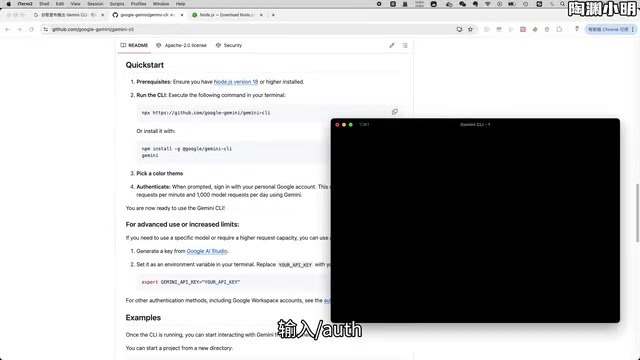
Scenario 2: Prompted to set a Google Cloud Project environment variable
If your Google account has previously applied for a Gemini API Key, you might encounter this prompt. This happens because Gemini CLI needs to associate with a Google Cloud project to manage API call quotas and billing. Follow these steps:
- Open the Google Cloud Console and select or create a project
- Search for "Gemini for Google Cloud" and enable the service
- Copy the project ID
- Run in terminal:
export GOOGLE_CLOUD_PROJECT=your_project_id
Again, it's recommended to add this command to your system config file to avoid manual setup each time.
Built-in Tools & Automation Task Testing
Gemini CLI provides three operators to extend functionality:
/: Invoke built-in features`: Execute Shell commands@: Reference local files or external resources
Type /tools nodsc to view all available tools, covering file read/write, directory search, web content extraction, Google Search, and more.
File Batch Processing Capabilities
In practical testing, Gemini CLI's file processing capabilities are quite impressive. It works by first understanding the user's natural language instructions, then automatically planning execution steps and calling Shell commands or generating scripts to complete tasks — this is precisely what distinguishes an AI Agent from an ordinary chatbot: it can not only "talk" but also "act."
- Batch file renaming: Asked it to change all image file extensions in a folder to
.png— the tool automatically called Shell commands and finished in seconds - Merging multiple Excel files: The tool automatically generated a Python script, installed required dependencies (like pandas and openpyxl), executed the merge operation, and proactively cleaned up temporary scripts afterward
- Batch text replacement: Replaced all character names in a novel accurately without affecting other content
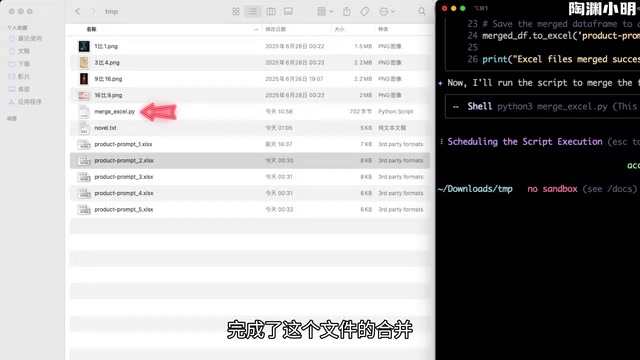
Image Recognition & Web Content Extraction
Gemini CLI's multimodal capabilities are also worth mentioning. "Multimodal" refers to the model's ability to simultaneously understand and process multiple types of information input — text, images, audio, video — rather than being limited to plain text. In practical use, it can accurately identify brand logos, colors, and text within images.
The web extraction feature is also quite useful — it can not only summarize key points from entire articles but also precisely extract specific portions you designate, such as a particular code snippet on a page.
The built-in Google Search tool automatically categorizes search results by dimensions like industry trends, technical developments, and global news, which is considerably more efficient than reading raw search result pages. This capability essentially leverages the LLM's information extraction and structuring abilities, transforming scattered search results into organized knowledge summaries.
Context Management & Session Features
Compressing Context with the Compress Command
After many rounds of conversation, the context may approach the window limit. Gemini CLI provides the /compress command to address this.
Test results: Tokens were reduced from 4,048 to 302 — a reduction of over 90% — while all key information was preserved.
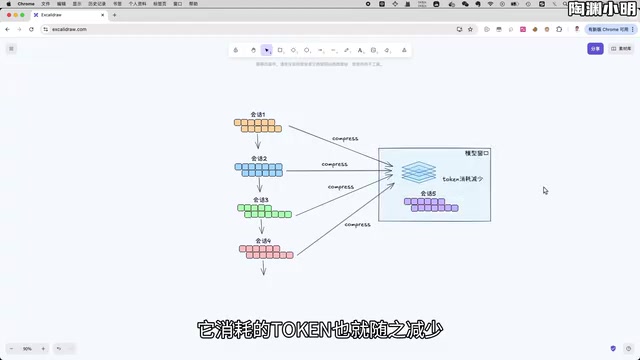
The underlying principle is summarization-based compression of conversation history, allowing the model to access the complete conversation trajectory within a limited context window. From a technical perspective, context compression is a lossy compression strategy — it uses the model's own summarization capabilities to distill lengthy conversation history into concise key points, then substitutes this summary for the original conversation history in subsequent reasoning. While some detailed wording is lost, key facts, decisions, and contextual relationships are preserved. Compared to simply truncating earlier conversations (sliding window strategy), summary compression better maintains conversational coherence and logical consistency.
Chat Session Save & Restore
Gemini CLI supports session management, similar to ChatGPT's web history feature:
/chat save article: Save the current session with a label/chat list: View all saved sessions/chat resume article: Resume a specific session and continue working
This means you can maintain multiple workflows simultaneously — one for writing articles, another for coding — switching between them freely without interference. Session data is stored locally in the ~/.gemini/ directory and is never uploaded to the cloud, which is a bonus for privacy-conscious users.
MCP Integration: Controlling Browsers with Natural Language
Gemini CLI supports the MCP (Model Context Protocol) protocol, enabling integration with various external tools to extend its capabilities. MCP is an open protocol standard proposed by Anthropic in late 2024, designed to establish a unified communication interface between AI models and external tools/data sources. Before MCP, every AI tool had to develop custom adapters to integrate external services, leading to severe ecosystem fragmentation. MCP's design philosophy is similar to what the USB protocol is to hardware devices — as long as a tool follows the MCP standard, it can be called by any AI client that supports the protocol. MCP has now been widely adopted by mainstream AI tools including Cursor, Claude Desktop, and Windsurf, forming a rapidly growing tool ecosystem. Gemini CLI's MCP support means users can directly reuse thousands of existing MCP Servers from the community without reinventing the wheel.
Below, we'll use Playwright MCP as an example to demonstrate browser automation configuration.
Playwright MCP Configuration
Playwright is an open-source browser automation framework developed and maintained by Microsoft, supporting three major browser engines: Chromium, Firefox, and WebKit. Compared to traditional Selenium, Playwright offers significant advantages in execution speed, stability, and API design, particularly excelling at handling dynamic content loading and complex interaction scenarios in modern Single Page Applications (SPAs). The Playwright MCP Server wraps these automation capabilities into MCP protocol interfaces, allowing AI models to control browsers through natural language instructions — clicking, typing, taking screenshots, navigating pages — essentially achieving the interaction paradigm of "replacing automation scripts with spoken commands."
Configuration steps:
- Open the config file
~/.gemini/settings.json - Paste the Playwright MCP Server JSON configuration
- Restart Gemini CLI
After configuration, type /mcp nodsc to view all loaded MCP tools.
Test Results
During testing, I had Gemini CLI complete this task: search for "Gemini CLI" in the browser, open the GitHub project page, click the Star button, and save a screenshot. The entire workflow was seamless, driven entirely by natural language instructions.
MCP configuration is very similar to mainstream AI coding tools like Cursor and Claude Code — if you've used those tools, you'll get up to speed quickly. This cross-tool configuration consistency is a direct benefit of MCP protocol standardization.
AI Coding in Practice: From Standards to Project Building
Setting Coding Standards with GEMINI.md
Gemini CLI uses a GEMINI.md file in the project root directory to define coding standards, similar to Cursor's Rules feature. Using project-level configuration files to constrain AI code generation behavior has become standard practice in AI-assisted programming — Cursor uses .cursorrules, GitHub Copilot uses .github/copilot-instructions.md, and Claude Code uses CLAUDE.md. These files are essentially project-level management of System Prompts, persistently storing team coding standards, tech stack preferences, and architectural conventions in the project repository to ensure AI-generated code follows consistent team standards.
You can define the following in GEMINI.md:
- Python environment version and package management approach (e.g., Poetry vs. pip)
- Code style and commenting rules (e.g., following PEP 8)
- Frontend technology choices (e.g., React, Vue)
- UI theme colors, etc.
After running /memory refresh, all subsequently generated code will follow these standards. This practice not only improves the usability of AI-generated code but also makes AI-assisted programming in team collaboration more controllable and predictable.
Building a Web Application from Scratch
In testing, I had Gemini CLI generate an English word spelling practice web application with these requirements:
- Display the word to spell on screen
- Support keyboard input for spelling
- Provide hints when spelling is incorrect
- Support importing word lists from CSV files

The first-generated code was largely functional, but lacked visual feedback for spelling errors. After one round of conversation to supplement requirements, a shake animation hint was successfully added, and the CSV import feature worked correctly. The entire development process took only a few minutes. This workflow of "generate a basic version first, then iterate through conversation" is the typical AI-assisted programming pattern, dramatically reducing the time cost from idea to working prototype.
Analyzing Existing Project Code Structure
Gemini CLI isn't just good at writing code — it also excels at reading it. Point it at an existing project, and it can analyze the complete project structure and module functions. This is thanks to the 1-million-token ultra-long context window — it can load all source code files from an entire small-to-medium project at once, building a complete understanding of the project's overall architecture, rather than analyzing files in isolation like short-context models.
For example, when analyzing a Baidu Netdisk MCP Server project, it provided detailed and accurate explanations covering everything from directory structure and functional module organization to specific decorator usage patterns — extremely helpful for quickly understanding unfamiliar projects.
Conclusion: Is Gemini CLI Worth Trying?
Gemini CLI is one of the few free, fully-featured AI command-line tools available today. It brings Gemini 2.5 Pro's capabilities into the terminal environment, delivering solid performance whether for batch file processing, information retrieval, code generation, or integrating external tools via MCP.
The daily quota of 1,000 free calls is more than sufficient for individual developers, and the 1-million-token context window gives it plenty of room when working with large projects. If your daily work involves the terminal, Gemini CLI is absolutely worth adding to your toolbox.
Key Takeaways
- Gemini CLI provides free access to Gemini 2.5 Pro with a 1-million-token context window and 1,000 free daily calls
- Authentication failures typically stem from two causes: unconfigured network proxy or missing Google Cloud Project environment variable — both have clear solutions
- Built-in tools cover file processing, web extraction, Google Search, and multimodal image recognition
- Supports MCP protocol for external tool integration, with configuration methods consistent with mainstream AI coding tools like Cursor
- Provides context compression (Compress) and session management (Chat) features that effectively address token limitations in multi-turn conversations
Related articles
 Tutorials
ChatGPT Plus Subscription Guide: Are GPT-5.5, image-2, and Codex Worth the Upgrade?
A detailed look at ChatGPT Plus features — GPT-5.5, image-2, and Codex — with a Plus vs Pro comparison and a complete step-by-step subscription guide for users outside the US.
 Tutorials
Harness AI Engineering in Practice: Using Claude Code to Master Enterprise-Level E-Commerce Development
Deep dive into Harness AI Engineering: master enterprise e-commerce development with Claude Code using the Rules, Skills, Wiki, and Changes framework.
 Tutorials
Cursor + Codex Dual-IDE Collaboration: A Practical Methodology for Open-Source Project Customization
A complete methodology for open-source project customization based on real-world experience, detailing the Cursor+Codex dual-IDE workflow, seven-stage process, MVP validation, and AI source code reading techniques.