Gemini CLI WebUI Installation & Usage Guide: A Free AI Coding Assistant with a Graphical Interface

Gemini CLI UI provides a graphical web interface for Google's free Gemini CLI coding assistant
Gemini CLI UI is an open-source project forked from Cloud Code Web UI that adds a graphical web interface to Google's free Gemini CLI command-line tool. It supports multi-project management, parallel sessions, YOLO auto-execution mode, image uploads, responsive layout, and remote server deployment — all fully compatible with existing Gemini CLI configurations and free quotas, making it one of the best value AI coding assistant interface solutions available today.
Google's Gemini CLI command-line tool has long been a strong competitor to Claude Code — completely free, powered by the Gemini 2.5 Pro model, and offering generous usage quotas. But it has one obvious weakness: the lack of a good graphical interface. Now, an open-source project called Gemini CLI UI finally fills this gap, giving Gemini CLI a user experience comparable to Claude Code Web UI.
Why Does Gemini CLI Need a Web UI?
In the AI coding assistant space, Claude Code has captured a lot of attention thanks to its powerful command-line capabilities and a growing ecosystem of third-party UIs (such as Claudia, Tarragon, Crystal, etc.). By comparison, Gemini CLI is no less capable, yet it has been overlooked by many developers due to its lack of an intuitive user interface.
To understand the competitive landscape, it helps to know the positioning differences between the two tools. Gemini CLI is an open-source command-line AI coding tool released by Google in mid-2025, built on its latest Gemini 2.5 Pro model, which features an impressive 1-million-token context window and excels at code comprehension and generation. Google offers extremely generous free quotas — 60 requests per minute and 1,000 requests per day — virtually unmatched among similar tools. Claude Code, on the other hand, is Anthropic's AI coding command-line tool, powered by the Claude Sonnet/Opus model series, requiring a paid subscription (Pro plan at $20/month or Max plan at $100–200/month). While both tools are neck-and-neck in terminal capabilities, Claude Code established its ecosystem earlier, spawning numerous third-party graphical interface projects that give it a clear user experience advantage.
The limitations of command-line tools are obvious: you can't conveniently manage multiple projects and sessions, you can't check task progress on your phone anytime, and you can't intuitively browse code diffs. Gemini CLI UI was created to solve these exact pain points.
It's built on Cloud Code Web UI (essentially a fork), but replaces the underlying Claude Code with Gemini CLI. Let me explain this development approach: Cloud Code Web UI (also known as Claude Code Web UI) is a community-developed open-source web interface for Claude Code that wraps the CLI interface and transforms terminal interactions into graphical operations in the browser. Forking is a common development pattern in the open-source community — developers copy an existing project's code repository and modify it to their needs, rather than building from scratch. Gemini CLI UI takes exactly this approach, retaining Cloud Code Web UI's mature frontend interface, project management logic, and session system, while only swapping the underlying AI engine from Claude Code to Gemini CLI. This significantly reduces development costs while inheriting the stability and feature completeness that the original project has been community-validated for. This means you can enjoy a polished web interface experience while using Gemini's completely free quotas.
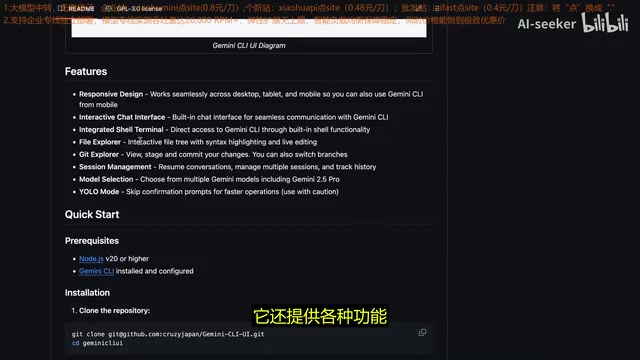
Gemini CLI UI Core Features Explained
Project & Session Management
The left panel provides a clear project management interface where you can:
- Add multiple projects: Simply specify the project path to quickly add it
- Manage sessions: Create multiple independent sessions under each project
- Run in the background: Start a task, leave, and come back later to check progress
This design is particularly suited for developers handling multiple codebases simultaneously — each project's context is completely isolated with no interference. Multi-session parallelism is a key advantage of Web UI over the native command line. In a traditional terminal, each Gemini CLI instance occupies a terminal window, and managing multiple tasks requires frequent window switching or using terminal multiplexers like tmux — cumbersome and easy to lose track of context. In Gemini CLI UI, each session is an independent conversation thread with its own context history and working directory. You can have AI refactoring backend APIs in one session while writing frontend components in another, with both tasks running in parallel without interference. This workflow essentially treats AI as multiple "virtual programmers," dramatically boosting development efficiency — especially for full-stack developers or teams maintaining multiple microservices.
Model Selection & Permission Configuration
In the settings panel, you can flexibly configure:
- Model selection: Supports all available models in the Gemini series
- YOLO mode: When enabled, AI can access all tools without requiring permission confirmations one by one
- Tool access control: Fine-grained enabling or disabling of specific tools
- Notification sounds: Plays an alert when tasks complete, useful for knowing results when running in the background
YOLO mode deserves special explanation. YOLO (You Only Live Once) is an automated execution mode in AI coding tools. By default, AI coding assistants prompt for confirmation before performing sensitive operations like file writes, deletions, or shell commands, requiring manual approval. While this mechanism is safe, it frequently interrupts workflows during large tasks. With YOLO mode enabled, AI gains automatic execution permissions for all tools without step-by-step human confirmation, enabling a true "fire and forget" experience. However, this also means AI might perform unexpected operations, such as deleting files or running dangerous commands. Therefore, it's recommended to use this mode only in controlled environments (like Docker containers or sandboxes) or on non-critical projects — production environments should maintain the default permission confirmation mechanism.
Rich Interaction Methods
In the chat interface, Gemini CLI UI provides multiple interaction options:
- Text prompt input: Enter natural language instructions directly
- @ symbol file references: Type
@to specify files that need modification - Image upload: Upload screenshots or design mockups as references
- Manual file editing: Edit code directly in the interface without AI involvement
- Source code management: View code annotations, diff changes, and other Git-related information
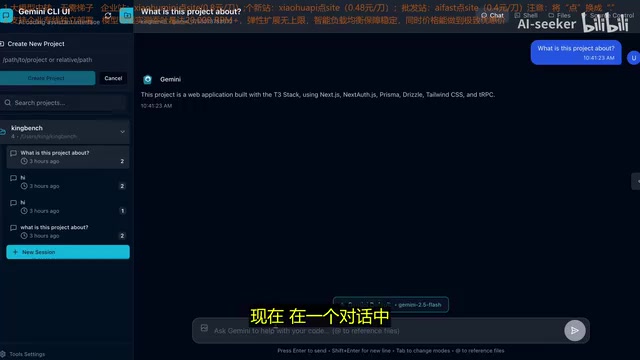
Responsive Layout & Remote Access
As a Web UI, it naturally supports:
- Responsive layout: Displays well on phones, tablets, and desktops
- Server deployment: Can be deployed on a remote server and accessed via browser from anywhere
- Security authentication: Requires creating login credentials on first launch to ensure access security
Responsive Design is a web frontend design approach that uses CSS media queries and flexible layouts to automatically adjust page layout and element sizing based on the accessing device's screen size. Gemini CLI UI is built on modern frontend frameworks and inherently possesses this capability. Remote server deployment is an important use case for AI coding tools: developers can deploy Gemini CLI UI on a high-performance cloud server or local workstation, with all AI code generation and file operations executing server-side, while users only need a browser connection. This means you can use a low-spec laptop or even a phone to control AI coding tasks on a remote server — particularly useful for long-running code generation scenarios. For example, you could have AI refactor a large project and check progress on your phone at any time.
Gemini CLI UI Installation & Usage Guide
The entire installation process is straightforward and can be completed in a few steps:
- Clone the repository: Clone the Gemini CLI UI project locally
- Install dependencies: Run the dependency installation command
- Configure environment variables: Copy the
.envexample file and modify as needed - Start the service: Run the startup command; the service defaults to port 4009
- Create credentials: Set up a login username and password on first access
Since Gemini CLI UI is essentially a wrapper around Gemini CLI, it's fully compatible with your existing Gemini CLI configuration — whether you're using the free tier or your own API Key. Regarding authentication, Gemini CLI supports two options: Google account login (OAuth) and API Key. With Google account login, users can enjoy Google's free quota (1,000 requests per day) without any payment. The API Key approach generates a key through Google AI Studio and bills according to Gemini API pricing, suitable for scenarios requiring higher call volumes or enterprise-level usage. If you've already configured Gemini CLI authentication in your terminal, the UI will directly reuse those configurations without requiring repeated setup. It's worth noting that while the free quota is generous, rate limits exist, and you may encounter request queuing during high-frequency usage — switching to a paid API Key provides a more stable experience in such cases.
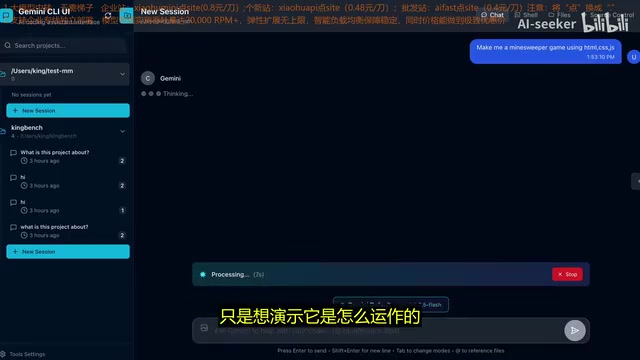
Hands-On Experience: Building a Minesweeper Game with Gemini CLI UI
In the video demo, the author created an empty project folder, then simply typed "make a simple Minesweeper game" in the chat box. After sending, Gemini CLI immediately began working in the background, updating progress in real time. The entire process was smooth and natural, producing the same results as using the command-line tool directly, but with a dramatically improved user experience.
This "start a task — leave — come back to check results" workflow is especially practical for time-consuming code generation tasks. You can start different tasks across multiple sessions simultaneously, letting AI work in parallel.
Gemini CLI UI vs. Similar Tools
| Feature | Gemini CLI (Native) | Gemini CLI UI | Claude Code Web UI |
|---|---|---|---|
| Cost | Free | Free | Requires Claude subscription |
| Graphical interface | ❌ | ✅ | ✅ |
| Multi-project management | ❌ | ✅ | ✅ |
| Mobile access | ❌ | ✅ | ✅ |
| Background execution | Limited | ✅ | ✅ |
| Server deployment | Manual config | ✅ | ✅ |
Gemini CLI UI's greatest advantage lies in the combination of free + great interface. For developers on a budget who still need an AI coding assistant, this is likely the best value-for-money solution available today.
Conclusion
The emergence of Gemini CLI UI fills an important gap in the Gemini ecosystem. It makes a powerful tool that was previously confined to the terminal much more accessible and flexible. While it's essentially a modified version of Cloud Code Web UI, this "standing on the shoulders of giants" approach is precisely what ensures the interface's maturity and stability.
If you've been using Gemini CLI but struggling with command-line limitations, or if you're looking for a free AI coding assistant solution, Gemini CLI UI is absolutely worth trying. As Gemini's model capabilities continue to improve, this combination will only become more valuable over time.
Key Takeaways
- Gemini CLI UI is an open-source project built on Cloud Code Web UI that provides a complete graphical web interface for the free Gemini CLI command-line tool
- It supports multi-project management, parallel sessions, background execution, YOLO mode, image uploads, and more — deployable on servers for remote access from any device
- Fully compatible with existing Gemini CLI configurations, supporting both free quotas and custom API Keys, making it one of the most cost-effective AI coding assistant interface solutions available
- Installation is straightforward: clone the repo, install dependencies, configure environment variables, then launch on port 4009; first access requires creating secure login credentials
- Responsive layout supports multi-device access on phones, tablets, and more — ideal for developers who need to check AI coding task progress on the go
Related articles
 Tutorials
ChatGPT Plus Subscription Guide: Are GPT-5.5, image-2, and Codex Worth the Upgrade?
A detailed look at ChatGPT Plus features — GPT-5.5, image-2, and Codex — with a Plus vs Pro comparison and a complete step-by-step subscription guide for users outside the US.
 Tutorials
Harness AI Engineering in Practice: Using Claude Code to Master Enterprise-Level E-Commerce Development
Deep dive into Harness AI Engineering: master enterprise e-commerce development with Claude Code using the Rules, Skills, Wiki, and Changes framework.
 Tutorials
Cursor + Codex Dual-IDE Collaboration: A Practical Methodology for Open-Source Project Customization
A complete methodology for open-source project customization based on real-world experience, detailing the Cursor+Codex dual-IDE workflow, seven-stage process, MVP validation, and AI source code reading techniques.