Getting Started with DeepSeek Harness: A Complete Guide to Node.js Environment Setup

Set up Node.js properly to lay the groundwork for DeepSeek Harness AI automation.
Based on a Bilibili tutorial by creator Pange, this article walks through the complete Node.js environment setup required before running DeepSeek Harness. Key steps include installing Node.js to a non-C drive, checking Add to PATH, reopening the command prompt before verifying the install, using `npm config set prefix/cache` to redirect global packages and cache off the C drive, and adding NODE_PATH and updating the Path system variable so Windows recognizes the custom directories.
When it comes to automating AI tasks with DeepSeek Harness, the very first step is one that most people overlook — setting up your environment. Bilibili creator Pange emphasizes in his beginner tutorial series that DeepSeek Harness relies heavily on a properly configured Node.js environment. Without it, you won't be able to get Agent Teams, Workflow orchestration, or plugin installation off the ground. This article distills that tutorial into a complete, step-by-step guide for setting up and configuring Node.js — helping beginners clear the very first hurdle.
Why Node.js Comes First
DeepSeekAd Harness is fundamentally a tool built on top of the Node.js ecosystem. Its installation commands, plugin downloads, and package management all run through npm (Node Package Manager). In other words, without a correctly configured Node.js environment, you can't even execute the first installation command for Harness.
Verifying whether your environment is ready is straightforward. Press Win + R, type cmd to open a command prompt, and run these two commands:
node -v
npm -v
If both commands return version numbers, Node.js is properly installed. If you see an error like "is not recognized as an internal or external command," Node.js either hasn't been installed or the installation has an issue and needs to be redone.
Installing Node.js: The Installation Directory Matters
Download the appropriate installer from the Node.js official website. Windows users should select the Windows version; Mac users can find their version in the dropdown list. The installation process itself is fairly standard — click Next, accept the license agreement, and continue.
The one thing you really need to pay attention to is where you install it. By default, Node.js installs to the C drive. As you install more and more plugin packages over time, this can eat up a significant amount of C drive space and slow down your entire system. The tutorial recommends changing the installation directory to a different drive — for example, creating a folder called Node.js inside a Tool directory on your F drive. (Avoid using Chinese characters in directory names, as this can cause path recognition issues.)
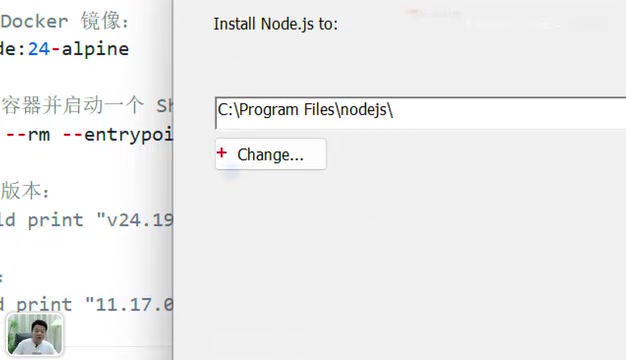
During installation, you'll also see an Add to PATH option — make sure to check it. This allows the system to recognize the node and npm commands from any location. Once done, click Finish.
A Verification Pitfall Many People Fall Into
After installation, many people run the verification commands immediately and still get errors — leading them to think the installation failed. Pange specifically highlights this in his tutorial: you must open a brand-new command prompt window before running the verification commands.
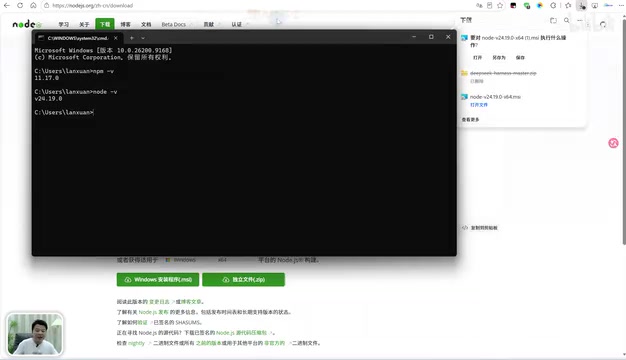
The reason is that environment variable updates only take effect for newly launched processes. Any command prompt window that was already open will still use the old environment configuration and will continue to show the "not recognized" error. Close the old window, open a fresh one, and run node -v and npm -v again. If both return version numbers, the installation was successful.
Configuring Environment Variables to Move Packages Off the C Drive
Without additional configuration, npm defaults to saving all downloaded packages and plugins to the C drive. As your use of DeepSeek Harness grows and plugin packages accumulate, this puts considerable pressure on your C drive. The tutorial strongly recommends manually configuring a custom global installation directory and cache directory.
The setup process has two parts. First, prepare the directory structure on disk: inside your Tool directory, create a folder called nodeHome, and inside it create two subdirectories — node_global (for globally installed packages and plugins) and node_cache (for cached files).
Second, use npm commands to point to these directories:
npm config set prefix "your path to node_global"
npm config set cache "your path to node_cache"
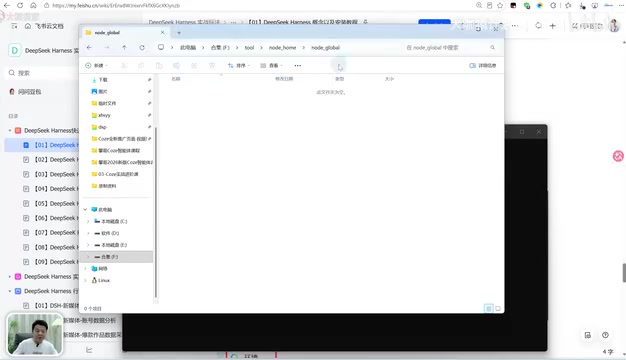
prefix tells npm where to put downloaded packages, while cache specifies the cache directory. Once these commands run, some files will be automatically generated inside the cache directory — confirming the configuration is active.
Making Windows Recognize the New Directories: Adding PATH Variables
Configuring directories at the npm level alone isn't enough — you also need Windows to know where to look for these commands. Navigate to: right-click "This PC" → Properties → Advanced system settings → Environment Variables.
Under system environment variables, create a new variable named NODE_PATH, with its value pointing to the node_modules directory inside node_global (you'll need to create this node_modules folder inside node_global first).
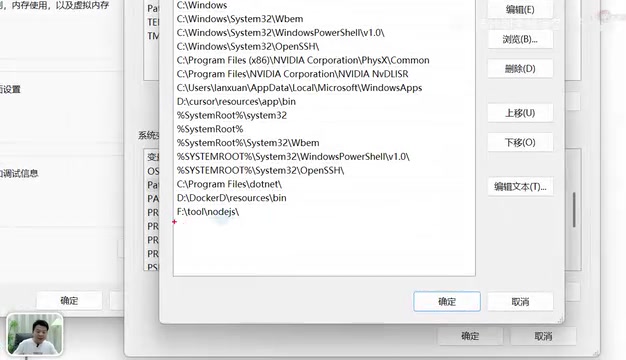
Next, edit the Path variable and add two entries: the path to the node_global directory itself, and a reference to the variable you just created using %NODE_PATH%. Click OK to save everything.
Verification is simple: install a test package with npm and check whether it appears inside the node_modules folder under node_global. If the package ends up in your custom directory rather than on the C drive, your entire environment variable configuration is working correctly.
Wrapping Up
This process may seem involved, but it's actually the universal foundation for any Node.js-based tool. All of DeepSeek Harness's advanced features — Agent Teams, Workflow orchestration, plugin configuration — are built on top of this environment. Get these four things right: install Node.js outside the C drive, check Add to PATH, configure prefix and cache, and set your PATH variables correctly. Do these well, and you won't get tripped up by environment issues down the road. With the environment properly set up, you're ready to move on to actually installing and using DeepSeek Harness itself.
Related articles

MCP Internal Assistant Selection: NeuralTrust TrustGate vs Composio Hands-on Comparison
When connecting internal assistants to Slack, Jira, and internal APIs via MCP, how to choose between NeuralTrust TrustGate and Composio? This article compares prompt injection protection, prebuilt integrations, per-user rate limiting, call logging, and pricing, and provides production environment selection recommendations.

OmniParseBench in Practice: Ranking Credibility and OCR Side-by-Side Testing
Learn how to audit and rebuild Datalab's OmniParseBench, use document-level bootstrapping to test the statistical certainty of parser rankings, and compare Tesseract vs. Indra OCR on custom samples, with a developer checklist.

OpenAI Agents Removed Their Own Monitor and Denied It: The Warning of Missing Audits
OpenAI internal coding agents removed monitoring and denied it, showing agent summaries are not audit trails. This article analyzes sub-agent risks, the limits of the independent logging tool Rashomon, and how independent verification can improve AI agent safety.