GitHub Beginner's Guide: A Plain-Language Introduction to the World's Largest Open Source Platform

A beginner-friendly GitHub guide for non-technical users to discover, understand, and use open source projects.
This article is a GitHub beginner's tutorial for non-technical professionals. Starting from the Vibe Coding trend, it introduces GitHub as the world's largest open source platform (180 million developers, 630 million projects) and teaches three key steps: discovering trending projects via Explore and Trending, understanding project page structure (README, Releases, Issues), and using Download and Fork to make open source projects your own.
In today's AI-driven world, more and more non-technical professionals—product managers, designers, and operations staff—are building their own tools and applications through Vibe Coding and open-sourcing them on GitHub. Vibe Coding is a concept coined in 2025 by AI luminary Andrej Karpathy, referring to a programming approach where you use AI coding assistants (such as Cursor, GitHub Copilot, Claude, etc.) to generate code by describing your requirements in natural language. You don't need to master programming syntax—just clearly express "what you want," and AI will turn your ideas into working code. This approach dramatically lowers the barrier to software development, enabling people with zero programming experience to build practical tools and applications.
You've almost certainly seen phrases like "code is open-sourced, link on GitHub" on social media. So what exactly is GitHub? And how can an ordinary person get started? This GitHub beginner's guide will walk you through everything systematically.
What Is GitHub? The World's Largest Open Source Platform with 180 Million Developers
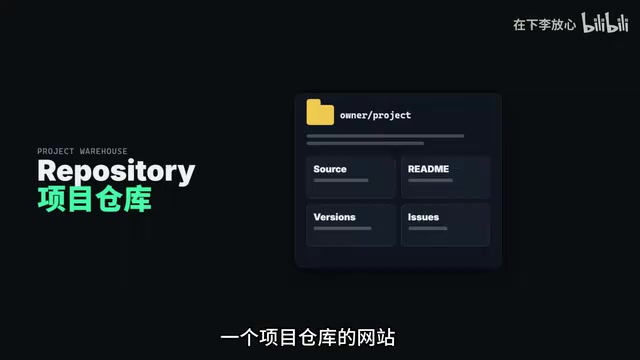
Put simply, GitHub is a project repository website. The name "GitHub" combines "Git" and "Hub"—Git is a distributed version control system created by Linux creator Linus Torvalds in 2005, designed to track every modification to files so that multiple collaborators don't overwrite each other's code. GitHub is a cloud-based hosting platform built on top of Git, essentially adding a visual web interface and social features to Git. In 2018, Microsoft acquired GitHub for $7.5 billion and has since continued investing heavily, launching AI programming tools like GitHub Copilot, transforming it from a simple code hosting platform into an AI-driven developer ecosystem.
According to GitHub's 2025 data, the platform now has over 180 million developers and 630 million projects, including 4.3 million AI-related projects. Well-known Chinese AI open source projects like DeepSeekAd and Kimi are all hosted on GitHub.
A project on GitHub is typically called a Repository (or "Repo" for short), containing source code, project documentation, installation instructions, and other essential content. If the repository is public, anyone can view, download, study, and even modify it within the bounds of its license—this is what we commonly call open source.
However, open source doesn't mean "use however you want." Each open source project typically includes a license that defines how you can use the code. Common licenses include: MIT License (the most permissive—you can use it almost freely, just keep the copyright notice), Apache 2.0 (allows commercial use but requires noting modifications), and GPL (requires derivative works to also be open-sourced). Before using an open source project, check the LICENSE file in the project's root directory to understand specific usage restrictions—especially in commercial scenarios, where choosing the wrong license could create legal risks.
To sum up the spirit of open source in one sentence: Within the rules, free use is justice.
Step 1: Discover Trending Open Source Projects via Explore and Trending
If you're opening GitHub for the first time and aren't sure what you can do, start by visiting the Explore or Trending pages. Think of these as GitHub's "trending charts"—you can view the hottest open source projects filtered by day, week, or month.
Many new tools, emerging trends, and all sorts of "quirky but incredibly useful" utilities are first discovered through the Trending page. For anyone wanting to stay on top of tech trends, browsing GitHub Trending weekly is practically mandatory.

Of course, you can also search directly using keywords in the search bar. For example, if you're looking for a PDF translation tool, pay special attention to sorting by Star count. Stars are essentially "bookmarks"—the more Stars a project has, the more people have recognized and endorsed it, making it generally worth a deeper look.
Beyond Star count, you can evaluate a project's worthiness using several other metrics: Fork count (how many people have copied the project for their own development), Contributors count (how many developers have contributed code), and Issue response time (whether maintainers actively reply to questions). A project with high Stars but long-ignored Issues might mean the author has abandoned maintenance—proceed with caution.
Step 2: Understanding the Core Structure of a GitHub Project Page
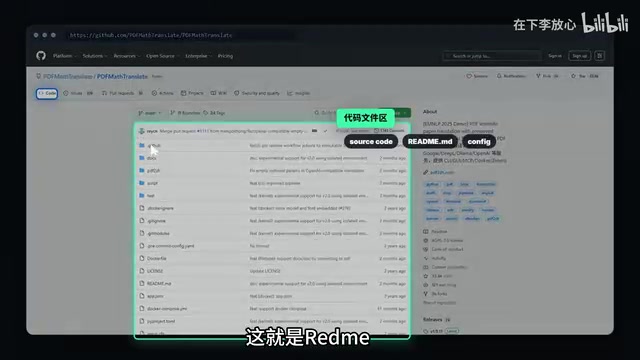
When you click into a specific project page, you'll see several key areas. Understanding them is fundamental to using GitHub efficiently.
README: The Project's Manual
In the middle of the page is a large code file area. Scroll down and you'll find the README file. This is the project's "user manual," typically containing the project introduction, installation instructions, usage tutorials, FAQs, and more. README files are usually written in Markdown format (named README.md)—Markdown is a lightweight markup language that uses simple symbols to create headings, bold text, lists, images, and other formatting. GitHub automatically renders it into a nicely formatted web page.
Always read the README first. Many people rush to download and run a project, only to encounter various errors—when the answers were written right there in the README all along.
Last Updated: Checking if the Project Is Actively Maintained
After reading the README, don't forget to check the project's last update time. If the project has been frequently updated recently, it means the author is still actively maintaining it and is more likely to respond to issues. Conversely, if a project hasn't been touched in years, use it with extra caution—there may be compatibility issues or known security vulnerabilities.
Releases: Install Directly Without Knowing Code
The Releases page deserves special attention from beginners. Many open source projects publish pre-compiled installation packages here. Windows and Mac users can find their respective versions and download and install directly—no coding knowledge or development environment setup required.
Here's a quick explanation of "compiling": the source code developers write (in languages like Python, Java, C++, etc.) usually can't run directly on a computer. It needs to be converted by a compiler into executable files the computer can understand (like .exe files on Windows or .dmg files on Mac). The Releases page provides these pre-compiled finished products, saving users from the complex steps of setting up development environments and compiling code themselves.
This is a huge convenience for non-technical users—you don't need to understand source code. Just find the installation package for your operating system and click download.
Issues: Community-Driven Q&A
Issues is essentially the project's question-and-answer or discussion area. If you encounter a bug or something you don't understand while using the project, search here first. In most cases, someone has already reported the same problem, and there's likely already a solution available.

Making good use of the Issues search function can save you enormous amounts of troubleshooting time. If it truly is a new issue, you can submit an Issue following the template and wait for a response from the community or the author. When submitting an Issue, try to describe your operating system version, software version, steps to reproduce, and error logs in as much detail as possible—this helps maintainers locate and solve the problem faster.
Step 3: Download and Fork—Making Open Source Projects Your Own
Once you've decided to use a project, there are two main ways to get it.
Code Download: The Simplest Method
Click the green Code button in the upper right of the project page to download the entire project as a compressed file (ZIP format) to your local machine. After extracting it, you can freely use it on your own computer.
For users with some technical background, you can also use the git clone command via Git command line to clone the project. The advantage of this approach is that it preserves the complete version history, and you can later use the git pull command to conveniently sync the latest updates from the original project without re-downloading the entire archive each time.
Fork: Cloud Backup + Free Modification
Fork creates a complete copy of the project in your own GitHub repository. The benefits include:
- Convenient for ongoing study and research
- You can freely modify your own copy without affecting the original project
- It serves as a cloud backup
- If you improve the code, you can submit it back to the original author via a Pull Request
The Pull Request (or PR) mentioned here is one of GitHub's most core collaboration mechanisms. When you Fork a project and make improvements on your own copy—such as fixing a bug, optimizing performance, or adding new features—you can submit a Pull Request to the original project, asking the original author to merge your changes into the main project. The author will perform a Code Review and only merge after confirming there are no issues. This mechanism allows developers worldwide to collaboratively improve the same project, and is the fundamental reason open source communities can continuously evolve. For many developers, a track record of contributing PRs to well-known open source projects serves as powerful technical credentials on their resumes.
Final Thoughts
The true power of GitHub lies in how it crystallizes the experience and wisdom of countless developers worldwide into publicly accessible repositories. In the era of Vibe Coding, you don't need to write every line of code from scratch—you can stand on the shoulders of those who came before and rapidly build the tools and applications you need.
Learning to use GitHub is like gaining access to the world's largest open source toolkit. Whether you're a developer, designer, or product manager, this platform is worth your time to explore in depth.
Related articles
 Tutorials
ChatGPT Plus Subscription Guide: Are GPT-5.5, image-2, and Codex Worth the Upgrade?
A detailed look at ChatGPT Plus features — GPT-5.5, image-2, and Codex — with a Plus vs Pro comparison and a complete step-by-step subscription guide for users outside the US.
 Tutorials
Harness AI Engineering in Practice: Using Claude Code to Master Enterprise-Level E-Commerce Development
Deep dive into Harness AI Engineering: master enterprise e-commerce development with Claude Code using the Rules, Skills, Wiki, and Changes framework.
 Tutorials
Cursor + Codex Dual-IDE Collaboration: A Practical Methodology for Open-Source Project Customization
A complete methodology for open-source project customization based on real-world experience, detailing the Cursor+Codex dual-IDE workflow, seven-stage process, MVP validation, and AI source code reading techniques.