GitHub Copilot CLI Hands-On Tutorial: Complete Guide from Installation to Auto-Creating PRs

GitHub releases Copilot CLI terminal AI coding tool with deep GitHub platform integration for end-to-end automated development.
GitHub has released Copilot CLI in public preview, a terminal AI coding tool competing directly with Claude Code and OpenAI Codex CLI. It comes with a built-in GitHub MCP Server, enabling out-of-the-box operations on repositories, Issues, and PRs, while supporting MCP protocol extensions for connecting external data sources. In hands-on testing, it autonomously completed a full Windows 95 desktop simulator from a single prompt and automatically created a GitHub repository to push the code, demonstrating powerful Agentic Coding capabilities.
GitHub recently released Copilot CLI (public preview), a terminal-based AI coding tool that directly competes with Claude Code and OpenAI Codex CLI. It brings GitHub Copilot's AI capabilities to the command line, supporting MCP extensions, natural language repository operations, automatic PR creation, and more. This article walks you through everything from installation and configuration to real-world development, so you can see exactly what this tool can do and how well it performs.
Industry Context: In 2025, the terminal AI coding tool landscape has formed a three-way competition: Anthropic's Claude Code excels with powerful code comprehension and long-context capabilities; OpenAI's Codex CLI leverages the GPT model series with a focus on lightweight design and open-source ecosystem; GitHub Copilot CLI differentiates itself through native integration with the GitHub platform. All three support MCP protocol extensions and possess Agentic Coding capabilities, with competition gradually shifting from "can it write code" to "can it manage the complete development workflow." For enterprises and individual developers deeply embedded in the GitHub ecosystem, Copilot CLI's platform integration advantages create significant switching costs.
Installation and Basic Configuration
Environment Preparation and Installation Steps
GitHub Copilot CLI runs on Node.js and requires Node.js V22 or above. You can either download the installer directly or manage versions through NVM.
About NVM: NVM (Node Version Manager) is a version management tool for Node.js that allows developers to install and switch between multiple Node.js versions on the same machine. Since different projects may depend on different Node.js versions, installing globally often leads to version conflicts. With NVM, you can quickly switch to the required version using
nvm install 22andnvm use 22— it's a standard tool for frontend and Node.js developers. macOS/Linux users can install it via the official script, while Windows users need to use nvm-windows, a separate implementation.
Once your environment is ready, installation takes just one command:
npm install -g @githubnext/github-copilot-cli
Copilot CLI offers two operating modes:
- Non-interactive mode: Append your prompt directly after the command and add the
--allow-allparameter to allow all tool executions — ideal for automation scripts and CI/CD scenarios - Interactive mode: Launches a conversational interface supporting multi-turn interactions, better suited for daily development and complex tasks
Core Command Quick Reference
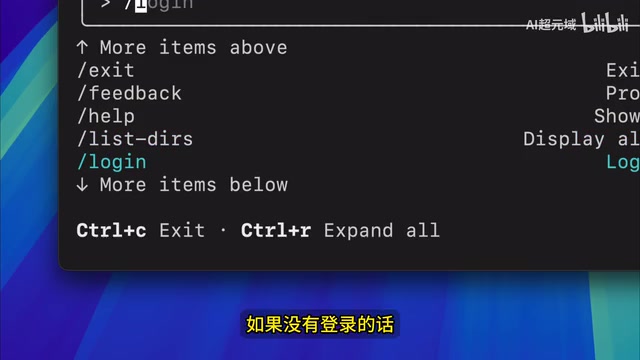
In interactive mode, use /help to view all supported commands:
| Command | Description |
|---|---|
/model | Switch models (default: Claude Sonnet 4, can switch to GPT-5, etc.) |
/cwd | Set working directory |
/clear | Clear context |
/mcp | Manage MCP servers |
/login | GitHub account authentication |
/session | View current session info |
One point deserves special attention: Copilot CLI comes pre-connected to the GitHub MCP Server, meaning it can operate on GitHub repositories, Issues, and Pull Requests out of the box — this is its biggest differentiator compared to Claude Code and Codex CLI.
Technical Significance of GitHub MCP Server: GitHub MCP Server is the official MCP server-side implementation provided by GitHub. It wraps GitHub REST API and GraphQL API into a standard MCP toolset covering core functionalities including repository management, Issues, Pull Requests, and Actions. For Copilot CLI, having the GitHub MCP Server built-in means the AI model can directly operate the GitHub platform through "tool calls" without users manually executing git commands or switching to a browser. The architectural advantage of this deep integration lies in shorter operation chains and more complete contextual information (the AI can simultaneously perceive code content and repository state), enabling truly end-to-end automated development workflows.
MCP Extensions: Connecting External Knowledge Sources
MCP Protocol: The "USB Port" for AI Tool Interconnection
MCP (Model Context Protocol) is a standardized protocol proposed and open-sourced by Anthropic in late 2024, designed to solve interoperability issues between AI models and external tools/data sources. Before MCP, every AI tool needed separate integration solutions for different data sources, making maintenance costs extremely high. MCP is like the "USB port" of the AI field — as long as tools and data sources follow the same protocol, they can interconnect in a plug-and-play fashion. MCP has already gained support from major vendors including OpenAI, Google, and Microsoft, and is becoming the de facto standard for the AI tool ecosystem.
How to Add Custom MCP Servers
Copilot CLI supports extending its capabilities through the MCP protocol. Using Context7 (a documentation retrieval MCP service) as an example, here's how to set it up:
- Execute
/mcpin interactive mode, pressAto add a new server - Enter the MCP name (e.g.,
context7) - Select the connection method (HTTP), fill in the corresponding URL and API Key
- Press
Ctrl+Sto save the configuration
Once configured, you can invoke it using natural language. For example, typing "Use Context7 to find what new features were added to AtoZ" will have Copilot CLI retrieve documentation via MCP and return structured results. Press Ctrl+R to expand and view the raw retrieval content.
This MCP extension mechanism means Copilot CLI is no longer limited to code generation — it can connect to any external data source, incorporating technical documentation, API references, and internal knowledge bases into your development workflow.
Hands-On Demo: Building a Windows 95 Desktop Simulator from Scratch
One Prompt to Complete an Entire Project
To test Copilot CLI's Agentic Coding capabilities, we gave it a challenging task: develop a highly faithful Windows 95 desktop simulator with complete features including a desktop system, window management, Notepad, My Computer, Start menu, and Command Prompt.
What is Agentic Coding?: Agentic Coding refers to the ability of AI systems to autonomously plan, decompose, and execute multi-step programming tasks — distinct from traditional "Q&A-style" code completion. In Agentic mode, AI doesn't just generate individual code snippets; it works like a human developer: analyzing requirements, breaking down subtasks, calling tools, handling errors, and iterating until the complete deliverable is finished. This paradigm was thrust into the industry spotlight by Devin (Cognition AI) in early 2024, with Claude Code, Codex CLI, Cursor, and other tools subsequently following suit, making it the core competitive dimension for AI coding tools in 2024-2025.
After pasting the detailed prompt into the CLI, Copilot CLI autonomously completed the entire development process. When opened in a browser, the fidelity was remarkably high:
- Classic Win95 desktop icons and taskbar perfectly replicated
- "My Computer" opens normally and displays file structure
- Notepad supports text input and editing
- Start menu pops up correctly when clicked
- Windows support dragging, maximizing, and closing operations
Automatically Creating a GitHub Repository and Pushing Code
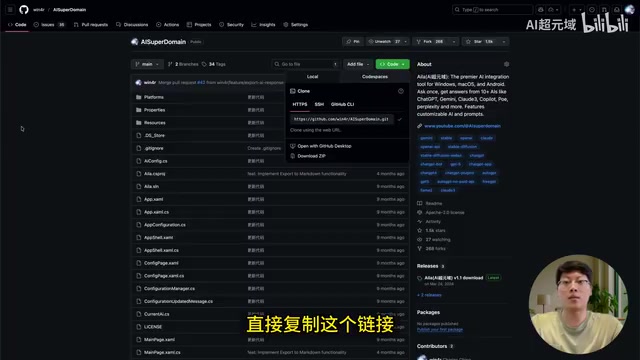
The follow-up operations are even more practical. We simply typed one sentence: "Create a README for this project, create a GitHub repository, and push the code."
Related articles
 Tutorials
ChatGPT Plus Subscription Guide: Are GPT-5.5, image-2, and Codex Worth the Upgrade?
A detailed look at ChatGPT Plus features — GPT-5.5, image-2, and Codex — with a Plus vs Pro comparison and a complete step-by-step subscription guide for users outside the US.
 Tutorials
Harness AI Engineering in Practice: Using Claude Code to Master Enterprise-Level E-Commerce Development
Deep dive into Harness AI Engineering: master enterprise e-commerce development with Claude Code using the Rules, Skills, Wiki, and Changes framework.
 Tutorials
Cursor + Codex Dual-IDE Collaboration: A Practical Methodology for Open-Source Project Customization
A complete methodology for open-source project customization based on real-world experience, detailing the Cursor+Codex dual-IDE workflow, seven-stage process, MVP validation, and AI source code reading techniques.