Godot MCP in Practice: Building an AI Game Development Environment from Scratch

Use Godot MCP to upgrade AI from a code suggester to a developer that can create directories, run scenes, and verify its own work.
The article uses Godot MCP as its main line to explain how to build an AI Agent game development workflow. It covers the two forms of Godot MCP and minimum capabilities, directory structure design with .gdignore and .gitkeep, having the Agent create directories via hard-constrained prompts, building MCP from source and configuring three servers, troubleshooting startup failures, Hello Agent for autonomous coding and verification, Git save points and Discard/Revert rollback exercises, and a final environment self-check checklist.
Why MCP Is the Key Piece of AI Game Development
While most people are still using Copilot to autocomplete code, an AI collaboration workflow built around Godot MCP can already handle the whole process—from creating directories and configuring the environment to running the first scene. This workflow upgrades AI from a "code suggester" to a "developer that can verify its own work," and the key is giving it hands to operate the game engine.
The core tasks of this lesson are concrete: have the Agent create the directory structure, connect Godot MCP, run the Hello Agent, and use Git checkpoints for archiving and rollback. It sounds like beginner operations, but each step hides the real barriers of AI collaboration.
Two Forms of Godot MCP and the Minimum Capability Requirements
Godot MCP comes in two types based on how it works. The command-line wrapper type calls Godot in the background—creating scenes, running projects, collecting output. Its advantages are that you don't need to keep the editor open, it's stable, and it's easy to configure; its drawback is that it can't perceive unsaved content in the editor. The Coding Solo version used as the course's main line belongs to this type. The editor plugin type is installed into Godot as a plugin and can directly modify the currently open scene and capture editor screenshots, at the cost of requiring the editor to stay open and involving more configuration steps.
For beginners, the minimum capability requirements are just four: read the project structure, create scenes and nodes, run the project, and read debug output. The main-line Godot MCP covers exactly these four—when reading the project, it queries the Godot version, finds the project, and reads project info; when creating scenes, it corresponds to Create Scene, Add Node, Save Scene, and Load Sprite for loading textures onto sprites; when running the project, it opens the editor and supports running and stopping in debug mode; when reading output, it gets runtime console output and errors via Get Debug Output. The last one is called "the key to the Agent's self-verification" in the course, because only when output is readable can the AI judge whether it did things right.
MCP (Model Context Protocol) is an open protocol proposed by Anthropic at the end of 2024 to standardize how large language models connect to external tools and data sources. You can think of it as the "USB interface of the AI world": the model side doesn't need to write adapter code for each tool—the tool side just needs to expose its capabilities (such as reading files, calling APIs, executing commands) according to the protocol, and both sides plug and play. An MCP server is essentially a local process that communicates with the client (such as the Copilot Agent in VSCode) over JSON-RPC, declaring which "tools," "resources," and "prompts" it provides. During a conversation, the Agent chooses which tool to call based on the task, and the tool's execution result is passed back to the model as context for the next step of reasoning. This is exactly the underlying mechanism by which Godot MCP in this article lets AI "verify its own work"—the AI doesn't operate the engine directly; it calls Godot's capabilities through the MCP server as an intermediary layer and gets the output back.
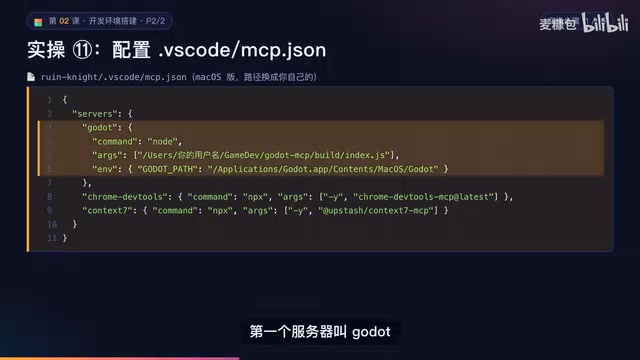
JSON-RPC and stdio transport are key to understanding why MCP configuration emphasizes absolute paths. MCP clients and servers commonly transmit messages over standard input/output (stdio), and the server process is launched by the client as a child process at startup. This means the process's working directory isn't necessarily the project root you opened, and relative paths will fail as the startup context drifts. Therefore, path parameters such as Args and GodotPath in mcp.json must be written as absolute paths to ensure the target file can be located no matter where it's launched from.
Project Directory Structure: Give AI a Map That Never Changes
The three course projects share the same directory structure, so that AI can always find files in familiar locations. The root directory is the Godot project and also the Git repository. On the left are instructions and configuration written for AI—the project constitution, instructions, prompts, custom Agents, and skills; on the right, in order, are Docs for design documents, the style bible, and acceptance reports, ArtSource for raw AI output, and Tools for auxiliary scripts; formal assets that go into the game go in Assets, scenes in Scenes, scripts in Scripts, configuration tables in Data, and tests in Tests.
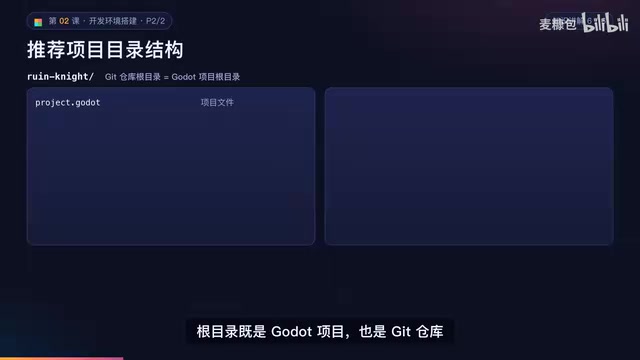
There's an easily overlooked detail in the structure: the three red folders such as ArtSource and Tools each contain an empty .gdignore file. With it, Godot won't scan or import these directories. ArtSource may hold hundreds of discarded AI drafts, and without this file the editor would be noticeably slowed down. The remaining empty directories contain .gitkeep so Git can record empty folders. This "map for AI" design is essentially using conventions to reduce the search cost of every AI decision.
.gdignore and .gitkeep are two "placeholder conventions" with completely different purposes, and beginners easily confuse them. .gdignore is a marker file recognized by the Godot engine: as long as it exists in a directory, the Godot editor's file system scanning and asset importing will skip that directory. It doesn't need any content—an empty file works—and it won't be imported as a resource. This is especially important for directories holding large amounts of raw material (such as discarded AI-generated drafts), because Godot by default generates .import files and caches for every image, and hundreds of images will significantly slow down startup and import speed.
.gitkeep has nothing to do with Godot; it's a Git community convention: Git itself only tracks files, not empty directories, so a directory containing no files will "disappear" after committing. Put an empty file named .gitkeep in it, and Git has something to track, preserving the directory structure. It has no special syntax—the name is just convention, and .keep or README would work equally well. Used together, the two exactly correspond to the article's two needs: telling the engine "don't come in" and telling Git "please remember me."
Let the Agent Create Directories: Constraints Matter More Than Instructions
Actual operation starts by opening the project folder in VSCode, trusting the author, and entering Agent mode. The prompt sent to the Agent lists the directories to create along with three hard constraints: put .gdignore in three folders, put .gitkeep in the remaining empty directories, and don't touch existing files; finally, state the acceptance criteria and output format. During execution, the Agent may request to run terminal commands, and the course's advice is to read the command content before clicking allow.
Verification after completion is intuitive: in VSCode's Explorer all directories are present and the three .gdignore files are in place; back in the Godot editor's FileSystem panel, however, these three folders have disappeared—their "disappearance" is precisely proof that .gdignore is working and Godot is no longer scanning or importing them.
Building Godot MCP and Configuring Three Servers
Godot MCP must be built from source and placed in a fixed location outside the project, because it's a tool, not part of the game. In the terminal, run in sequence: enter the Gamedev folder, clone the repository, enter the directory, install dependencies, and build. The sign of success is that the command ends without red errors and an index.js appears under the Build folder—note down its absolute path. The Readme also provides a way to run it directly with npx; the course chose to clone and build for offline use and version pinning.
The MCP configuration is written in .vscode/mcp.json at the project root, either manually or by having the Agent create it. The three servers have clear divisions of labor: the Godot server runs the built index.js with Node, with Args set to the absolute path of index.js and GodotPath set to the Godot executable path; Chrome DevTools and Context7 run directly via npx with no build needed. At startup, click Start above each server name, or use MCP List Servers from the command palette; a status of Running means success. Then, in Agent mode's tool icon, find the Godot group and expand it to see tools like Run Project, Get Debug Output, and Create Scene.
A security reminder deserves its own underline: MCP servers run with the current user's permissions, so only install open-source servers from trusted sources; when the Agent requests to execute terminal commands, read them once before allowing.
The Most Common Crash Site: MCP Startup Failure
The first type of error is when Godot Path only goes as far as godot.app and omits the rest, with the log reporting that godot can't be found. On macOS you must point all the way to the executable inside godot.app. The second type is spawn node ENOENT in the log, meaning VSCode can't find the node command—usually because Node.js was installed without restarting VSCode; fully quit and reopen it. If that still doesn't work, change command to node's full path. The troubleshooting routine is uniform: first look at the raw log text in show output, then check paths item by item.
Hello Agent: AI's First Time Writing Code and Verifying It
This step gets AI truly hands-on. The prompt gives three goals: create a Hello scene with a text node that says Hello Agent, create Hello.gd that prints a greeting in the ready function, and use godot.mcp to run the scene, read the debug output, and then stop; the constraints are not to modify existing files and not to set the main scene; the acceptance criteria are explicit down to "the greeting appears in the output and there are no errors."
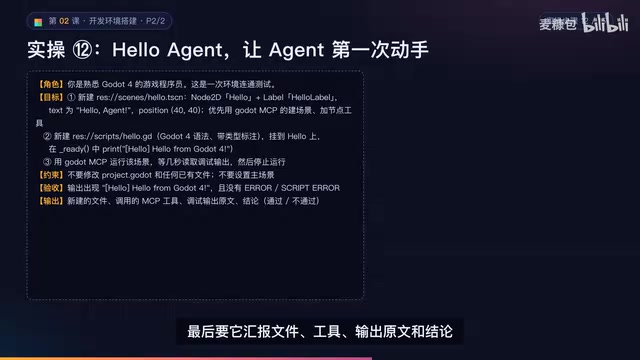
The Agent will report the files, tools, raw output, and conclusions. Focus on that print line—what it prints is the evidence of a successful run. Manual review involves three things: open hello.tscn and press F6 to run the current scene, confirm the text appears in the upper-left of the window and the greeting appears in the output panel; double-click hello.gd in the FileSystem panel to confirm it opens in VSCode, which incidentally verifies the external editor setting.
Git Checkpoints and Two Rollback Exercises
Git is compared to game saves: the repository is a folder with save functionality, and a commit is a save point recording a snapshot of all files. If you break something without a save, use Discard to throw away changes and return to the previous save point; if you only discover the problem after saving, use Revert to generate an inverse commit that cancels that change, keeping the history intact. Godot's .godot folder is a cache that can be regenerated at any time and doesn't need saving. From this the course establishes an iron rule: commit a save point after each small step—AI breaking things is normal, and with saves you don't need to fear it.
The two rollback exercises are designed practically. The first is breaking things without committing: have the Agent change the text to "whoops" and create Junk.gd, then Discard All Changes—the text is restored and Junk.gd disappears. The second is discovering a problem after committing: have the Agent change to new text and commit, then right-click that commit in History and choose Revert; a new inverse commit appears in history and the original record remains. There's also the case when the Agent has just finished editing in chat without confirmation—you can use the undo or keep buttons in chat, but they only affect this conversation; long-term archiving still relies on Git.
The difference between Discard and Revert is the key watershed of Git rollback, and understanding it is how you choose the right tool. Discard (discard changes) acts on uncommitted modifications in the "working tree"; essentially it restores file contents to the most recent commit, and discarded changes cannot be recovered via Git—it's a destructive operation. It suits the scenario "I broke it before saving."
Revert (revert commit) acts on commits that have "already entered history": Git calculates the changes introduced by that commit and generates a new commit with the opposite content to offset it, while the original commit remains in history—so it's a safe operation that is traceable, collaborative, and can be undone again. It suits the scenario "I only discovered this save point was bad after saving." In addition, the in-chat undo button mentioned in the article only affects temporary file changes produced by the current conversation and doesn't enter Git history; it becomes invalid when the conversation ends. The three operate at different levels: in-chat undo manages a single operation, Discard manages the uncommitted working tree, Revert manages committed history, and the long-term reliable "save" is always the Git commit itself.
Environment Self-Check Checklist and Collaboration Points
The final self-check is divided into two phases. The earlier items are the software itself: Godot standard edition, extensions, Copilot login, Agent mode, Node.js, Python, and Git. The later items are the project and connectivity: external editor, renderer, directories and .gdignore, the three MCP servers, tool list, Hello Agent, and Git save points. You can first have the Agent run a read-only check and output a table, then confirm each item manually.
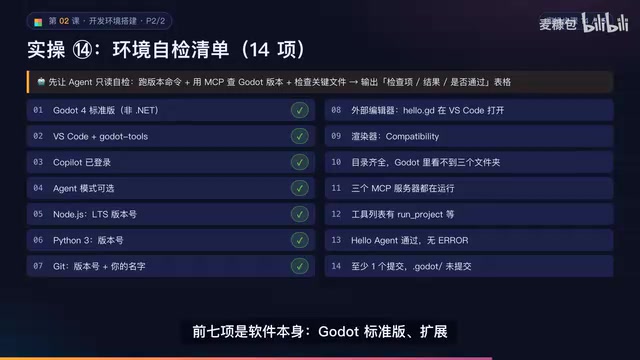
Among the pitfalls summarized in the course, a few are especially worth remembering: always write absolute paths for Args in mcp.json, because the MCP process doesn't necessarily run in the project root; when Godot is missing from the tool list, confirm in order that the server is started, the chat is in Agent mode, and the Godot group is checked; when the Agent guesses run results instead of using MCP, the prompt must state to run with Godot MCP, read the debug output, and paste the raw text; when Godot shows a popup, choose reload rather than overwrite; if .godot appears in the change list, it means .gdignore is missing; paths containing Chinese characters or spaces should all go into the Gamedev folder.
The basic homework is to close all software or even restart the computer, then confirm that MCP can start again and Hello Agent can pass again—many environment problems only surface after a restart. The advanced task has the Agent change hello.gd to print the current time once per second, run for three seconds to confirm at least two prints, and then commit a save point. The tools are installed, but knowing how to use tools isn't the same as knowing how to direct AI; the next lesson moves on to the six elements of prompting and the project constitution.
FAQ
Q: Should I choose the command-line wrapper type or the editor plugin type for Godot MCP? A: If you want stability and easy configuration and don't need to see editor content in real time, choose the command-line wrapper type; only if you need to directly modify the currently open scene or capture editor screenshots do you need the editor plugin type.
Q: Why does .gdignore make folders disappear in Godot?
A: That's how it takes effect—Godot no longer scans or imports that directory, avoiding large amounts of raw AI material slowing down the editor.
Q: After the Agent finishes changing code, how do I confirm it really ran successfully? A: Ask the Agent to run the project with Godot MCP and paste the raw text of Get Debug Output, using the printed content and whether there are errors as the acceptance basis, rather than just the AI's verbal conclusion.
One-line Summary
Use Godot MCP to upgrade AI from a code suggester to a developer that can create directories, run scenes, and read output to verify its own work.
Paragraph Summary
The article uses Godot MCP as its main line to explain how to build a collaborative workflow that lets an AI Agent truly develop games hands-on. It covers: the two forms of Godot MCP (command-line wrapper and editor plugin) and four minimum capability requirements; a unified directory structure design that uses .gdignore to prevent Godot from scanning massive AI assets and .gitkeep to preserve empty directories; using hard-constrained prompts to have the Agent create directories automatically; building MCP from source and configuring three servers in mcp.json; troubleshooting common MCP startup failures; using Hello Agent to complete AI's first autonomous coding and run verification; and Git-based save points plus two rollback exercises with Discard and Revert, ending with an environment self-check checklist and collaboration points.
Related articles

VERS: Editing Activation Explanations to Halve Reasoning Model Tokens
VERS guides reasoning models by editing activation explanations, cutting 45.8% of tokens on GSM8K with only a 0.82 pp accuracy drop and transferring to larger models, but losing accuracy on competition problems.

Finding Errors Is Not Enough: Selective Model Escalation for Entity-Targeted Sentiment Analysis
This study explores selective model escalation for entity-targeted sentiment analysis, comparing data collection ordering, uncertainty-driven re-examination, and model routing—finding that minority-class priority only helps at very small data volumes, the oracle upper bound far exceeds actual gains, and escalation must be tailored to each dataset.
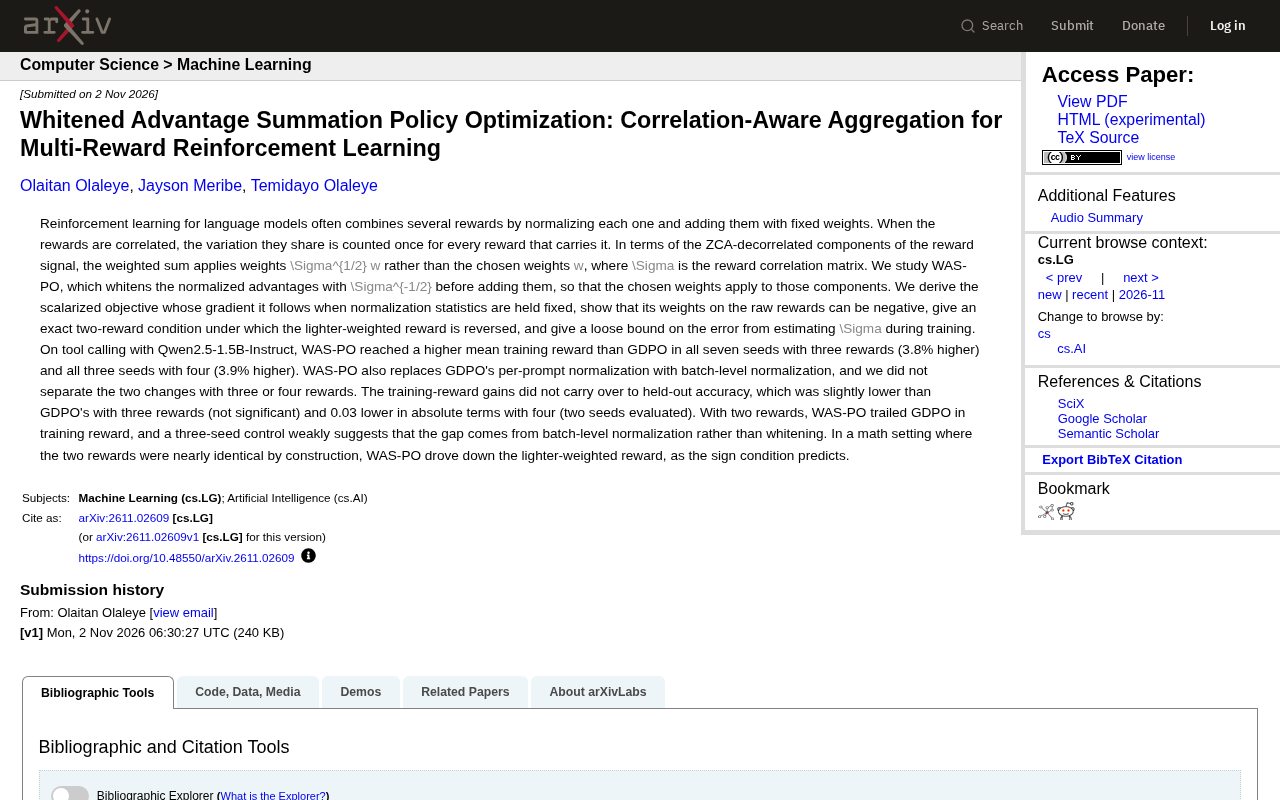
WAS-PO: Using Whitened Advantages to Solve the Correlation Trap in Multi-Reward Reinforcement Learning
WAS-PO paper proposes whitening advantages to correct correlation bias in multi-reward RL: when rewards are correlated, naive weighted summation effectively applies Σ^{1/2}w instead of w. Experiments show training reward improves steadily, but held-out accuracy does not improve in sync, and under two rewards it actually falls behind.