Google AI Studio Free Usage Guide: Experience Full-Power Gemini at Zero Cost

A full guide to using Google AI Studio for free to access Gemini 2.5 Pro and other top models.
Google AI Studio is the official free channel for accessing top models like Gemini 2.5 Pro — just a Google account required. This guide covers its three interface areas, key parameter settings (Temperature, Thinking Level, Grounding search), the no-code Build feature for creating apps with plain language, and a smart quota strategy: save Pro for complex tasks and use Flash for everyday questions.
Want to experience Google's most powerful Gemini models without spending a dime? Google has long offered an official free channel — Google AI Studio. All you need is a Google account to access top-tier models including Gemini 2.5 Pro.
Gemini 2.5 Pro is a flagship multimodal large language model launched by Google DeepMind in 2025. It supports a context window of up to 1 million tokens (roughly equivalent to hundreds of pages of documents) and excels at code generation, mathematical reasoning, and long-context understanding. Across multiple authoritative benchmarks, it performs on par with or ahead of OpenAI's GPT-4o and Anthropic's Claude 3.5 Sonnet. Google positions it as a "Thinking Model," meaning it performs deeper reasoning chain analysis before responding rather than simple pattern matching.
This guide walks you through everything — from interface layout and core parameters to hands-on applications — so you can get the most out of this seriously underrated official tool.
Google AI Studio Interface Layout: Three Key Areas at a Glance
When you first open Google AI Studio, the all-English interface might feel a bit overwhelming — but don't worry. Your browser's built-in translation feature can handle it easily. The entire interface is divided into three core areas:
The left navigation panel serves as the hub for all features. The most important is Playground, your primary workspace for interacting with models. Playground is a well-established concept in the AI world for interactive testing environments, first popularized by OpenAI on its API platform. Unlike a standard chat interface, Playground gives you direct control over the model's underlying parameters — essentially a "model debugging console" for developers and power users. Google AI Studio's Playground builds on this by adding multimodal input (images, audio, video) and real-time interaction, making it both user-friendly and professional.
Two other important sections are Build (for building applications) and Dashboard. The Dashboard lets you monitor your quota usage and API call statistics, while Build is a powerful application construction tool covered in detail later.
At the bottom of the navigation panel is a Get API Key entry point for requesting model API keys. An API (Application Programming Interface) key is a unique string identifier. When developers want to integrate Gemini's capabilities into their own applications, websites, or automated workflows, they use it to establish connections and authenticate. Unlike manual conversations in the interface, API calls allow batch processing and automated task execution — the critical bridge between "experiencing AI" and "applying AI." Beginners can skip this for now and explore it once they're comfortable with the basics.
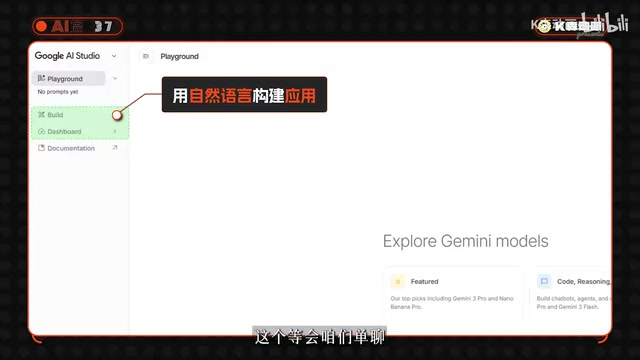
The center main panel is the core area for conversing with the model. Beyond the chat input box at the bottom, it offers several preset interaction modes including code generation, logical reasoning, image generation, video generation, and music generation. The standout feature worth trying is Real Time mode, which supports live voice conversations and even screen sharing — letting AI provide instant guidance based on what's on your screen, with impressively fast response times.
The right parameter console is where you fine-tune AI behavior, and it's the key advantage that sets Google AI Studio apart from ordinary chat interfaces.
Core Parameters Explained: Making Gemini Work Your Way
The right-side parameter panel is the heart of the tool. Mastering these parameters can dramatically improve your results.
Model Selection
Clicking the model card at the top opens a complete model list. You'll find the latest Gemini 2.5 Pro, lightweight Flash series models, and various specialized models. Flash models use techniques like knowledge distillation and model quantization to achieve significant compression — trading some reasoning depth for faster response times and lower compute consumption. Different models vary considerably in capability and quota, so choose based on your task complexity.
System Instruction
This parameter lets you give the AI a persona and set ground rules. You can tell it directly: "You are now a programmer with ten years of experience," or require it to always output content in a specific format. Once set, the AI will follow these instructions for all subsequent responses — ideal for scenarios requiring consistent output.
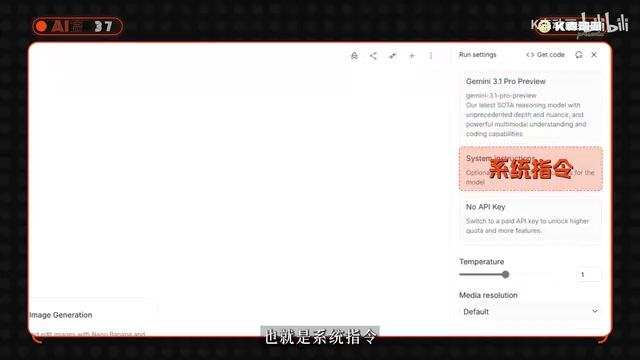
Temperature
This is the core parameter controlling how "creative" the AI gets. Temperature is derived from the Boltzmann distribution concept in statistical physics. In large language models, it controls the shape of the probability distribution over output tokens. Technically, when generating each word, the model calculates probability scores (logits) for all candidate words in the vocabulary, and the Temperature parameter scales these scores:
- Lower values (e.g., 0.1–0.4): The model almost always picks the highest-probability word, producing more precise and deterministic responses — ideal for coding and logical reasoning
- Higher values (e.g., 0.7–1.2): The probability distribution is "flattened," giving lower-probability words a better chance of being selected, resulting in more divergent thinking — great for creative writing and copywriting
At temperature 0, output is highly deterministic and reproducible; near 2, it can produce surprising or even incoherent content. Adjust flexibly based on your specific task rather than sticking with the default.
Other Key Parameters
-
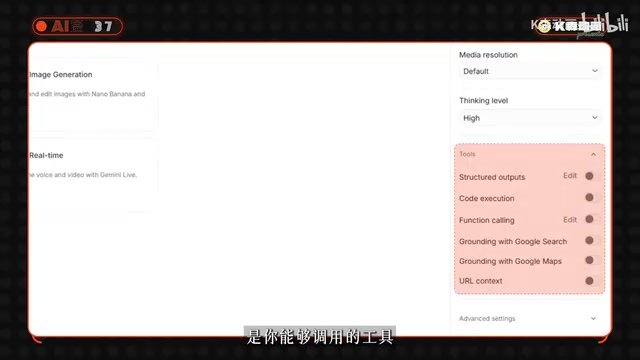
Media Resolution: When uploading images or video, you can select the quality level. Setting it to High significantly improves the AI's ability to recognize fine details.
-
Thinking Level: This parameter is closely tied to one of the most important recent breakthroughs in AI — Chain-of-Thought Reasoning. A 2022 paper by Google researchers first systematically demonstrated that having large models "show their reasoning steps" before giving a final answer significantly improves performance on math, logic, and complex problems. Gemini 2.5 Pro, as a "Thinking Model," has this step-by-step reasoning mechanism built in. Setting Thinking Level to High allocates more computational resources to the internal reasoning process, generating longer reasoning chains. While response time increases, accuracy improves substantially for multi-step problems, code debugging, and complex analysis tasks. For casual conversation, setting it to Low gives you lightning-fast responses.
-
Tools: It's strongly recommended to enable Grounding with Google Search. "Hallucination" refers to AI models confidently fabricating plausible-sounding but factually incorrect information when they lack relevant training data — a common flaw across all large language models, since a model's knowledge is limited to its training data cutoff. Grounding works by having the model query Google Search for the latest web information before generating a response, then injecting those search results as context into the model's reasoning process. This grounds responses in real, up-to-date data sources. This Retrieval-Augmented Generation (RAG) architecture has become the industry standard and, when enabled, effectively prevents outdated information and factual errors.
Build Feature: Create Complete Applications Without Writing Code
The Build feature in the left navigation panel is Google AI Studio's hidden ace. It represents the industry trend of AI-driven No-Code development — where traditional software development requires mastering programming languages, frameworks, and deployment processes, but no-code platforms dramatically lower that barrier through natural language interaction. Similar products include Anthropic's Claude Artifacts, Vercel's v0, and Replit's AI Agent. Build's core value lies in integrating frontend interface design, backend logic, and AI model calls into a unified auto-generation workflow — users simply describe what they want, without worrying about how to build it.
Even if you can't write a single line of code, as long as you can describe your needs in plain language, Build can generate a complete, functional application.
Here's a practical example: say you want to build an "audio-to-transcript" tool. Just describe your requirements like this:
I'll upload an MP3 audio file. Please transcribe it word-for-word, then refine the content by removing filler words and unnecessary verbal tics, and finally format it as a document with a download button.
After a brief wait, the AI generates a fully functional application with a complete interface. In testing, uploading an audio file quickly produces a well-formatted transcript. If you're not satisfied with certain features, you can continue refining them with natural language instructions until you're happy with the result.

Clicking the code button lets you view the complete source code for the entire project, which you can save locally for further development without any loss. Most importantly, using models for testing within the Build feature is also free. One caveat: once you save the project locally and run it yourself, you'll need to purchase API access to call the models.
Google AI Studio Free Quota and Usage Strategy
While Google AI Studio is free, Google sets usage limits per user to prevent resource abuse. The dual mechanism of "daily quota + per-minute limits" is standard practice in cloud computing and API services, technically known as Rate Limiting. Daily quotas control total usage to prevent any single user from consuming excessive compute resources; per-minute limits (RPM, Requests Per Minute) protect the server's concurrent processing capacity and prevent service degradation from sudden traffic spikes.
| Model | Daily Quota | Per-Minute Limit |
|---|---|---|
| Pro (flagship) | ~50–100 requests | Up to 5 requests |
| Flash (lightweight) | Hundreds to thousands | Around a dozen |
The Pro model allows only about 5 requests per minute because its reasoning process requires substantial GPU compute — the cost per inference is far higher than the lightweight Flash model.
This makes usage strategy critically important:
- Reserve the Pro model for genuinely challenging tasks, such as complex code debugging and in-depth analysis
- Switch to Flash for everyday simple Q&A — it saves your quota and is more than capable enough
A practical tip: never use a top-tier model for small talk. Burning a precious request on "Hey, you there?" is a real waste. Use your quota wisely — organize your complete question and relevant context before each query to maximize the value of your free allowance.
Summary
Google AI Studio is currently the most convenient and cost-effective official channel for experiencing the Gemini model family. It offers rich parameter control capabilities and a built-in no-code application builder, making it valuable for both AI newcomers and developers alike. With a smart usage strategy, you can achieve professional-grade AI experiences at absolutely zero cost.
Key Takeaways
- Google AI Studio is the official free channel for accessing full-power Gemini models — all you need is a Google account
- Core parameters include Temperature (controls creativity), Thinking Level (reasoning depth), and Grounding with Google Search (live web access) — configuring these properly significantly improves results
- The Build feature enables no-code application development — describe your needs in plain language and get a working tool
- Free quotas are limited: Pro model allows ~50–100 requests per day, Flash allows hundreds to thousands — plan your usage accordingly
- Real Time mode supports live voice conversations and screen sharing for instant AI guidance based on your screen content
Related articles
 Tutorials
ChatGPT Plus Subscription Guide: Are GPT-5.5, image-2, and Codex Worth the Upgrade?
A detailed look at ChatGPT Plus features — GPT-5.5, image-2, and Codex — with a Plus vs Pro comparison and a complete step-by-step subscription guide for users outside the US.
 Tutorials
Harness AI Engineering in Practice: Using Claude Code to Master Enterprise-Level E-Commerce Development
Deep dive into Harness AI Engineering: master enterprise e-commerce development with Claude Code using the Rules, Skills, Wiki, and Changes framework.
 Tutorials
Cursor + Codex Dual-IDE Collaboration: A Practical Methodology for Open-Source Project Customization
A complete methodology for open-source project customization based on real-world experience, detailing the Cursor+Codex dual-IDE workflow, seven-stage process, MVP validation, and AI source code reading techniques.