Google AI Studio Prompt Tutorial: Turn Plain Language into Professional AI Video Prompts Instantly

Use Google AI Studio's Gemini model to turn plain language into professional AI video prompts
This article introduces a method for generating professional AI video prompts using Google AI Studio's Gemini model. The four-step workflow: access Google AI Studio, select Gemini 2.5 Pro, configure System Instructions covering seven dimensions including camera language, lighting design, and artistic style, then input plain language to receive cinema-grade prompts ready for use on platforms like Jimeng, Kling, and Runway.
Many people, after seeing the stunning AI-generated videos others have made, eagerly sign up for AI video platforms like Kling or Jimeng, subscribe to premium plans ready to create — only to find themselves staring blankly at the prompt input box, unable to string together a few decent words.
Their creative passion gets crushed by the mountain called "how to write prompts."
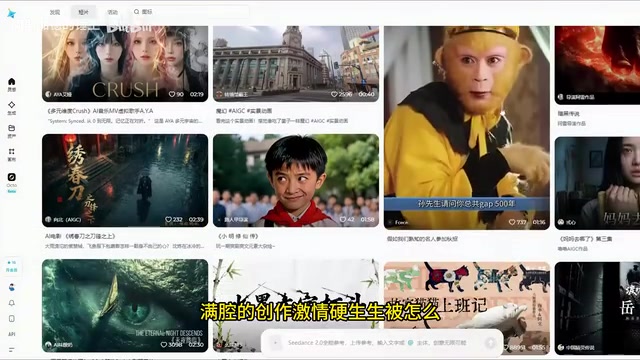
The truth is, you don't need to struggle with prompts on your own. This article will walk you through using Google AI Studio to let Gemini transform your plain language into cinema-grade AI video prompts complete with shot composition, lighting, and style descriptions.
Core Idea: Use Gemini as Your Prompt Engineer
The logic behind this method is straightforward: use a more powerful language model to write professional prompts for AI video generation tools.
Mainstream AI video tools like Jimeng, Kling, and Runway are extremely sensitive to prompt quality. This sensitivity stems from their underlying Diffusion Model architecture — the model generates video frames by progressively denoising from random noise, and the prompt serves as a "navigation signal" throughout this process. The model encodes text into high-dimensional vectors that guide each denoising step. This explains why the same creative idea yields drastically different results when described as "a girl in the rain" versus a professional prompt with camera parameters and lighting descriptions — a professional prompt essentially provides the model with a more precise coordinate point in high-dimensional semantic space. A carefully crafted prompt containing composition, camera movement, lighting atmosphere, and artistic style descriptions will produce far superior results compared to simple plain language.
But the problem is that most people lack professional filmmaking knowledge and don't know how to describe concepts like "backlighting," "shallow depth of field," or "tracking long shot." This is where Google's Gemini model comes in — let it serve as your "AI prompt engineer" that automatically fills in all the professional details.
Step 1: Access the Google AI Studio Platform
The core tool we'll use is Google AI Studio (aistudio.google.com). This is Google's official model application platform where you can use the latest Gemini series models for free.
Google AI Studio was formerly known as MakerSuite and was renamed and upgraded in late 2023. It's more than just a simple chat interface — it's Google's model experimentation platform for developers and creators, integrating prompt design, model fine-tuning, API key management, and more. Unlike chatting directly through the Gemini web interface, AI Studio provides a System Instructions feature that allows users to set the model's role and behavioral guidelines before a conversation begins, which is crucial for building stable, reusable prompt generation workflows.

Before you start:
- Accessing Google AI Studio may require a VPN depending on your region
- You need a Google account to log in
- The platform itself is free to use with a certain API call quota (the free quota is typically sufficient for daily use by individual creators)
Once inside, click Playground in the left navigation bar — this is our main workspace.
Step 2: Select the Gemini 2.5 Pro Model
In the upper left corner of the Playground interface, you'll see a Model dropdown menu. Click to expand it and select Gemini 2.5 Pro (or the latest available version).
Why choose the most powerful model? The reason is straightforward: the stronger the model's capabilities, the deeper its understanding of cinematic language, photography terminology, and artistic styles, resulting in higher-quality AI video prompts. Gemini 2.5 Pro is a multimodal large language model from Google DeepMind that uses a Mixture of Experts (MoE) architecture — meaning the model contains multiple expert sub-networks internally, activating only a subset during each inference, allowing it to maintain massive parameter counts while controlling computational costs. The model features an ultra-long context window (supporting up to 1 million tokens) and excels in creative writing, complex instruction following, and multilingual understanding. For prompt generation scenarios, its advantage lies in simultaneously understanding the professional meaning of filmmaking terminology and the true intent behind users' plain language, establishing precise mappings between the two — making it ideal for this use case.
Step 3: Configure System Instructions — The Most Critical Step
This is the most critical step in the entire workflow. In the Playground interface, you'll find a System Instructions input area.

System Instructions give Gemini a fixed identity and set of working guidelines. From a technical standpoint, System Instructions occupy a special input tier in large language model architecture, with higher priority than regular user conversation input. In the Transformer architecture, system instruction tokens are placed at the forefront of the attention mechanism, exerting continuous constraining influence on all subsequently generated content. This means that regardless of what users input afterward, the model will respond within the framework established by the system instructions. This is fundamentally different from saying "please role-play as a character" in regular conversation — the latter's constraining power diminishes as conversation turns increase, while System Instructions maintain stable influence throughout.
You need to tell it here: "You are a professional AI video prompt engineer," and specify in detail what dimensions the output prompts should cover.
7 Core Dimensions System Instructions Should Cover
A high-quality set of system instructions should require Gemini to cover at least the following when generating prompts:
- Subject Description: Appearance, actions, expressions, and other details of characters/objects
- Scene Environment: Background setting, weather, time of day, etc.
- Camera Language: Camera position (close-up/medium shot/wide shot), camera movement (dolly/pan/tilt/tracking/following), depth of field
- Lighting Design: Light source direction, light type (natural/neon/backlight), contrast
- Artistic Style: Overall visual style (cyberpunk/realistic/anime/film grain, etc.)
- Color Palette: Dominant colors, saturation, color temperature tendency
- Mood and Atmosphere: The emotional tone conveyed by the image
Let me elaborate on the "camera language" dimension. The five basic camera movements in filmmaking are: Dolly In (camera moves toward the subject), Dolly Out (camera moves away from the subject), Pan/Tilt (camera rotates at a fixed position), Tracking Shot (camera moves parallel to the subject), and Following Shot (camera follows the subject's movement). Depth of Field refers to the range of the image that appears sharp — shallow depth of field creates background blur (bokeh), commonly used in close-ups to emphasize the subject. These terms appear extensively in AI video model training data, so using them in prompts significantly improves the professional quality of generated results.
Once these requirements are written into the system instructions, no matter how simple your subsequent input is, Gemini will automatically expand it according to this framework, outputting structurally complete professional AI video prompts.
Step 4: Input Plain Language, Generate Professional Prompts Instantly
After configuring system instructions, in the chat box at the bottom, you simply describe the scene you want in the most casual everyday language.
Example input:
Generate a prompt for a punk-style little girl eating noodles in the rain
Gemini will instantly output an extremely professional video prompt, something like:
"Close-up shot of a young girl with neon-streaked hair sitting at a rain-soaked street food stall, slurping steaming ramen noodles. Cyberpunk aesthetic, rain droplets catching the glow of holographic billboards overhead. Shallow depth of field, warm tungsten light from the stall contrasting with cool blue neon reflections on wet pavement. Handheld camera with subtle movement, cinematic 2.39:1 aspect ratio, film grain texture..."

All you need to do is copy this prompt directly, paste it into the input box of Jimeng, Kling, or any other AI video tool, and hit generate. A high-quality AI video is that easily done.
Advanced Tips: Four Ways to Level Up Your Prompts
The basic workflow above handles most scenarios. If you want more refined results, here are four optimization directions worth exploring:
1. Customize Prompt Formats for Different AI Video Platforms
Different AI video tools have different prompt preferences. For example, Jimeng works better with Chinese prompts, while Runway and Sora prefer English descriptions. This difference stems from the language distribution in each platform's training data — Jimeng's training data contains extensive Chinese description-video pairs, so Chinese prompts more precisely activate its semantic understanding; whereas Runway and Sora are primarily trained on English data, naturally performing better with English prompts. You can explicitly specify the output language and format in your system instructions to better match prompts to your target platform.
2. Add Storyboard Script Generation Capability
If you need to generate multiple consecutive shots to form a complete story, you can instruct Gemini in the system instructions to output in a "storyboard script" format. A Storyboard Script is a critical bridge document between screenplay and actual production in the film industry, typically containing fields such as: Shot Number, Shot Size, camera movement description, visual content, dialogue/narration, sound effects/music cues, and estimated duration. Borrowing this format for AI video creation allows you to break down a complete creative idea into multiple independently generable shot units, each corresponding to one AI video prompt — with each shot individually numbered and annotated with duration, transition type, etc. This makes it convenient to generate shots one by one and then assemble them in sequence using editing tools like CapCut or Premiere, adding transitions to create complete short films with narrative structure.
3. Build a Visual Style Template Library
You can prepare separate system instructions for different visual styles (such as Japanese anime, Hollywood blockbuster, documentary, music video, etc.) and switch between them as needed, saving time on reconfiguration. For example, a "Japanese anime" template might preset cel shading, soft halation, and 16:9 composition parameters, while a "documentary" template presets handheld cinematography, natural lighting, and muted tones. As your template library grows, your creative efficiency will increase exponentially.
4. Use Multi-Turn Conversations for Iterative Optimization
Google AI Studio supports multi-turn conversations. If the first generated prompt isn't quite right, you can continue the conversation to fine-tune it — for instance, saying "make the lighting darker," "switch to an overhead angle," or "add slow-motion effect." Gemini will adjust based on the existing output until you're satisfied. The advantage of this iterative approach is that Gemini retains all previous conversation history in its context window, making each adjustment an incremental modification rather than generating from scratch, efficiently converging toward your ideal vision.
Summary: Four Steps to Master AI Video Prompts
Writing AI video prompts is essentially a "translation" problem — translating the vague visual ideas in your mind into professional language that AI video models can understand. And Google AI Studio paired with the Gemini model is currently one of the most capable "translators" available.
The entire workflow takes just four steps: Open Google AI Studio → Select the Gemini model → Configure System Instructions → Input plain language. From now on, prompts are no longer a roadblock on your AI video creation journey, and you can focus your energy on the creativity itself.
Key Takeaways
- Use Google AI Studio's Gemini model as a "prompt translator" that automatically transforms simple plain language into video prompts with professional dimensions including camera work, lighting, and style
- The core process is four steps: Access Google AI Studio → Select the latest Gemini model → Configure System Instructions → Input natural language descriptions to receive professional prompts
- System Instructions are the soul of the entire workflow, needing to cover multiple dimensions including subject, scene environment, camera language, lighting design, and artistic style
- Generated prompts can be directly copied and pasted into AI video platforms like Jimeng, Kling, and Runway for zero-barrier professional-grade video creation
- Advanced techniques include customizing formats for different platforms, adding storyboard script capability, building style template libraries, and iteratively optimizing prompts through multi-turn conversations
Related articles
 Tutorials
ChatGPT Plus Subscription Guide: Are GPT-5.5, image-2, and Codex Worth the Upgrade?
A detailed look at ChatGPT Plus features — GPT-5.5, image-2, and Codex — with a Plus vs Pro comparison and a complete step-by-step subscription guide for users outside the US.
 Tutorials
Harness AI Engineering in Practice: Using Claude Code to Master Enterprise-Level E-Commerce Development
Deep dive into Harness AI Engineering: master enterprise e-commerce development with Claude Code using the Rules, Skills, Wiki, and Changes framework.
 Tutorials
Cursor + Codex Dual-IDE Collaboration: A Practical Methodology for Open-Source Project Customization
A complete methodology for open-source project customization based on real-world experience, detailing the Cursor+Codex dual-IDE workflow, seven-stage process, MVP validation, and AI source code reading techniques.