Google AI Studio Tutorial: A Comprehensive Guide to Gemini from Beginner to Advanced

A comprehensive guide to Google Gemini's three usage methods and AI Studio's core features and workflows
Google Gemini is redefining AI workflows through deep integration with the Google ecosystem. This article systematically covers three ways to use Gemini: direct website conversations (with Canvas and Deep Research), Google app sidebar integration, and the Google AI Studio professional platform. It details core settings like temperature, system instructions, and the Prompt Gallery, while showcasing practical applications including YouTube video analysis, web information extraction, voice generation, Imagen 4 text-to-image, Gemini Live multimodal real-time interaction, and building apps with a single sentence.
Google Gemini, as a later entrant in the large language model space, has surpassed OpenAI O3, Claude 4, and DeepSeek R1 in the latest mathematical reasoning and programming benchmarks, claiming the top spot. These benchmarks typically include MATH (high school and competition-level math problems), GPQA (graduate-level science Q&A), HumanEval, and SWE-bench (code generation and software engineering capability assessments). However, benchmark scores don't always reflect real-world usage experience. What's more valuable than rankings is Gemini's deep integration with the Google ecosystem—from YouTube video analysis to Gmail email processing, from voice generation to app development, Gemini is redefining the practical boundaries of AI workflows.
This article provides a systematic overview from beginner to advanced, covering Gemini's three usage methods and the core features of Google AI Studio, helping you truly integrate AI into your daily workflow.
Three Ways to Use Gemini: From Zero Barrier to Professional Level
Method 1: Direct Conversation on the Gemini Website
The simplest approach is to open the Gemini website or app and start chatting—zero barrier to entry, anyone can do it. While the interface looks similar to other large models, there are two distinctive feature toggles at the bottom worth noting:
- Canvas Feature: When enabled, an editor panel splits out on the right side of the screen, presenting output in document form. You can freely edit within it, adjust length (expand or condense), set tone and style (conversational or formal), or even select a specific section and request a rewrite.
- Deep Research Feature: This is a major feature update in Gemini 2.5. When enabled, it can simultaneously search and browse hundreds of websites to help solve niche domain-specific problems, with task prioritization and issue identification capabilities. Combined with Canvas, it can also convert research reports into web pages, infographics, and even supports podcast output in over 24 languages.
Method 2: Sidebar Integration in Google Apps
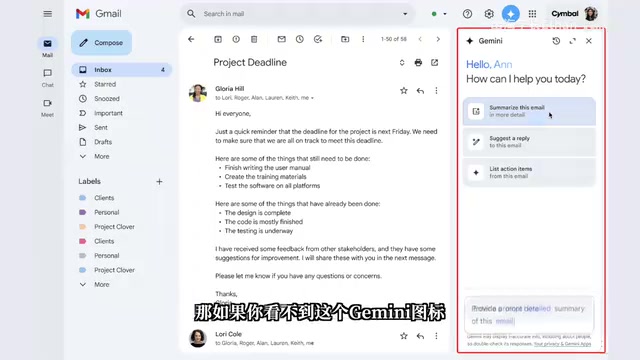
In Gmail, Google Sheets, Google Docs, and other Google applications, clicking the Gemini icon in the upper right corner lets you invoke AI capabilities directly from the sidebar. Have Gemini generate properly formatted email replies, quickly create charts in Google Sheets, or even summon Gemini directly from the Google search bar—this seamless integration is the true advantage of the Google ecosystem.
Method 3: Google AI Studio Professional Platform
Google AI Studio is a tool platform designed for developers and creators, offering far more features than the Gemini website. The same questions can receive more professional and in-depth answers here. If your goal in using AI is to boost work efficiency, Google AI Studio is the better choice.
Google AI Studio Core Settings Explained
Upon entering Google AI Studio, the center of the interface contains the instruction input box, and the right side shows runtime settings, defaulting to the latest Gemini 2.5 Pro. The following key settings directly affect output quality:
Temperature: Controls the creativity and imagination of AI responses. Higher values produce more creative, imaginative answers; lower values yield more rigorous, precise answers, though potentially more rigid. Adjust flexibly based on the task type. From a technical perspective, the model calculates the probability distribution (logits) of all candidate words in the vocabulary when generating each token. The temperature value is applied as a divisor to these logits: when temperature is below 1, the probability distribution becomes sharper, giving high-probability words more dominance and producing more deterministic output; when above 1, the distribution becomes flatter, giving low-probability words more chances, resulting in more diverse output. Generally, a temperature of 0 is suitable for factual Q&A and code generation, while 0.7-1.2 works well for creative writing and brainstorming.
System Instructions: Above the input box, you can preset Gemini's role, tone, and rules. For example, setting it as a senior marketing expert, a history professor, or requiring it to answer in a way a five-year-old could understand. If you frequently encounter the issue of AI switching to English mid-response, you can also preset "always output in Chinese" here. System instructions are essentially the productized implementation of the "role setting" technique in Prompt Engineering—at the API level, system instructions are tagged with the system role, and the model treats them as inviolable foundational constraints throughout the entire conversation, making language preference settings here more effective and stable than repeating the requirement in every message.
Prompt Gallery: Google has already created optimized templates for various common scenarios—code optimization, math problem solving, recipe generation, image creation, marketing plan writing, and more. Find a template for a similar task, fine-tune it to your needs, and you're set—no need to pay for prompts.

Practical Workflows: YouTube Video Analysis and Web Information Extraction
Batch Web Information Processing
Daily work often requires browsing numerous web pages and extracting and organizing information. Previously, attaching links to ChatGPT would often produce content with "hallucination" issues, requiring individual verification. AI Hallucination refers to large language models generating content that appears plausible but is actually inaccurate or entirely fabricated—this is one of the core challenges facing all current LLMs. The fundamental cause is that models are essentially probability-based text generators, not knowledge retrieval systems.
Gemini, however, can process multiple web links at once, identifying and extracting text, images, and videos from those links. This is powered by over two decades of Google Search's accumulated web crawling and information processing capabilities—including the Googlebot web crawler, Knowledge Graph, and deep integration with Retrieval-Augmented Generation (RAG) architecture, enabling the model to retrieve and verify web information in real-time during response generation rather than relying solely on knowledge memorized during training, significantly reducing the probability of hallucinations.
Deep Analysis of Long YouTube Videos
This is one of Gemini's most impressive workflows. Whether it's a YouTube link or a local video file, Gemini can quickly organize and summarize the content. In testing, a one-hour YouTube video was analyzed by Gemini in under a minute, extracting core points and logical structure.
For knowledge points you don't understand, you can continue the conversation with Gemini for deeper exploration. The organized knowledge points are logically clear, easier to understand, and more accurate and systematic when applied. The same instruction given to ChatGPT, while also producing a summary, yields extremely brief content, far less detailed and clear than Gemini's output.
Even more interesting, Gemini can identify the source of video clips. For example, given a movie clip, it not only accurately identifies which film it's from but can also describe the video scenes segment by segment—demonstrating it truly "understands" video content. This capability stems from Gemini's Natively Multimodal architecture: unlike earlier approaches that trained visual and language models separately and then stitched them together, Gemini simultaneously processes text, image, audio, and video data from the training stage, using a unified Transformer architecture for cross-modal understanding, enabling it to truly comprehend spatial relationships of objects in frames, temporal sequences, and semantic meaning.
Multimedia Creation: Voice Generation and Text-to-Image
AI Voice Generation
In Google AI Studio, click "Generate Media" and select the Gemini voice generation feature. It supports single-speaker and dual-speaker modes:
- Single-speaker mode: Choose a voice, describe the tone and style in the Style Instruction field (e.g., "warm and friendly tone"), paste your script, and generate.
- Dual-speaker mode: Set names and voices for two roles separately, use the script generator to assign lines like building blocks, and generate a two-person conversation audio.
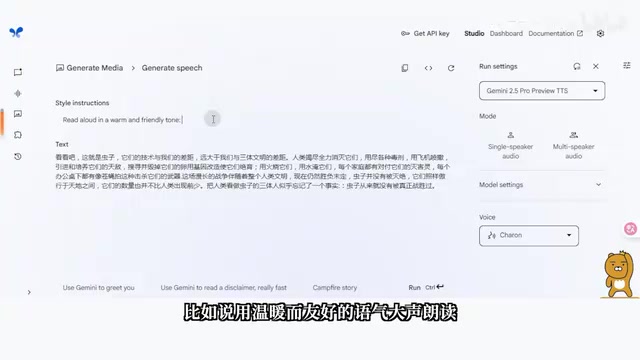
This feature is particularly suitable for content creator video voiceovers, film and TV dubbing, and even podcast audio production.
Imagen 4 Text-to-Image
Google AI Studio integrates the latest Imagen 4 model, breaking through a long-standing technical bottleneck in AIGC—garbled text in AI-generated images. Traditional text-to-image models like Stable Diffusion and DALL-E frequently produce errors when generating text. The fundamental reason is that Diffusion Models treat images as pixel-level continuous signals for denoising generation, while text is inherently a discrete symbol system—the model "understands" the visual form of letters but cannot guarantee correct spelling and arrangement of characters. Imagen 4 introduces a dedicated text rendering module in the diffusion process, elevating text generation from pixel-level prediction to character-level precise control, essentially embedding a "typesetting engine" in the image generation pipeline.
It not only generates text accurately but also automatically adjusts styling to match the image. In testing, generating a pixel-art poster containing the long text "2025 Google for Developers" produced perfectly legible text that was cleverly integrated into the visual elements. Generation speed has also improved by 10x, producing images in roughly 10 seconds.
Gemini Live: The Ultimate Form of Multimodal Real-Time Interaction
Access Gemini Live from the "Live Stream" option in the left panel of Google AI Studio. Beyond text communication, there are three multimodal interaction features:
Real-Time Voice Conversation
Similar to having a one-on-one phone call with AI, you can ask any question just as you would in a conversation with a real person. Whether for emotional companionship, language practice, answering questions, or brainstorming, Gemini Live performs remarkably well. This real-time interaction relies on Streaming Inference technology—the model can begin generating responses without waiting for complete input. Combined with Google's proprietary TPU chip clusters achieving millisecond-level latency, the conversation experience approaches the natural rhythm of human communication.
Real-Time Camera Recognition
Turn on your device's camera and let Gemini serve as your "eyes and brain" to analyze what it sees. Instantly get information about unfamiliar plants or animals, use it as your personal guide at museums and photography exhibitions, or even have it identify skincare product ingredients to help you choose suitable products.

Screen Sharing Collaboration
This feature is truly a game-changer—with screen sharing enabled, Gemini can directly see your screen content, as if AI were sitting in front of your computer guiding you step by step. You can ask for help with any problem encountered during work at any time, bringing the tangible AI experience to new heights.
Programming and App Development: Building Apps with a Single Sentence
Gemini 2.5 has surpassed ChatGPT O3 and Claude 4 in programming capabilities, particularly in multimodal programming—a single image plus one prompt can generate a small game. Some users have even demonstrated creating a runnable game in just 17 seconds with a single sentence.
Find the puzzle-shaped build button on the left side of Google AI Studio, describe your requirements in natural language, and it will directly generate an app. This represents the latest stage of convergence between the Low-Code/No-Code trend in software development and AI programming capabilities. Traditional low-code platforms lower the development barrier through visual drag-and-drop components, while AI programming goes further—users only need to describe functional requirements, and the model automatically handles architecture design, code writing, UI layout, and debugging. This relies on the large model's training on massive amounts of open-source code (such as GitHub data), enabling it to master the complete tech stack from frontend frameworks to backend logic.
If you just want to build a small tool for personal use, you don't even need to deploy it—simply use it in preview mode for daily tasks. The platform also provides numerous public modules, allowing you to quickly create music generation apps or build conversational applications using Gemini's real-time API. However, it's worth noting that AI-generated code still requires human review for security, maintainability, and performance optimization—it's currently best suited for prototype validation and personal tool development scenarios.
Final Thoughts
Google Gemini's true competitive advantage lies not in ranking first in any single capability, but in its deep integration with the entire Google ecosystem. From search to email, from documents to video, from voice to programming, Gemini is building a truly comprehensive AI workflow suite.
Every interaction helps you become a digital native of the AI era, seamlessly weaving AI into your daily work and life. After all, humanity's most valuable resource is time, and AI's purpose is to free us from repetitive labor.
Related articles
 Tutorials
ChatGPT Plus Subscription Guide: Are GPT-5.5, image-2, and Codex Worth the Upgrade?
A detailed look at ChatGPT Plus features — GPT-5.5, image-2, and Codex — with a Plus vs Pro comparison and a complete step-by-step subscription guide for users outside the US.
 Tutorials
Harness AI Engineering in Practice: Using Claude Code to Master Enterprise-Level E-Commerce Development
Deep dive into Harness AI Engineering: master enterprise e-commerce development with Claude Code using the Rules, Skills, Wiki, and Changes framework.
 Tutorials
Cursor + Codex Dual-IDE Collaboration: A Practical Methodology for Open-Source Project Customization
A complete methodology for open-source project customization based on real-world experience, detailing the Cursor+Codex dual-IDE workflow, seven-stage process, MVP validation, and AI source code reading techniques.