Google Antigravity in Practice: 6 Hidden Tips for Efficient Development

6 core tips for mastering Google Antigravity IDE's Agent First development approach.
Google Antigravity is Google's deeply customized Agent First IDE built on VS Code and powered by Gemini 2.5 Pro. This article covers 6 key usage tips: flexibly switching between Plan (slow thinking) and Fast (quick execution) modes; choosing the optimal model per scenario (e.g., Gemini 2.5 Pro for frontend); monitoring quota consumption in real time via a plugin; configuring global and workspace user rules to constrain AI behavior; and encapsulating common complex instructions into reusable workflows.
Core Tips for Using Google Antigravity
Google Antigravity is Google's deeply customized IDE built on VS Code and powered by the Gemini 2.5 Pro model—but don't treat it like a regular VS Code. Its core philosophy is "Agent First"—intelligent agents take priority. This represents a fundamental paradigm shift in AI-assisted development: traditional Copilot-style tools are essentially "enhanced code completion" that can only passively respond at the cursor position, while Agent-mode IDEs possess the ability to actively perceive, plan, and execute, calling on terminals, browsers, file systems, and other external tools to complete multi-step tasks. Anthropic, OpenAI, and Google significantly strengthened their models' Tool Use capabilities around 2024, driving the rise of Agent IDEs like Cursor, Windsurf, and Devin. Antigravity is Google's strategic product in this space. It's more like a virtual development employee than a simple editor plugin. This article compiles 6 key usage tips to help you truly master this powerful tool.
Make Good Use of Plan and Fast Modes
Once you enter the IDE, the dialog box offers two mode options: Plan mode and Fast mode.
Plan mode can be understood as AI's "slow thinking," suitable for handling complex tasks built from scratch. Under the hood, it corresponds to the "Chain-of-Thought (CoT)" technique in AI—Gemini 2.5 Pro is a reasoning model with extended thinking capabilities that consumes more tokens for internal deliberation before generating a final answer, similar to how OpenAI's o1/o3 series works. In this mode, the Agent won't rush to write code. Instead, like an architect, it first lays out a detailed execution plan and only begins implementation after you confirm everything looks good. Plan mode visualizes this reasoning process, allowing users to intervene and correct before execution. Essentially, it introduces a "confirmation checkpoint" in human-AI collaboration, significantly reducing the probability of AI going off track on complex tasks. The trade-off is higher reasoning token consumption, which means relatively higher quota usage.
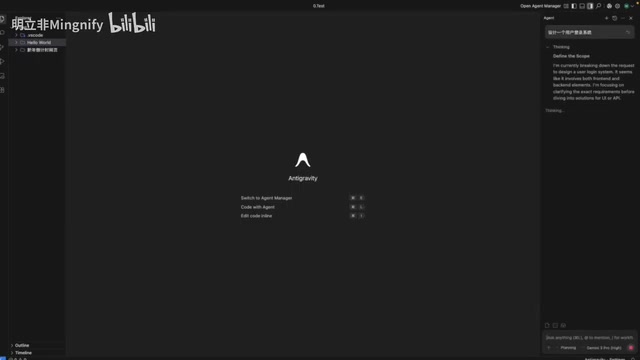
For example, if you ask it to design a user login system, it will go through deep thinking, list complete implementation steps and architecture plans, ensure the direction is correct, and then execute step by step.
Fast mode is all about speed and precision, ideal for clear and simple commands like fixing bugs or adjusting styles. It skips the elaborate planning steps and executes directly. For instance, changing a button from green to red—Fast mode can complete the modification in seconds.
Practical advice: Use Plan for complex requirements to ensure the right direction, use Fast for simple modifications to boost efficiency. Flexibly switching between the two is the best practice.
Mixed Model Strategy: Use the Right Model for Each Scenario
Antigravity allows you to switch the underlying model at any time, and we should maximize each model's strengths.
For example, when building frontend interfaces, it's strongly recommended to lock in Gemini 2.5 Pro. As Google's "homegrown" model, its visual understanding capabilities are exceptionally strong. This stems from the Gemini series' native multimodal architecture—unlike earlier approaches that bolted a visual adapter onto a text model, Gemini processes images, text, code, and other modalities in a unified manner from the training stage, enabling it to accurately understand visual hierarchy, color relationships, and layout structures in UI screenshots. Tailwind CSS's atomic class naming system also aligns well with the model's token processing approach, further improving generation quality. Ask it to create a frosted glass-style membership card using Tailwind CSS, and the generated UI looks aesthetically polished—almost ready to use without modification.

Choosing different models for different scenarios can elevate both your development experience and output quality.
Quota Monitoring: Say Goodbye to Usage Anxiety
Regarding the quota issue everyone cares about most, first let's clarify a concept: Antigravity's quota is user-based. No matter how many projects you create, they all consume from your account's total pool rather than being calculated separately per project. It's worth noting that Plan mode, due to its extended reasoning, typically consumes far more tokens per task than Fast mode, so you need to allocate usage scenarios wisely when quota is limited.
How do you monitor quota in real time? There's a recommended open-source plugin tool (GitHub link available in the original video description). Installation is straightforward: after downloading the VSIX file, click the menu in the top-right corner of the extensions panel and select "Install from VSIX."
Once installed, the bottom status bar displays remaining Gemini and Claude quota in real time. With this dashboard, you'll never have quota anxiety again.
User Rules Configuration: Help AI Better Understand Your Project
User Rules are divided into two layers:
- Global Rules: Apply to all projects, such as your code style preferences
- Workspace Rules: Only apply to the current project, such as configuration standards for a specific framework
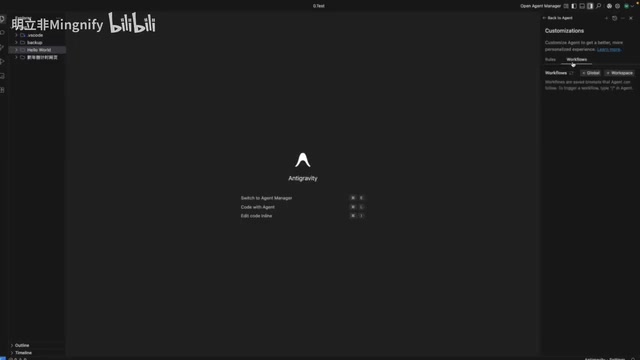
The underlying mechanism of user rules is "System Prompt" injection—before each conversation begins, the IDE pre-loads your configured rules as system-level instructions into the context, continuously constraining model behavior without consuming conversation turns. In the field of Prompt Engineering, this is called "behavioral constraints" and is one of the most effective methods for maintaining consistent AI output. Properly configuring these two layers of rules is essentially giving your AI employee a complete "onboarding training."
Once configured, the Agent automatically follows these constraints when generating code—you don't need to repeat them every time. For example, if you define TypeScript + ESLint standards globally, and specify Next.js 14's App Router pattern in the Workspace, the Agent will strictly generate code according to these specifications.
Workflow Reuse: Configure Once, Save Time Forever
The essence of workflows is reuse. You can encapsulate commonly used complex instructions, and when needed, simply type / in the dialog to invoke them directly.
For example, if you frequently need to execute a flow like "create component → write tests → update documentation," you can package it as a workflow and trigger it with one click. Configure once, save time forever.
As a side note, MCP (Model Context Protocol)—though very popular right now—is a standardized protocol proposed by Anthropic in late 2024.
Related articles
 Tutorials
ChatGPT Plus Subscription Guide: Are GPT-5.5, image-2, and Codex Worth the Upgrade?
A detailed look at ChatGPT Plus features — GPT-5.5, image-2, and Codex — with a Plus vs Pro comparison and a complete step-by-step subscription guide for users outside the US.
 Tutorials
Harness AI Engineering in Practice: Using Claude Code to Master Enterprise-Level E-Commerce Development
Deep dive into Harness AI Engineering: master enterprise e-commerce development with Claude Code using the Rules, Skills, Wiki, and Changes framework.
 Tutorials
Cursor + Codex Dual-IDE Collaboration: A Practical Methodology for Open-Source Project Customization
A complete methodology for open-source project customization based on real-world experience, detailing the Cursor+Codex dual-IDE workflow, seven-stage process, MVP validation, and AI source code reading techniques.