Grok Bot from Scratch: Installation & Login, Building an AI Team, and Cloud Agent Security Settings

Grok Bot tutorial: start with small task tests, then gradually expand a multi-Bot collaborative team.
This guide walks you through Grok Bot from installation and login to building a multi-Bot team. Verify the official source and chip architecture, judge subscription access by your account's actual rights, and keep your first Bot focused on requirements clarification and task breakdown. Use a small offline test to confirm it truly understood the attachment, split the team by work stage with a single owner per step, keep cloud operations separate from local permissions, route API credentials through a secure process, and configure Auto Review for high-impact actions.
Title
Grok Bot from Scratch: Installation & Login, Building an AI Team, and Cloud Agent Security Settings
Meta Description
A from-scratch Grok Bot tutorial: official download, installation, and login authentication, subscription access checks, creating your first assistant with a small test to verify it, then expanding to a researcher and planner Bot team for collaboration, covering cloud Agent installation, API credential security, Auto Review permission rules, and cost control.
Article Content
The hard part of getting started with Grok Bot isn't figuring out which button to click. It's resisting the urge to build a whole fleet of Bots right away and have them handle everything. The result is usually overlapping responsibilities, out-of-control permissions, and tasks competing with each other. This tutorial, starting from installation and login, follows a core principle: run a small test at every step, confirm responsibilities and permissions, and only then gradually expand the scope of tasks.
Installation and Login: First Confirm the Source and Architecture
Open the official Grok Bot download page and choose the installer for your system. On Mac, you need to distinguish between Apple Silicon and Intel; on Windows, between X64 and ARM64. If you're unsure, check your computer's system information first—don't download randomly from unfamiliar cloud storage.
- Mac: After downloading, open the disk image and drag the app into "Applications."
- Windows: Run the installer normally, then open it from the Start menu.
- If the system blocks it or the version doesn't match: Check the source and architecture first. Don't disable security protections to force an install.
After opening the app, follow the login prompts to authenticate in your browser, then return to Grok Bot. Regarding subscriptions: the new combined plan includes Bot starting from Premium, while older plans should be judged by the actual access rights in your account—don't rely on old videos to assume all subscriptions include it. Also, the new plan uses a shared pool and doesn't consume your existing quota.
Fill out the initial questionnaire and settings according to your own situation—you don't need to connect all your tools at once. Start with a small task using a non-sensitive document, which usually makes it easier to get the first step working. Tighten local execution permissions first, and confirm individually when you actually need them.
ARM64 and X64 are two different CPU instruction set architectures: X64 (also called x86-64) is the architecture used by traditional Intel/AMD desktop processors, while ARM64 is common on ARM-based chips (such as some Qualcomm processors and Apple Silicon). On Windows, ARM64 systems usually need the corresponding ARM64 app to perform at their best; although some systems can emulate X64 apps, you may run into compatibility or performance issues. On Mac, Apple Silicon (M-series) and Intel chips are also not interchangeable—downloading the wrong installer will result in the app failing to open or crashing. To check system information: on Mac, click the Apple menu in the top-left corner → "About This Mac"; on Windows, go to "Settings → System → About" and check "System type."
Creating Your First Bot: Treat It Like a Coworker with a Clear Role
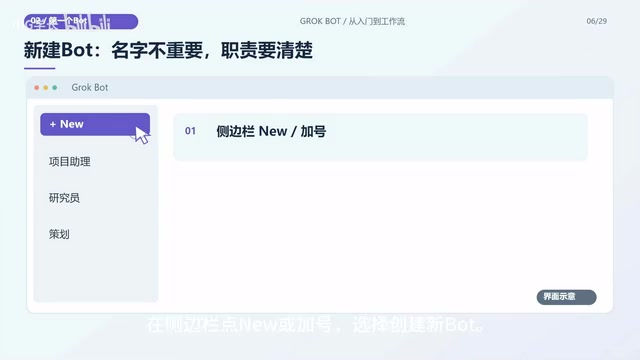
Click the blue dot on the side labeled New, or the plus sign, to create a new Bot. Edit its name, tags, description, and avatar. For your first Bot, the recommendation is to have it only handle clarifying requirements and breaking down tasks—not manage everything.
Don't just write "You are a very capable assistant" in the role description. You could write something like this: first clarify goals and constraints, then break down tasks and prioritize them; give a plan first, don't create other Bots, and don't send anything externally on my behalf. Long-term responsibilities and boundaries go in the Bot's description; what you want done this specific time goes in the chat message. If you find a problem with the rules, fix them promptly—don't just correct things casually in a single chat.
Prepare a role definition document and a content principles document, remove any irrelevant private information, and then upload them. Tell it which is the source of truth and which is a work preference, and what kind of output you want. Don't dump everything on your computer into it just because it can read files. When you need something organized into Markdown, first have it show you a summary and where it plans to save it; after you confirm, save as a new file without overwriting the original, and have it return the save path to you.
Bots under the same account share cloud files, so don't treat different Bots as isolated data stores.
A "role description" is essentially a preset system prompt or character setting for the Bot. It takes effect continuously across every conversation, defining the Bot's identity, responsibility boundaries, and behavioral guidelines. A "chat message," on the other hand, is a one-time user input that only affects the current turn. Putting long-term rules in the description and temporary tasks in the chat prevents the Bot from confusing its responsibilities across different tasks. The description should include: role positioning (e.g., requirements analyst), workflow (clarify first, then break down), prohibited actions (don't create other Bots, don't send externally), and output format requirements. After modifying the rules, it's recommended to start a new conversation or explicitly ask the Bot to follow the new rules to ensure they take effect.
Small Test Verification: See If It Actually Understood
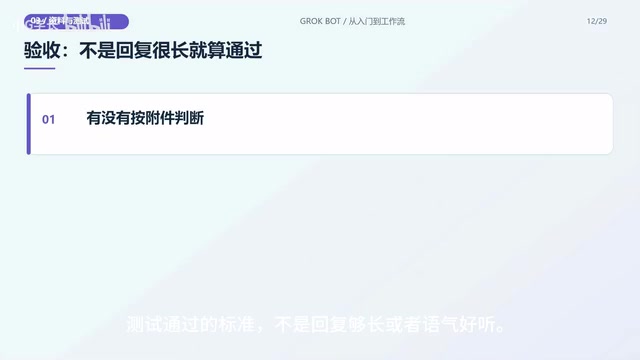
Start with a small offline test to see if it really understood the attachment requirements: give a suitability rating, three reasons, and one entry point. The key thing to watch is whether it references your principles, and whether it honestly admits when there's not enough information. Passing the test isn't about a long reply or a pleasant tone—it's about whether it judged according to the attachment, followed the constraints, and whether the result can guide the next step. If it fails, revise the rules and test again—don't rush to expand the team.
Expanding the Team: Split by Work Stage, Get Handoffs Working First
Once the first assistant is stable, split Bots by work stage. For example, the assistant breaks things down, the researcher finds evidence, and the planner turns the material into a proposal. More division of labor isn't always better—first get the handoffs among the three working smoothly.
Have the assistant plan first, and don't create the research Bot yet. Require it to prioritize primary sources, filter out duplicate coverage, keep a link and date for each item, and write no more than five items clearly; if information is insufficient, report the gap rather than making things up to fill the count. After you confirm the responsibilities and stopping conditions, have it create the corresponding Bot. Start with a small-scope task, and spot-check links, publication dates, and key facts. Create the planner Bot the same way—don't create several duplicate roles at once.
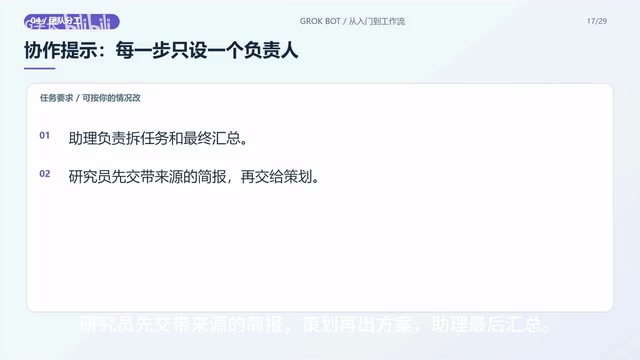
Click New, select the Bots you need for the writing task, create a group chat, and give it an easy-to-find name. The current desktop flow allows selecting multiple Bots; menu names may change between versions. Creating the group isn't enough—your next message should state the shared goal and who owns the next step, laying out tasks in order, with only one owner per step: the researcher delivers a briefing with sources first, then the planner produces a proposal, and finally the assistant summarizes. Also agree that nothing gets published directly, and that when materials are missing it should stop and ask you—avoiding task-grabbing and duplicate consumption.
Cloud Agent and Security Settings
Open the computer view to see the Bot's cloud browser and terminal. Cloud tasks won't stop automatically when you close your laptop, but operating the local computer in front of you is a separate permission—don't conflate the two.
When you need to install an open-source agent in the cloud, first give the official project documentation to the Bot and have it only check the cloud environment, reporting system dependencies, installation location, and required permissions. Review the plan before confirming, and make clear it must not install onto your local computer. Take Pi as an example: the official documentation currently requires Node at least 22.19—check the official docs before installing, and confirm dependencies and permissions before executing. After installation, check the version first; don't just trust an "installed" message.
When you need API credentials, don't paste them into ordinary chats, logs, or screen recordings. First confirm the provider's secure input process, and only use a credential storage method you understand. External APIs may be billed separately and need to be set up separately—if there's no secure process, stop first. After installation, go to a cloud test directory, configure the provider and model according to the tool documentation, and the first time only do a small task with no sensitive data, checking the output files and tool logs. If there's an error, keep the error message and diagnose first—don't just open up all the permissions.
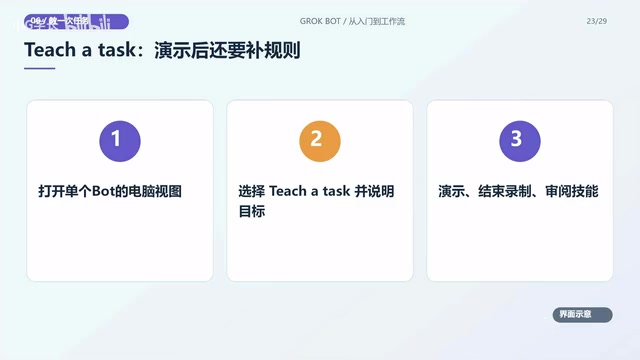
If your version shows Teacher Tax, you can demonstrate a process once in the computer view: state the goal first, then complete a small operation with no sensitive information. Review the skill after you finish recording; if this entry point isn't available, that's fine—you can have the Bot organize the skill based on written steps. What one recording produces is only a skill draft, not an automation that will never go wrong. Fill in exceptions, stopping conditions, and deliverables, test-run it with safe examples first, and only set up a schedule once it's stable—confirming the time zone, frequency, and how it should notify you on failure.
Open Auto Review in settings and add "ask first" rules for high-impact operations, such as sending emails, public posting, payments, deletion, and overwriting—have it stop and ask you to confirm first. When you encounter a permission request you don't understand, have it explain the goal and impact first; don't blindly allow it. Bots under the same account share cloud files (including logins)—it's not one safe per Bot. When a project ends, pause routine tasks you no longer need, log out of websites you no longer use, and revoke unused connections and authorizations. Sensitive data doesn't automatically disappear just because you hide a Bot.
The getting-started path can be summarized as: first make one small task reliable, then expand into a group of Bots collaborating. Clear roles, searchable materials, explicit handoffs, and finally well-managed costs and permissions—that's how a team you build is more likely to actually help you move work forward.
(The end of the original article includes a promotion for the Xinghuo AI service page, involving product descriptions, after-sales support, and a lottery event. Please refer to the page's real-time rules before participating; it is unrelated to using Grok Bot.)
A cloud Agent refers to an automated agent program running on a remote server, with its own independent browser, terminal, and file system, isolated from the user's local computer. The lifecycle of cloud tasks is managed by the server side—even if the user shuts down their local device, the task continues to execute. Local permissions, on the other hand, refer to the Bot's ability to directly operate your current computer's mouse, keyboard, files, and so on, which usually requires additional authorization. Distinguishing the two is important: software installed in the cloud won't appear locally, and cloud credentials shouldn't be casually invoked by local tasks. When installing an open-source agent in the cloud (like Pi), you need to confirm its runtime environment, dependency versions, and network access permissions to avoid exposing sensitive data to the cloud service.
Auto Review is a pre-operation review mechanism that allows users to set "ask first" rules for specific types of high-impact operations (such as sending emails, public posting, payments, deleting files, and overwriting saves). When the Bot is about to perform these operations, it pauses and requests user confirmation; the user can review the operation details and then decide to allow or deny. This is like adding a human gate to the automation flow, preventing the Bot from causing irreversible consequences due to misjudgment or excessive permissions. It's recommended to enable Auto Review for all operations involving external communications, finances, and data deletion in the early stages, and then relax it as needed once the flow is stable. At the same time, regularly review authorized connections and API keys, and revoke permissions you no longer use.
One-line Summary
Grok Bot tutorial: start with small task tests, then gradually expand into a multi-Bot collaborative team.
Paragraph Summary
This article provides a getting-started guide for Grok Bot, emphasizing getting one small task working first before expanding the team. During installation, verify the official source and chip architecture, and judge subscription access based on the actual rights in your account. Your first Bot should only handle requirements clarification and task breakdown—put long-term responsibilities in the description and specific tasks in chat messages. Verify through a small offline test whether the Bot truly understood the attachment; the standard is following constraints and being able to guide the next step. Split the team by work stage with a single clear owner for each step, and agree to stop and ask when materials are missing. Keep cloud operations separate from local permissions, route API credentials through a secure input process, and configure Auto Review "ask first" rules for high-impact operations. The ultimate goal is clear roles, searchable materials, and explicit handoffs for multi-Bot collaboration.
Related articles

Will GitHub Die? Open Source Maintainer Burnout and the Collaboration Crisis in the AI Era
Lex Fridman podcast discussion on open source maintainer burnout and GitHub's predicament: massive pull requests overwhelm core maintainers, and AI worsens code bloat. Using math journal peer review and Poincaré conjecture verification as analogies, the article analyzes why verification in knowledge production must be deliberately slow, and how open source communities can avoid the failure mode of maintainers exiting.
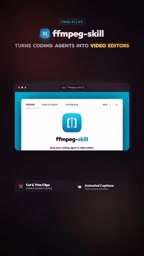
Stop Building Cookie-Cutter AI Websites: 3 Tools That Transform Your Coding Agent
Three tools that boost AI coding agents: FFmpeg skill for local video editing in Claude Code and Cursor, Hallmark's 50 design themes to fix cookie-cutter AI sites, and Jailbreaks' 25+ model prompts.

How America's Gerontocracy Squeezes the Younger Generation
Americans over 55 hold nearly three-quarters of national wealth, alongside an 80-year-old president and elderly congressional leaders. The Atlantic's Idrees Kahloon explains how gerontocracy drives up housing costs, squeezes opportunities for the young, and explores zoning reform and child poverty reduction as practical fixes.