Hermes Agent Getting Started Guide: Build a 24/7 AI Agent Team with Zero Code

Deploy Hermes on a VPS with Docker and build a multi-agent team for round-the-clock automated work.
This is a beginner-friendly guide to deploying the Hermes AI agent, aimed at solving the problem that the desktop version depends on your local machine being on and can't run around the clock. The article first explains why a VPS (Virtual Private Server) is needed as a hosting environment, then details how to deploy Hermes with one-click Docker Compose, including setting an admin password, connecting AI models, and linking channels like WhatsApp. It then covers Hermes's core concepts—the model is the brain, personality determines tone, memory stores user information, and skills are operating manuals. The article focuses on demonstrating how to create multiple agent profiles (manager, writer, researcher, editor), use the Kanban board to automatically break down tasks and enable pipeline collaboration, and use scheduled tasks so the team keeps working while the user sleeps. Finally, it summarizes three common failures and troubleshooting methods, and notes that Hermes can write its own skills, making the team stronger the more it's used.
Hermes is one of the most powerful AI agents available today, but it's also one of the hardest to get started with. Organizing email, doing research, tracking competitors, writing posts, handling outreach—it can do all of this, and it can do it while you sleep. The problem is that when beginners open the control panel, they're greeted with model keys, channels, and screens full of settings, and most people give up at this point.
This guide solves exactly one problem: getting Hermes running around the clock from scratch, even when you close your laptop. Going further, you can build a team of AI agents that work together—you only need to make decisions, not write code.
Why the Desktop Version Isn't Enough: You Need a VPS
Let's start with a practical problem. The desktop app depends on your computer staying on. The moment you close your laptop, everything stops—half-finished tasks, schedules set to trigger at 6 AM, agents waiting to be dispatched, all paused until you come back.
An agent that only exists while you're watching it isn't a real agent. What you need is a VPS (Virtual Private Server)—simply put, a computer in the cloud. Its most important characteristic is that it never gets shut down—your agents live there, not on your laptop. Throw a task at it, close your laptop, go to sleep, and it keeps working.
For configuration, the KVM2 plan offers 2 CPU cores, 8GB of RAM, and 100GB of storage—just right for running a fully featured agent team. The longer the purchase period, the lower the monthly price.
A VPS (Virtual Private Server) uses virtualization technology to divide a physical server into multiple isolated virtual environments, each with its own operating system, CPU, memory, and storage resources. Unlike shared hosting, a VPS provides root access and full system control, allowing users to freely install software and configure services. Common VPS providers include DigitalOcean, Linode, and Vultr, which typically bill hourly or monthly and support scaling up or down at any time. For services that need to stay online for long periods, such as running AI agents, the core advantage of a VPS lies in its network connectivity and data-center-grade power reliability, ensuring continuous availability without interruptions from local power or network outages.
Installation: Docker Compose Makes Deployment a Few Clicks
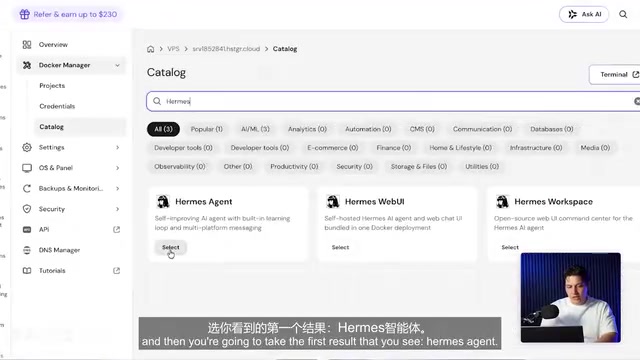
Installation used to be a painful step, but it isn't anymore. Open the Docker manager in your VPS panel, go to Compose, search for Hermes in the directory, and select the first result.
The system will ask you to set an admin username and password. Be sure to set a strong password—this lock protects your entire agent, so don't use a string anyone could guess. Once set, store it somewhere safe.
Click deploy, and installation is essentially done. No commands to type, no manual configuration needed. Log in with the username and password you just set, and you'll enter the Hermes dashboard—almost everything from here on happens in this interface.
Docker Compose is the official container orchestration tool provided by Docker, defining and running multi-container applications through a single YAML file. In a Compose file, you can declare multiple services (such as databases, web servers, and message queues) and specify their dependencies, network configuration, and environment variables. After running the docker compose up command, Docker automatically pulls images, creates networks, and starts all containers, enabling one-click deployment. Compared to manually running multiple docker run commands, Compose greatly simplifies the deployment process for complex applications, making it especially suitable for environments that need to be set up quickly and reproduced. Many VPS management panels (such as Baota and HestiaCP) have integrated Compose functionality, so users only need to select or import a Compose file in the graphical interface to complete deployment without memorizing command-line parameters.
Understanding the Core Concepts: Brain, Personality, Memory, and Skills
Once you understand how Hermes works, everything else falls into place.
The model is the agent's brain. Hermes itself isn't the intelligent part—the agent's brain comes from the AI model you connect. Each agent also has its own personality and memory. Personality determines who they are—their tone and writing style; memory is what they know about you. Tell them once, and they remember forever.
Skills are the operating manuals—step-by-step guides for getting actual work done. There are currently 27 built in. More importantly, Hermes can write its own skills—we'll see this in action later.
A few other concepts: scheduled tasks are jobs that run at set times, like automatically executing at 7 AM every day; channels are connections to apps like WhatsApp; keys store passwords for your other services; profiles are where you create more agents; and the Kanban board in the plugins section is where agents collaborate like a team. The gateway status in the bottom left corner should always show "Running"—that's the agent's heartbeat.
In the field of AI agents, "memory" typically refers to an agent's ability to persistently store conversation history, user preferences, and task context. Unlike stateless chatbots, agents with memory can retain information across sessions—for example, remembering a user's name, writing style, or previously discussed topics. Implementation methods include vector databases (converting text into embedding vectors for semantic retrieval), key-value stores (directly saving structured data), or summary caches (compressing long conversations into key points). Hermes's memory mechanism allows agents to continuously accumulate knowledge about the user across multiple interactions, thereby providing more personalized service—this is also one of its key differentiators from ordinary chatbots.
Giving Your First Agent a Brain and a Mobile Entry Point
To connect a model, I used Cloud's API, but you can use other providers too. Generate an API key in your provider's backend and paste it into Hermes's keys page. Be careful never to expose the key on screen. Then in the model settings, change the primary model to Cloud Opus, and your agent has a brain.
The first agent serves as a personal assistant: checking email, telling you which messages actually need attention, and helping with research. To put it on your phone, go to Channels and find WhatsApp—a QR code will appear. Scan it with your phone, just like logging into WhatsApp Web. The code expires quickly, so just regenerate it if you miss it.

Then add your phone number to the allowlist—a list of people permitted to talk to the agent. Click Start Gateway in the bottom left corner; new connections require a restart to take effect.
Connecting email doesn't require manual configuration either. Hermes has a built-in email skill—just type "help me set up Gmail" in the chat, and it will guide you step by step. The main thing you need is a Gmail app-specific password, generated in your Google account security settings (two-factor authentication must be enabled first).
Hands-On Test: From Email to Research to Draft
Pick up your phone and send a message: "What emails do I need to handle today?" It starts going through your inbox, filtering out the noise, and returns the three most important emails along with what you need to do for each. Then send a follow-up: "Research the company in the second email and draft a reply for me." It starts searching, and after a moment returns a company brief plus a written reply. And it only drafts—nothing gets sent until you authorize it.
Building the Team: A Manager Plus Three Workers
The assistant is great at email research, but if you also want content output—a LinkedIn post or even a newsletter—you need a second agent that does one thing only: write in your style.
In Hermes, each agent is called a profile, with its own memory, brain, and responsibilities. Go back to the dashboard, open Profiles, and create a new one named "Writer".
Here's a key trick: create it as a copy. A brand-new profile is completely blank with no brain; copying brings over the keys and settings so it's ready to use immediately. Then write the description: "Write articles, posts, and newsletters in my style." Be specific with descriptions, because when agents write, Hermes reads these descriptions to decide who does what.
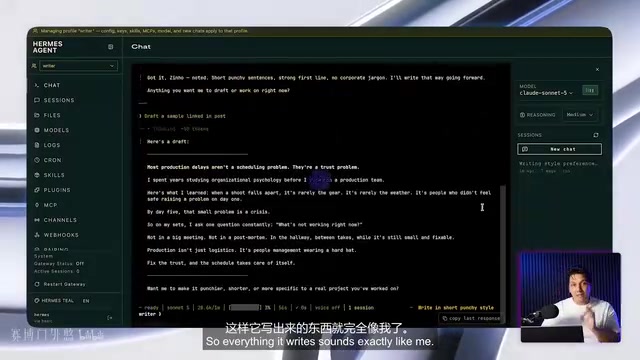
Switch to the Writer profile and set the model to Cloud Sonnet. In the chat, tell it your writing style: short, punchy sentences, strong openings, no corporate jargon. It will remember, and everything it writes afterward will sound exactly like you.
Follow the same steps to create two more: Researcher, with the description "Find me the latest news and trends in my industry"; and Editor, with the description "Fact-check content before I see it." The Editor role is especially important—because it didn't write the article, it isn't grading its own homework.
There's a simple principle for model selection: give the smartest model to the boss, and the cheapest model to the workers. Keep Opus for the assistant as the manager responsible for delegating work; use Haiku for the Researcher and Editor—fast and cheap; keep Sonnet for the Writer, because writing quality is critical.
Finally, switch back to the main agent and enable its Kanban tool so it can assign work to the team.
The "Opus," "Sonnet," and "Haiku" in model selection are the three tiers of Anthropic's Claude series of large language models, arranged from highest to lowest in capability and cost. Opus is the flagship model with the strongest reasoning ability, suitable for complex decisions and task planning, but with the highest invocation cost; Sonnet is the balanced model, striking a balance between performance and price, suitable for scenarios like content creation that demand quality; Haiku is the lightweight model with the fastest response and lowest cost, suitable for relatively simple tasks such as fact-checking and information retrieval. When building multi-agent systems, assigning different tiers of models based on task complexity can effectively control overall API costs while ensuring output quality at key stages.
The Kanban Board: Your Agent Team's Office
Now you have a manager and three workers—they need a place to work together, and that's the Kanban board. Don't be intimidated by the name; if you've used tools like Trello, the logic is the same: each task is a card that moves between columns as work gets done, from Waiting to In Progress to Done. The difference is that in Hermes, the agents move the cards themselves.
Send a message to the manager: "Have the team write me a LinkedIn post about the biggest AI news this week." A new card immediately appears on the board, and the manager breaks it down into tasks itself: research goes to the Researcher, writing to the Writer, fact-checking to the Editor. They form a pipeline—writing can't start until research is done.
The board checks for new tasks every 60 seconds. Click Nudge Dispatcher to trigger it immediately: the research card enters Running status, and once complete, the Writer automatically picks up—the results are already waiting in the task, not a handoff from scratch, but completed automatically.

A fact-checked post written in your voice is done and sent straight to WhatsApp. The team handles research, writing, and verification—all you have to do is sit back and make all the decisions.
Making It Work While You Sleep: Scheduled Tasks
Send another instruction to the manager: "Every morning at 7 AM, check my inbox, send me the things that need my attention, and then have the team write a post for my inbox about the biggest news in my industry." It will confirm the schedule. Open the Schedules page in the dashboard, and you'll see the task and its next run time—you can edit, pause, or run it immediately. Run it now: the inbox summary goes to your phone, a new card appears on the board, and the whole team starts working. Tomorrow at 7 AM, it will do it all again, whether you're awake or not.
Three Pitfalls That Will Waste You Hours
Pitfall one: the team won't take on work. Check the bottom left of the dashboard—if gateway status isn't running, no one is dispatching tasks. Click Start Gateway.
Pitfall two: the agent takes on work but keeps getting it wrong. This is usually because the role description is too vague. If you only say "do fact-checking," it will only do that; describe the content clearly, and it will understand everything.
Pitfall three: a task jumps to blocked status immediately after creation. This is usually because it was assigned to a non-existent agent name, most likely a typo. Hermes retries twice and then flags it—just verify the name and unblock it.
A Team That Gets Stronger as It Works: Self-Written Skills
Remember when I said Hermes writes its own skills? Open the skills list, and you'll see a new one—created by the team itself while working, containing instructions on how to research and write that kind of post. No one asked it to do this. Next time it writes a similar post, it will find that skill and use it directly.
This is the difference between a chatbot that requires you to explain things over and over and a team that gets stronger as it works. This setup applies to almost any scenario: swap the Writer for outreach emails, swap the Researcher for competitive intelligence, and you can build an entirely new team in minutes.
It should be noted that the configuration process, plan specifications, and operation steps above all come from a single video source demonstration. The actual interface may change with version updates, so please refer to the latest official documentation.
Related articles
 Tech Frontiers
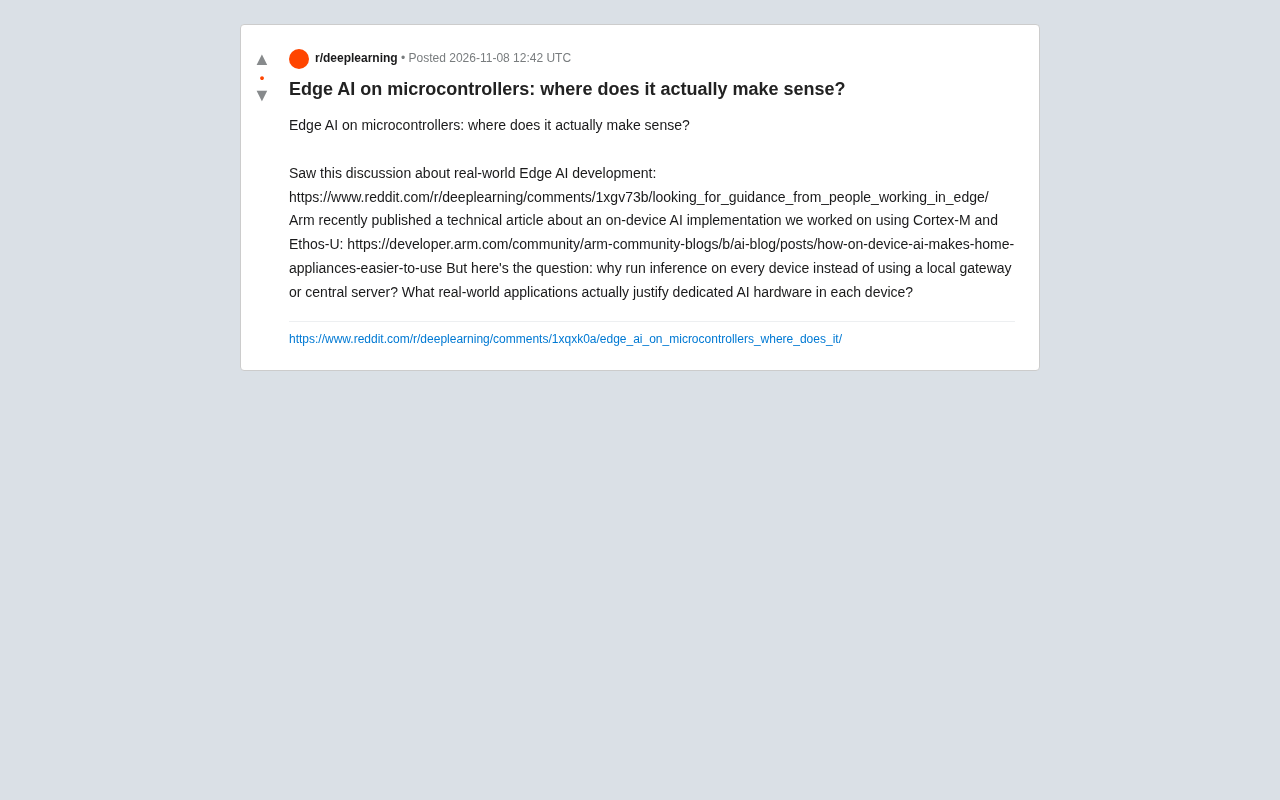
Edge AI on Microcontrollers: When Is It Actually Worth Deploying?
Drawing on Reddit discussions and Arm case studies, this article analyzes the real-world use cases for edge AI on microcontrollers: when each device needs independent inference, when a gateway or cloud is more reasonable, and the costs and boundaries of specialized hardware.
 Tech Frontiers
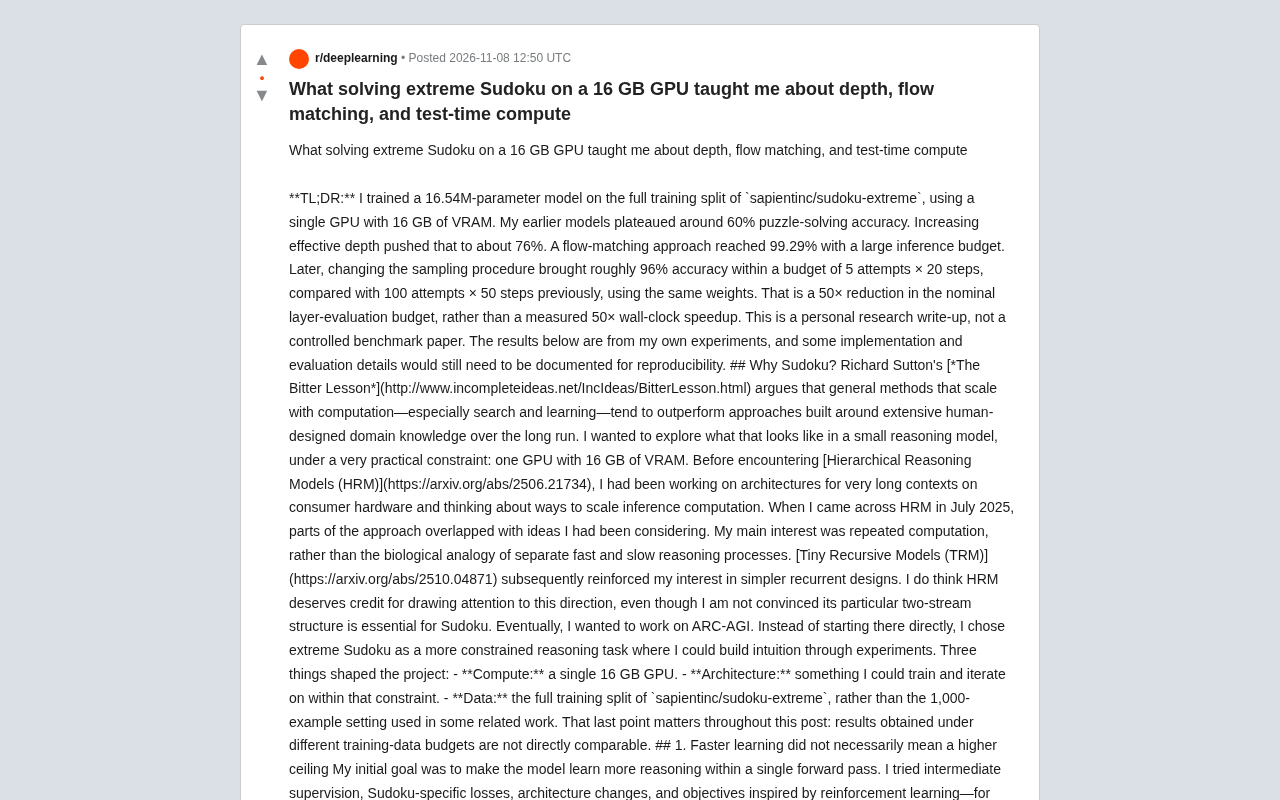
Pushing the Limits of Extreme Sudoku on a 16GB GPU: Insights from Depth and Flow Matching
A researcher trained a 16.54M-parameter model on a 16GB GPU to solve extreme Sudoku, finding effective depth breaks the 60% plateau and flow matching with improved sampling pushes accuracy past 99% with ~50× lower layer-evaluation budget.
 Tech Frontiers
AI Agent Approval Workflows: Why Human Confirmations Always Get Mindlessly Clicked
Why do AI agent approval workflows always get mindlessly clicked? A Reddit discussion shows that separating rules from keys, low-frequency high-risk approvals, and GitHub Environments-style gates are the keys to effective approvals.