How to Convert Phone Photos to PDF: Merge Images into One PDF in Seconds

An analysis of the workflow, use cases, and capability boundaries of mobile image-to-PDF tools.
The article breaks down the complete workflow of mobile image-to-PDF tools: entering the Image to PDF feature from the Tools tab, batch-selecting gallery images, choosing to merge into one PDF or export separately, adjusting page order by drag and drop, and finally completing conversion locally and downloading and sharing. It notes that no computer or cloud intermediary is needed throughout, making it safer for privacy-sensitive content. Typical use cases include reimbursement archiving, submitting ID materials, organizing study notes, and archiving contracts and receipts. It also points out the boundaries: for more than fifty images, deep editing, or strict file size control, desktop remains more suitable.
Your phone's camera roll is piled up with ID photos, invoice screenshots, contract pages, and handwritten notes. If you need to send them to someone or archive them, sending each original image one by one is both messy and space-consuming. Merging them into a single PDF is the easiest solution.
A demo video on YouTube shows the typical workflow of this kind of utility app: open the Tools tab, select the Image to PDF feature, check the images you want to convert, merge them into one or export them separately with a single tap, then save and share. The entire process happens on your phone—no need to transfer anything to a computer. This article breaks down the key steps in this workflow and analyzes the value and limitations of image-to-PDF conversion in real-world scenarios.
Core Workflow: From Selecting Images to Exporting
Utility apps compress the image-to-PDF process into very few steps. Enter the Tools tab and select Image to PDF, then check the target images from your gallery—you can select one or multiple.
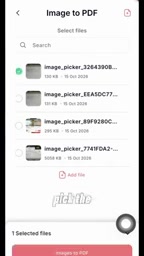
The design focus here is batch selection. When handling invoices and receipts on a phone, users often need to convert five to ten images at once, and processing them one by one would be extremely tedious. Batch selection is now a standard capability in mainstream tools.
Merge into One File or Export Separately
After selecting images, the tool offers two output modes: merge all images into a single PDF, or generate a separate PDF file for each image.

This option looks simple, but it actually determines the tool's range of applicability. Merge mode suits scenarios like contracts, reports, and portfolios that need to be delivered as a whole; separate export suits batch processing of reimbursement documents and archiving scanned files one by one. The two modes cover most everyday needs, so users don't need to install two apps for different scenarios.
PDF (Portable Document Format) was released by Adobe in 1993, with the design goal of keeping a document's layout completely consistent across different devices, operating systems, and software. Unlike image formats such as JPG and PNG, PDF can contain multiple pages, embed fonts, preserve vector graphics, and support text search and copying. In office and administrative scenarios, PDF is widely accepted as a formal document format, and most online service systems, reimbursement platforms, and contract-signing tools require or prioritize PDF submissions. Converting images to PDF is essentially using PDF's multi-page container capability to organize scattered images into a structured file, making it easier to transmit and archive while also meeting the format requirements of various business systems.
Drag and Drop to Reorder Pages
When merging into a single PDF, page order directly affects the reading experience. The tool provides a drag-and-drop sorting feature, letting users long-press and drag directly in the preview interface to place pages in the correct position.
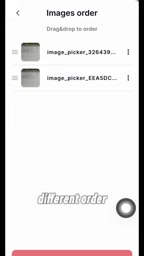
Drag-and-drop sorting is not easy to implement on mobile—screen space is limited, and touch precision is not as good as a mouse. From the demo, the interaction logic is to long-press a page, drag it to the target position, and release, consistent with the habit of organizing phone home screen icons, so the learning curve is low. For scenarios where images were taken in a jumbled order and need to be rearranged, this feature is essential.
Conversion and Download: The Whole Process Happens on Your Phone
After confirming the order is correct, tap Convert and then save, and the tool begins processing the images.
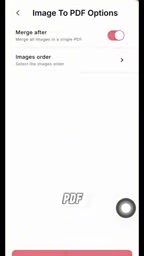
Once processing is complete, the PDF is automatically downloaded locally and can be shared directly. The entire workflow never leaves the phone—there's no intermediate step of uploading to the cloud and downloading back. For privacy-sensitive content—such as ID card copies or bank statements—local processing means data never leaves the device, which is an advantage over web-based conversion tools.
The core difference between local and cloud processing lies in the data flow path. Cloud conversion tools require uploading images to a server first, and after the server completes the format conversion, it sends the PDF back to the user. This process means the original images leave the device and pass through third-party infrastructure. Local processing relies entirely on the phone's own computing power, and the image data stays in the device's memory and storage from reading to PDF generation, with no network transmission. For materials containing personal sensitive information such as ID cards, bank statements, and medical documents, local processing can effectively avoid data leakage risks during the upload step and also avoids the issue of some cloud services retaining copies of user files in their privacy terms. However, local processing also means conversion speed is limited by the phone's processor performance, and processing a large number of high-resolution images may be slower than cloud solutions.
Real-World Use Cases for Image-to-PDF
The core value of these tools isn't how complex the technology is, but that they bring high-frequency small needs into the phone. A few typical scenarios:
- Reimbursement and financial archiving: Merging invoice photos into a single PDF for submission is far more professional than sending a dozen images
- Submitting ID materials: Merging the front and back of an ID card or household register pages into one file meets the format requirements of most online service systems
- Organizing study notes: Photographing classroom whiteboards and key textbook pages, then merging them into a single review document
- Archiving contracts and receipts: Avoids images being accidentally deleted or compressed in the gallery; PDF format is more stable
What these scenarios have in common: high operating frequency, small volume per use, and format compliance requirements. Mobile tools happen to match this lightweight, instant-demand characteristic.
Where Are the Limits of Mobile Processing
Image-to-PDF is already smooth enough on mobile, but there are a few cases where using a computer is still recommended: when there are more than fifty images, the sorting and management experience on mobile drops noticeably; when you need to further edit the PDF (such as adding text annotations, merging multiple PDF files, or setting a password), mobile tools usually lack sufficient depth; and when there are strict limits on output file size, mobile apps' compression options are often rather crude.
However, for the most frequent need of "turning a few photos into a PDF and sending it out," the efficiency of mobile already beats the chain of opening a computer, transferring files, converting with software, and then sending it back to the phone. Utility apps shorten this step into a few taps—that's their real competitive edge.
One-line Summary
An analysis of the workflow, use cases, and capability boundaries of mobile image-to-PDF tools.
Paragraph Summary
The article breaks down the complete workflow of mobile image-to-PDF tools: entering the Image to PDF feature from the Tools tab, batch-selecting gallery images, choosing to merge into one PDF or export separately, adjusting page order by drag and drop, and finally completing conversion locally and downloading and sharing. The article notes that this process requires no computer or cloud intermediary throughout and is safer for privacy-sensitive content such as ID cards and bank statements. Typical use cases include reimbursement archiving, submitting ID materials, organizing study notes, and archiving contracts and receipts, all sharing the characteristics of high frequency, small batches, and format compliance requirements. The article also points out the boundaries of mobile processing: when there are more than fifty images, when deep editing is needed, or when file size must be strictly controlled, the desktop remains more suitable.
Related articles

OpenAI Partners with Shield: How the Astra Agent Revolutionizes IT Troubleshooting
OpenAI and Shield launch the Astra agent, which autonomously logs into computers and legacy systems to fix IT issues in real time, 35-40% faster than traditional models, with humans involved only when judgment is needed.

iPhone Duo Battery Life Tested: One Charge a Day Is Unavoidable, and the Large Screen Is the Culprit
iPhone Duo battery test: heavy use needs at least one charge a day, and about 30% remains after 6.5 hours of screen-on time. How often the large screen is unfolded is key; a MagSafe battery pack helps, and long-term degradation is also worth watching.

Kimi K3.1 Pro Open-Sourced: 2.8 Trillion Parameters Close In on Opus
Moonshot releases the open-source MoE model Kimi K3.1 Pro, with 2.8T total parameters and 104B activated, trailing Opus 5.5 by under 1 point on Terminal Bench 4.0.