How to Get Back Cursor's Classic File Tree Interface: Two Methods, Under a Minute

Two quick ways to restore Cursor's classic file tree and code editor from the new Agent interface.
After upgrading Cursor, the familiar file tree and code window are replaced by the Agent interface by default. This guide shows two simple methods to restore the classic editing layout — via the top-right Open Edit Window button or the File menu — without downgrading, and explains why Cursor made Agent mode the default.
Switching Back from Agent Mode to the Classic Interface
After upgrading, Cursor defaults to the Agent interface — a jarring change for developers accustomed to the traditional editor layout. The familiar file tree and code window are nowhere to be found, leaving many users confused the first time they launch the new version.
The good news: you don't need to downgrade or force yourself to adapt to the AI-first interface. Cursor has fully preserved the classic editing window — the entry point is just easy to miss. Here are two ways to get back to it in under a minute.

Method 1: One Click from the Top-Right Corner
The most direct approach is through the top-right corner of the interface. While in the Agent view, click the Open Edit Window button in the top-right corner. The classic editing interface will immediately appear, complete with the file tree on the left and the code editor in the main area.
This method takes a single click and requires the fewest steps — ideal when you need to quickly jump back to the coding view.
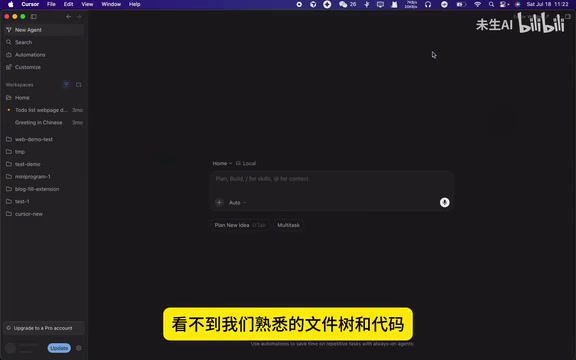
Method 2: Through the Menu Bar
If you prefer navigating via the menu bar, there's an alternative path: click the File menu in the top-left corner, then select Open Edit Window from the dropdown. This opens the exact same classic interface as Method 1.
Both methods lead to the same destination — which one you use comes down to personal preference. If you find yourself switching frequently, memorizing the top-right shortcut button will save you more time.
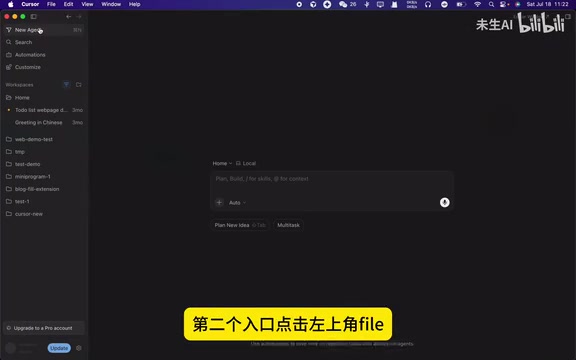
Technical background on the classic interface: Cursor's traditional editing interface inherits VS Code's classic three-panel layout — a file explorer on the left, a central code editor, and auxiliary panels on the right or bottom. This layout traces its roots back to established IDEs like Eclipse and IntelliJ IDEA, and has become deeply embedded in developer muscle memory. Cursor itself is built on VS Code's open-source core (Code - OSS), with Monaco Editor — Microsoft's browser-based code editor engine — at its heart. The same engine powers the web version of VS Code. Monaco Editor is open-sourced by Microsoft under the MIT license and provides a full suite of foundational capabilities: syntax highlighting, multi-cursor editing, code folding, IntelliSense, and communication with language services via the Language Server Protocol (LSP). Cursor inherits Monaco's complete editing capabilities while integrating proprietary AI inference modules through a custom extension layer — avoiding reinventing the wheel and focusing innovation on the AI experience. This architecture also ensures that most VS Code extensions (.vsix format) can be installed directly in Cursor, with existing plugin ecosystems and keyboard shortcuts carrying over seamlessly. This "standing on the shoulders of giants" strategy is a core reason so many developers develop a strong reliance on Cursor.
The Classic Interface Can't Be Set as Default (Yet)
Many users naturally ask: if the classic interface is so useful, can it be set as the default startup view to avoid manual switching every time?
The current version of Cursor does not support this setting. Every time you open the application, it will still launch into the Agent interface first — you'll need to manually perform one of the steps above to return to the classic view.

Understanding the Product Logic Behind This Change
This default behavior reflects a deliberate product direction. As an editor built around AI-assisted programming, making Agent mode the default startup interface is Cursor's way of guiding users toward an AI conversation-driven coding workflow.
To understand this design decision, it helps to know what Agent mode actually means. Unlike earlier AI coding tools that only offered code completion, Cursor's Agent mode grants the AI significantly greater autonomy: it can proactively read project files, execute terminal commands, batch-refactor code across multiple files, and even invoke external tools to complete complex tasks.
Technically, this capability is powered by the Tool Calling mechanism — the underlying large language models (Anthropic Claude, OpenAI GPT, etc.) don't just generate text; they can invoke external capabilities like file read/write, code search, and terminal execution in structured JSON format. This mechanism became widespread after OpenAI introduced Function Calling in 2023, with major model providers quickly following suit, transforming LLMs from "text generators" into "autonomous executors." The reasoning-action loop draws on the ReAct (Reasoning + Acting) paradigm — formally introduced by Google DeepMind in a 2022 paper of the same name: at each step, the model both "thinks" about the current state and "acts" by calling a tool, then continues reasoning based on the tool's output, forming a closed loop until the task converges. This design transforms AI from a passive assistant into an agent capable of decomposing goals, planning execution steps, and autonomously driving progress.
Making this mode the default entry point reflects a classic AI-Native product design philosophy: traditional software organizes around feature menus, requiring users to learn the tool's operational logic; AI-native products center on intent expression, where users simply describe their goal and the tool finds the execution path. This shift represents a fundamental difference in cognitive load — the former requires users to adapt to the tool, while the latter lets the tool adapt to the user's natural expression. The industry calls this a "Conversation-First" architecture. Using the "default path" to actively guide users toward a new mental model is a core strategy for AI-native products to drive behavioral change — if AI features are buried behind obscure menus, users will often ignore them indefinitely. This also explains why the classic interface remains fully functional but with a deliberately understated entry point: it's not a technical limitation, but a considered product decision.
For developers, this means both workflows can coexist: the classic interface suits fine-grained manual coding and file management, while Agent mode excels at collaborating with AI through natural language to accomplish tasks. Understanding what each mode is best suited for allows you to switch fluidly based on context — rather than simply resisting the new interface.
Industry trend note: Setting an AI conversation interface as the default entry point is a common strategy among AI-native tools. From Notion AI to Perplexity, product designers are increasingly using "default paths" to reshape user behavior and lower the barrier to AI feature adoption. The underlying logic: no matter how powerful AI capabilities are, if they're buried behind multiple menus, usage frequency drops sharply — and usage frequency directly determines whether users genuinely experience the productivity gains AI can deliver, which in turn drives willingness to pay. From a broader perspective, this "battle for the default path" is fundamentally a power transfer between old and new interaction paradigms. Every interface set as default is a public bet by the product team on what the future of work will look like. Cursor's choice is not an isolated case — it's a microcosm of the entire AI tools industry's shift toward an "AI-first" product paradigm.
Summary
Faced with Cursor's interface update, you can reclaim the familiar experience without downgrading. Just remember two entry points — the Open Edit Window button in the top-right corner, or the option of the same name under the File menu — and you can switch freely between Agent mode and the classic editing interface at any time. While it's not yet possible to set the classic interface as the default startup view, this feature may become available as the product continues to evolve — worth keeping an eye on.
Key Takeaways
Related articles

Cursor AI in Practice: Weighing Efficiency Gains Against Costs in an AI IDE
An in-depth look at Cursor AI IDE's interface layout, four modes (Agent/Plan/Debug/Ask), model selection, and Git context integration, with hands-on demos weighing subscription costs against going direct to Claude.

Free Landing Page Design Rules Library: A Practical Guide for Claude Code and Cursor
A free landing page design skill for Claude Code and Cursor: MIT licensed, nearly 9,000 stars, asks about offer/audience/action before planning 12 sections with hard font and spacing constraints.

Cursor Keeps Writing Wrong Code? The Problem May Be Context, Not Prompts
Cursor keeps writing wrong code? The problem may be context, not prompts. Learn how to supply relevant files, full error messages, and expected results, plus a plan-first, small-step, test-driven workflow to reduce AI coding errors—while remembering code review remains the developer's job.