Import Local GGUF Models into Ollama: Share ComfyUI Models Without Re-Downloading

Use a Modelfile to point Ollama at your existing ComfyUI GGUF model — no re-downloading needed.
This article explains how to solve the duplicate storage problem that arises when using both ComfyUI and Ollama. By default, Ollama only recognizes models it has downloaded itself, causing both tools to maintain separate GGUF file copies and wasting several gigabytes of storage. The solution is to create a Modelfile with a `FROM` instruction pointing to the existing GGUF file's absolute path in the ComfyUI directory, then run Ollama's create command in the terminal. Ollama builds a reference to the file rather than downloading it — the process is nearly instant. The key gotcha: remove the `.txt` extension when saving the Modelfile. Once done, the same GGUF model can be shared across both tools.
For users running both ComfyUI and Ollama, a common frustration is having already downloaded a GGUF large language model into the ComfyUI directory, only to be forced to download the same model again because Ollama has its own model management system. This wastes disk space, demands patience through lengthy downloads, and occasionally ends in failure due to network issues.
In fact, Ollama supports importing locally existing GGUF files directly via its Modelfile mechanism. Once you know how, the same model can be shared between ComfyUI and Ollama — no more redundant downloads. This guide is based on a walkthrough by the Bilibili creator "AI验货官" and outlines the complete process.
Why Duplicate Downloads Happen
ComfyUI typically stores large language models in an LLM-related folder using the GGUF quantized format, which is convenient for local inference. Ollama, on the other hand, uses a self-contained model repository and naming system. By default, it only recognizes models it has pulled itself — it won't automatically detect files you already have in another tool's directory.
The result: two separate tools each maintaining their own copy of the same model. A 7B or larger GGUF model can easily run several gigabytes, making the duplicated storage quite significant. The core solution is to point Ollama directly at the existing GGUF file in the ComfyUI directory, rather than fetching it again.
What is GGUF? GGUF (GPT-Generated Unified Format) is a model file format introduced by the llama.cpp project, designed specifically for local inference. It packages model weights, tokenizer configurations, hyperparameters, and all other necessary information into a single file, while supporting multiple quantization levels such as Q4, Q5, and Q8. This allows large models that would normally require dozens of gigabytes of VRAM to run on consumer-grade hardware with limited memory. GGUF has largely replaced the older GGML format and has become the de facto standard for local inference tools like ComfyUI, LM Studio, and Jan. A 7B parameter model quantized to Q4 typically comes in around 4–5 GB; Q8 quantization puts it at 7–8 GB — making the cost of storing duplicates very tangible.
Prerequisites
Start by confirming two key paths. First, locate the exact folder where your GGUF language models are stored under ComfyUI's LLM directory and note the full path. Then confirm where Ollama stores its downloaded models.
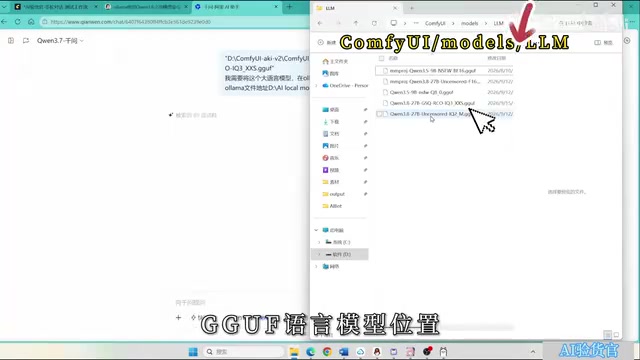
The creator shared a handy shortcut here: if you're unsure about specific paths or steps, describe what you need to an AI assistant like Doubao (or any other tool), and let it walk you through the details step by step. This "AI as co-pilot" approach is especially beginner-friendly for those unfamiliar with the command line.
Creating the Modelfile
Ollama uses a configuration file called a Modelfile to define a model's source and parameters. The process is straightforward: create a new text file, paste in the configuration content provided by your AI assistant, save it, and close.
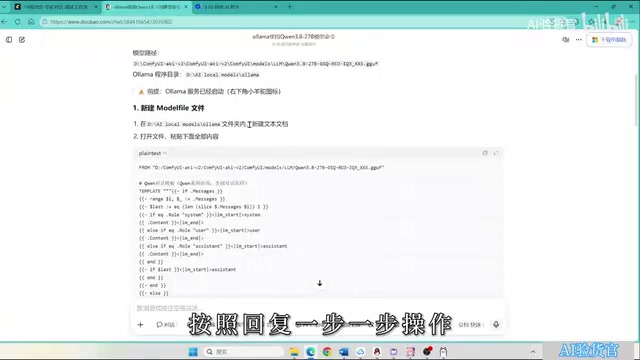
The core of the configuration is a single FROM instruction pointing to the absolute path of the GGUF file in your ComfyUI directory. After saving, rename the file to Modelfile — and here's a critical detail that's easy to miss: you must remove the .txt extension from the filename, otherwise Ollama won't recognize the configuration file. It's highly recommended to enable "Show file extensions" in your system settings to avoid this mistake.
About Modelfile Modelfile is Ollama's model descriptor format, inspired by the Dockerfile concept, with a simple and clean syntax. In addition to the
FROMinstruction for specifying the model source (either a local path or a model name from Ollama Hub), it supportsSYSTEM(set a system prompt),PARAMETER(adjust inference parameters like temperature and context length), andTEMPLATE(customize the conversation template). For the purpose of sharing an existing GGUF file, a single line —FROM /absolute/path/to/model.gguf— is all you need; other instructions are optional. WhenFROMpoints to a local file, Ollama does not copy the file — it simply creates a reference in its own metadata store, making the process nearly instantaneous and requiring no additional disk space.
Running the Import Command
With the Modelfile ready, right-click in the folder where it's saved and open a terminal (command prompt window).
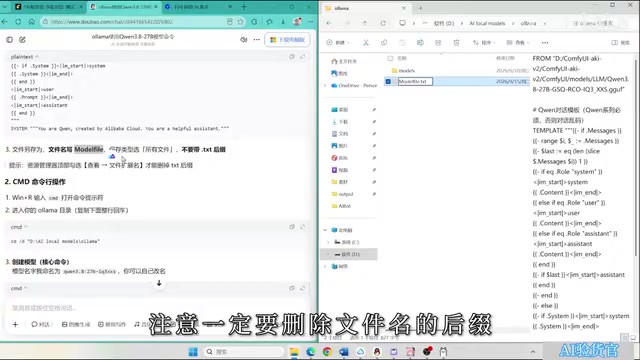
Next, run Ollama's model creation command. You can give the model a custom name in the command to make it easier to identify later. Paste the command and press Enter, then wait for the process to complete. When the terminal outputs success, the import is done — since this step only creates a reference to the local file rather than downloading anything, it finishes very quickly.
Verifying and Using the Model
After the import, use the model list command to confirm that the newly created model appears in Ollama's available list.
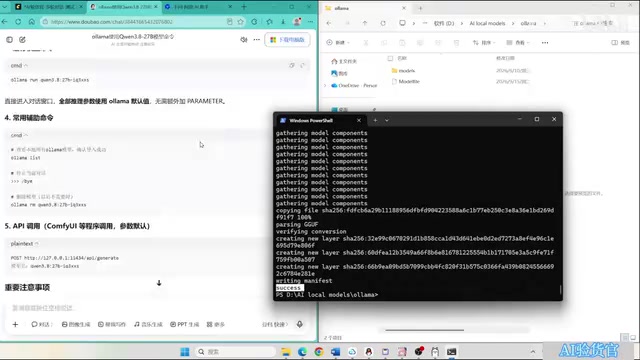
Finally, run the model to test it. If you can chat with it normally, you're all set. The same GGUF model can now be used by both ComfyUI and Ollama simultaneously — saving disk space and eliminating the frustration of failed downloads on the Ollama side.
Why This Technique Matters
This tip may seem like it only saves one download, but for users who rely heavily on local large language models, it's genuinely valuable. As GGUF becomes the dominant format for locally quantized models, more and more tools are gaining the ability to read it. Enabling different tools to share a single model file is a universal optimization strategy for local AI workflows.
One thing worth noting: the creator in the walkthrough relied heavily on an AI assistant to generate paths and commands, which lowers the barrier to entry but also means specific commands may differ depending on your system environment. Adjust paths and details according to your own setup, and when errors occur, pasting the error message back into your AI assistant will usually help you pinpoint the issue quickly.
Related articles

AI Is Not a Replacement: Human-AI Collaboration Through the Lens of Factory Root Cause Analysis
Starting from factory root cause analysis, this article explains how AI accelerates evidence chain construction rather than replacing human experts, exploring the pragmatic implementation logic and business value of 'AI supporting people rather than replacing them.'

AI Agent Decision Auditing: Building an Evidence Chain in Regulated Workflows
Starting from a Reddit discussion, this article analyzes three core issues in AI agent decision auditing within regulated workflows: what fields audit records should contain, how to handle feedback latency for erroneous decisions, and how to continuously calibrate LLM judge consistency with human judgment.

Apple Opens Multiseat Subscription Purchasing: App Subscriptions Can Now Be Sold in Bulk to Businesses and Schools
Apple opens multiseat purchasing for auto-renewable subscriptions: businesses and schools can bulk-buy via Apple Business and Apple School Manager, adding or removing seats anytime. Enabled by default in App Store Connect—developers should verify settings; group purchasing sandbox testing opens October 2026.