n8n Beginner's Guide: Building Workflows & Understanding Core Nodes

A complete beginner's guide to n8n covering core nodes, workflow building, and API authentication.
This beginner-friendly guide walks you through everything you need to know to get started with n8n, the open-source workflow automation platform. It covers registration, interface navigation, the five core node categories (Trigger, AI, Data Processing, Flow Control, and HTTP Request), building your first workflow, and configuring API credentials to connect external platforms.
What Is n8n? Why Is It Worth Learning?
n8n (pronounced "n-eight-n," short for nodemation) is an open-source workflow automation platform created in 2019 by German engineer Jan Oberhauser. It lets users visually drag and drop to connect different apps, APIs, and data processing logic, making automation effortless. Compared to pure SaaS platforms like Zapier and Make (formerly Integromat), n8n's biggest advantage is its support for local deployment and self-hosting, while also offering a cloud version for quick onboarding.
n8n uses a "Fair-code" license with fully open source code, allowing users to deploy it on their own servers for free. This is especially important for businesses and developers with data privacy requirements — sensitive data never has to pass through third-party servers, and all processing logic runs in an environment you control. This is its core competitive edge over similar commercial products.
For beginners, n8n has a relatively gentle learning curve. The official template library already contains 3,000+ ready-made templates covering marketing, content creation, social media management, web scraping, and more. These templates serve as a massive learning resource, and they also represent a potential revenue stream — you can upload your own high-quality workflows to the official template marketplace for paid distribution.
Registration & Interface Overview
Registration Process
Signing up for n8n is straightforward. Search for n8n in your browser, go to the official website, click "Get Started," fill in basic information (name, email, password), and you're done. After registration, you get a 14-day free trial. Domestic email addresses work too, as long as they haven't been previously registered.
Besides the cloud version, n8n also supports local deployment via Docker. Docker is a containerization technology that packages an application and all its dependencies into a standalone "container" that can run with one click on any machine with Docker installed, eliminating environment configuration headaches. For n8n, Docker deployment means you can run a full n8n instance on your own VPS (Virtual Private Server), NAS device, or local computer, with data stored entirely locally and no workflow execution limits — making long-term costs extremely low. The interface is essentially the same regardless of which method you use.
Main Interface Structure
Once inside n8n, the left navigation bar contains these core areas:
- Overview: A dashboard for viewing and managing all created workflows
- Personal: Your personal workflow space
- Shared: Workflows shared by others
- Templates: Links to the official template library, searchable by categories like marketing, AI, social media, etc.
- Executions: Global execution logs showing the run status of all workflows
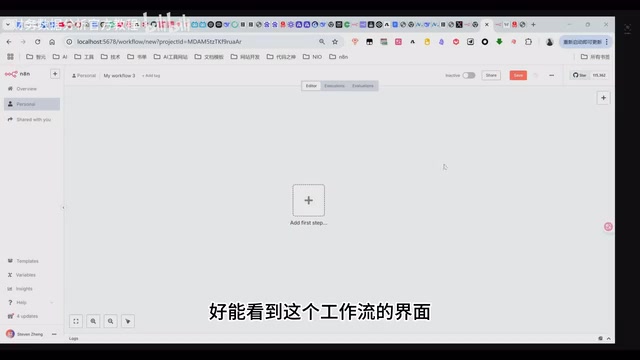
There are two ways to create a new workflow: click the plus button on the left sidebar, or click "Create Workflow" in the top-right corner of the Overview page.
Core Node System Explained
n8n workflows are composed of a series of "nodes," each responsible for a specific function. Understanding the node system is the key to mastering n8n.
Trigger Nodes
The first node in any workflow must be a trigger node — it determines when the workflow starts. Common trigger types include:
- Manual Trigger: The most basic option — click a button to execute
- Schedule Trigger: Automatically executes at set time intervals
- App Event Trigger: Fires when a specific event occurs in an external application
- Webhook Trigger: Fires when an external HTTP request is received. Webhooks are a core mechanism for real-time communication between modern web applications. Essentially a "reverse API" — traditional APIs use active polling (you ask the server if there's new data), while Webhooks are event-driven (the server proactively pushes new data to you). n8n's Webhook trigger node generates a unique URL; when an external system sends an HTTP request to this URL, the workflow is immediately activated. This is widely used for real-time scenarios like receiving payment notifications, code commit events, and form submissions
- Form Trigger: Fires when a user submits a form
AI Nodes
n8n offers rich AI integration. Core AI nodes include:
- AI Agent: The most extensible AI component in n8n, built on the ReAct (Reasoning + Acting) framework. Unlike simple LLM calls, an Agent has "tool-calling" capabilities: it autonomously decides which external tools to invoke (such as search engines, database queries, API requests) based on user instructions, feeds the results back to the model, and the model then decides the next action — repeating this cycle until the task is complete. You can attach a Memory module to maintain conversation context, connect a vector database as a knowledge base, and mount various tool nodes to extend its capabilities
- OpenAI and Other LLM Nodes: Directly call APIs of mainstream large language models
- Basic LLM Chain: A basic LLM call chain, suitable for single-turn Q&A scenarios
Data Processing Nodes
Data processing is inevitable when building workflows, and these nodes are used extremely frequently:
- Code Node: Supports running JavaScript and Python code (n8n has better JavaScript support)
- Set Node: Sets or modifies variables within the workflow
- Filter Node: Applies conditional filtering to data
- Limit Node: Limits the number of data items — especially useful during debugging
- Date/Time Node: Handles date and time-related logic
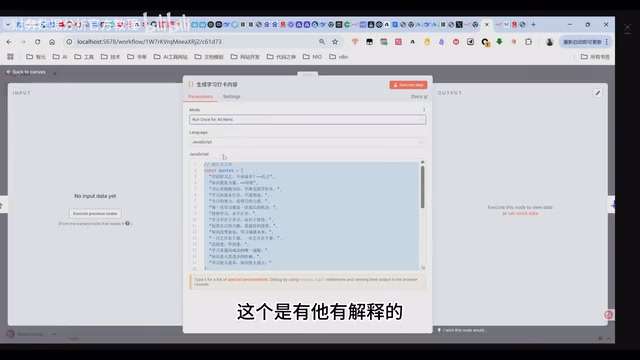
Even users with zero coding experience don't need to worry about the Code node. You can now use AI to write the specific code snippets you need, then simply copy and paste them into the node to run.
Flow Control Nodes
Flow control nodes determine the execution logic of your workflow:
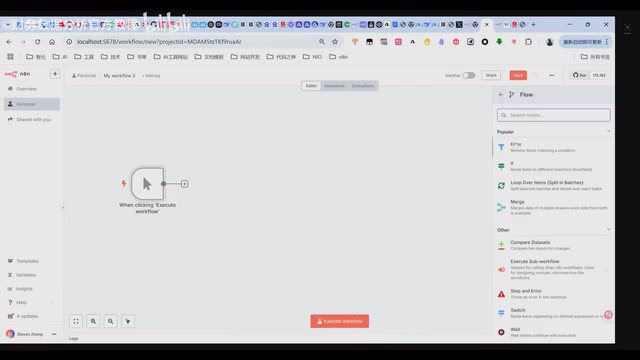
- IF/Switch: Conditional branching — execution continues only if conditions are met
- Loop: Creates loops within the workflow
- Merge: Combines results from different branches
- Filter: Filters out unwanted data
HTTP Request Node
This is an extremely important node, centered around REST API calls. REST (Representational State Transfer) is currently the most widely used API design standard on the internet — virtually all modern web platforms provide REST API endpoints. This node supports standard HTTP methods including GET (retrieve data), POST (submit data), PUT/PATCH (update data), and DELETE (remove data), along with configurable Headers, Query Parameters, and Body.
While n8n has integrated dedicated nodes for a large number of third-party platforms, it can't cover every platform. For platforms that don't yet have dedicated nodes, you can use the HTTP Request node to connect by entering the corresponding API endpoint. Mastering this node means you can integrate with any platform that provides API documentation, extending n8n's capabilities infinitely. This is a key focus for advanced learning.
Your First Workflow in Practice: Daily Check-in Content Generator
Building Steps
Here's a simple "daily check-in content generator" workflow to demonstrate the complete building process:
- Create a Trigger Node: Click the plus button and select Manual Trigger
- Add a Code Node: Click the plus button again, search for and drag in a Code node
- Configure the Code Node: Choose the run mode (run once or run for each item), select the programming language, and paste your code
- Run a Test: Click the execute button on the node and check the output
Each node can be executed and debugged independently — a green checkmark indicates success, while a red X indicates failure. This node-by-node debugging capability is a major advantage of n8n over pure code-based approaches.
Output & Saving
If you need to save results as a file, you can add additional nodes:
- Convert to File Node: Converts data to formats like CSV or HTML — drag and drop to select which fields to output
- Read/Write File Node: Writes the file to a specified path
n8n relies heavily on drag-and-drop — inputs are displayed on the left, outputs on the right, and the configuration area is in the middle. Field mapping is as simple as dragging a variable from the left into an input field on the right.
API Authentication: The Key to Connecting External Platforms
To make workflows truly valuable, you typically need to connect external platforms (like Telegram, Twitter, Google, etc.). This involves a core concept: API Credentials.
n8n's credential management system uses encrypted storage — all API Keys, Tokens, and other sensitive information are saved in encrypted form in the database, not as plain text. Credentials are separated from workflow logic, so a single credential can be reused across multiple workflows. When exporting or sharing workflows, credential information is not included, effectively preventing key leaks. Common authentication methods include: API Key (the simplest — a key carried directly in the request header), OAuth 2.0 (a more secure authorization protocol used by Google, Twitter, and similar platforms), and Basic Auth (an encoded username + password approach).
Connecting each external platform requires the following steps:
- Apply for an API Key or Token in the platform's developer console
- Add the authentication information to n8n's global credential management
- Select the corresponding credential in the workflow node
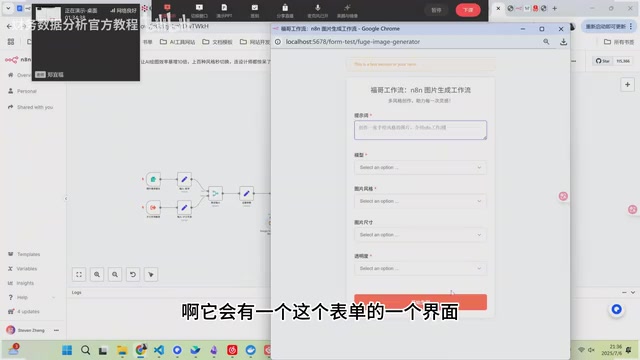
Credentials are global — configure them once and reuse them in any workflow. The initial setup may be tedious, but it's a one-time effort.
Tips & Best Practices
Save Your Workflows Frequently
n8n does not have auto-save. If your computer crashes or the browser closes unexpectedly, unsaved workflows cannot be recovered. Make it a habit to manually click the save button at regular intervals.
Use Execution Logs to Troubleshoot
Every workflow execution leaves a record on the Executions page, including each node's input/output and execution status. This is especially important for scheduled tasks — you can trace back to see which step failed and the specific error reason.
Interface Tips
- When workflows get complex, click the "Tidy Up" button to auto-arrange nodes
- Use Ctrl + scroll wheel to zoom the canvas
- Lines between nodes represent data flow direction — drag to create connections
Summary
As an open-source workflow automation platform that balances flexibility and ease of use, n8n's core value lies in encapsulating complex API calls, data processing, and flow control into visual nodes. Master the five major categories — Trigger Nodes, AI Nodes, Data Processing Nodes, Flow Control Nodes, and HTTP Request Nodes — and you'll be able to build automated workflows covering the vast majority of use cases.
For beginners, we recommend starting with the simplest Manual Trigger + Code Node combination, then gradually introducing more node types to progressively build your automation skills.
Related articles
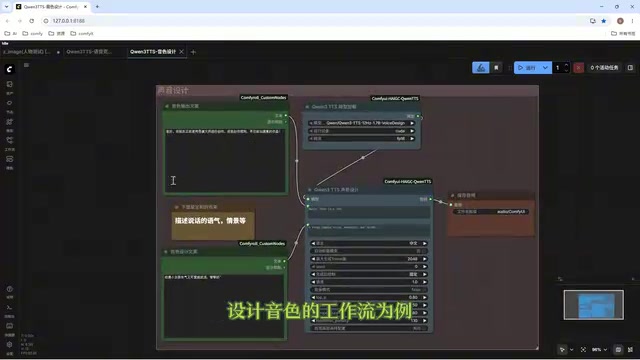
Director Master Tutorial: Full Workflow for AI Character Voice Design and Binding
Based on a Bilibili tutorial, this guide details how to design and bind AI character voices in Director Master: uploading voices, generating them via ComfyUI workflows, producing voice profiles alongside character design, and automatically inheriting voices in storyboard prompts.
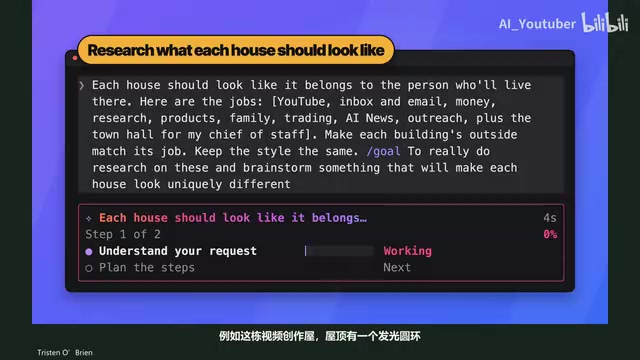
3.5 Hours and $47: Building an AI Agent Village Step by Step
A Bilibili creator built an AI Agent village in 3.5 hours for about $47: Claude Code handles logic and behavior, Higgs Field generates art. Seven steps cover maps and buildings, chief of staff and director roles, walkable areas and behavior rules, connecting to real tools like email and calendars, proving ground meetings, and retaining final human approval—including a cost ledger and prompt design thinking.
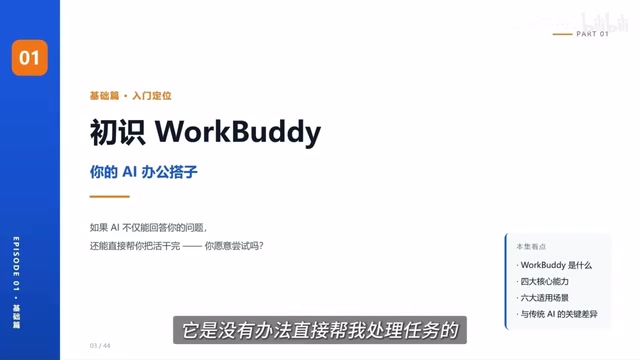
WorkBuddy Complete Beginner's Guide: Master Your AI Digital Employee in 7 Days
A detailed breakdown of the WorkBuddy beginner's guide: how this domestic Codex alternative works, its four advantages over traditional AI, and a learning path for newcomers.