October's Open-Source AI Power Move: Deploy Stable Diffusion Video Models Locally for Unlimited AI Short Drama Generation

Deploy Stable Diffusion locally and generate unlimited AI videos with voiceover for free on an RTX 2060.
The article notes that many commercial AI video tools rely on the open-source Stable Diffusion project, with users often paying for the interface and queue priority. Local deployment hands control back to users, enabling AI video generation with no queues, unlimited generations, no internet connection, and no credits. Based on a Bilibili creator's demo, it walks through checking the installer, one-click installation, extracting models, migrating files, and path conventions — stressing that paths must use plain English. Built-in hardware auto-detection and integrated model management make it beginner-friendly; only basic models ship out of the box, with advanced styles added manually. Local solutions have GPU requirements but suit high-frequency creators.
Those monthly subscription AI generation tools on the market mostly owe their core technology to a freely downloadable open-source project — Stable Diffusion. Many commercial products simply wrap it in a login interface and a queueing mechanism, then mark up the price several times over. This article takes you straight to the source of the technology: feed in your written story, let the large model automatically flesh out the details, and generate AI videos with voiceover. A single RTX 2060 GPU can run it — no queues, unlimited generations, no internet connection required, no credits. Everything runs locally.
Why choose a local open-source deployment
The core capabilities of commercial AI video tools are often built on top of open-source models, with the extras being the interface, task queues, and cloud compute. That means a large portion of what you pay for is "packaging" and "queue priority." A local Stable Diffusion deployment hands full control back to the user: the number of generations is limited only by your local hardware, there's no waiting in a cloud queue, and your materials never leave your own computer. For creators who need to produce AI short dramas in bulk, this model is more controllable in terms of both cost and privacy.
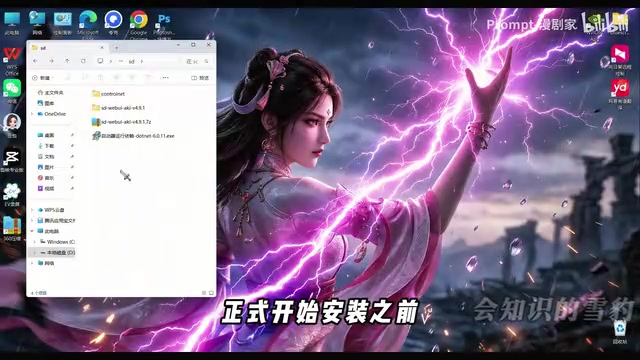
According to a Bilibili creator's demonstration, the entire installation process is lightweight and one-click — no manual configuration adjustments, no need to tick complex options. Just wait for the progress bar to finish and the main program installation is complete. Even beginners can get it installed smoothly.
Stable Diffusion is an open-source text-to-image generation model based on the diffusion model architecture. Its core principle is to generate images matching a text description from random noise through a gradual denoising process. Stable Diffusion was publicly released in 2022 by Stability AI and other organizations, and thanks to its open-source nature and relatively low hardware requirements, it quickly became foundational infrastructure in the AI art field. A large number of commercial AI image and video tools are actually built on top of it through secondary development or wrapping, adding user interfaces, cloud scheduling, and other features. Local deployment means the user runs the original model directly without relying on third-party services.
Preparation before installation: check the integrity of the installation package
Before starting the installation, the first thing to do is check the local installation package to confirm the file is intact — no interrupted downloads, missing files, or corrupted archives. This step seems simple, but it's the prerequisite for everything that follows going smoothly. Find the main program installer you've saved, right-click and select Install, and the installation wizard will appear.
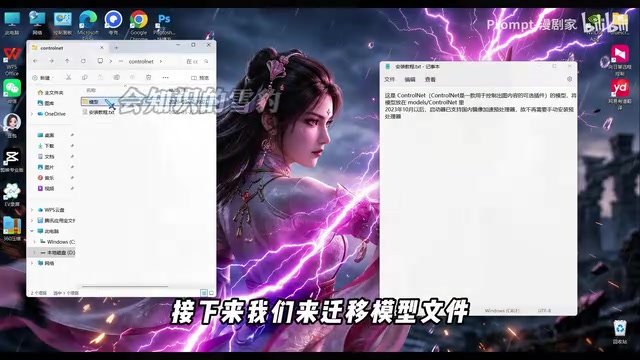
After installation is complete, find the model archive you downloaded in full beforehand, right-click and extract it to a local folder. The extracted folder will contain the full set of model files along with accompanying documentation. The Bilibili creator specifically recommends that beginners read this document first — it clearly explains which models suit which scenarios and where they should be placed. Follow it and you basically won't put anything in the wrong directory.
Migrating model files: path conventions are mandatory
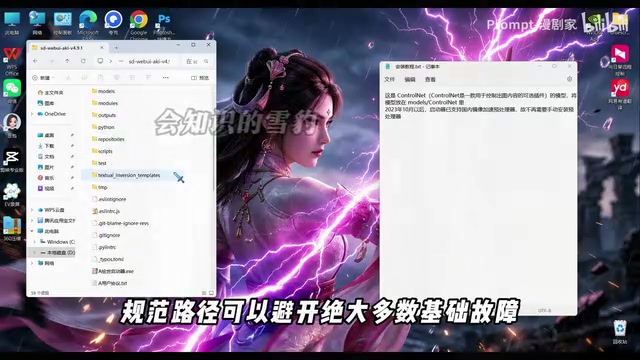
The model migration itself isn't complicated: open the extracted model folder, press Ctrl+A to select all files, Ctrl+C to copy, then find the software installation root directory, open the Models folder and then the ControlNet subfolder inside it, and press Ctrl+V to paste all files. If you've already installed the same model before, you can skip this step — no need to overwrite again.
The key point beginners really need to remember is path conventions: the software installation location, the archive storage location, and the model storage paths must all use plain English characters — no Chinese characters, spaces, or special symbols of any kind. This is a hard requirement. Once a path doesn't comply, all sorts of problems easily arise; compliant paths avoid the vast majority of basic failures.
ControlNet is an extension plugin for Stable Diffusion used to impose additional spatial condition control on the generation process, such as specifying character poses, edge contours, or depth information. It works by copying the encoder portion of the diffusion model and introducing conditional inputs, making the generated result follow the structure of a reference image more precisely. In AI video generation pipelines, ControlNet is often used to maintain inter-frame consistency or control character motion. Placing model files into the Models/ControlNet subfolder allows the main program to automatically recognize and load these control models, thereby enabling the corresponding conditional control features during generation.
Startup and built-in features: beginner-friendly design
Once all models are deployed, go back to the software root directory and double-click the icon to launch the program. This tool is very beginner-friendly — no need to manually configure the runtime environment, install extra dependencies, or add plugins. Opening the software automatically initializes the runtime environment, greatly lowering the barrier to entry.
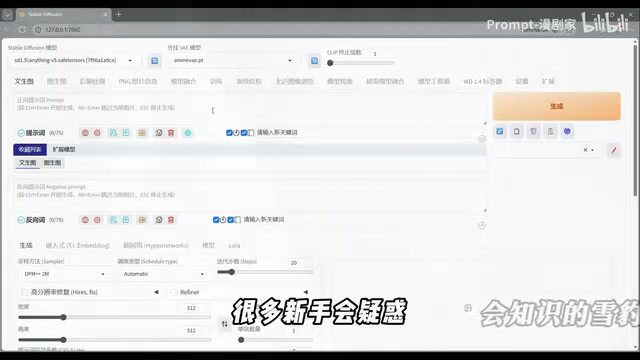
The software comes with two features that boost creative efficiency. The first is automatic hardware detection, which identifies your computer's GPU configuration and automatically matches the most suitable rendering parameters. The second is integrated model management, letting you add, delete, and update models directly within the software without manually digging through local folders. When the software starts, a console window shows resource loading progress; once the environment and models are fully loaded, a browser operation page pops up automatically.
Rendering parameters refer to a series of configurations that affect the image generation process, including sampling steps, sampler type, image resolution, prompt guidance scale (CFG Scale), and more. Different GPUs vary considerably in VRAM capacity and compute power, and the right combination of parameters can strike a balance between generation speed and image quality. The automatic hardware detection feature reads the GPU model and VRAM size, and recommends a set of preset parameters accordingly, preventing beginners from running into VRAM overflow or generation failures due to improper parameter settings. This greatly lowers the barrier to local deployment.
Common questions about the bundled models
Many beginners wonder: why does the software come with so many models built in? In fact, the software ships with only basic general-purpose models out of the box. If you want advanced models like Chinese-style or special art styles, you'll need to add them manually later — this is normal and doesn't mean something went wrong with the installation. Every imported model comes with a preview image and style description, suited to different creative needs. Just pick what you need — no need to blindly test repeatedly and waste time.
Creative workflow and practical tips
When creating, write your prompt in the input box, select the relevant parameters, confirm everything is correct, and click Generate — the software will automatically render the image. The whole workflow is simple to operate with no overly high professional barrier. As long as you follow the conventions and avoid path-related errors, you can set up a stable, error-resistant environment. Once you're familiar with it, you can freely combine different models and refine your prompts to continuously improve image quality.
From an industry perspective, the capability gap between open-source models and commercial wrapper products is narrowing, and the unlimited generation and privacy advantages of local deployment are genuinely attractive to high-frequency creators. Of course, local solutions still have hardware requirements — GPU performance directly determines generation speed and the scale of tasks you can handle, and readers need to weigh this against their own equipment.
One-line Summary
Deploy Stable Diffusion locally and generate unlimited AI videos with voiceover for free on an RTX 2060.
Paragraph Summary
The article points out that the core technology of many commercial AI video tools comes from the open-source project Stable Diffusion, and what users pay for is often just the interface and queue priority. Local deployment of this open-source solution hands control back to users, enabling AI video generation with no queues, unlimited generations, no internet connection, and no credits. Based on a Bilibili creator's demonstration, the article details the complete process from checking the installation package, one-click installation, extracting models, migrating files, to path conventions, and emphasizes the hard requirement that paths must use plain English characters. The software features automatic hardware detection and integrated model management, making it beginner-friendly. It ships with only basic models; advanced styles must be added manually. Finally, it notes that local solutions have GPU performance requirements but are worth considering for high-frequency creators.
Related articles

On-Device LLM + ESP32: Build a DIY Calorie Reminder
A Bilibili creator open-sourced a calorie intake reminder: a phone app uses the open-source miniCPM model to locally recognize food photos and estimate calories, while an ESP32 mini screen syncs data and shows intake status with green/yellow/red rings — magnetically attachable to the fridge door for constant reminders.

Running 125B MoE on a 12GB GPU? Inside Strata's Three-Tier Cooperative Engine
Open-source C++ engine Strata runs 125B MoE models locally on 12-16GB consumer GPUs at 40-95 tokens/s. Here's how its VRAM/memory/SSD three-tier pipeline works.

Running Audio and Vision Locally with a 2B Model: LFM3 Hands-On Revealed
A blogger tests Liquid AI's LFM3 Audio 2B and Omni 2B on a MacBook Air: 2B parameters run speech and vision offline, tool calling exceeds expectations, but noise transcription and hallucination issues are evident.