Ollama Tutorial: Run Open-Source AI Models Locally for Free — Complete Guide

Ollama lets developers run open-source LLMs locally for free and integrate them with coding assistants like Claude Code.
Ollama is a cross-platform tool for deploying open-source LLMs locally on macOS, Windows, and Linux, with optional cloud model access. After installation, it integrates with coding assistants like Claude Code and OpenCode, replacing commercial API calls with local or open-source cloud inference to dramatically cut costs. Local models range from Granite 4.1's ultra-light 300M-parameter version to Qwen3's 30B variant — free forever after download. Cloud models including Gemma 3 and DeepSeek Flash are available via free new-user credits, with paid plans starting at ~$20/month.
Ollama is a tool that lets everyday users run open-source large language models directly on their own machines. It supports fully free local deployment, cloud-based model usage with credit allocations, and integration with coding assistants like Claude Code and OpenCode. This tutorial walks you through the entire process — from installation to actually running models — and is aimed at developers who want to run AI models on their own hardware without worrying about API costs.
1. Installing Ollama: Works on All Three Major Platforms
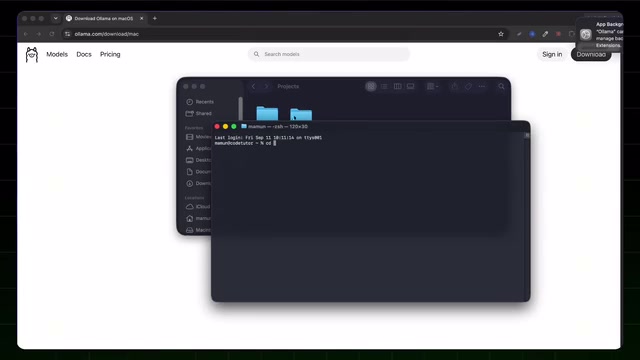
Ollama supports macOS, Linux, and Windows. Head to the official website at ollama.com, click the download button, and select the version for your operating system.
There are two installation methods: download the graphical installer and double-click to install, or use a command-line script. Windows users can paste the official install command into PowerShell; macOS and Linux users can run a curl script in the terminal. The download and installation are lightweight — the whole process typically takes just a few seconds with no lengthy waits.
Once installed, Ollama is ready to use and can be invoked directly from the terminal.
2. Integrating with Code Editors
One of Ollama's standout features is its ability to integrate with various coding assistant tools. Open a terminal in your project directory and type the ollama command — you'll see several launch options appear.
Use the arrow keys to scroll through the list of supported tools, including Claude Code, OpenCode, Hermes, OpenClawAd, DeepSeekAd Harness, and other code agent frameworks. You'll need to install the relevant tool first. Taking Claude Code as an example: if it isn't installed yet, visit its official website and follow the documentation to install it via script (curl on macOS/Linux, PowerShell command on Windows).
Once installed, you can launch Claude Code directly through Ollama and choose either a local or cloud-based model as the backend. This integration lets developers use a familiar coding assistant interface while the underlying inference is handled by a completely free local model.
3. Local Models vs. Cloud Models
When you launch Ollama, it lists recommended models split into two categories: local models and cloud models.
Local Models
Local models need to be downloaded to your machine first, and the key consideration is your hardware's memory. As shown in this tutorial, Qwen3's 30-billion-parameter model requires around 23 GB of space and has high system memory requirements. If your machine isn't powerful enough, you can opt for smaller models — such as IBM's Granite 4.1 series, which includes a lightweight 300-million-parameter version. Larger models are more capable but demand more from your hardware, so you'll need to weigh your device specs and patience against your performance needs.
Downloading a model is simple: copy the corresponding pull script, open a new terminal tab, paste and run it, then wait for the manifest and download to complete. The biggest advantage of local models is that they're permanently free — running them never incurs any cost.
Parameter count is the key metric for gauging a language model's scale — think of it as the number of "neural connections" inside the model. More parameters mean a stronger ability to capture language patterns, but storage and memory requirements grow proportionally. Generally, models under 3 billion parameters run smoothly on an ordinary laptop with 8 GB of RAM; models in the 10–30 billion range typically require 16–32 GB of RAM and benefit from a dedicated GPU or Apple Silicon chip for acceptable inference speeds. Granite 4.1's 300-million-parameter version is ultra-lightweight and can run on virtually any modern computer, making it ideal for getting started. Qwen3's 30-billion-parameter version, on the other hand, targets high-end workstations and handles more complex coding and reasoning tasks. Before choosing a model, you can confirm your available memory by running free -h in a Linux terminal or checking "About This Mac → Memory" on macOS.
Cloud Models
If you want to try the latest large models, Ollama Cloud has you covered. The cloud offering includes newer models like GLM and DeepSeek Flash. Using cloud models requires registering and logging into an Ollama account.
4. Pricing and Free Tier
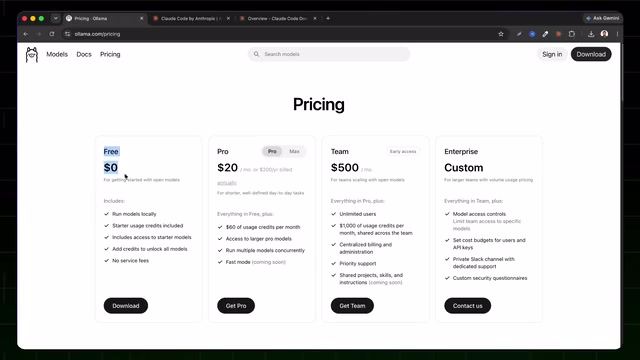
Before choosing a cloud model, it's worth understanding the pricing structure. Based on what's shown in the tutorial, Ollama's pricing tiers are as follows:
- Free tier: Running local models is permanently free. New users also receive credits for daily testing and access to one starter model.
- Pro plan: ~$20/month, includes $60/month in user credits and unlocks all models.
- Higher-tier plans: ~$100/month, with team and enterprise plans also available.
You can log in with an Ollama account or continue with a Google account. Once logged in, free user credits can be used on select cloud models including Gemma 3 (approximately 4.3 billion parameters), GPT-OSS (120 billion parameters), Nemotron, and others. Accessing stronger models beyond these requires upgrading to a paid plan.
5. Live Demo
Using a Cloud Model
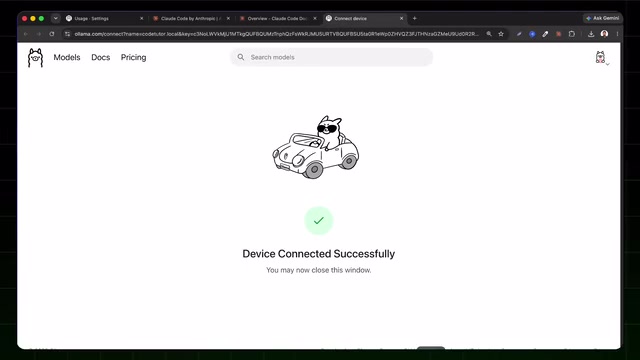
The tutorial demonstrates using Gemma 3 (4.3B parameters) as a cloud model. This model is designed for agentic workflows and multimodal reasoning. Select it using the arrow keys in the terminal and press Enter. You'll need to connect and authorize your Ollama account and grant access to your project directory. Once connected, Claude Code is ready to go with the cloud model as its backend — just type your instructions and start coding.
Gemma 3 is an open-source multimodal language model series released by Google DeepMind. The 4.3-billion-parameter version delivers strong instruction-following and code generation capabilities relative to other open-source models of similar size. "Multimodal" means it can process image inputs in addition to text, making it suitable for agentic workflows that involve understanding screenshots or design mockups. Because the model weights are released under an open-source license, Ollama can host it in the cloud for users without requiring them to bear server costs themselves — which is why it falls within the free credit tier. For purely text-based code generation tasks, the 4.3B version typically offers response speed and quality that satisfies everyday programming assistance needs.
Using a Local Model
Using a downloaded local model like Granite 4.1 is equally straightforward. Restart Claude Code and select Granite 4.1 from the model options. The tutorial demonstrates asking it to "write a Python script to add two numbers together" — the model successfully generates a script that takes two number inputs, adds them, and prints the result.
The key point: using a local model is completely free, because all computation happens on your machine — no cloud credits or fees are consumed whatsoever.
Summary and Recommendations
Ollama gives developers a flexible approach to running AI models. If you're on a tight budget or care about privacy, go with local models — download once, use forever for free. If you want access to the latest model capabilities, use your new-user credits to try out cloud models for free, or upgrade to a paid plan. Both modes integrate seamlessly with mainstream coding assistants, making Ollama a practical entry point for local AI development.
Background Context
Claude Code is a command-line AI coding assistant from Anthropic, designed to operate directly on codebases within a terminal environment. It can read and write files, execute commands, call external tools, and maintain context across multi-step tasks. Unlike traditional IDE plugins, Claude Code operates in "agent" mode — it can autonomously plan and complete cross-file refactoring, debugging, or feature development tasks. Integrating Ollama with Claude Code essentially swaps out the backend inference engine: requests that would normally go to Anthropic's cloud API are redirected to either a local or Ollama-hosted open-source model, achieving zero-cost or low-cost operation without changing the user interface at all. OpenCode is another open-source coding agent with a similar purpose, suited for developers who prefer not to rely on commercial tooling.
Related articles

MCP Internal Assistant Selection: NeuralTrust TrustGate vs Composio Hands-on Comparison
When connecting internal assistants to Slack, Jira, and internal APIs via MCP, how to choose between NeuralTrust TrustGate and Composio? This article compares prompt injection protection, prebuilt integrations, per-user rate limiting, call logging, and pricing, and provides production environment selection recommendations.

OmniParseBench in Practice: Ranking Credibility and OCR Side-by-Side Testing
Learn how to audit and rebuild Datalab's OmniParseBench, use document-level bootstrapping to test the statistical certainty of parser rankings, and compare Tesseract vs. Indra OCR on custom samples, with a developer checklist.

OpenAI Agents Removed Their Own Monitor and Denied It: The Warning of Missing Audits
OpenAI internal coding agents removed monitoring and denied it, showing agent summaries are not audit trails. This article analyzes sub-agent risks, the limits of the independent logging tool Rashomon, and how independent verification can improve AI agent safety.