Open-Source SaaS Subscription Template: A Quick Setup Guide with Next.js + Stripe + Supabase

Complete walkthrough of building an open-source SaaS template with Next.js, Supabase, and Stripe
This article introduces an open-source, production-grade SaaS template built with Next.js, Supabase, and Stripe, designed to help indie developers skip 2-4 weeks of infrastructure setup. It provides a detailed walkthrough of Stripe payment configuration (product creation, Webhook event listeners), Google OAuth authentication integration, Supabase database design (including triggers for data synchronization), and the complete Vercel deployment process with architectural design rationale.
Why You Need a SaaS Subscription Template
When indie developers and small teams build SaaS applications, foundational infrastructure like user authentication, payment subscriptions, and database synchronization often consumes weeks of development time — while the core features that actually determine product success keep getting postponed.
This phenomenon is known as the "infrastructure tax." According to multiple developer surveys, building authentication + payments + database sync from scratch for a typical SaaS application takes an average of 2-4 weeks, yet these features are virtually "invisible" to users — what users perceive is only the core product value. The combination of Next.js, Supabase, and Stripe has become the de facto standard in the indie developer community precisely because each solves a critical problem: Next.js provides a full-stack framework that reduces technology selection overhead, Supabase offers BaaS capabilities built on open-source PostgreSQL, and Stripe provides the lowest-barrier path to global payment compliance.
Developer Sean (channel name ShanTech Stories) open-sourced a production-grade SaaS template based on Next.js + Supabase + Stripe, released under the MIT license. It covers authentication, dark mode, Stripe integration, and modern UI components, all written in TypeScript and Tailwind CSS. Below is a walkthrough of the complete setup process and core architectural design of this template.
Stripe Payment System Configuration
Creating Products and Coupons
The first step in building the payment system is creating products in the Stripe Dashboard. Navigate to Product Catalog, create a new Recurring-type product, and set a monthly subscription price — the template demo uses $0.99/month.
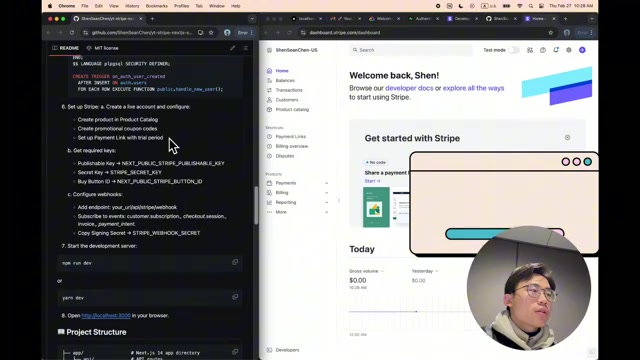
After creating the product, you can configure coupons in the Coupon tab — for example, setting a 50% discount code limited to the first 50 users, providing flexible marketing tools for early promotion.
Setting Up Payment Links and Trial Periods
When creating a payment link in Stripe's Payment Links, there are several key configuration options:
- Free trial period: For example, a 7-day free trial where users don't need to pay immediately
- Promo codes: Check the option to allow users to enter discount codes
- Post-payment redirect: Redirect users back to your app's Dashboard page instead of Stripe's default confirmation page
This is essentially a low-code tool — you can generate a complete payment page just by toggling configuration options, dramatically lowering the integration barrier.
Webhook: Making Your App Respond to Stripe Events in Real Time
This is the most critical and error-prone part of the entire Stripe integration. The purpose of a Webhook is to let your application listen to Stripe events in real time — when a user completes a payment, cancels a subscription, or a trial expires, Stripe proactively sends a notification to your server.
Understanding the nature of Webhooks helps avoid common misconceptions: a Webhook is a "reverse API" — with traditional APIs, you actively query for data, whereas with Webhooks, the service provider pushes data to your specified URL when an event occurs. Stripe's event-driven architecture means payment status changes (successful payments, refunds, failed subscription renewals, etc.) are communicated to your server within milliseconds, without requiring you to poll the Stripe API. This is especially critical in subscription-based SaaS: a user's credit card might be declined during renewal, and Stripe notifies you via the invoice.payment_failed event so your system can promptly downgrade user permissions or send reminder emails. Webhook security is ensured through a Signing Secret — Stripe signs each request with a secret key, and your server only processes events after verifying the signature, preventing spoofed request attacks.
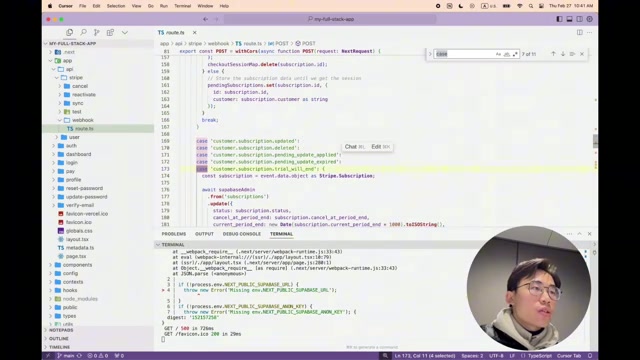
The template's Webhook API route is located at app/api/stripe/webhook/route.ts and listens for the following event types:
customer.subscription.*: Subscription status changes (created, updated, deleted)checkout.session.*: Checkout session completedinvoice.*: Invoice-related eventspayment_intent.*: Payment intent events
Note: Don't subscribe to all event types — only select the events your application actually needs to handle. Otherwise, you'll introduce unnecessary latency and resource consumption.
Authentication System: Google Cloud + Supabase
Google OAuth Configuration
The template uses Google Sign-In for authentication, built on the OAuth 2.0 protocol — the industry cornerstone of modern identity authentication. The entire flow involves three parties: the user's browser, your application server (Supabase in this case), and Google's authorization server. When a user clicks "Sign in with Google," the browser redirects to Google; after Google verifies the user's identity, it sends an authorization code to the pre-registered Redirect URI (Supabase's callback address). Upon receiving the authorization code, Supabase exchanges it for an Access Token using the Client Secret, then fetches user information from Google to complete the login.
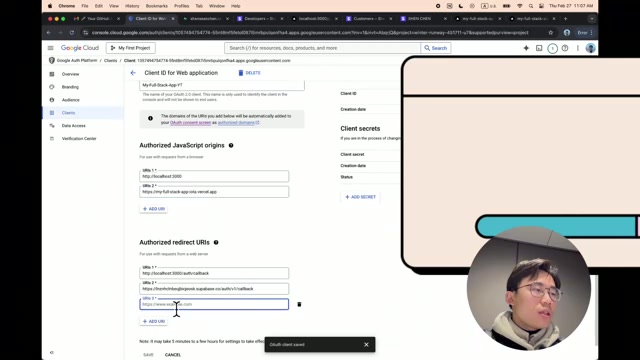
You need to create OAuth 2.0 credentials in the Google Cloud Console. The key steps are:
- Create an OAuth Client ID in API Services > Credentials
- Set Authorized JavaScript Origins (localhost:3000 for local development, your deployment domain for production)
- Configure Authorized Redirect URLs pointing to
/auth/callback
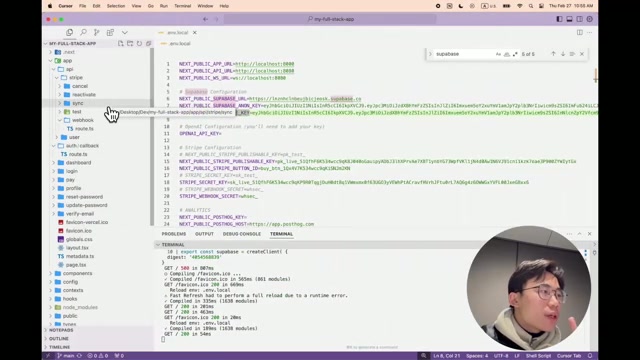
Supabase Authentication Integration
As a BaaS (Backend as a Service), Supabase greatly simplifies the authentication flow. In Supabase's Authentication settings, enable the Google Provider and enter the Client ID and Client Secret obtained from Google Cloud.
Bidirectional configuration is key: Google Cloud needs to know the legitimate callback addresses in advance (to prevent authorization codes from being hijacked to malicious sites), and Supabase needs the Client Secret to complete the token exchange. The two systems establish a trust relationship by exchanging keys and callback URLs — if either side's configuration is missing, the entire OAuth flow will fail at different stages. This is also the most common source of errors during initial setup.
In Supabase's URL Configuration, you need to set three addresses:
- Site main URL
/auth/callback(authentication callback)/login(login page)
Database Design and Triggers
The template comes with four core data tables, created with a single click via the SQL Editor:
| Table | Purpose |
|---|---|
users | Basic user information |
user_preferences | User preference settings (e.g., whether onboarding is completed) |
user_trials | Trial period tracking (start time, end time, whether canceled) |
subscriptions | Subscription information (synced with Stripe) |
The most elegant design here is the database trigger. PostgreSQL triggers are a mechanism that automatically executes predefined functions when specific database events occur. They solve the problem of "decoupled synchronization between the authentication system and the business database" — Supabase's Auth system maintains its own auth.users table, while the user data needed for business logic (preferences, trial status, etc.) is stored in separate business tables.
If you handle this synchronization at the application layer (i.e., calling APIs to write to multiple tables after user registration), you face the risk of data inconsistency due to network failures or code exceptions. Triggers guarantee atomicity at the database level: when Supabase Authentication detects a new user registration, it automatically calls the handleNewUser function, synchronously inserting user information into the users, user_preferences, and user_trials tables — either all succeed or all roll back, fundamentally eliminating data silo issues. The subscription table syncs with Stripe in real time via Webhooks, forming a complete data loop. This is a classic application of the "database-first" architectural philosophy.
Deploying to Vercel and Final Integration Testing
Vercel Deployment Process
Deploying the application to Vercel is straightforward: import the GitHub repository, paste in all environment variables (Supabase URL, API Keys, Stripe Keys, etc.), click Deploy, and you're done.
Related articles
 Tutorials
ChatGPT Plus Subscription Guide: Are GPT-5.5, image-2, and Codex Worth the Upgrade?
A detailed look at ChatGPT Plus features — GPT-5.5, image-2, and Codex — with a Plus vs Pro comparison and a complete step-by-step subscription guide for users outside the US.
 Tutorials
Harness AI Engineering in Practice: Using Claude Code to Master Enterprise-Level E-Commerce Development
Deep dive into Harness AI Engineering: master enterprise e-commerce development with Claude Code using the Rules, Skills, Wiki, and Changes framework.
 Tutorials
Cursor + Codex Dual-IDE Collaboration: A Practical Methodology for Open-Source Project Customization
A complete methodology for open-source project customization based on real-world experience, detailing the Cursor+Codex dual-IDE workflow, seven-stage process, MVP validation, and AI source code reading techniques.