OpenAI Codex CLI Installation Guide: Windows Setup & GPT-5 Programming in Practice

Installation guide and usage walkthrough for OpenAI's open-source Codex CLI programming tool on Windows
This article covers OpenAI's open-source command-line programming assistant Codex CLI, released under the Apache 2.0 license with GPT-5 model support and features including project instructions, conversation compression, and MCP tool integration. It provides a detailed walkthrough of installation and configuration on Windows, and compares Codex CLI with Claude Code, highlighting advantages in open-source transparency, cost structure, and multi-platform support.
OpenAI recently open-sourced a command-line programming tool called Codex CLI, which offers coding assistance capabilities on par with or even surpassing Claude Code. This article provides a detailed guide on how to install and configure Codex CLI on Windows, along with insights into its core features and hands-on experience.
What is Codex CLI
Codex CLI is an open-source command-line programming assistant tool released by OpenAI, positioned similarly to Anthropic's Claude Code. It's designed to help developers complete coding, debugging, and project management tasks directly from the terminal with AI assistance.
Codex CLI's open-source strategy is noteworthy. OpenAI hosts its code on GitHub under the Apache 2.0 license, meaning developers can not only use it for free but also freely modify and distribute it. This stands in interesting contrast to OpenAI's broader trend toward closed-source approaches in recent years, and has been interpreted by the industry as a direct response to Anthropic's Claude Code commercialization strategy. Since its launch in early 2025, Claude Code quickly gained developer adoption, though its per-token pricing model, while flexible, isn't exactly cheap for high-frequency use cases. Codex CLI's open-source, free-to-use strategy is clearly aimed at capturing developer mindshare in this emerging market.
Although official documentation states that Codex CLI only supports native execution on macOS and Linux, actual testing confirms that the current version can be installed and run directly on Windows without going through WSL (Windows Subsystem for Linux) — great news for Windows users. WSL is a Linux compatibility layer built into Windows 10/11 that allows users to run Linux binaries directly on Windows without the performance overhead of traditional virtual machines. Many developer-focused command-line tools initially only support Unix-like systems, forcing Windows users to rely on WSL, which has drawbacks like poor cross-filesystem access performance and extra maintenance for environment variable configuration. The fact that Codex CLI can run directly in Windows PowerShell or CMD means developers can use it seamlessly in their native Windows environment, with more natural integration with the local file system, VS Code, and other tools.
Pre-Installation Environment Setup
System Requirements
Before installing Codex CLI, make sure you meet the following prerequisites:
- Node.js: Installed with a compatible version
- NPM: Node.js's package manager, typically installed alongside Node.js
- Network access: Ability to reach OpenAI's API services (i.e., you can use ChatGPT normally)
Node.js is a JavaScript runtime environment built on Chrome's V8 engine that enables JavaScript code to run on servers or local systems outside the browser. NPM (Node Package Manager) is Node.js's default package manager and the world's largest open-source software registry, hosting over 2 million packages. Codex CLI's distribution via NPM makes sense because the Node.js ecosystem has extremely high penetration among developers — virtually every frontend and full-stack developer already has Node.js pre-installed on their machine, which significantly lowers the installation barrier.
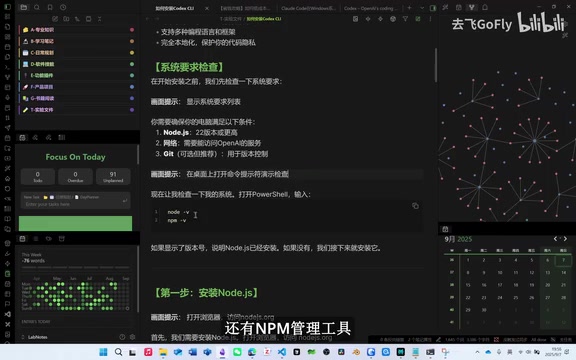
Checking Node.js and NPM Versions
Open your terminal and run the following commands to verify your installation:
node -v
npm -v
If the terminal outputs version numbers correctly, your environment is ready. If not, you'll need to download and install from the Node.js official website first.
Installing Codex CLI
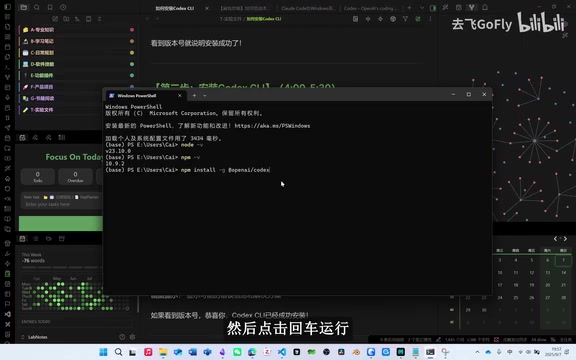
Once your environment is ready, installation requires just a single command. Run the following in your terminal:
npm install -g @openai/codex
The -g flag indicates a global installation, meaning Codex CLI will be installed as a system-level command accessible from any directory via the codex command, not limited to a specific project.
After installation, confirm success with:
codex --version
If you see a version number like 0.3.0, Codex CLI has been successfully installed on your system.
Login and Initial Configuration
Account Login
After installation, simply type codex in your terminal and press Enter. The system will present a login dialog asking you to authorize with your ChatGPT account. Follow the prompts to complete the OAuth authorization flow.
OAuth (Open Authorization) is an open-standard authorization protocol that allows users to grant third-party applications access to their resources on another service without exposing their password. Codex CLI uses OAuth 2.0's Device Authorization Grant flow: when you enter codex in the terminal, the system generates a one-time verification code and opens a browser page where you log into your ChatGPT account and enter the code to complete authorization. Throughout this process, your password never passes through the command-line tool, ensuring high security. This also means Codex CLI itself doesn't store any account credentials — it communicates with the OpenAI API through the obtained Access Token.
GPT-5 Model Selection
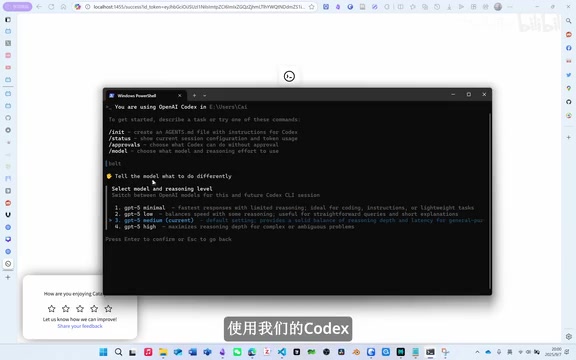
After successful login, typing a forward slash / displays available commands and options. For model selection, Codex CLI currently supports the GPT-5 model with 4 different thinking depth levels. If you have a ChatGPT Plus subscription, you can select the highest-tier GPT-5 High mode for maximum reasoning and coding capability.
GPT-5 is OpenAI's latest-generation large language model released in 2025, featuring significant improvements over GPT-4o in reasoning ability, code generation accuracy, and long-context understanding. The 4 thinking depth levels available in Codex CLI essentially correspond to different computational allocations for Chain of Thought reasoning before the model generates its response. Lower-level modes respond faster and consume fewer token quotas, suitable for simple code completion and file operations. GPT-5 High mode enables the model to perform deeper step-by-step reasoning, ideal for complex architectural design, multi-file refactoring, and difficult bug diagnosis. This tiered design allows users to flexibly choose based on task complexity, balancing speed and quality.
Regarding ChatGPT Plus subscriptions, there are currently some low-cost options available in the market at around 55 RMB.
Permissions and Working Modes
During configuration, Codex CLI will ask whether to allow automatic execution of operations. You can choose:
- Full Auto: Codex autonomously completes all operations without requiring intermediate confirmation
- Manual approval mode: Every operation requires your confirmation before execution
For developers familiar with their project structure, Full Auto mode can significantly boost productivity. However, note that in Full Auto mode, Codex may execute operations with side effects like file deletion or dependency installation. It's recommended to use this mode under version control (like Git) protection so you can quickly roll back if anything unexpected happens.
Core Features Overview
Codex CLI offers a rich feature set. Here are some practical highlights:
Project Instructions
You can create project instructions for Codex, essentially providing AI with project context. When you need to execute a command or complete a task, project instructions help Codex more accurately understand your requirements and project structure. Specifically, you can create a configuration file in your project root directory describing the tech stack, directory structure conventions, coding standards, commonly used commands, and other information. This is similar to providing an onboarding document to a new team member, enabling Codex to follow the project's existing conventions rather than generating code with inconsistent style.
Compact (Conversation Compression)
When the context conversation becomes too long, you can use the Compact feature to compress conversation history, freeing up context window space and ensuring subsequent interaction quality isn't affected.
Large language models have context window limitations when processing conversations — there's an upper bound on the total text the model can "see" at once. Even though GPT-5's context window has been expanded significantly, accumulated code snippets, error logs, and conversation history during long programming sessions can still approach or exceed this limit. The Compact feature works by using the model itself to summarize and distill the conversation history, compressing lengthy interaction records into concise versions of key information to free up context space. This is similar to creating "meeting minutes" after a lengthy discussion — retaining core decisions and conclusions while discarding process details.
MCP Tool Integration
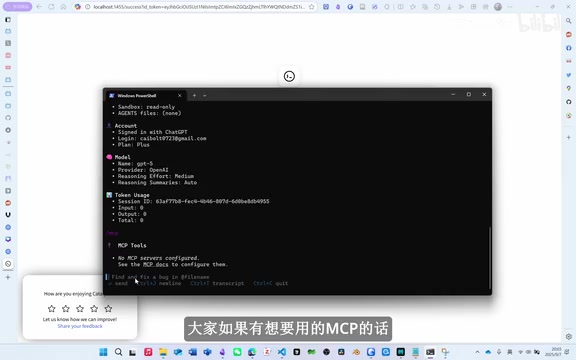
Codex CLI supports installing and using MCP (Model Context Protocol) tools, allowing you to extend Codex's capabilities through the MCP protocol to connect with more external tools and data sources.
MCP (Model Context Protocol) is a standardized protocol proposed and open-sourced by Anthropic in late 2024, designed to address interoperability between AI models and external tools/data sources. Think of MCP as a "USB port" for AI — it defines a unified communication specification that enables AI assistants to invoke external capabilities like database queries, API requests, and file system operations in a standardized way. Interestingly, although MCP was initiated by Anthropic, it has become a de facto industry standard, and OpenAI's Codex CLI has chosen to support this protocol as well, reflecting the trend toward interconnected AI tool ecosystems. Through MCP, developers can connect Codex to various external services like GitHub, Jira, databases, and search engines, greatly expanding its application scenarios.
VS Code Plugin Integration
If you're not comfortable with a purely command-line interaction style, OpenAI also provides a Codex VS Code plugin. Once installed, you can chat with Codex directly from VS Code's sidebar to complete coding tasks.
VS Code (Visual Studio Code) is a free, open-source code editor from Microsoft that has become the most widely used code editor among developers worldwide, thanks to its lightweight architecture and rich plugin ecosystem. Deep integration of AI programming assistants with VS Code has become an industry trend — GitHub Copilot, Cursor, Cline, and other tools all exist as VS Code plugins or VS Code forks. Codex CLI's VS Code plugin is essentially designed to serve developers who prefer graphical interfaces, allowing them to use AI-assisted programming without leaving their familiar editor environment.
Plugin Installation Methods
- Method 1: Search for "Codex" in the VS Code extension marketplace and install
- Method 2: If you can't find it in the marketplace, search for "Codex OpenAI's Coding Agent" in your browser and trigger installation from the web page
After installing the plugin, you can interact with Codex either through VS Code's graphical chat panel or by typing codex in VS Code's integrated terminal for command-line mode.
Codex CLI vs Claude Code: Hands-On Comparison
Based on actual usage experience, Codex CLI's performance is no weaker than Claude Code, and in some scenarios it even has advantages:
- Problem-solving ability: When using GPT-5 High thinking mode, Codex excels at analyzing and solving complex problems
- Open-source advantage: As an open-source tool, Codex CLI offers greater transparency and customizability. Developers can audit source code, submit bug fixes, or even build their own customized tools based on Codex CLI — particularly important in enterprise applications where many companies have concerns about the security and data privacy of closed-source tools
- Ecosystem integration: Deeply tied to OpenAI's model ecosystem, Codex's capability ceiling rises as the GPT model series improves
- Multi-platform support: Although officially listed as supporting only macOS and Linux, it runs directly on Windows too, offering broader coverage
- Cost advantage: Codex CLI itself is free, consuming your ChatGPT Plus subscription quota during use, while Claude Code requires separate payment based on API call volume. For high-frequency users, Codex CLI's cost structure may be more favorable
Of course, Claude Code has its own strengths — Anthropic's Claude model has its own technical expertise in code comprehension and long-text processing, and Claude Code's tool invocation stability has been market-validated over a longer period. Which tool to choose ultimately depends on your specific use case and model preference.
Conclusion
As an important piece of OpenAI's AI programming assistant strategy, Codex CLI provides developers with a powerful, free, and open-source command-line programming tool. From installation and configuration to daily use, the entire workflow is relatively straightforward. If you're already a ChatGPT Plus subscriber, give Codex CLI a try and experience GPT-5-powered programming assistance. With continued iteration, Codex CLI is poised to become an indispensable addition to developers' toolboxes.
It's worth noting that the AI programming assistant space is entering a period of intense competition. Beyond OpenAI's Codex CLI and Anthropic's Claude Code, Google's Gemini CLI, GitHub Copilot's command-line mode, and other products are also rapidly iterating. This competition benefits developers — it drives rapid improvement in tool capabilities and continued price reduction, moving AI-assisted programming from "novelty" to "everyday practice."
Related articles
 Tutorials
ChatGPT Plus Subscription Guide: Are GPT-5.5, image-2, and Codex Worth the Upgrade?
A detailed look at ChatGPT Plus features — GPT-5.5, image-2, and Codex — with a Plus vs Pro comparison and a complete step-by-step subscription guide for users outside the US.
 Tutorials
Harness AI Engineering in Practice: Using Claude Code to Master Enterprise-Level E-Commerce Development
Deep dive into Harness AI Engineering: master enterprise e-commerce development with Claude Code using the Rules, Skills, Wiki, and Changes framework.
 Tutorials
Cursor + Codex Dual-IDE Collaboration: A Practical Methodology for Open-Source Project Customization
A complete methodology for open-source project customization based on real-world experience, detailing the Cursor+Codex dual-IDE workflow, seven-stage process, MVP validation, and AI source code reading techniques.