OpenClaw Start, Stop, and Restart Commands Explained: Complete Gateway Operations Guide

Complete guide to OpenClaw Gateway start, stop, restart, and status check commands
This article systematically explains OpenClaw Gateway's complete command system, including the differences between foreground startup (openclaw gateway) and background startup (openclaw gateway start), three scenarios for the restart command (openclaw gateway restart) — modified configs, added tool plugins, and frozen Lobster — and how to use the status check command (openclaw gateway status). The article strongly recommends using foreground mode for real-time log viewing and troubleshooting.
Introduction
After installing OpenClawAd, many people run into an awkward problem: after a computer restart, they don't know how to get the Lobster running again. They're afraid to close the terminal window that's constantly occupying their screen, and when the Lobster freezes, they have no idea how to handle it.
All these issues point to the same core knowledge — OpenClaw's Gateway startup commands. Once you understand this command system, you'll be able to freely control the Lobster's lifecycle: start, stop, restart, and status check — all under your control.
Opening the Terminal: The Starting Point for All Operations
Windows Environment
On Windows, there are two ways to open the terminal:
- Right-click method: Right-click the Windows icon in the bottom-left corner, then select "Terminal" or "Terminal (Admin)"
- Keyboard shortcut: Press
Win + Xand select Windows PowerShell from the popup menu
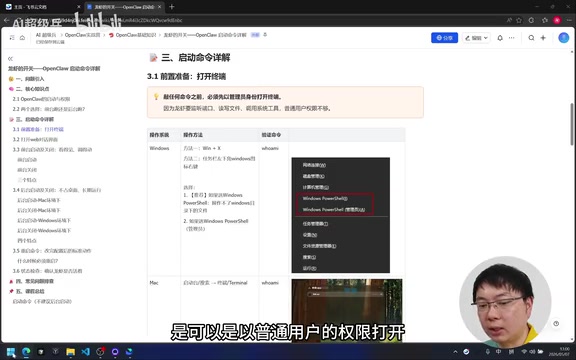
A common question here: do you need to open it as administrator? The answer is no, it's not required. The difference between regular user privileges and administrator privileges is that regular users may not be able to modify files in the C:\Windows directory, but you generally don't need to touch those files anyway. Either option works fine.
Mac Environment
On Mac, you can find the "Terminal" app in Launchpad, or search for "Terminal" in the search bar to open it.
The Difference Between Foreground and Background Startup
OpenClaw's startup commands essentially answer one question: How do you want the Lobster to work for you?
There are two choices:
| Mode | Characteristics | Analogy |
|---|---|---|
| Foreground | Terminal window visible, you can see runtime logs and errors | Working with the lights on — visible and tangible |
| Background | Terminal window not visible, runs silently | Working with the lights off — invisible but still working |
OS Basics: Foreground Process and Background Process are fundamental concepts in operating system process management. A foreground process is bound to the current terminal session — when the terminal closes, the process terminates with it. Standard output (stdout) and standard error (stderr) print directly to the terminal window. A background process detaches from terminal control and continues running even after the window is closed, but logs need to be actively queried. On Linux/Mac systems, the
&symbol ornohupcommand is typically used for background execution; Windows uses the-WindowStyle Hiddenparameter ofStart-Processto hide the window. OpenClaw encapsulates these system-level operations intostart/stopsubcommands, lowering the barrier to entry.
Foreground Gateway Startup (Strongly Recommended)
First, open the web conversation interface:
openclaw dashboard
This command opens OpenClaw's built-in Web UI, but you'll notice the page can't load properly. The reason is that the Gateway hasn't been started yet. The Gateway is the core service that actually drives OpenClaw.
What is the Gateway? A Gateway is a core concept in microservices architecture, acting as the "unified entry point" between clients and backend services. It handles request routing, protocol conversion, authentication, and more. OpenClaw's Gateway is essentially a locally running RPC (Remote Procedure Call) server that receives messages from channels like Feishu and DingTalk, then dispatches them to underlying AI models and tool plugins for processing. This explains why just opening the Dashboard isn't enough — the Dashboard is merely a frontend display layer, while all business logic is driven by the Gateway.
The command for foreground Gateway startup:
openclaw gateway
After starting, refresh your browser and you'll be able to access OpenClaw's interface. The terminal window will continuously display runtime logs, and every interaction you have with the Lobster will show feedback in the terminal.
Two ways to shut down in foreground mode:
- Press
Ctrl + Cto terminate the process (window stays open) - Close the terminal window directly (both window and process disappear)

After shutting down the Gateway, the web interface will redirect to the login page — at this point, the gateway has stopped and the page is no longer accessible.
Background Gateway Startup
Mac environment:
# Start
openclaw gateway start
# Stop
openclaw gateway stop
Windows environment:
# Start (background)
Start-Process -WindowStyle Hidden -FilePath "openclaw" -ArgumentList "gateway"
# Stop
openclaw gateway stop
When starting in the background, there won't be any Lobster-related output printed, but the service is indeed running.
Foreground mode is strongly recommended. The reason is simple: in foreground mode, you can see the communication process with the Lobster in real-time, along with any error messages. In practice, we mostly interact with the Lobster through channels like Feishu and DingTalk — the terminal window is primarily used for monitoring runtime status and troubleshooting. When errors occur, you can directly feed the logs to AI tools (like Kimi) to help analyze the cause.
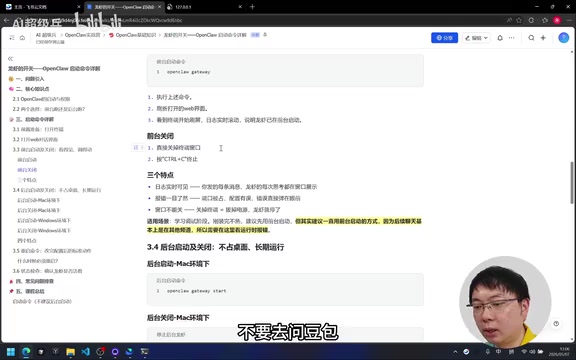
⚠️ Special Warning: Don't ask Doubao when you encounter problems! Many people have followed Doubao's suggestions and ended up breaking their entire Lobster environment. It's recommended to first consult friends with technical experience, or try tools like Kimi.
OpenClaw Restart Command and Use Cases
Restart command:
openclaw gateway restart
When do you need to restart? There are three main scenarios:
- Configuration files were modified: For example,
openclaw.jsonand other config files require a restart to take effect after changes - New tool plugins were added: Note this refers to "Tools," not skills. New tools need a restart to be loaded
- The Lobster stops responding: If the Lobster hasn't replied after a minute or two and the terminal isn't receiving messages, it's likely frozen and needs a restart
Why must you restart after changing configuration? This involves the difference between "Hot Reload" and "process-level loading." Hot reload refers to a service's ability to dynamically read new configuration without restarting, commonly seen in Nginx's
reloadcommand or frontend development's HMR mechanism. OpenClaw currently doesn't support hot reload for most configuration changes (likeopenclaw.jsonand tool plugins) because these configurations are loaded into memory once at service startup and the files aren't re-read during runtime. Files likeagents.md, however, are re-read each time a new session is established — this is "session-level loading." Understanding this distinction helps you accurately determine when a restart is needed.
Additionally, while files like agents.md are loaded before each session opens, if you want modifications to take effect immediately during an ongoing conversation, you'll still need to restart.
Restarting won't lose memory. As long as the conversation hasn't crossed into a new day, you can continue chatting in the same session window after a restart, with all previous context preserved.
Status Check Command: Confirming Whether the Lobster Is Online
Want to know if the Lobster is still alive? Use this command:
openclaw gateway status
⚠️ Note: It's not openclaw status, but openclaw gateway status — make sure to include gateway.

After execution, it will display the Gateway's current running status. If the RPC status shows OK, it means the Lobster is running normally and can respond to your requests.
What does RPC status OK mean? RPC (Remote Procedure Call) is a communication protocol that allows a program to call functions on another computer. "RPC status OK" means the Gateway's RPC listening port is responding normally to heartbeat detection, and the service is in a healthy, available state. This type of Health Check mechanism is extremely common in production environments — container platforms like Kubernetes and Docker rely on it to determine whether a service needs to be restarted or replaced. For regular users, just remember: RPC OK = Lobster is alive and ready to use.
Common Troubleshooting
"Not recognized as an internal or external command" Error
This means the openclaw command itself cannot be recognized by the system. You may need to re-run the installation script. This is a relatively serious issue — it's recommended to seek help from someone with technical experience.
Related articles
 Tutorials
ChatGPT Plus Subscription Guide: Are GPT-5.5, image-2, and Codex Worth the Upgrade?
A detailed look at ChatGPT Plus features — GPT-5.5, image-2, and Codex — with a Plus vs Pro comparison and a complete step-by-step subscription guide for users outside the US.
 Tutorials
Harness AI Engineering in Practice: Using Claude Code to Master Enterprise-Level E-Commerce Development
Deep dive into Harness AI Engineering: master enterprise e-commerce development with Claude Code using the Rules, Skills, Wiki, and Changes framework.
 Tutorials
Cursor + Codex Dual-IDE Collaboration: A Practical Methodology for Open-Source Project Customization
A complete methodology for open-source project customization based on real-world experience, detailing the Cursor+Codex dual-IDE workflow, seven-stage process, MVP validation, and AI source code reading techniques.