Pi Context View Plugin: Making Agent Context and Skills Visible at a Glance

Pi Context View makes the Agent's input-side context visible, searchable, and comparable.
The article introduces Pi Context View, a Pi plugin recommended by Bilibili creator Xiao Mo Tao, for inspecting the system prompt, tool definitions, and dynamic injections an AI Agent receives. It covers installation (/context; Pi 1.3+), practical scenarios like before/after plugin comparison, checking Skill bodies, verifying project rules, and saving context via search-then-read, plus tips on working with Compact compression.
Title
Pi Context View Plugin: Making Agent Context and Skills Visible at a Glance
Meta Description
Pi Context View is a practical tool for inspecting AI Agent context, Skills, and plugin configurations. This article covers installation, the Usage and Injections features, how to check system prompts and tool definitions, and tips for optimizing the context window through search.
Article Content
In AI Agent development, the system prompt, tool definitions, and dynamically injected content that the model actually receives often feel like a black box that's hard to observe. In a video, Bilibili creator Xiao Mo Tao introduced a plugin called Pi Context View, designed specifically to inspect the input-side context of an Agent and help developers verify whether their configurations are taking effect.
Why You Need a Context Inspection Plugin
After you've added plugins, Skills, or project rules to your Agent, what exactly does the system prompt and tool description that the model receives contain? Which information is injected directly, and which only enters the context after a file is read? These questions can't be answered directly from a standard chat interface.
Pi Context View fills this gap. It offers two core entry points: Usage displays the categorization and estimated occupancy of the context, while Injections lets you expand the system prompt, tool definitions, and some content added by extensions.
Using it is simple: run the install command in your terminal, then launch Pi and type /context in the input box to open the context view. If a Pi session is already open, you'll need to run /reload first to reload the extension. Note that this plugin requires Pi 1.3 or later.
System Prompt is the highest-priority instruction the model receives before a conversation begins, typically containing role definitions, behavioral constraints, and output format requirements. In Agent scenarios, the system prompt is often much longer than in ordinary chat, because it must also embed tool usage guidelines, safety policies, and multi-step task flows. Developers can usually only infer the final assembled result indirectly through code or configuration files, and template concatenation, variable substitution, and conditional branching across different frameworks can cause the actual content to diverge from expectations. The Injections view in Pi Context View presents the assembled system prompt verbatim, making such discrepancies locatable.
Tool Definition refers to callable functions declared in a structured schema, including the name, description, and parameter descriptions. The model relies on these descriptions to decide when to call which tool and how to fill in parameters. Vague tool descriptions or inconsistent parameter names can directly lead to call failures or misuse. Therefore, checking whether tool definitions are injected completely and correctly is a key part of debugging Agent behavior.
Context Categorization and Visualization
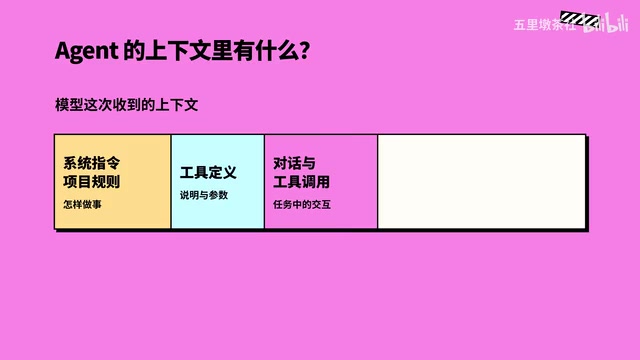
The plugin displays the composition of the context in chart form. System instructions and project rules describe how the Agent should work and what requirements it must follow; tool definitions list the available tools, their functions, and parameters. The ongoing conversation, tool calls, and returned results continuously join the context—reading a file brings its body text in, searching code brings in matching results, and running tests brings in test results or logs.
Content of the same type keeps the same color for easy understanding. Some history may also be organized into a summary for later use. The chat window only shows a portion of this, while the system prompt, tool descriptions, and content temporarily added by extensions usually need to be checked separately—this is precisely where the value of Pi Context View lies.
How to Check Plugin and Skill Injection
Want to verify what a plugin has added? Open a new session both before and after installation, keeping the Pi version, model, project, and existing tools consistent, then compare the changes in the system prompt and tool definitions.
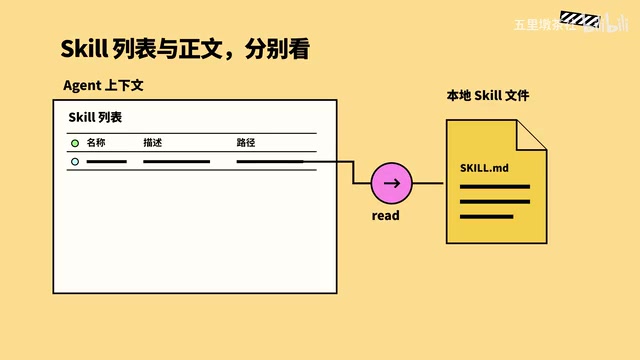
For Skills, the model first receives the name, description, and path, but the file body remains local—only after the Agent uses the Read tool to read it does the body join the context as tool return content. So when inspecting a Skill, you need to look at the list and the body that has been read separately.
Project rules can be verified the same way: expand the system prompt, search for the requirement you wrote, and confirm whether it appears in the currently viewable prompt.
The lazy-loading mechanism of Skills deserves a separate mention: at startup, the Agent typically writes only each Skill's name, one-line description, and local path into the context—a token-saving design. After seeing the descriptions, the model judges whether the current task needs a given Skill, and if so, calls a file-reading tool like Read to load the body. This means "a Skill appears in the list" and "the Skill's body has entered the context" are two different states. When debugging, if you find the model isn't acting according to a Skill's requirements, first confirm whether the body was actually read, rather than only checking whether the name appears. Similarly, if project rules are stored as files, they may go through a similar on-demand loading process.
Search and Context Optimization
When the context is large, you can filter directly by name in Injections. For example, open the Read tool definition and search for Limit to view the parameter description that restricts the number of lines read.

A real-world case: when you need to find two values in a 600-line configuration sample, reading the whole thing returns over 36,000 characters, whereas searching for the location first and then reading the relevant region returns only 397 characters in total—and both target values are still found. This effectively saves context window space.
Working with the Compression Mechanism
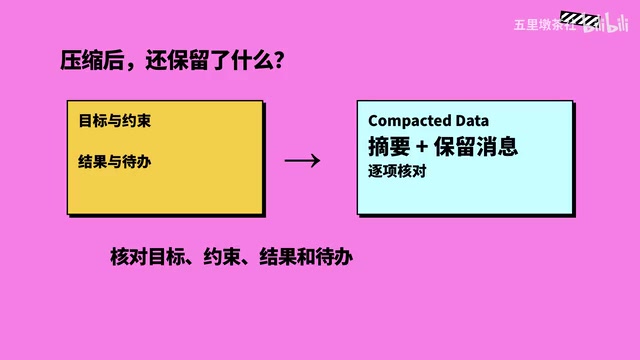
Pi itself supports automatically compressing history or manually executing Compact. To understand what the model can still see after compression, open Compact Data and the retained messages to check whether task goals, constraints, verification results, and to-dos are preserved.
The numbers in the plugin are mainly estimated based on character count and similar methods—suitable for comparing composition and finding content, while actual costs should be checked against service usage records. The loading order of extensions affects whether some changes are visible.
Context Compaction is a common means of controlling the token budget in long sessions: when history approaches the window limit, the system condenses earlier conversations, tool calls, and results into a summary, replacing the original records with the summary to free up space. The side effect of compression is loss of detail—the compressed original tool return content is no longer visible to the model, and only the key points retained in the summary continue to take effect. Pi's Compact Data view displays exactly this summary and the retained recent messages, so when checking, you should focus on whether task goals, hard constraints, verified conclusions, and unfinished to-dos are accurately preserved in the summary. Once such information is lost, the model's subsequent behavior may deviate from the intended direction.
Usage Tips and Limitations
Pick a specific question—whether project rules were added, what parameters a tool has, whether a Skill's body has been read in—find the corresponding category, search and expand, and then decide whether to adjust the configuration. Note that finding an instruction only confirms it appears in the observable content; you can't use that alone to explain why the model made a certain decision.
Pi Context View makes the normally invisible input inspectable, providing a reliable basis for configuring and debugging Agents.
One-line Summary
Pi Context View makes the Agent's input-side context visible, searchable, and comparable.
Paragraph Summary
The article introduces Pi Context View, a Pi plugin recommended by Bilibili creator Xiao Mo Tao, for inspecting the system prompt, tool definitions, and dynamically injected content that an AI Agent actually receives. The plugin offers two entry points: Usage, which shows the categorization and estimated occupancy of the context, and Injections, which expands the system prompt, tool definitions, and content injected by extensions. The article explains installation and usage (type /context to open; requires Pi 1.3 or later) and provides several practical scenarios: comparing before and after installation to verify what a plugin adds, separately inspecting a Skill's list entry and its read body, searching whether project rules took effect, and greatly saving context characters by locating via search first and then reading locally (a case dropping from over 36,000 to 397). It also covers how to work with the Compact compression mechanism to check what the summary retains, and reminds readers that the plugin's numbers are estimates and that it can only confirm content is visible—not explain model decisions.
Related articles
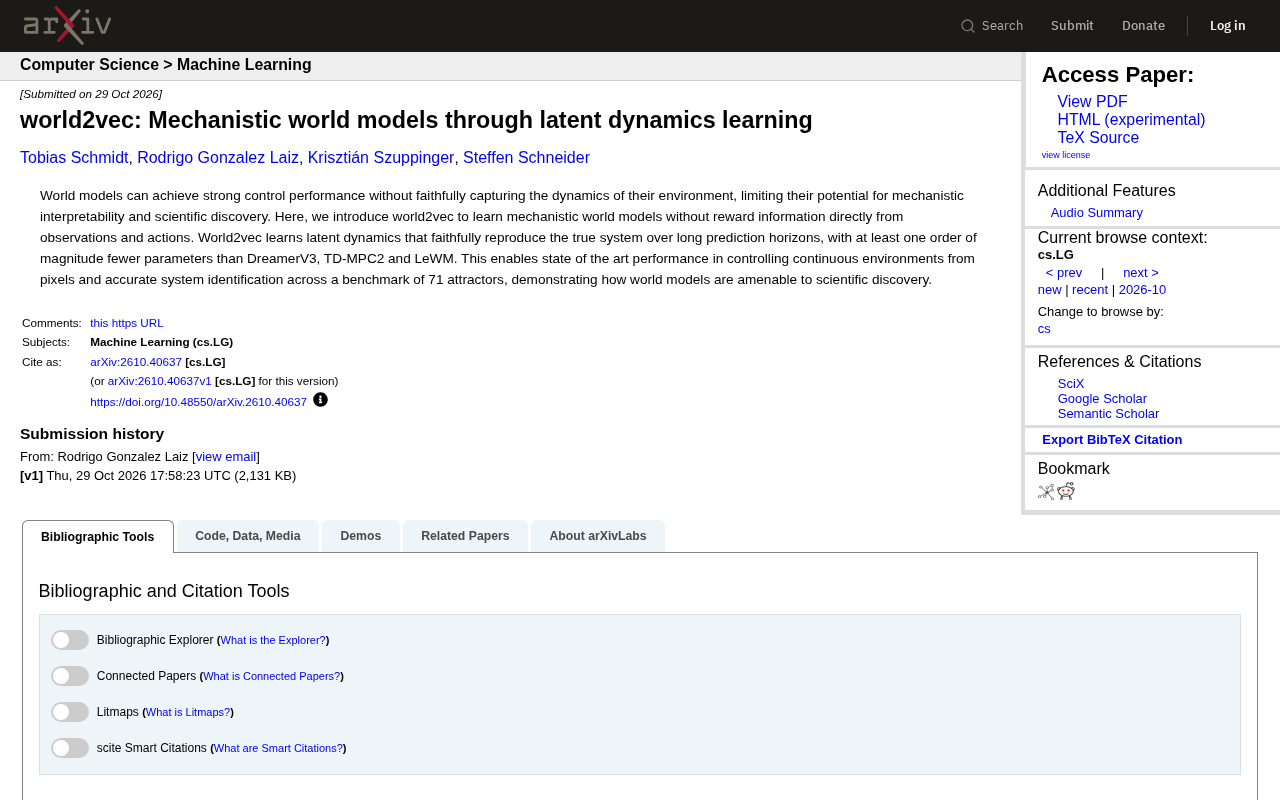
world2vec: Building Mechanistic World Models with Latent Dynamics Learning
world2vec proposes a reward-free method for learning mechanistic world models via latent dynamics, faithfully reproducing systems over long horizons with at least an order of magnitude fewer parameters than DreamerV3, TD-MPC2, and LeWM, and achieving accurate system identification on 71 attractor benchmarks.

A New KL-DRO Paradigm: Adaptive Scenario Generation Around a Learned Density Model
KL-DRO research proposes centering the KL ball on a learned density model instead of the empirical distribution, with adaptive scenario generation guiding sampling toward the worst case. Experiments show lower cost under distribution shift when records are scarce and the model can extrapolate, with comparable in-distribution cost.

ODE Samplers for Discrete Diffusion Models: Exponential Residual Flows Accelerate Generation
Discrete diffusion models lack deterministic ODE sampling? This article introduces Exponential Residual Flows (ERFs), which introduce continuous residual variables per token to construct piecewise ODEs for deterministic sampling and support consistency distillation acceleration. Superior to prior methods on code and text generation tasks.