Samsung DeX's Most Annoying Limitation: How to Work Around the Five-App Cap

Samsung DeX's five-app cap can be effectively overcome with multi-workspace and dual-screen strategies on foldable phones.
Samsung DeX enforces a hard limit of five simultaneous app windows per desktop, which can challenge heavy multitaskers. Samsung addresses this through two mechanisms: OneUI 9 supports up to four additional workspaces, letting users distribute tasks across virtual desktops for up to 25 active windows theoretically; and apps running on the foldable's inner screen don't count toward the five-app quota, turning the device into a natural dual-screen workstation. The inner screen auto-sleeps to prevent OLED burn-in but wakes instantly when the mouse moves over it, keeping the experience seamless.
Samsung's DeX desktop mode lets a single foldable phone power a full desktop work environment — but it comes with one setting that frustrates a lot of users: on any given desktop, the screen can only display five app windows at the same time. For desktop users accustomed to heavy multitasking, that cap sounds pretty restrictive. Fortunately, in practice it's not nearly as crippling as it sounds.
What the Five-App Limit Actually Means
Under DeX's current rules, on an external display, a single desktop space can only show five open apps at any one time. For intensive office work — where you need a browser, document editor, spreadsheet, email client, and chat tool all open simultaneously — five windows fill up fast.

Samsung does offer an official workaround in OneUI 9: support for up to four additional workspaces. That means you can distribute different tasks across different virtual desktops, each with its own five-app quota, and switch between them to expand the total number of usable windows. This approach follows the same logic as "multiple desktops/workspaces" on traditional desktop operating systems — familiar to anyone who has used Windows virtual desktops or macOS Spaces.
The workspace concept originated in Unix/Linux desktop environments and was later popularized by Windows 10's "Virtual Desktops" and macOS "Spaces." Each workspace is essentially an independent visual layer with its own window layout, allowing users to switch between them without closing any apps. In DeX's implementation, four additional workspaces means a theoretical maximum of 25 (5×5) active app windows maintained simultaneously — though only the five on the current desktop are visible at any given time. For users who need to switch between distinct task modes like "writing," "data analysis," and "communications," this is an efficient way to organize work without constantly opening and closing apps.
The Foldable's Inner Screen: An Underrated "Second Display"
What truly makes the five-app limit feel manageable is the foldable phone's own inner screen. The key detail: apps running on the phone's inner screen do not count toward the five-app quota on the external display.
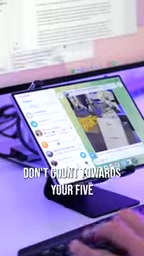
This means the inner screen can serve as an independent secondary display. You can offload messaging apps, social media feeds, and other content you want visible but not front-and-center onto the inner screen, letting them sit quietly outside the main display. They don't take up precious window slots on the primary desktop, yet remain a quick glance away. This split-screen approach effectively turns a foldable phone into a natural dual-screen workstation.
Balancing Inner Screen Auto-Sleep and Burn-In Protection
OLED screens carry a burn-in risk when displaying static content for extended periods, and Samsung has made a deliberate trade-off here. The foldable's inner screen will automatically time out and sleep when you're not looking at it, reducing burn-in risk.
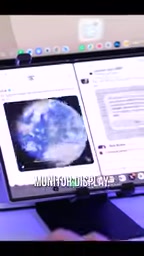
But sleep doesn't mean the apps are unavailable. Simply move the mouse to the inner screen's workspace position and the display wakes up immediately. This interaction design is quite clever: it protects OLED longevity while keeping inner-screen apps in a "within arm's reach" state at all times — no manual power-on or unlocking required.
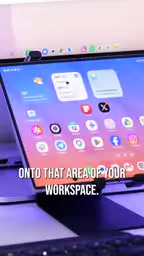
OLED (Organic Light-Emitting Diode) burn-in stems from its core light-emitting principle: each pixel is an independent organic light-emitting material, and keeping the same area lit for extended periods causes that region's organic material to degrade faster than surrounding areas, leaving a permanent ghost image. This is especially noticeable with always-on elements like notification bar icons and navigation buttons. As the world's largest OLED display manufacturer, Samsung has long employed multiple strategies on its devices — pixel shifting, automatic brightness reduction, and auto-sleep timeouts — to slow burn-in. The Galaxy Fold series' inner screen continuously displaying static app interfaces in DeX mode is precisely the kind of high-risk scenario where auto-sleep represents an engineering balance between "usability" and "screen longevity."
How Well Mobile Apps Adapt to the Desktop
Despite the five-app hard limit, the actual DeX experience holds up well. Mobile versions of Google Docs, Excel, Chrome, Gmail, ChatGPT, and other apps run surprisingly naturally in the DeX desktop environment — windowed mode, resizing, and mouse interaction all feel smooth without obvious friction.
Looked at from a different angle, when your phone itself is an extra screen, the constraint of "five apps per desktop" becomes far less oppressive. Five windows on the main display, several apps on the inner screen, plus up to four additional workspaces — the combined available space is actually quite generous. What sounds like "the most annoying limitation" turns out, with sensible workflow organization, to be more of a rule to adapt to than an insurmountable barrier.
Wrap-Up: Between Limits and Workarounds
DeX's five-app cap is a real pain point, particularly for heavy multitaskers. But Samsung has provided viable workarounds through the multi-workspace mechanism and the foldable's inner screen acting as a second display. For users who want to run a full desktop office setup from a single Galaxy Fold, understanding and making good use of these features is far more valuable than simply complaining about the limit.
Related articles

A Single Prompt Triggers a Global PHP Security Storm: Is AI a Savior or a Hidden Risk?
A single AI prompt triggered a global PHP security crisis affecting Wikipedia and the Internet Archive. This article reviews the incident, analyzes the OpenAI-Amazon controversy, and explores the security paradox of lowered vulnerability discovery barriers in the AI era and developer response strategies.

When AI Is Taken Away: How Reliance on Shortcuts Undermines Your Problem-Solving Resilience
A study of 1,222 people found that after using AI to answer questions, once AI was removed, people gave up on more problems than a control group that never used AI. The article analyzes the impact of AI reliance on learning resilience and metacognition, and explores design implications for AI learning tools.

Carta and NewView Partner to Let Startup Employees Cash Out Equity Early
Carta and NewView Capital partner to simplify startup tender offers, helping employees sell equity early. Analysis of the mechanism, liquidity pain points, and impact.