Shockwave Open Source Review: An AI Second Brain That Syncs Across Desktop, Mobile, and Server

Shockwave is a free open-source app unifying Obsidian-style notes, AI Agent editing, and cross-device sync.
Shockwave is an open-source app built by a developer frustrated with existing AI Agent tools, combining second-brain note management with AI Agent capabilities. It borrows bidirectional links and graph views from Obsidian, self-evolving skills and cron scheduling from Hermes, and uses GitHub repositories as a sync backbone across desktop, mobile (Telegram), and server. The Agent works directly inside your notes files — not a separate window — and can read the graph, generate content, and draw diagrams. The author's design philosophy emphasizes tight human-AI collaboration over full automation, with every step kept fast, transparent, and easy to intervene.
Why One Developer Decided to Build Their Own Tool
Tools like Hermes and OpenClawAd already exist in the AI Agent space, yet Shockwave's author chose to build from scratch. The reason is simple: he wasn't satisfied with the user experience of existing tools.
His core requirement was integration. He liked Hermes's self-evolving skills, cron scheduling, memory system, and prompt caching. He also appreciated the note-taking and graph capabilities of tools like Obsidian. But no single tool could seamlessly combine all of these into an app he'd actually want to open every day. So he packed Obsidian's note linking, Hermes's Agent capabilities, Cloud Code's editing experience, and server-side task scheduling all into one application — that's Shockwave.
It's worth noting that the author openly admits he "borrowed" heavily from multiple sources: bidirectional links, daily notes, and graph views from Obsidian; self-evolving skills and cron mechanisms from Hermes. In the open-source ecosystem, this kind of mutual inspiration is completely normal.
The Second Brain: Notes, Links, and Graphs
At its core, Shockwave is an Obsidian-style note-taking app. You can dump whatever's in your head without worrying about organization — the system connects content through links. The author demonstrated his own workflow: content ideas jotted down at the bottom of a daily journal entry are automatically referenced under a corresponding "content" page, and the graph view shows the connections between all pages.
The author uses the PARA folder system to organize his second brain, but the app doesn't enforce this structure — users are free to choose their own.
The real differentiator is how the AI Agent is positioned. It's not a separate window — it's "with you," working directly inside the same files. You can select a passage of text and have the Agent generate a more refined version below it, or have it draw a diagram in Excalidraw based on the text content — all within the same interface, with a Cloud Code-style local editing experience, but more deeply integrated.
Critically, the Agent has a dedicated tool for accessing the graph, with graph data stored in memory so the Agent can read and optimize it directly, without falling back to command-line tools like grep for retrieval.
What is PARA? PARA is a personal knowledge management framework created by productivity writer Tiago Forte. The acronym stands for: Projects (active projects), Areas (life domains requiring ongoing maintenance, like health or finances), Resources (reference material on topics of interest), and Archives (completed or inactive content). The core idea is to organize information by actionability rather than category, so you can quickly find the most relevant content when you need it. The Obsidian community has extensive template and plugin support for PARA, making it one of the most popular organizational approaches for second brain tools. Shockwave adopts this structure as a default example without enforcing it — a pragmatic design choice that offers a best-practice starting point while preserving user freedom.
GitHub as the Sync Hub
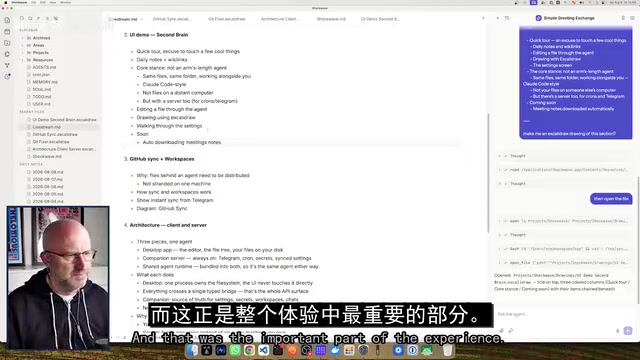
Enabling collaboration across desktop, laptop, mobile (Telegram), and server — all on the same set of files — presents a major technical challenge: synchronization. The author's solution: every workspace maps to a GitHub repository, and all file changes sync quickly through GitHub.
This design brings two additional benefits: GitHub handles the sync infrastructure for free, and the growing commit history becomes an auditable activity log — you can always see exactly how files were modified.
Creating a workspace is straightforward: add a workspace, select a folder, and the system automatically creates a GitHub repository and writes default files like memory and agents. The author demonstrated live: on his phone, he voice-dictated "create a file called test-12345.md in the main folder"; after server-side transcription and file writing, the file appeared on the desktop within seconds. After making changes on desktop, the Telegram side immediately reflected them.
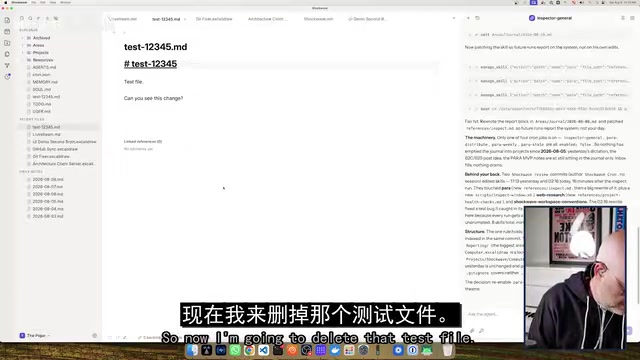
The author emphasized that sync speed is critical to the experience — if the desktop is editing a file while a Telegram message triggers a write elsewhere, the sync must be fast enough, or the whole experience falls apart.
GitHub as a sync backbone is a design pattern that treats version control infrastructure as a side effect. GitHub's underlying Git protocol natively supports multi-device push/pull operations, change history tracking, and conflict merging. For note-taking apps, this means no need to build custom backend storage — free-tier private GitHub repositories suffice. Compared to proprietary sync solutions like Dropbox or iCloud, this approach keeps data fully under user control, and every file change comes with a timestamp and diff for auditing or AI analysis. The tradeoff is that Git's merge conflict logic wasn't designed for high-frequency concurrent writes, which is why Shockwave's engineering investment in sync speed — ensuring writes from different clients don't race — is critical to making this architecture work.
Seamless Flow Between Desktop, Telegram, and Server
Each client has its role: the desktop is where you primarily edit files and organize your life (notes, todos, projects, resources, brand assets, prompts); the server handles Telegram integration, cron scheduling, and self-improvement (review) processes; Telegram serves as the mobile entry point.

The most clever feature is context continuity. Say a cron job completes an AI news digest and sends you a Telegram message — you can reply directly to that message, and the Agent automatically switches to the corresponding conversation context, letting you ask follow-up questions based on the full execution results without having to rebuild context. The author says this took considerable engineering effort.
For the mobile experience, the author also optimized the details: the Telegram voice transcription pipeline was deliberately accelerated — he chose not to use the free Whisper model precisely because it's too slow, opting instead for three transcription services optimized for speed. Voice responses are also chunked, so you can start playing back audio faster rather than waiting for the entire segment to generate.
All settings — dark/light mode, Agent chat info, models, reasoning configuration, API keys — are stored in the server component called the "companion." Switch computers, and these settings follow you; API keys only need to be entered once and are shared across desktop, Telegram, and server.
Installation and Deployment: For Users Willing to Tinker
Shockwave is open source and free. The desktop client is downloaded directly from the GitHub repository for Mac, Windows, or Linux. The server side is slightly more involved: the author set up a $32/month droplet on DigitalOcean (he recommends choosing specs based on whether you'll run heavy tasks like Playwright browser automation, with 2–4 GB RAM being the minimum for browser automation). After SSH login, you only need to run a single script — it auto-detects and installs Docker, configures the firewall, and generates SSL certificates (supporting either self-signed or domain-based real certificates).
When connecting, you verify a fingerprint for security. The author candidly notes he's handled all the obvious security considerations, but the safest approach is still SSH keys — "there's no absolute security, it's just a matter of how much effort you're willing to invest."
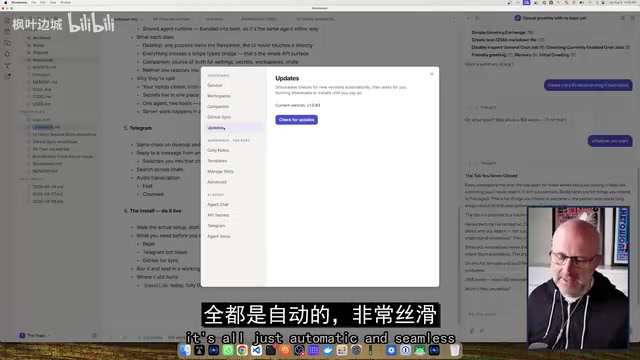
The remaining configuration is done in the UI: enter a GitHub token (repo permissions only), choose a model for the Agent (e.g., Anthropic Opus), and configure Telegram (create a bot via BotFather, enter the token and user ID). The system also has a built-in auto-update mechanism — updates to both desktop and server happen silently in the background.
Playwright is Microsoft's open-source browser automation framework, supporting Chromium, Firefox, and WebKit. In AI Agent scenarios, Playwright gives Agents the ability to "control a browser" — auto-filling forms, clicking buttons, taking screenshots, scraping dynamically rendered pages — enabling interaction with websites that don't offer open APIs. Since it runs full browser instances in memory, Playwright is memory-intensive (a single Chromium instance typically requires around 300–500 MB), which is exactly why the author recommends sizing your server based on whether you'll use browser automation, with 2–4 GB RAM as the practical minimum. For lightweight tasks involving only text processing and API calls, a lower-spec server will do fine.
A Practical Philosophy on AI Agents
The author closed with his perspective on AI Agents — which also reflects the design philosophy of this project: the most productive Agent collaboration happens in scenarios where humans and Agents work closely together, not in the fantasy of "help me run my entire business automatically and come back with a million dollars in a week."
What he values most is the ability to act as a supervisor — letting the Agent do the work, but being able to quickly step in, review, and adjust from wherever he is. The ideal state is getting most things done through conversation, while still having a well-organized visual interface with a navigable graph view when he's back at the desktop.
This explains why Shockwave places such emphasis on the word "seamless": it doesn't pursue full automation, but instead ensures that every step along the human-AI collaboration path is fast enough and transparent enough.
Related articles

Should U.S. College Fraternities Be Banned? A Researcher's Incisive Observations
Why not just ban U.S. college fraternities? A researcher finds the key resistance comes from decision-makers' own fraternity identities and schools' "willful ignorance."

Microsoft Discovery: Accelerating Scientific Discovery with AI Agents
Microsoft's Discovery platform runs specialized AI agents to help researchers screen and prioritize the most promising compounds and experimental paths, reducing experiments and accelerating scientific discovery.

Cambridge Heavy Industries Secretly Develops Desktop-Scale Nuclear Fusion Device
Cambridge Heavy Industries is secretly developing a desktop-scale laser-driven nuclear fusion device, targeting the equipment supply market for fusion power plants. This article analyzes its miniaturization technology path, commercialization logic, and unique positioning in the fusion startup wave.