Trae AI Coding Tool: Download, Installation & Setup Guide (2025 Latest)

Trae is ByteDance's free AI-native code editor, ideal for beginners learning Python.
Trae is an AI-native code editor by ByteDance with built-in LLMs including Doubao and DeepSeek, enabling code generation from natural language descriptions. Built on VS Code's open-source core, it's fully compatible with the VS Code plugin ecosystem, free to use in China, and offers fast access speeds. This article covers Trae's download and installation, Python development environment setup, and how to write your first Python program using AI-assisted conversation.
What Is Trae AI Coding Tool?
Trae is an AI-native code editor developed by ByteDance, with built-in large language models including Doubao, DeepSeekAd, GPT, and more. Unlike traditional code editors, Trae doesn't just help developers with code completion — it can understand natural language descriptions and directly generate runnable code, explain complex logic, and even automatically fix bugs.
The term "AI-native" means that AI capabilities are not bolted on as plugins, but deeply integrated into the editor's core workflow. These tools typically leverage large language models (LLMs) for code comprehension and generation, using Retrieval-Augmented Generation (RAG) technology to understand the context of an entire codebase rather than just the current file. This enables the AI to understand cross-file function call relationships and overall project structure, resulting in more accurate code suggestions.
For Python beginners with zero programming experience, Trae can significantly lower the barrier to entry — you simply describe the functionality you want in Chinese (or your preferred language), and the AI generates the corresponding code. As of late 2025, Trae's individual edition has surpassed 6 million registered users, over 92% of ByteDance's internal engineers are using it, and in the Douyin (TikTok China) Life Services team, AI code contribution rates have reached as high as 43%. These numbers clearly demonstrate its real-world value in boosting programming productivity.
What Are Trae's Advantages Over Other AI Coding Tools?
Trae has attracted a large user base in a short time, thanks to several key advantages:
- Fast access within China: No special network configuration required — works out of the box
- Chinese-friendly: Native support for Chinese-language conversations, allowing users to describe requirements in natural Chinese without needing English proficiency
- Completely free: The China edition comes with built-in LLMs like Doubao and DeepSeek, offering AI coding capabilities at no cost
- Full VS Code ecosystem compatibility: Supports all major plugins, enabling seamless migration for VS Code users
- Cross-platform support: Available on Windows, macOS, and Linux
- Data security: Enterprise-grade data protection provided by ByteDance
For developers already familiar with VS Code, the learning curve for Trae is virtually zero. It's worth understanding the significance of the VS Code ecosystem here: VS Code (Visual Studio Code) is an open-source code editor released by Microsoft in 2015, currently boasting over 30 million active users and standing as the world's most widely used code editor. Its core strengths lie in its massive extension marketplace (over 50,000 plugins) and the Language Server Protocol (LSP) standard, which decouples programming language support from the editor itself. Trae is built on VS Code's open-source core (Code - OSS), meaning all plugins developed for VS Code — including Python, Git, Docker, and more — work directly in Trae without developers needing to relearn their toolchain. Trae inherits VS Code's interface layout and plugin system while adding an AI conversation panel on the right side, achieving a deep integration of traditional editing capabilities with AI.
It's worth noting that Trae's built-in DeepSeek model performs exceptionally well on code generation tasks. The coding capabilities of LLMs like Doubao, DeepSeek, and GPT stem from pre-training on massive amounts of open-source code (such as billions of lines of code on GitHub). These models have learned not just syntax rules, but also common design patterns, API calling conventions, and error-fixing strategies. DeepSeek stands out particularly on code benchmarks (such as HumanEval), and its open-source nature has made it a popular choice for domestic AI coding tools.
Trae Download and Installation Steps
Download the Trae Installer
First, visit Trae's official website. On the right side of the page, you'll see a green download button. Click "View all download options" below it to select the appropriate version for your operating system. Windows users should choose the middle option, while macOS and Linux users should select their corresponding versions.
Run the Installation
Once the download is complete, double-click the installer to begin:
- On the license agreement screen, select "I agree to this agreement" and click Next
- Choose the installation directory — it's recommended to click "Browse" and select a location with ample disk space
- Follow the installation wizard by clicking "Next" at each step, then click "Finish"
After installation, a "Trae CN" shortcut icon will appear on your desktop.
First Launch and Login Configuration
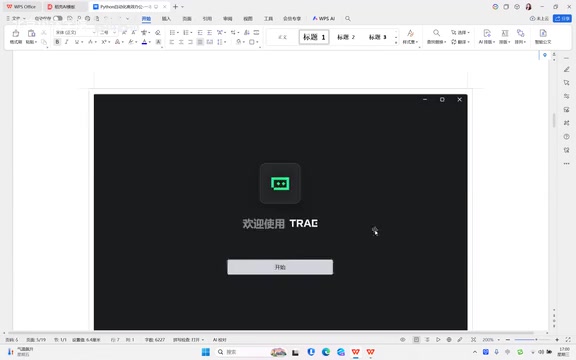
Double-click the desktop icon to launch Trae. The first launch requires the following configuration:
- Choose a theme: Select either a light or dark theme based on your preference
- Preference settings: Use the default configuration and click "Continue"
- Add command-line command: Click "Install Trae CN command" to enable terminal access later
- Select user type: Choose "Individual user"
- Register and log in: Register and log in using your phone number
After successful login, Trae's main interface is divided into three core areas: the Activity Bar on the far left (vertically arranged function icons), the code editing area in the center, and the AI conversation panel on the right.
Configuring the Python Development Environment in Trae
To develop Python in Trae, you first need to install the Python extension plugin.
Install the Python Extension Plugin
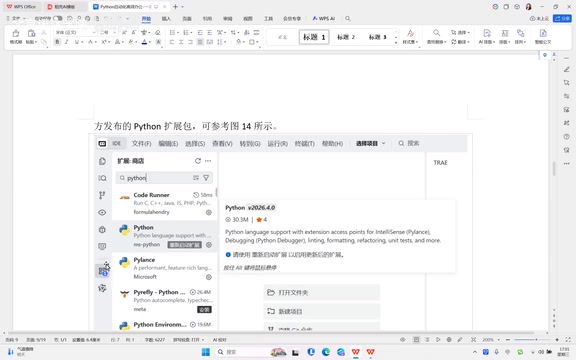
In the Activity Bar on the far left, find the Extensions icon (composed of four squares), click it, type "Python" in the search box, locate the official Python extension, and install it. After installation, it's recommended to restart the extension to ensure the configuration takes effect.
Configure the Python Interpreter
Press the Ctrl + Shift + P keyboard shortcut to open the Command Palette, type Python: Select Interpreter, and the system will automatically detect installed Python interpreter versions. Select the version you need, and Trae will complete the configuration automatically.
Understanding the background of this step helps avoid common errors: the Python interpreter is the core program that converts Python source code into machine-executable instructions. Unlike compiled languages (such as C++), Python uses an interpreted execution approach where code is processed line by line by the interpreter. In practice, a single machine may have multiple Python versions (e.g., Python 3.9, 3.11, 3.12), as well as isolated environments created through virtual environments (venv) or Conda. The Python: Select Interpreter command helps developers switch between these versions, ensuring code runs in the correct environment and avoiding dependency conflicts.
Note: Before this step, you need to ensure Python is already installed on your computer. If it isn't, you can download the installer from the official Python website.
Install Third-Party Libraries Using the Built-in Terminal
Trae includes a built-in terminal, allowing you to install third-party Python libraries directly within the editor. From the menu bar, select "Terminal" > "New Terminal," then use the pip install package_name command to install the packages you need.
pip is Python's official package management tool, connecting to PyPI (Python Package Index), a central repository hosting over 500,000 open-source libraries. For data science learners, commonly used third-party libraries include NumPy (numerical computing), Pandas (data processing), Matplotlib (data visualization), and Scikit-learn (machine learning). In the Chinese network environment, you can speed up downloads by configuring a PyPI mirror source from Tsinghua University or Alibaba Cloud using the following command:
pip install package_name -i https://pypi.tuna.tsinghua.edu.cn/simple
Write Your First Python Program with Trae AI
Once the environment is configured, you can start experiencing AI-assisted programming.
Create a Python File
Right-click in the File Explorer, select "New File," and create a Python file with the .py extension, such as hello.py.
Generate Code Through AI Conversation
In the AI conversation panel on the right, describe the functionality you want in natural language. For example, type:
Write a Python function that takes a name as a parameter and prints "Hello, welcome to learning Python"
Related articles
 Tutorials
ChatGPT Plus Subscription Guide: Are GPT-5.5, image-2, and Codex Worth the Upgrade?
A detailed look at ChatGPT Plus features — GPT-5.5, image-2, and Codex — with a Plus vs Pro comparison and a complete step-by-step subscription guide for users outside the US.
 Tutorials
Harness AI Engineering in Practice: Using Claude Code to Master Enterprise-Level E-Commerce Development
Deep dive into Harness AI Engineering: master enterprise e-commerce development with Claude Code using the Rules, Skills, Wiki, and Changes framework.
 Tutorials
Cursor + Codex Dual-IDE Collaboration: A Practical Methodology for Open-Source Project Customization
A complete methodology for open-source project customization based on real-world experience, detailing the Cursor+Codex dual-IDE workflow, seven-stage process, MVP validation, and AI source code reading techniques.