Trae Download, Installation & Configuration Guide: Get Started with AI Programming from Scratch

Trae is ByteDance's free AI-native code editor with built-in LLMs for efficient programming.
Trae is an AI-native code editor by ByteDance with built-in large language models including Doubao, DeepSeek, and GPT. It supports natural language code generation, logic explanation, and automatic bug fixing. It's highly accessible for Chinese users with direct network connectivity, native Chinese support, full free access, and VS Code plugin compatibility for minimal migration costs. By end of 2025, it has over 6 million registered users, with 92% of ByteDance engineers using it daily.
What is the Trae AI Programming Tool?
Trae is an AI-native code editor developed by ByteDance, with built-in large language models including Doubao, DeepSeekAd, GPT, and more.
AI-native code editors represent a new generation of development tools that differ fundamentally from traditional code editors. Traditional editors (like early VS Code or Sublime Text) primarily offer syntax highlighting and static rule-based code completion, while AI-native editors deeply integrate large language models into the editor's core, enabling them to understand the semantic context of code rather than simply performing string matching. This space was pioneered by GitHub Copilot in 2021, followed by products like Cursor and Windsurf. Trae is ByteDance's major entry in this competitive landscape.
Unlike traditional code editors, Trae doesn't just help you complete code — it can understand natural language descriptions to directly generate runnable code, explain complex logic, and even automatically fix bugs.
Notably, Trae integrates multiple large language models including Doubao, DeepSeek, and GPT simultaneously. This multi-model integration strategy has significant engineering implications. Different models have distinct strengths across dimensions like code generation, logical reasoning, and Chinese language understanding: the DeepSeek-Coder series excels at code tasks, the Doubao model understands Chinese contexts more naturally, and the GPT series has advantages in general reasoning. The multi-model architecture allows users to flexibly switch based on task type while reducing dependency risk on any single model provider — a commercially sound choice.
As of the end of 2025, Trae's individual edition has surpassed 6 million registered users. Over 92% of engineers within ByteDance use Trae in their daily work, and the AI code contribution rate reaches as high as 43% in Douyin's local services team.
AI Code Contribution Rate is a key metric for measuring the real-world impact of AI programming tools. It refers to the proportion of AI-generated code lines that are adopted by developers relative to total committed code lines. The 43% AI code contribution rate in Douyin's local services team is at a relatively high industry level — GitHub's official data shows that Copilot users have an average AI code contribution rate of approximately 30%-40%. An increase in this metric means engineers can focus more energy on system design, business logic, and code review rather than repetitive boilerplate coding — making it an important quantitative basis for measuring R&D efficiency improvements. These numbers clearly demonstrate Trae's practical value in boosting programming productivity.
What Are Trae's Core Advantages?
Ready to Use Out of the Box for Chinese Users
One of Trae's biggest highlights is its friendliness toward users in China. It supports direct network connection within China — no special network configuration is needed for smooth operation. It also natively supports Chinese conversation, allowing you to describe programming requirements directly in Chinese without needing to write English prompts. For Chinese-speaking developers, this significantly lowers the barrier to using AI programming tools.
Completely Free with Full Functionality
The domestic version of Trae comes with built-in large language models like Doubao and DeepSeek, offering complete AI programming capabilities at no cost. Whether you're an individual developer or a programming learner, you get professional-grade AI programming assistance at zero cost.
Seamless Compatibility with the VS Code Ecosystem
Trae is fully compatible with the VS Code plugin ecosystem — mainstream VS Code plugins can be directly installed and used.
The reason VS Code became the world's most popular code editor (with over 73% usage according to Stack Overflow's 2023 survey) is largely its open plugin ecosystem. Built on the Electron framework, VS Code plugins interact with the editor through the Extension API, forming a massive ecosystem of tens of thousands of plugins covering language support, debuggers, themes, Git tools, and more. By supporting VS Code's plugin interface (Open VSX protocol), Trae eliminates the need for developers to relearn or migrate their toolchains, greatly reducing switching costs. This "ecosystem compatibility" strategy is also the common choice of competitors like Cursor.
If you previously used VS Code, migrating to Trae involves virtually no learning curve — your existing plugins, keyboard shortcuts, and workflows all transfer seamlessly. Additionally, Trae supports Windows, macOS, and Linux.
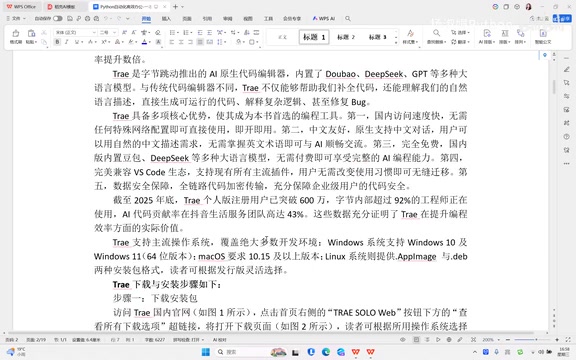
Trae Download and Installation Steps
Step 1: Download the Installer
Go to the Trae official website (trae.com.cn). You'll see a green "Trae" button on the right side of the page — click the link below it to view all download options. Choose the version that matches your operating system:
- Windows: For Windows 10 and above
- macOS: For Apple computers (supports both Intel and Apple Silicon chips)
- Linux: For mainstream Linux distributions
Step 2: Run the Installation
After downloading, double-click the installer to launch the setup program:
- On the agreement screen, select "I agree to this agreement" and click Next
- Choose the installation directory — it's recommended to select a partition with sufficient disk space
- Follow the installation wizard, clicking "Next" until the installation is complete
After installation, a "Trae CN" shortcut icon will appear on your desktop.
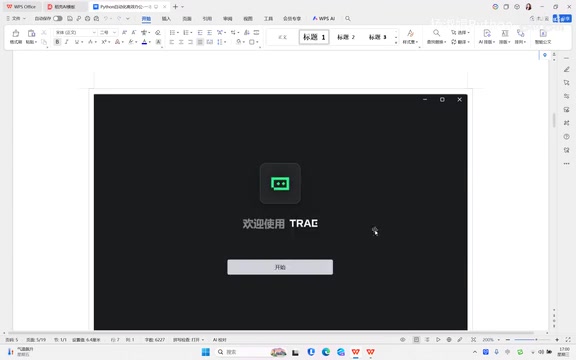
First Launch and Login Configuration
Initial Setup Process
Double-click the Trae CN icon on your desktop to launch the program. On first launch, you'll be guided through the following configuration:
- Choose a theme: Light or dark theme — select based on personal preference
- Preference settings: Keep the default configuration
- Install command-line tools: Click "Install Trae CN Command" for convenient terminal access later
- Select user type: Choose "Individual User"
- Register and log in: Complete registration and login with your phone number
Familiarize Yourself with the Editor Interface Layout
After logging in successfully, you'll enter Trae's main interface, which is divided into three areas:
- Left activity bar: Vertically arranged function icons including file explorer, search, extensions marketplace, etc.
- Center code editing area: The core area for writing and viewing code
- Right AI conversation panel: The area for interacting with AI using natural language — this is what sets Trae apart from ordinary editors
Configuring the Python Development Environment
Installing the Python Extension
Before writing code, you'll need to install the Python extension:
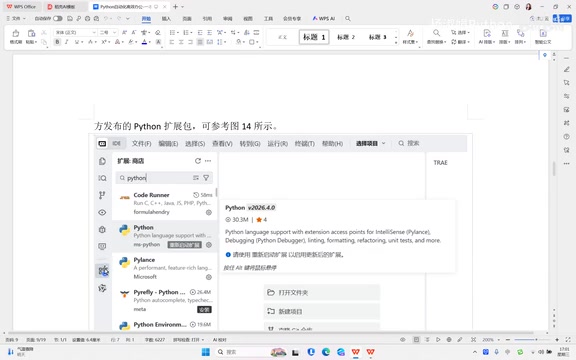
- Click the Extensions icon in the left activity bar (the icon composed of four squares)
- Type "Python" in the search box
- Find the official Python extension and click Install. After installation, restart the extension as prompted
Selecting the Python Interpreter
After the extension is installed, press Ctrl + Shift + P (or Cmd + Shift + P on macOS) to open the command palette. Type Python: Select Interpreter, and Trae will automatically detect the Python versions installed on your computer. Select the appropriate version to complete the configuration.
The Python interpreter is the core program that executes Python code, responsible for parsing and running .py source files. A single computer may have multiple Python versions installed simultaneously (e.g., Python 3.9, 3.11, 3.12), as well as virtual environments created through tools like conda, venv, or pyenv. Trae's "Select Interpreter" feature automatically discovers all available Python environments by scanning the system PATH, registry (on Windows), or common installation paths. Selecting the correct interpreter is crucial — it determines the Python version and available third-party libraries at runtime, effectively preventing common environment configuration issues like "module not found" errors.
Hands-On Practice: Write Your First Python Program with AI
Create a File and Describe Your Requirements to AI
With the environment configured, it's time to experience Trae's AI programming capabilities:
- Right-click in the file explorer, select "New File," and create a Python file ending in
.py - In the right-side AI conversation panel, describe the functionality you want to implement in natural language
For example, you can type: "Write a Python function that takes a name as a parameter and prints 'Hello, welcome to learning'"
Related articles
 Tutorials
ChatGPT Plus Subscription Guide: Are GPT-5.5, image-2, and Codex Worth the Upgrade?
A detailed look at ChatGPT Plus features — GPT-5.5, image-2, and Codex — with a Plus vs Pro comparison and a complete step-by-step subscription guide for users outside the US.
 Tutorials
Harness AI Engineering in Practice: Using Claude Code to Master Enterprise-Level E-Commerce Development
Deep dive into Harness AI Engineering: master enterprise e-commerce development with Claude Code using the Rules, Skills, Wiki, and Changes framework.
 Tutorials
Cursor + Codex Dual-IDE Collaboration: A Practical Methodology for Open-Source Project Customization
A complete methodology for open-source project customization based on real-world experience, detailing the Cursor+Codex dual-IDE workflow, seven-stage process, MVP validation, and AI source code reading techniques.