Trae IDE Download & Installation Guide: Set Up ByteDance's Free AI Coding Tool from Scratch

Complete guide to downloading, installing, and configuring ByteDance's free AI coding tool Trae IDE.
This article provides a detailed walkthrough for getting started with Trae IDE, ByteDance's free AI-powered development tool. It covers downloading the installer from the official website, running the setup process, first-launch configuration (theme, language, editor style, etc.), logging in via phone number with Douyin account authorization, and basic usage including opening projects and using the AI interaction panel.
ByteDance's Trae IDE, a free AI-powered development tool, is gaining increasing attention from developers. This article provides a detailed walkthrough of downloading, installing, and initially configuring Trae IDE, helping beginners quickly get started with this AI coding powerhouse.
What Is Trae IDE
Trae IDE is an AI-integrated development tool created by ByteDance, available at trae.cm. It offers two ways to use it: as a standalone IDE that you download directly, or as a plugin installed into VS Code. Trae IDE is completely free for individual users, while enterprise users need a paid subscription.
The tool's biggest highlight is its built-in AI interaction capability. Developers can chat with an AI in the right-side panel of the IDE, describe their requirements in natural language to assist with coding, and even create a complete project from scratch.
Technical Background of AI IDEs
AI-integrated development environments (AI IDEs) represent one of the most significant evolutionary trends in software development tools in recent years. Traditional IDEs like Eclipse and IntelliJ IDEA primarily offer syntax highlighting, code completion, and debugging features, while the new generation of AI IDEs deeply embed large language models (LLMs) into the development workflow. This trend was first ignited by GitHub Copilot in 2021, followed by products like Cursor and Windsurf, forming a rapidly growing market segment. The core value of AI IDEs lies in combining natural language understanding with code generation capabilities, allowing developers to replace part of the manual coding process by describing their intent, significantly reducing the friction cost from idea to implementation.
ByteDance's move into AI coding tools is an important part of its overall AI strategy. As a tech company with massive-scale products like Douyin, TikTok, and Toutiao, ByteDance has accumulated rich engineering experience and vast code assets internally. The launch of Trae IDE is both a response to the rapid growth of external competitors (such as Cursor) and an attempt by ByteDance to productize and commercialize its internal AI capabilities. By integrating with the Douyin account system, ByteDance can quickly acquire a user base while building a user funnel for future enterprise-level paid services. This "free for individuals, paid for enterprises" Freemium model is also the most mainstream commercialization path in the current AI tools landscape.
Trae IDE Download and Installation Steps
Step 1: Download the Installer
Visit the Trae official website (trae.cm) and find the Trae IDE download link on the product page. Choose the version that matches your system architecture — 32-bit or 64-bit — and download the exe installer file.
Step 2: Run the Installer
Double-click the downloaded exe file to launch the installation wizard and follow these steps:
- License Agreement: Read and accept the license agreement, then click Next
- Installation Directory: You can use the default path or customize the installation location
- Default Configuration: Keep the default settings on the subsequent configuration pages and click Next through each one
- Start Installation: After confirming everything is correct, click the "Install" button and wait for the installation to complete
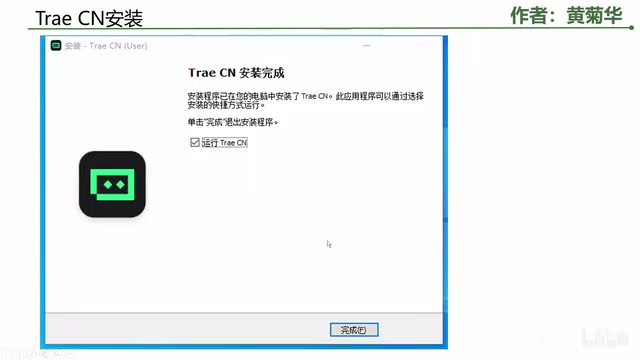
Once the installation is complete, check the "Run" option and click "Finish" to launch Trae IDE immediately.
Initial Configuration and Login Setup
Interface Initialization
When you first launch Trae IDE, you'll enter a guided configuration screen where you need to complete the following settings:
- Click "Start" to begin the configuration process
- Choose a Theme: Select either Light or Dark theme based on your preference
- Language Settings: Select "Simplified Chinese" and click Continue
- Editor Style: Choose your preferred code editing style
- VS Code Migration: If you haven't used VS Code before, you can skip this step; if you have, you can choose to import your configuration
- Command Line Tools: It's recommended to check the option to install command line tools for conveniently launching Trae from the terminal later
VS Code Ecosystem and Plugin Architecture
VS Code (Visual Studio Code), released by Microsoft in 2015, has become the world's most popular code editor thanks to its open-source nature, lightweight design, and high extensibility. It has ranked first for multiple consecutive years in the Stack Overflow 2023 Developer Survey, with a market share exceeding 70%. The VS Code extension marketplace hosts over 50,000 extensions, forming an enormous ecosystem. Trae IDE's decision to offer both a standalone version and a VS Code plugin version is precisely aimed at tapping into this massive existing user base. On the technical side, the standalone version of Trae IDE is itself built on VS Code's open-source core (VSCodium/Code-OSS), which is why the two interfaces look so similar — this approach is very common in the AI IDE space, as Cursor and Windsurf have adopted the same technical approach, significantly reducing development costs while ensuring compatibility with existing plugins.
Account Login and Authorization
After completing the configuration, select "Individual User" (free) to proceed to the login step:
- Enter your phone number and request a verification code
- Enter the verification code to complete the login
- The system will redirect to the ByteDance (Douyin) developer tools website for authorization
- Click to authorize, and the page will display "Login successful, return"
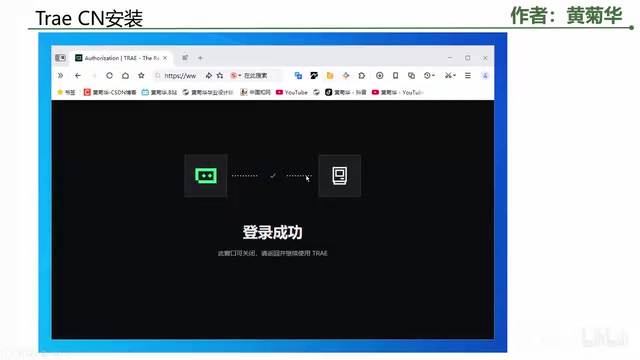
At this point, Trae IDE is fully configured and ready to use.
Basic Usage of Trae IDE
Workspace Overview
After a successful login, Trae IDE displays an editor interface similar to VS Code. If no project is open, you'll see a welcome page.

Opening or Creating a Project
You can get started in the following ways:
- Open an existing project: Go to the menu and select "Open Folder," then navigate to your project directory
- Create a project from scratch: Create a new empty folder, then use the AI interaction panel on the right side to have the AI build your project structure through conversation
AI Interaction Features
The core advantage of Trae IDE is its AI interaction panel on the right side. After opening a project, you can communicate with the AI in natural language through this panel, telling it what functionality you want to implement. The AI will automatically generate code, create files, and even build complete pages.
Large Language Models and Code Generation Technology
The AI interaction capability built into Trae IDE relies on Code Large Language Model (Code LLM) technology at its core. These models are pre-trained on massive code datasets (such as public GitHub repositories), learning programming language syntax rules, common design patterns, and the mapping between natural language and code. Notable code models include OpenAI's GPT-4o, Anthropic's Claude 3.5 Sonnet, and DeepSeekAd Coder. In practical engineering implementations, AI IDEs typically combine the user's natural language instructions, current file content, project structure, and other information into context, sending it all to the backend model, then applying the code diffs returned by the model to the editor. This "context-aware" approach to code generation is the core technical advantage of AI IDEs over simple chatbots.
Regarding the actual effectiveness of AI-assisted coding tools, multiple studies exist from both academia and industry. Data published by GitHub shows that developers using Copilot complete specific tasks 55% faster on average; McKinsey's research indicates that AI coding tools deliver the most significant efficiency gains for repetitive tasks such as documentation writing and unit test generation, achieving improvements of 30%-50%. However, AI code generation is not without limitations: models can produce "hallucinations"
Related articles
 Tutorials
ChatGPT Plus Subscription Guide: Are GPT-5.5, image-2, and Codex Worth the Upgrade?
A detailed look at ChatGPT Plus features — GPT-5.5, image-2, and Codex — with a Plus vs Pro comparison and a complete step-by-step subscription guide for users outside the US.
 Tutorials
Harness AI Engineering in Practice: Using Claude Code to Master Enterprise-Level E-Commerce Development
Deep dive into Harness AI Engineering: master enterprise e-commerce development with Claude Code using the Rules, Skills, Wiki, and Changes framework.
 Tutorials
Cursor + Codex Dual-IDE Collaboration: A Practical Methodology for Open-Source Project Customization
A complete methodology for open-source project customization based on real-world experience, detailing the Cursor+Codex dual-IDE workflow, seven-stage process, MVP validation, and AI source code reading techniques.