Trae IDE + Image-Color AI Programming in Practice: Complete Workflow for Automated Image Finding and Clicking

Demonstrates Trae IDE's native agent AI programming advantages through image-color plugin development
This article showcases Trae IDE's AI programming advantages over plugin mode through hands-on image-color automation plugin development. Trae's native architecture accesses the complete AST and project indexes for stronger contextual understanding. Using custom agents, the AI successfully completed Soft image finding, ORB feature matching switching, and location clicking automation code, while description optimization automatically converts vague requirements into precise instructions, significantly lowering the development barrier.
Why Choose Trae's Native IDE Over Plugin Mode
In the world of AI-assisted programming, ByteDance's Trae IDE is gaining increasing attention from developers. Compared to the previous generation of "plugin embedded in existing IDE" approaches, Trae's native IDE has clear advantages in automated programming experience—smoother interactions, better contextual understanding, and a more complete pipeline from code generation to execution.
This difference stems from fundamental architectural distinctions. Plugin mode (such as VS Code's Copilot plugin) runs on the host IDE's extension API layer, where the AI's accessible context is limited by the host IDE's exposed capabilities—typically only limited information from currently open files. In contrast, a natively integrated AI IDE can directly access the complete project Abstract Syntax Tree (AST), symbol indexes, file system structure, and even runtime state, significantly improving context window utilization. This is the fundamental reason why Trae achieves higher code generation accuracy.
This article uses "image-color" automation plugin development as a practical case study, demonstrating the complete process of writing automation scripts for image finding, clicking, and more from scratch using Trae IDE's agent functionality. If you want to experience "saying goodbye to old-school hand-written code" development efficiency, follow along.
Environment Setup: Agent Configuration and Project Structure
Trae IDE's Three Agent Modes
Trae IDE has multiple built-in Agent modes, each with different capability focuses. AI Agents represent an important paradigm in current large language model applications. Unlike single-turn Q&A, Agents possess planning, tool invocation, and multi-step execution capabilities. Trae's enhanced mode is essentially a ReAct (Reasoning + Acting) architecture Agent that can cyclically execute a "think → invoke tool → observe result" closed loop, with terminal command execution and file read/write operations falling within its tool invocation scope.
The three modes differ in capability focus:
- Basic Chat Mode: Suitable for simple code Q&A and concept explanations, with relatively basic functionality.
- Enhanced Mode: Can execute terminal commands, run code directly, and help you add and delete files—the workhorse for daily development.
- Custom Agent: Allows creating dedicated agents for specific scenarios. After entering a description, the system automatically generates configuration content.
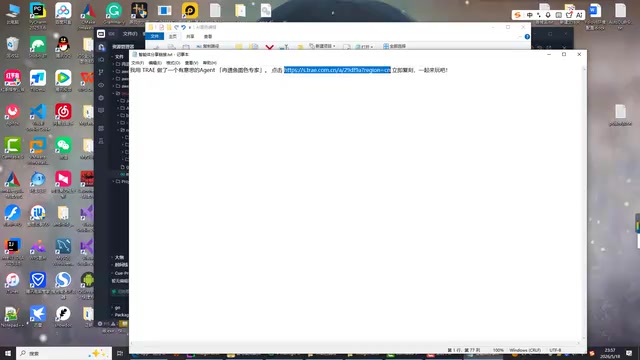
For specific scenarios like image-color plugin development, it's recommended to create a dedicated agent. The process is simple: click the "Create" button, enter your requirements description, and the system auto-fills most configuration items through the "Smart Generation" feature—just review and confirm.
Project Structure and Documentation Placement Tips
In actual development, how you organize your project structure directly affects AI performance. Here's a common pitfall: if reference documentation for the image-color plugin is placed directly in the main project directory, it may cause compilation errors.
Recommended approach: Place documentation in the parent directory of the project.

The benefit is that the AI can still read the documentation content when searching for context, while not interfering with the project's normal compilation. This small tip is very practical in AI-assisted programming and worth remembering.
Hands-On Demo: Using AI to Write Image Finding and Clicking Functions
Step 1: AI Writes a Soft Image-Finding Example
In a new conversation window without historical context, you need to give the AI a relatively complete prompt. Enter the following instruction:
Use the image-color plugin to write a Soft image-finding example in the main function, finding the LDPlayer desktop icon image.
The AI quickly retrieves the relevant API functions and begins automatically generating code. Trae IDE offers several flexible ways to accept code:
- Accept All: One-click adoption of all generated code
- Accept Line by Line: Use
Alt+Y/Alt+Nto review each line and decide whether to keep it - Quick Operations:
Ctrl+I+Oto quickly close the inline editing panel
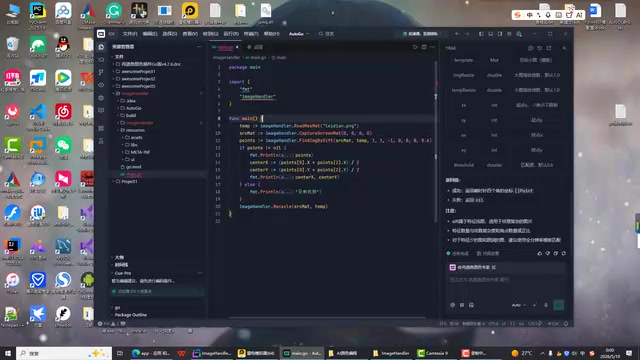
After accepting all and saving the file, run it directly—the program successfully found the LDPlayer desktop icon. Running it again to verify, the result is stable and the icon is accurately located.
Step 2: Switching to ORB Feature Matching Algorithm
After verifying the image-finding functionality, the next step is to ask the AI to switch the algorithm from the default Soft mode to ORB feature matching mode. Just type one sentence:
Change the quick image finding to ORB format
It's worth understanding the technical differences between the two algorithms. Soft image finding is typically based on Normalized Cross-Correlation (NCC) or mean squared difference matching algorithms—fast computation but sensitive to lighting changes and target rotation. ORB (Oriented FAST and Rotated BRIEF) is a feature point detection and description algorithm that combines FAST corner detection with BRIEF descriptors, offering rotation invariance and certain scale invariance. When target icons undergo slight deformation, rotation, or resolution changes, ORB provides stronger robustness and is a widely-used patent-free feature matching solution in OpenCV.
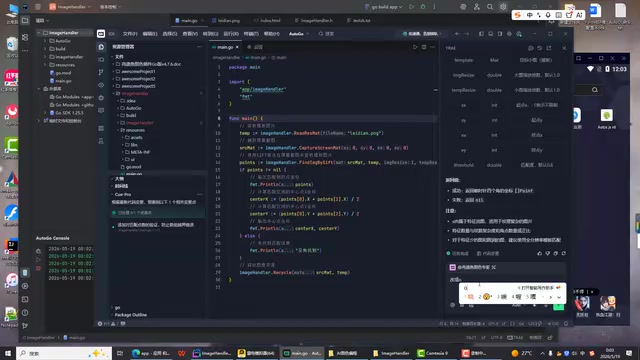
The AI immediately understood the intent and automatically modified the relevant code. Press Alt+Y to quickly accept the changes.
Step 3: Description Optimization and Click Function Extension
Trae IDE also has a very practical feature—Description Optimization. When you enter a somewhat vague requirement, such as:
Find the position of the LDPlayer icon image and then click it
The system automatically optimizes it to a more precise statement:
Locate the LDPlayer simulator icon position on the current interface and execute a click operation.
Behind this feature is the automated application of Prompt Engineering. Vague natural language requirements often lead to code generation deviations, while structured instructions with clear actions—containing explicit subject, action, target, and constraints—significantly improve the output accuracy of large models. Trae's description optimization is essentially a prompt rewriting model that automatically converts colloquial expressions into standardized instruction formats, allowing ordinary developers to obtain high-quality code generation results without mastering professional prompt engineering techniques.
After confirmation, the AI generates complete code containing both image-finding and clicking steps. Running the test, the program successfully locates the icon and completes the click operation—functionality fully meets expectations.
Experience Summary and Practical Recommendations
Core Advantages of Trae IDE in AI Programming
Through this image-color plugin development practice, several advantages were clearly felt:
- Strong Contextual Understanding: Automatically retrieves project documentation and code structure, generating code that's highly aligned with the project.
- Smooth Interaction Experience: From code generation to acceptance, modification, and execution, the entire pipeline is completed within the IDE without switching between tools.
- Customizable Agents: Creating dedicated agents for specific scenarios like image-color plugin development noticeably improves code generation accuracy.
- Description Optimization Lowers the Barrier: Converts vague requirements into precise instructions, eliminating the need to carefully craft prompts.
Current Shortcomings
Compared to traditional IDEs like Eclipse, Trae still has room for improvement in directly running projects. Currently, EC (Eclipse) can more conveniently run projects directly. Looking forward to further optimization in future versions of Trae.
What Scenarios Are Best Suited for Trae IDE
For automation script development, plugin development, and rapid prototype validation, Trae IDE paired with custom agents can dramatically improve efficiency. Especially for tools like image-color that have complete API documentation, the AI can quickly learn the documentation and generate high-quality calling code—truly achieving "goodbye to old-school programming."
If you're doing similar automation development work, give this combination a try and experience the efficiency boost that AI programming brings.
Key Takeaways
- Trae's native IDE delivers better AI programming results than plugin mode—its native architecture can access the complete AST and project symbol indexes, providing stronger contextual understanding and more accurate code generation
- Through the custom agent feature, you can create dedicated AI assistants for specific scenarios like image-color plugins, significantly improving development efficiency
- Trae IDE supports both accept-all and line-by-line code review modes, and provides description optimization to automatically convert vague requirements into standardized prompts
- In actual testing, the AI successfully completed code writing for Soft image finding, ORB feature matching algorithm switching, location clicking, and other complete automation functions
- Project documentation should be placed in the parent directory of the main project—accessible by the AI for retrieval without affecting compilation, a practical engineering tip for AI-assisted programming
Related articles
 Tutorials
ChatGPT Plus Subscription Guide: Are GPT-5.5, image-2, and Codex Worth the Upgrade?
A detailed look at ChatGPT Plus features — GPT-5.5, image-2, and Codex — with a Plus vs Pro comparison and a complete step-by-step subscription guide for users outside the US.
 Tutorials
Harness AI Engineering in Practice: Using Claude Code to Master Enterprise-Level E-Commerce Development
Deep dive into Harness AI Engineering: master enterprise e-commerce development with Claude Code using the Rules, Skills, Wiki, and Changes framework.
 Tutorials
Cursor + Codex Dual-IDE Collaboration: A Practical Methodology for Open-Source Project Customization
A complete methodology for open-source project customization based on real-world experience, detailing the Cursor+Codex dual-IDE workflow, seven-stage process, MVP validation, and AI source code reading techniques.