Trae Third-Party API Integration Tutorial: Complete Guide to Configuring GPT/Claude and Other Models

A hands-on guide to connecting GPT, Claude, and other third-party LLMs to Trae IDE via API configuration.
This article explains how to configure third-party LLMs including GPT, Claude, Gemini, and DeepSeek in ByteDance's AI coding tool Trae using API relay services. It highlights the key configuration difference between GPT series (request URL requires /v1) and Claude series (no /v1 needed), and provides troubleshooting solutions for common issues like unresponsive add buttons and models not responding.
Introduction
Trae is a domestically-developed AI programming tool (IDE) launched by ByteDance in 2024, built on the VS Code core. It competes in the same "AI coding assistant" space as GitHub Copilot, Cursor, and similar products. The core value of these tools lies in deeply integrating Large Language Models (LLMs) into the code editor, providing features like code completion, conversational programming, and error fixing. While Trae comes with some built-in base models, developers seeking higher coding efficiency often find them insufficient — top-tier overseas models like GPT-o3, Claude Sonnet 4, and Gemini have clear advantages in code generation and logical reasoning.
Different LLMs have distinct strengths for programming tasks: GPT-o3 series uses reinforcement learning-enhanced reasoning capabilities, excelling at complex algorithm design and multi-step logical deduction; Claude Sonnet 4 (by Anthropic) is known for its ultra-long context window (up to 200K tokens) and holistic understanding of codebases, making it ideal for large-scale refactoring and code review; Gemini series (developed by Google DeepMind) has unique advantages in multimodal understanding (such as reading architecture diagrams or generating code from UI screenshots); DeepSeekAd series represents the strongest code capability among Chinese-developed models, approaching or even surpassing GPT-4 in multiple programming benchmarks while being more competitively priced, making it suitable for high-frequency usage scenarios.
The good news is that Trae natively supports connecting to third-party models through API configuration — no plugins required. This article will guide you step by step through the API configuration process in Trae, while sharing common pitfalls and their solutions.
Prerequisites
Before starting the configuration, you'll need the following:
- Trae IDE: Make sure you have the latest version of the Trae editor installed
- API Proxy Account: You need an available API relay service to obtain the request URL, model ID, and API key
- Decide which model to connect: GPT series, Claude series, Gemini, DeepSeek, etc. are all supported
💡 What is an API Relay/Proxy? An API relay (also called an API proxy or API aggregation platform) is a middleware service that unifies multiple AI provider interfaces under a single wrapper. It works by receiving requests from users, forwarding them to original providers like OpenAI, Anthropic, or Google using its own accounts, and returning the results to the user. The advantages of this architecture are: first, it solves network access restrictions to overseas APIs in certain regions; second, through a unified OpenAI-compatible interface format, developers can call models from different providers with the same code; third, it typically offers more flexible billing options. When using relay services, pay attention to data security and service stability — it's recommended to choose reputable providers.
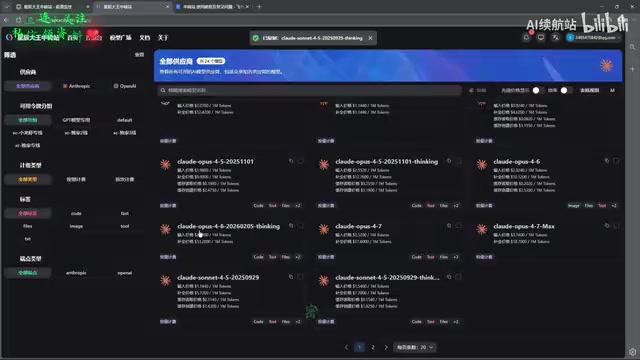
Relay services usually provide a "Model Marketplace" page that lists all available models and their corresponding model IDs, which you'll need to copy during configuration.
Configuring GPT / Codex Series Models
Step 1: Access the Add Model Entry
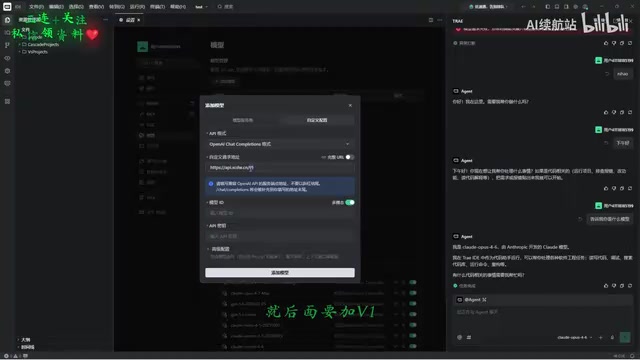
In Trae, click the "Add Model" button, and you'll see multiple configuration options. For GPT, Codex, and other OpenAI series models, select the first configuration option.
Step 2: Enter the Request URL
This is where mistakes happen most frequently. The request URL format requirements are:
- Must end with
/v1 - Do not add extra slashes
/ - Do not check extra options under "Expand Advanced Configuration" (unless troubleshooting issues)
Correct format example:
https://your-proxy-domain.com/v1
🔍 Why does GPT require
/v1? OpenAI's API follows a RESTful style, using the version number/v1as part of the base path. The full request path looks likehttps://api.openai.com/v1/chat/completions. When Trae internally constructs the complete API endpoint, it appends/chat/completionsand other paths after the base URL you provide, so your base URL must include/v1to form the correct full path.
Step 3: Enter the Model ID and Key
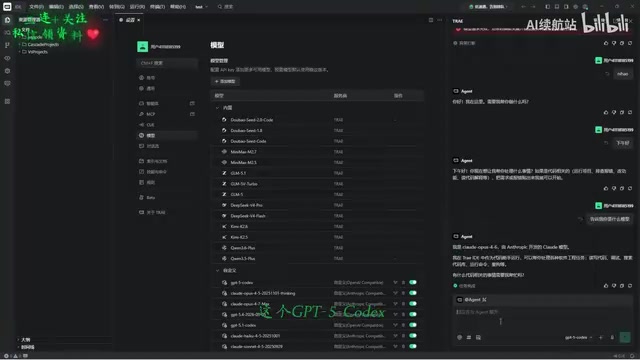
Model ID — do not type it manually. Always copy and paste it directly from your relay service's "Model Marketplace" page to avoid typos. API Key should also be obtained from the relay service's key management page.
Click "Add" once everything is filled in.
Configuring Claude Series Models
The configuration process for Claude series models is similar to GPT, but there's one key difference that requires special attention.
Select the Correct Configuration Type
When adding a model, select the second configuration option (corresponding to Claude / OpenAI-compatible interface).
URL Format Difference
Unlike GPT, Claude's request URL format differs:
- Do NOT add
/v1at the end - Do NOT add any trailing slash
- Simply enter the base URL provided by your relay service
Correct format example:
https://your-proxy-domain.com
🔍 Why doesn't Claude need
/v1? Anthropic's Claude API uses a different path structure — version information is transmitted through request headers (e.g.,anthropic-version: 2023-06-01) rather than the URL path. Trae's Claude configuration option has its own path construction logic that automatically handles the correct endpoint path, so users only need to enter the base URL without a version number. This is the fundamental reason for the URL format difference between the two configuration options.
The model ID and key are filled in the same way as GPT — it's also recommended to copy directly from the Model Marketplace.
Common Issues and Troubleshooting Guide
During the actual configuration process, you may encounter several typical issues. Here's a troubleshooting approach for each.
Issue 1: Clicking "Add Model" Has No Response
This is a very subtle bug. When the model ID you entered is too long, clicking the add button may produce no response at all, and the interface won't display any error message.
Solution:
- Click "Advanced Configuration" to expand detailed options
- You'll find error messages appearing in the advanced configuration area
- Delete the error content, then click add again
If the model ID is relatively short, you won't encounter this issue.
Issue 2: Model Doesn't Respond After Sending a Question
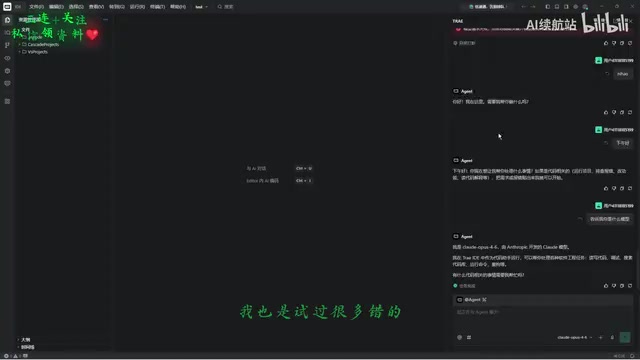
Possible causes include:
- Incorrect request URL format: Forgot to add
/v1for GPT series, or added/v1for Claude series - Invalid API key: Check if the key has expired or the balance is depleted
- Incorrect model ID: Manual input is error-prone — copy directly instead
- Network issues: Check if the relay service is functioning normally
Issue 3: Error Messages Returned
If the model returns a clear error message, you can usually pinpoint the issue quickly by the error code. Understanding these HTTP error codes can significantly reduce troubleshooting time:
| Error Type | Possible Cause | Solution |
|---|---|---|
| 401 | Invalid key (authentication failed, API Key error) | Verify your API key is correct and active |
Related articles
 Tutorials
ChatGPT Plus Subscription Guide: Are GPT-5.5, image-2, and Codex Worth the Upgrade?
A detailed look at ChatGPT Plus features — GPT-5.5, image-2, and Codex — with a Plus vs Pro comparison and a complete step-by-step subscription guide for users outside the US.
 Tutorials
Harness AI Engineering in Practice: Using Claude Code to Master Enterprise-Level E-Commerce Development
Deep dive into Harness AI Engineering: master enterprise e-commerce development with Claude Code using the Rules, Skills, Wiki, and Changes framework.
 Tutorials
Cursor + Codex Dual-IDE Collaboration: A Practical Methodology for Open-Source Project Customization
A complete methodology for open-source project customization based on real-world experience, detailing the Cursor+Codex dual-IDE workflow, seven-stage process, MVP validation, and AI source code reading techniques.