Trim Audio Silence for Free in Your Browser: Remove Silence Hands-On

Browser-local silence trimming tool with waveform visualization for threshold tuning and compact WAV export.
Remove Silence is a browser-based audio tool that supports audio and video uploads, marks silent segments on the waveform, lets users adjust thresholds to control silence detection, and exports a tighter WAV file. Everything runs locally—no upload, no account, no watermark—making it suitable for sensitive recordings. Output is lossless WAV; video input keeps only the audio track, with video editing handled by QuellCut. The tool has a narrow scope with no noise reduction or EQ, and large-file rendering is limited by local performance. Free, no watermark, no registration, it earned 84 upvotes and ranked 11th on Product Hunt.
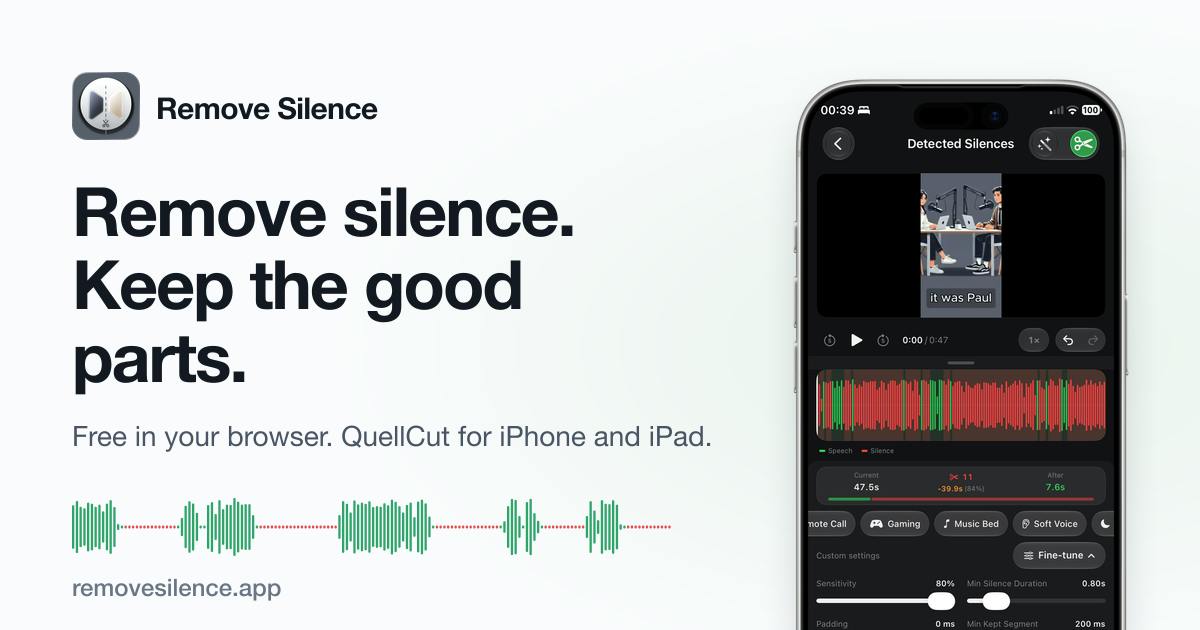
Those dragging pauses and blank spots in recordings often eat up more time than the content itself. Remove Silence is an audio processing tool that runs directly in your browser. After you upload an audio or video file, it marks every silent segment on the waveform, and once you've dialed in the threshold you can export a tighter WAV. The whole process never leaves your local device—no account needed, no watermark.
What kind of problem does it solve
Podcasts, interviews, course recordings, meeting notes—these all naturally contain a lot of pauses. The traditional approach is to drag the file into Audition or Audacity and delete them by hand, or upload it to a cloud service for automatic editing. Manual work takes time, while cloud processing brings up upload bandwidth and privacy concerns. Remove Silence has a clear positioning: compress the two steps of "detect silence" and "cut silence" into a single visual operation in the browser, with the file always staying on your own machine.
Based on the product description, it supports both audio and video file input, but output is uniformly WAV. That means silence in video material can be identified, but what you ultimately get is a pure audio track, not an edited video. The official line on this is to point users to QuellCut, a tool for finishing video edits on iPhone. The two products divide the work: browser side handles audio, mobile side handles video.
Core interaction: waveform + threshold
Remove Silence's interaction logic revolves around the waveform. After a file loads, silent passages are displayed directly on the waveform, and users adjust the threshold to control "how quiet counts as silence" and "how short counts as a pause." Lower the threshold and only near-total silence gets cut; raise it and breathing sounds and ambient noise floor get pulled into the trimming range too.
The benefit of this design is control. A common problem with automatic editing tools is cutting too aggressively—deleting the natural pauses between sentences as well, which makes the listening experience feel rushed and unnatural. Having users fine-tune while watching the waveform adds one step, but it avoids the awkwardness of "one-click processing that still needs rework afterward." The download comes in WAV format, which is lossless audio, making it easy to import into other software for further processing without worrying about loss from re-compression.
Threshold and silence detection: In audio processing, a threshold refers to the level gate that determines "silence," usually measured in decibels (dBFS), where 0 dBFS is full scale and more negative values mean weaker signals. For example, -40 dB means segments below that level are treated as silence. During detection, the tool calculates short-term energy or RMS frame by frame, compares it against the threshold, and marks regions that stay below the threshold longer than the "minimum silence length" as trimmable segments. Set the threshold too low (e.g., -60 dB) and only near-absolute silence gets identified; set it too high (e.g., -30 dB) and breathing and room noise floor get included. That's why waveform visualization lets users intuitively see the boundaries between marked regions and actual speech, finding a balance through auditioning and fine-tuning to avoid mistakenly deleting natural pauses.
Privacy and zero barrier are the main selling points
The product explicitly emphasizes three things: runs on device, no upload required, no account needed, no watermark. For users who need to handle sensitive recordings—undisclosed interviews, internal meetings, medical or legal oral materials—the "no upload" point matters more than many features. However convenient cloud tools are, they require handing over the original file, and this tool eliminates that step entirely.
The free, no-watermark, no-registration combination lowers the cost of trying it. Many audio tools set up paywalls at the export stage or add a notification sound to the free version; Remove Silence puts no obstacles at these stages. Based on Product Hunt data, it received 84 upvotes and 7 comments, ranking 11th—a sign of initial community recognition for a small-team project.
Browser-local processing and the Web Audio API: Remove Silence claims to "run on device," and its technical foundation is the browser's Web Audio API and File API. The Web Audio API allows JavaScript to decode audio files in an audio context, access raw PCM samples, and perform real-time or offline analysis through AnalyserNode or ScriptProcessorNode; the File API lets users select local files via <input type="file">, and files are not automatically uploaded to a server. Combined with Canvas or SVG for waveform rendering, the entire detection and trimming workflow can be completed client-side. The privacy advantage of this architecture is that raw audio data stays in the user's memory the whole time and never travels over the network; but performance is limited by the browser engine and local CPU, and decoding and waveform rendering can become bottlenecks when processing long audio.
Boundaries to be aware of
This tool's positioning is "cut out silence," not a full audio editor. It doesn't do noise reduction, equalization, loudness normalization, or video picture editing. If your need is to turn an interview into clean audio, it's sufficient; if what you need is a finished podcast master, it still has to go to professional software afterward.
Also, browser-side processing means performance is limited by the local machine. With very large files, loading and waveform rendering time increases noticeably, and you should be mentally prepared for this with long audio. WAV-only output also means file sizes will be considerably larger than compressed formats, so scenarios with storage and transmission requirements need extra consideration.
WAV format and lossless audio: WAV (Waveform Audio File Format) is an uncompressed audio container developed by Microsoft and IBM, typically storing PCM samples and therefore considered a lossless format. Compared with lossy compression like MP3 and AAC, WAV preserves the original sample rate and bit depth (e.g., 44.1 kHz/16 bit or 48 kHz/24 bit), making it suitable for further editing without generational loss. The trade-off is large file size: one minute of stereo 44.1 kHz/16 bit WAV is about 10 MB, while equivalent MP3 might be only 1 MB. Remove Silence outputs WAV to ensure audio quality doesn't degrade after trimming and to make it easy to import into other software for continued processing; but users should note the storage and transmission costs—if the final release is a podcast, it may still need to be re-encoded to MP3 or AAC.
Who it's for
Content creators can use it to quickly clean up long-winded pauses in interview recordings; in the pre-processing stage before podcast editing, running it once can save a lot of time spent deleting manually; meeting-notes organizers can use it to shorten playback time; and privacy-sensitive users can confidently process audio they're uncomfortable sending elsewhere. It's not suited for scenarios requiring fine sound design, nor for people expecting one tool to handle the entire post-production workflow.
Overall, Remove Silence does one specific thing with enough focus: see the silence, adjust the threshold, export. No extra features, and no pushing users behind a paywall. For the "clean up blank spots" step in an audio processing workflow, it's a lightweight option worth putting in your toolbox.
One-line Summary
A browser-local silence trimming tool with waveform visualization for threshold adjustment, exporting compact WAV.
Paragraph Summary
Remove Silence is an audio processing tool that runs directly in the browser, supporting audio and video file uploads, marking silent segments on the waveform, letting users adjust thresholds to control silence detection, and finally exporting a tighter WAV file. The entire process happens on the local device—files aren't uploaded, no account is needed, and there's no watermark, making it suitable for sensitive recordings. Its interaction revolves around waveform and threshold, avoiding the problem of automatic editing cutting too aggressively. Output is lossless WAV; video input keeps only the audio track, and video editing requires QuellCut. The tool has a narrow focus—no noise reduction, EQ, or other post-processing—and large-file rendering is limited by local performance. The free, no-watermark, no-registration combination lowers the cost of trying it, and it received 84 upvotes and ranked 11th on Product Hunt.
Related articles

Nothing CMF Buds 2A Drops to $17.89 on Black Friday: A New Low for ANC Earbuds
Nothing CMF Buds 2A wireless earbuds Black Friday deal: just $17.89 on Amazon, about $11 off retail and a record low. ANC earbuds at an entry-level price.

When AI Creation Gets Accused of "Spitting": Hacker News Heats Up Over the Glaude Controversy
A Hacker News post, "Spitting in the Face of Glaude," sparks debate on AI creation transparency and attribution ethics. This analysis examines the blurred creator identity behind the controversy and offers practical advice for AI content production.

Akai Embraces Custom Firmware: MPC Sample 1.4 Lets Users AI-Program Their Sampler
Akai embraces the modding community with MPC Sample 1.4 firmware, supporting vibe-coded custom firmware and effects. We analyze the impact of this open strategy on music hardware and AI-assisted programming.