Tutorial: Enabling Official Plugins in Codex with DeepSeek V4 and Other Third-Party Models

Enable Codex official plugins with third-party models by separating the authentication and request layers
Third-party models connected to Codex via CCX bridging can't use official plugins because the plugin system relies on ChatGPT's OAuth authentication. The fix is to log in with a ChatGPT account to activate plugin permissions, then add the experimental_variable_token field in the CCSwitch configuration file with your third-party API Key to override the default Bearer Token, ensuring actual requests still go through the third-party model. This method works for all scenarios where third-party models are connected to Codex via API proxy.
Problem Background: Third-Party Models Can't Use Codex Plugins
Many developers have successfully connected third-party models like DeepSeekAd V4 to OpenAI's Codex desktop application through the CCX bridging method. CCX (Codex Connection eXtension) is a community-developed middleware bridging solution that sets up a local proxy server to intercept API requests from the OpenAI Codex desktop app and forward them to third-party model service endpoints. This approach is essentially an HTTP reverse proxy that mimics OpenAI's API response format, making it impossible for the Codex client to distinguish the response source. CCSwitch is a configuration management tool used alongside CCX that allows users to quickly switch between multiple model providers and manage authentication information and routing rules.
However, in practice, users encounter a tricky problem: the plugin functionality in the upper-left corner doesn't work properly.
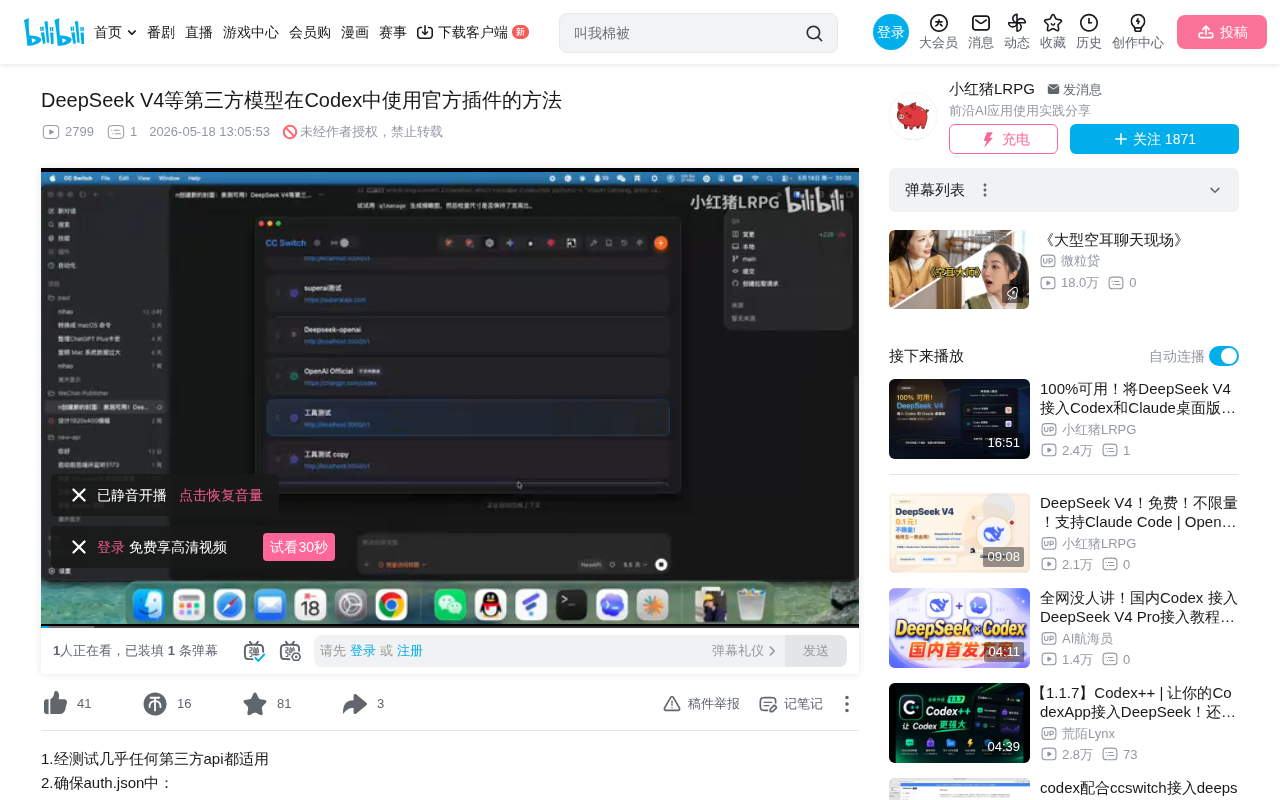
This is because Codex's plugin system requires users to log in with a ChatGPT account to make calls. Specifically, Codex's plugin system uses an OAuth 2.0 authentication flow that's bound to the ChatGPT user session. When a user logs into their ChatGPT account, the client obtains a session token that serves not only for model calls but also as an access credential for the plugin marketplace. Plugin permission verification occurs at the client level rather than the API request level, meaning that as long as the client believes the current user has been authenticated through ChatGPT, it will unlock the plugin UI and calling capabilities.
When you use a third-party API (whether DeepSeek V4 or another model), the login method isn't the native ChatGPT approach, so plugin functionality gets locked. This restriction isn't specific to DeepSeek V4 — all third-party models logged in through non-GPT methods encounter the same issue.
Solution: One Line of Code to Enable Plugin Calls
The good news is that there's a relatively simple fix for this problem. The core idea is: activate plugin permissions by logging in with a ChatGPT account while keeping the third-party API working, then modify the configuration file to ensure requests continue going to the third-party model.
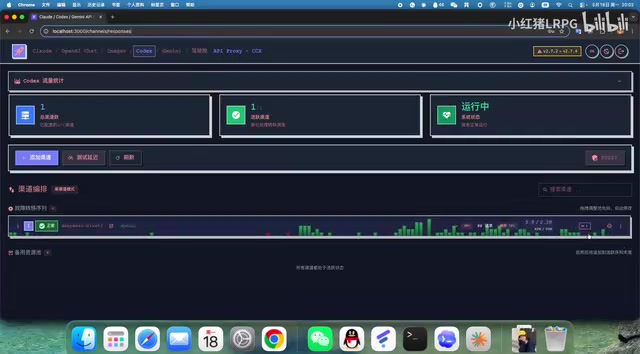
Step-by-Step Instructions
Step 1: Log Out of Your Current Session
In the Codex desktop application, click to log out. Note that your CCX bridging service should remain running — don't shut it down.
Step 2: Log Back In with a ChatGPT Account
Log into Codex using any ChatGPT account. After successful login, you'll notice that plugin functionality is now visible — all official plugins provided by OpenAI will appear. However, since the URL configuration still points to the original third-party address, requests can't be correctly sent to OpenAI.

Step 3: Modify the CCSwitch Configuration File
Open the CCSwitch interface, click "Edit," and locate the aux.json configuration file. You'll see:
- The first two OpenAI Key values are empty (NULL)
- AUX MODE shows ChatGPT authorization method
- Below is the OpenAI ChatGPT authentication JSON information
None of these need to be modified.
Step 4: Add the Key Code
Add one line of code below VCRURL:
experimental_variable_token: your_CCX_login_password
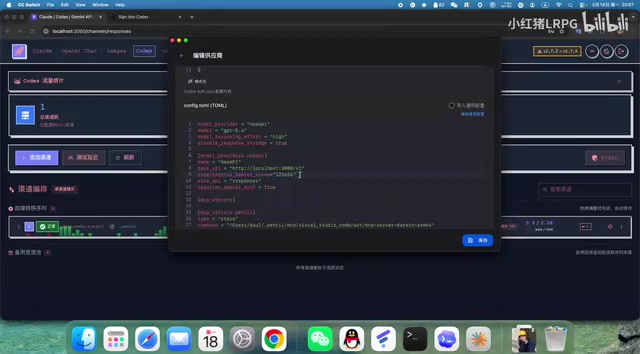
For example, if your previously set CCX login password is 123456, write:
experimental_variable_token: 123456
The token value here is essentially your third-party API Key. The experimental_variable_token field overrides the default Bearer Token, so the HTTP request's Authorization header carries the third-party API Key instead of ChatGPT's session token. Save the configuration after filling it in.
Step 5: Restart Codex
After saving the configuration, exit the Codex desktop application and reopen it.

After reopening, you'll find that plugin functionality works normally, while backend requests still go through DeepSeek or other third-party models rather than consuming your GPT account's model quota.
How It Works and Scope of Application
Why Does This Work?
The core principle of this method is separating the authentication layer from the request layer:
- Authentication layer: Log in with a ChatGPT account to obtain access permissions for the plugin system
- Request layer: Use the token in the configuration file to redirect actual model call requests to the third-party API
In modern software architecture, authentication and authorization are often independent layers. In the Codex desktop application's architecture, plugin permission verification relies on ChatGPT's OAuth session state, while model inference requests rely on the API endpoint and key specified in the configuration file. Since these two systems are decoupled at the code level, both plugin authentication and third-party model calling requirements can be satisfied simultaneously.
This way, Codex considers you a legitimate ChatGPT user (thus granting plugin permissions), but actual AI inference requests are sent to your specified third-party model service.
About DeepSeek V4
DeepSeek V4 is a large language model released by DeepSeek, widely popular in the developer community for its excellent code generation capabilities and highly competitive API pricing. Compared to OpenAI's GPT series models, DeepSeek V4 excels in Chinese programming scenarios and long-context code comprehension, with API call costs typically a fraction of GPT-4's. This makes many developers prefer using DeepSeek V4 for daily coding work while wanting to retain the toolchain integration capabilities provided by the Codex plugin ecosystem — and the method described in this article perfectly addresses this need.
Applicable Scenarios
This method applies not only to models connected through the CCX+CCSwitch bridging method but also to:
- Scenarios using third-party relay services
- Other third-party models connected to Codex through API proxy methods
As long as your connection method replaces the original API address, you can use this approach to restore plugin functionality.
Key Takeaways Summary
The entire process can be condensed into these steps:
- Ensure the third-party API bridging service remains active
- Log out of the current session in Codex
- Log back in with a ChatGPT account
- Add
experimental_variable_tokenwith the corresponding API Key below VCRURL in the CCSwitch configuration - Save the configuration and restart Codex
After completing these steps, you can enjoy the convenience of Codex's official plugin ecosystem while using DeepSeek V4 or other third-party models. This is an extremely practical technique for developers who need to leverage both the cost-effectiveness of third-party models and OpenAI's plugin ecosystem.
Related articles
 Tutorials
ChatGPT Plus Subscription Guide: Are GPT-5.5, image-2, and Codex Worth the Upgrade?
A detailed look at ChatGPT Plus features — GPT-5.5, image-2, and Codex — with a Plus vs Pro comparison and a complete step-by-step subscription guide for users outside the US.
 Tutorials
Harness AI Engineering in Practice: Using Claude Code to Master Enterprise-Level E-Commerce Development
Deep dive into Harness AI Engineering: master enterprise e-commerce development with Claude Code using the Rules, Skills, Wiki, and Changes framework.
 Tutorials
Cursor + Codex Dual-IDE Collaboration: A Practical Methodology for Open-Source Project Customization
A complete methodology for open-source project customization based on real-world experience, detailing the Cursor+Codex dual-IDE workflow, seven-stage process, MVP validation, and AI source code reading techniques.