Veo 3.1 Character Consistency Workflow: Five Steps to Professional AI Video

A five-step Veo 3.1 workflow that systematically solves character consistency in AI video
Character inconsistency in AI video stems from diffusion models lacking persistent character memory. A creator shared an upgraded workflow using Google Veo 3.1 and Nano Banana Pro that transforms character consistency into a controllable process through five steps: creating characters on solid backgrounds, generating multi-angle contact sheets, producing nine-panel scene grids, extracting full-resolution frames, and generating animation using Ingredients mode.
When generating video with AI, character consistency remains the trickiest challenge—the same character can look like a completely different person from one shot to the next. The root cause lies in how diffusion models work: mainstream video generation models essentially "denoise" random noise step by step to produce frames, with each generation being an independent stochastic process. The model doesn't have persistent "character memory"—unlike a human artist, it doesn't remember "what this character's nose looks like." When generating a new shot, the model can only rely on text prompts and reference images to infer character appearance, and text descriptions are inherently ambiguous (e.g., "short brown hair" can correspond to countless specific styles). This leads to facial feature drift, costume detail changes, and other inconsistencies across different shots of the same character.
Recently, a creator shared an upgraded workflow based on Google Veo 3.1 that transforms character consistency from "hoping for the best" into a controllable, systematic process through five clear steps. This article will break down the complete method so you can apply it directly to your projects.
Tool Selection and Core Approach
The core tool combination for this workflow is: Google Veo 3.1 (video generation) + Nano Banana Pro (image generation), both integrated within the Google Flow platform. All operations are completed in a single interface, eliminating the need to switch between multiple tools.
Google Veo 3.1 is a video generation model from Google DeepMind, the latest iteration in the Veo series. Compared to its predecessor, version 3.1 offers significant improvements in temporal consistency and physical motion plausibility, capable of generating longer, more coherent video clips. Nano Banana Pro is a model focused on high-quality image generation, excelling at producing style-consistent new images based on reference images. The Google Flow platform they run on is essentially Google's one-stop AI creation environment—similar to an integrated workstation with multiple AI models, where users can invoke different models within the same interface to complete image generation, video generation, image editing, and other tasks, avoiding the cumbersome export/import processes and quality loss that come with switching between different tools.
The overall approach isn't complicated: first establish a visual anchor for the character, then solidify character features through a Contact Sheet, batch-generate consistent shots using scene grids, and finally extract individual frames and convert them to video. Each step has clear inputs and outputs, forming a reproducible production pipeline.
Step 1: Create the Character—Solid Background Is Key
This is the first major improvement over the previous workflow version: when generating character reference images, always use a solid-color background.
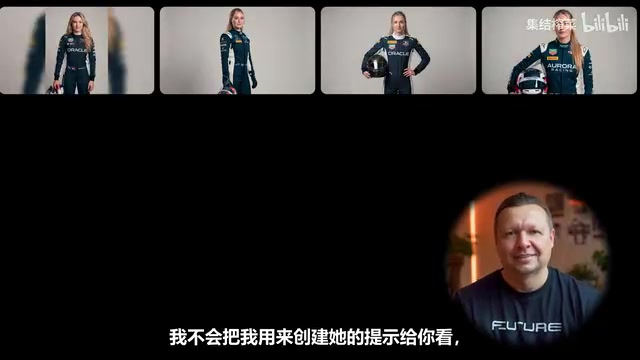
It sounds simple, but this detail is crucial. When a character is placed in a specific scene or complex environment, AI models tend to confuse background elements with character features, causing appearance drift in subsequent generations. This phenomenon is technically known as "Feature Entanglement"—the model's attention mechanism cannot fully distinguish between foreground character and background environment visual features, potentially encoding background colors and texture information as part of the character's attributes. A solid background allows the model to cleanly "recognize" your character—clothing details, facial features, body proportions—without any environmental interference.
The core principle for this step is: Keep it simple and clear. Don't add complex scene settings at the character creation stage—that comes later. Whether your character is a superhero, firefighter, or astronaut, this principle applies.
Step 2: Generate the Character Contact Sheet—The Soul of the Entire Process
This is the most important step in the entire Veo 3.1 character consistency workflow. A "Character Contact Sheet" is a comprehensive image generated using the main reference image paired with a specialized prompt, showing the character from various angles.
The Contact Sheet concept originally comes from traditional film photography. After developing film, photographers would place the entire roll of negatives in direct contact with photographic paper for exposure, producing a thumbnail overview for quick browsing and selection. In animation and gaming industries, this concept evolved into "Character Sheets" or "Character Turnarounds"—displaying front, side, 3/4 angle, back, and other views of a character on a single page for modelers and animators to reference. Borrowing this concept for AI workflows essentially digitizes the "character design" phase of human creative processes—by providing a multi-angle comprehensive reference image, the AI model receives far richer character information than a single image could provide, dramatically reducing appearance variance between different shots.
The upgraded Contact Sheet prompt is more focused on ensuring the character remains consistent with the reference image. The generated result presents your character from multiple viewpoints—front, side, back—essentially creating a complete "character file" for the AI.
In all subsequent steps, you'll need to use both the main reference image and the Contact Sheet together. This dual-reference mechanism is the core guarantee for character consistency across different scenes—remove either one, and consistency will noticeably decline.
Step 3: Scene Grid Generation—Why Not Use Single Images
For each scene, you need three things: the main reference image, the character Contact Sheet, and a scene grid prompt. The prompt has a dedicated area for scene descriptions—it doesn't need to be overly complex, but it's worth including the general mood, lighting direction, and technical details you want.
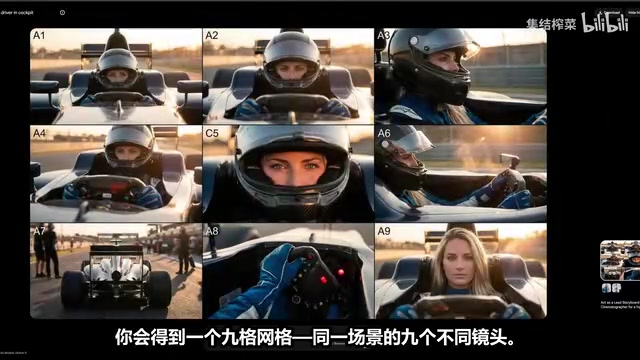
The result is a nine-panel grid—nine different camera angles of the same scene. Many people ask: why use a grid instead of generating single images directly?
The nine-panel grid (3×3 Grid) generation strategy improves consistency due to its close relationship with the diffusion model's Attention Mechanism. When the model simultaneously generates nine images on the same canvas, these nine regions share contextual information from the same Latent Space during the denoising process. Simply put, when the model generates lighting for the fifth panel, it "sees" how lighting is handled in the other eight panels, naturally maintaining style unity. This is fundamentally different from generating nine separate images—where each generation is an independent random process that can produce tonal shifts, inconsistent lighting direction, and other issues even with identical prompts. This grid generation technique is widely used in the AI image creation community, and Midjourney's default output mode (four-panel grid) is based on similar principles.
Specifically, the grid offers advantages in three areas:
- Stronger consistency: Shots within the same grid naturally maintain consistent color, lighting, and technical style—much more coordinated than individually generated shots
- More choices: You can select multiple frames from a single grid, meaning one scene can yield multiple video shots
- Higher efficiency: Generating nine candidates at once is far faster than generating and screening them one by one
Here's an efficiency tip: After generating the first scene grid, click "Reuse Text Prompt" in Google Flow, modify only the scene description at the bottom, keep everything else unchanged, and you can quickly batch-generate grids for different scenes. This small operation saves enormous amounts of time.
Step 4: Frame Extraction—Not Cropping, But Regenerating
When extracting individual frames from the nine-panel grid, directly cropping in Photoshop will result in resolution loss. The better approach is to use a dedicated extraction prompt: input the panel number, attach the grid image, and let the AI generate a full-resolution single frame.
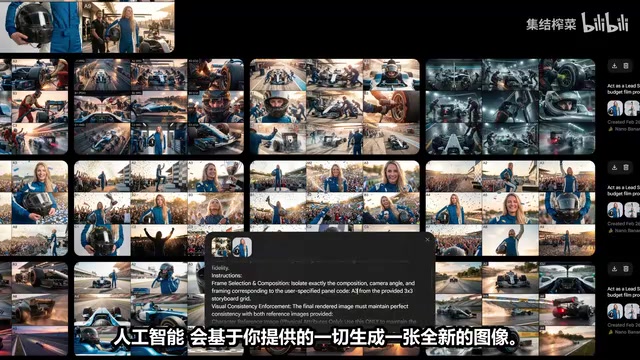
Here's a critical detail: if the frame contains a character, make sure to attach both the scene grid and the main reference image during extraction. This combination helps the AI maintain character consistency in the extracted frame.
It's important to note that this isn't a simple cropping tool—the AI generates an entirely new image based on all the materials you provide. This process is essentially "Conditional Image Generation," where the model uses the specific area in the grid as the primary visual condition while referencing the character's original design image to constrain character appearance, ultimately outputting a full-resolution standalone frame. Results aren't always perfect, but in most cases they're good enough. To extract more images from the same grid, simply use the "Reuse Text Prompt" function and switch the panel number.
Step 5: Animation Generation—Choosing Between Ingredients and Frames
With all full-resolution shots prepared, it's time for the most exciting part: bringing static images to life. Upload each shot to Google Flow, write motion prompts describing how you want the camera and character to move.
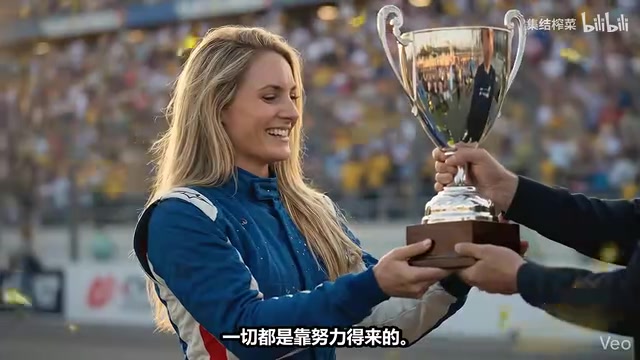
Here's a frequently asked question: should you use Ingredients to Video or Frames to Video?
The answer is: Use Ingredients to Video in most cases. The difference between the two reflects two distinct strategies for "reference image guidance" in AI video generation:
- Ingredients to Video: Treats your image as a general visual reference for the shoot, giving the AI more creative freedom. This mode is closer to "style/content reference"—the model interprets the input image as a visual Mood Board, extracting high-level semantic information like character appearance, scene atmosphere, and color style, then freely generating video combined with text prompts
- Frames to Video: Interprets images literally as the starting and ending frames of a video clip, with stronger constraints on the visuals. This mode uses a Keyframe Interpolation approach, where the model needs to "morph" from the starting frame to the ending frame, with strict requirements for input image composition and character poses
Since our images aren't actual first or last frames of a video, Frames mode can actually produce unnatural distortions or jarring transitions. Choosing the wrong mode is a common pitfall—remembering this distinction will save you considerable rework.
Here's another money-saving practical tip: Generate only one clip at a time. If the result isn't ideal, adjust the prompt and try again. Generating four clips simultaneously only to discard them all wastes four times the credits. This is especially important in actual projects—since video generation consumes far more computing power than image generation (a few seconds of video may require generating over a hundred frames, each undergoing the complete diffusion denoising process), platforms typically charge by generation count or video duration. In industry practice, a few-minute AI short film might require hundreds of generation attempts, with credit costs ranging from tens to hundreds of dollars. Optimizing workflows and reducing wasted generations is an essential skill for AI video creators.
Workflow Summary and Practical Recommendations
Let's review the five steps of the complete Veo 3.1 character consistency workflow:
| Step | Action | Key Points |
|---|---|---|
| 1 | Create character | Solid background, keep it simple |
| 2 | Generate Contact Sheet | Multi-angle character feature solidification |
| 3 | Scene grid | Nine-panel grid ensures shot consistency |
| 4 | Frame extraction | Full resolution, attach reference images |
| 5 | Animation generation | Use Ingredients mode, process frame by frame |
The core value of this workflow lies in systematization. It doesn't rely on luck or repeated retries—instead, through structured steps, it transforms character consistency in AI video from "hoping for the best" into a "controllable process." From a technical perspective, this method essentially compensates for current diffusion models' lack of persistent character memory—by providing sufficient visual references at every generation step, it manually constructs an "external memory system" for the model. For creators looking to produce short films, advertisements, or serialized content with AI, this is a methodology worth practicing in depth.
AI generation still carries inherent uncertainty—perfection every time isn't possible. But with this framework, you at least know which step to adjust and how, rather than being helpless in front of a pile of inconsistent assets. Run through the process once, and you'll find that character consistency is far less difficult than you imagined.
Related articles
 Tutorials
ChatGPT Plus Subscription Guide: Are GPT-5.5, image-2, and Codex Worth the Upgrade?
A detailed look at ChatGPT Plus features — GPT-5.5, image-2, and Codex — with a Plus vs Pro comparison and a complete step-by-step subscription guide for users outside the US.
 Tutorials
Harness AI Engineering in Practice: Using Claude Code to Master Enterprise-Level E-Commerce Development
Deep dive into Harness AI Engineering: master enterprise e-commerce development with Claude Code using the Rules, Skills, Wiki, and Changes framework.
 Tutorials
Cursor + Codex Dual-IDE Collaboration: A Practical Methodology for Open-Source Project Customization
A complete methodology for open-source project customization based on real-world experience, detailing the Cursor+Codex dual-IDE workflow, seven-stage process, MVP validation, and AI source code reading techniques.