Veo 3.1 Free Without Watermark: Two Methods to Generate Cinema-Quality AI Videos

Two free methods to get watermark-free, full-quality AI video output from Veo 3.1
Google Veo 3.1 is a top-tier AI video generation model, but using it through Gemini adds watermarks and reduces quality. This article covers two free alternatives: Google AI Studio for direct access to Veo 3.1's raw rendering output supporting both text-to-video and image-to-video, and Google Vids with its built-in timeline editor. Both methods allow 8-12 free video generations daily, expandable through multi-account rotation.
Google Veo 3.1 is one of the most powerful AI video generation models available today, capable of producing hyper-realistic cinema-quality videos with synchronized audio. However, when used through Gemini, the videos come with watermarks and reduced output quality. This tutorial will walk you through two completely free, watermark-free, full-quality methods to use Veo 3.1 and get raw rendering-level output.
Why Not Just Use Gemini to Generate Veo 3.1 Videos
Ever since Elon Musk locked Grok behind a paywall and OpenAI did the same with Sora, virtually all premium AI video generation tools have erected paid barriers overnight. Between 2024 and 2025, the AI video generation space underwent a rapid commercialization shift — tools like Runway's Gen-3 Alpha and Pika Labs all tightened their free tiers. The core reason is that video generation is extremely computationally expensive: generating a single 10-second high-quality video can consume tens of times more GPU resources than generating a single image. Google's decision to keep the Veo series freely accessible is largely driven by its strategy to rapidly build user base and usage data in this AI video arms race, solidifying its competitive position in multimodal AI.
That said, while Google's Veo 3.1 remains freely accessible, using it directly through Gemini has two obvious problems:
- Videos are plastered with ugly watermarks
- Output quality isn't the model's best level
The good news is that by leveraging Google's own developer tools, we can bypass these limitations and get completely watermark-free, full-quality raw output.
Veo 3.1 Technical Capabilities Explained
Before diving into the specifics, it's worth understanding why Veo 3.1 is worth the extra effort. Veo 3.1 is a video generation model from Google DeepMind, based on a hybrid architecture combining Diffusion Models and Transformers. Compared to its predecessor Veo 3, version 3.1 shows significant improvements in temporal consistency — meaning object motion and lighting changes between frames are more coherent and natural, dramatically reducing the common AI video issues of "flickering" and "morphing." One of its standout features is native audio synchronization — the model doesn't just output video frames but automatically generates matching environmental sound effects and ambient audio based on scene content, which is a leading capability in the industry. The "cinema-quality" output refers to its visual effects in dynamic range, depth-of-field simulation, and motion blur that approach the look of footage shot with professional cinema cameras.
Method 1: Generate Watermark-Free Videos via Google AI Studio
Basic Setup
Google AI Studio (formerly MakerSuite) is essentially Google's AI model prototyping and testing platform for developers, part of the Google Cloud Vertex AI ecosystem. Its design purpose is to let developers directly call Google's latest AI models (including Gemini language models, Imagen image models, Veo video models, etc.) through a visual interface for rapid experimentation without writing code. Because it's a developer tool rather than a consumer product, the output is the model's raw rendering result — it doesn't compress video quality or add watermarks like the Gemini chat interface does to save bandwidth and compute resources. This explains why the same Veo 3.1 model produces noticeably different output quality through different access points.
Open your browser and search for Google AI Studio. Once inside, you'll see a developer-style interface that might look intimidating at first, but the actual operation is very straightforward.
- Log in: Click the sign-in button in the upper right corner and log in with your Google account
- Authorize access: Confirm the permissions popup — this is to save videos to Google Drive
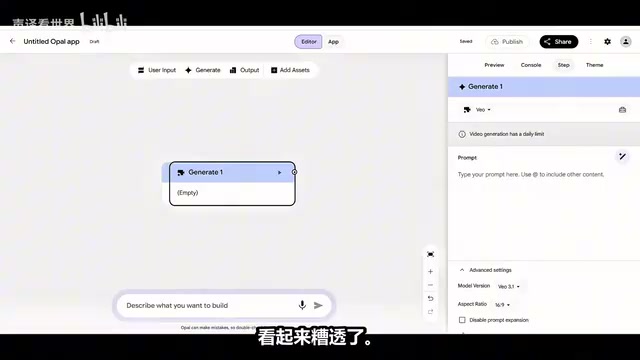
- Create a workspace: Click "Create new workspace" to open a blank canvas
Critical Configuration Steps (Where Most People Go Wrong)
Many people just paste their prompt and hit generate, only to get blurry videos. The correct approach requires precise configuration:
- Click the "Generate" button at the top to add a node to the workspace
- In the right panel, find the agent dropdown menu and switch to Veo (usually at the bottom of the list)
- Expand Advanced Settings — this step is crucial — under model version, make sure to switch to Veo 3.1. Keeping the default will result in noticeably blurry output
- Set the aspect ratio: 16:9 for landscape YouTube videos, 9:16 for vertical short-form videos and Reels
Prompt Writing Tips
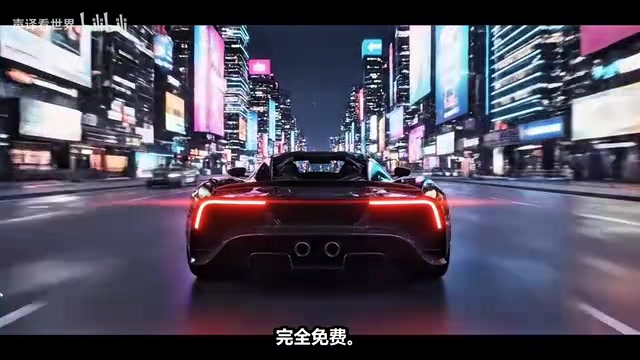
In AI video generation, prompt quality directly determines the ceiling of output quality. Mastering a few key principles can significantly improve generation results: First is camera language specificity — using professional cinematography terms like "slow dolly in" or "low-angle shot" helps the model more precisely understand the intended camera movement; second is environment and lighting description, such as "dramatic exposure" or "golden hour side lighting" — these details significantly enhance the cinematic feel; finally, specificity of dynamic elements — for example, "wind blowing through hair and clothing edges" produces richer visual detail than simply saying "windy." Veo 3.1 has strong comprehension of longer prompts, so aim for descriptions of 2-4 sentences that balance information density with clarity.
Generating and Exporting Watermark-Free Video
Enter your description in the prompt box, for example: "Hyper-realistic cinematic shot of a man walking through a burning city in slow motion." Once entered:
- Navigate to the Preview tab in the upper right
- Do a quick page refresh
- Click the "Start" button in the lower right
The system will complete rendering in the cloud with no lag. Once finished, you'll see a completely watermark-free, logo-free pristine video. This is the raw rendering version, with quality far exceeding the downgraded version output through Gemini.
Saving is simple: click the three-dot menu on the player and select download.
Image-to-Video Feature
AI Studio also supports transforming static images into dynamic cinematic shots. This uses AI Studio's node-based visual workflow design — each functional module is encapsulated as a visual "box" (node), and nodes are connected by lines to define data flow. This design is similar to Unreal Engine's Blueprint system or ComfyUI's workflow approach. The advantage is extreme flexibility — users can freely combine different nodes to achieve complex multi-step AI workflows without writing any code.
Here are the specific steps:
- Refresh the workspace to start fresh
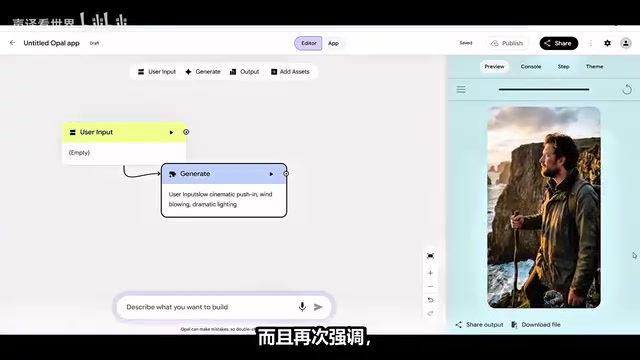
- Click "User Input" — a new box will appear on screen
- Drag and connect the small circle on the right side of that box to the Generate node — this connection tells the system "pass the user-uploaded image as input to the video generation model"
- Select the User Input box and change the input type from "any" to "image" in advanced settings
- Go back to the Generate node, set the aspect ratio and enter a prompt, such as "slow cinematic dolly in, wind blowing, dramatic exposure"
- Click Start, then upload your image — the system begins processing immediately
The results are quite stunning — a static image gets imbued with motion and depth, looking like genuine filmed footage.
Method 2: Use Veo 3.1 via Google Vids
This is another free pathway to use Veo 3.1, with slightly different operational logic than AI Studio.
What is Google Vids
Google Vids is the newest member of the Google Workspace productivity suite, first announced at Google I/O 2024. It's positioned as an AI-powered enterprise-grade video creation tool, alongside Google Docs, Sheets, and Slides. Its core goal is to enable users without video editing skills to quickly create professional-quality video content, primarily targeting enterprise training videos, product demos, and internal communications. The integration of Veo 3.1 elevates it from a template-stitching tool to a true AI video generation platform — this is part of Google's broader strategy to deeply embed AI capabilities into its productivity ecosystem.
Workflow
- Search for and navigate to the Google Vids official platform, log in with your Google account
- You'll see a dashboard with numerous templates and options
- Click the Veo 3.1 option to open the main generation interface
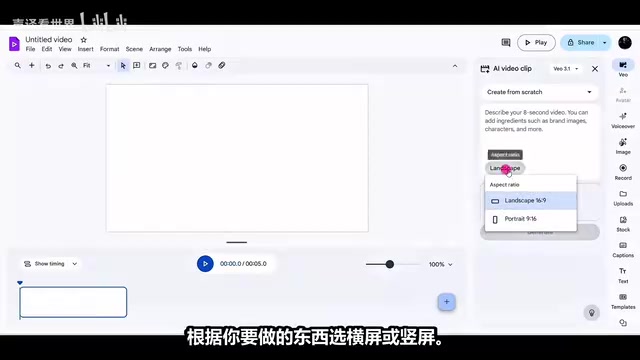
In the prompt box on the right, you can choose "Create from scratch" or "Animate image," and similarly switch between landscape or portrait aspect ratios.
Once parameters are set, enter your prompt and click generate. There's a built-in timeline editor at the bottom — while not as full-featured as Premiere Pro or DaVinci Resolve, it provides basic cutting, splicing, text overlay, and transition capabilities. Generated videos can be dragged directly onto the timeline for lightweight editing, sufficient for most everyday needs.
Note: Google Vids is currently rolling out in phases, and some regions may not have access yet. If you can't see the feature, you'll need to wait patiently for official availability.
Image Animation Feature
Google Vids also lets you convert static images to video: switch to the image animation feature, upload an image, enter a simple prompt, and click generate. An ordinary landscape photo can be transformed into what looks like real filmed footage — equally impressive results.
Veo 3.1 Daily Usage Limits and Workarounds
Daily Free Quota
Both methods have daily generation limits — approximately 8 to 12 high-quality videos per day. For individual creators' daily needs, this quota is generally sufficient.
Multi-Account Switching to Bypass Limits
If you need to generate content in bulk, there's a simple workaround: switch between different Gmail accounts. Log out of your current account, sign back in with another Gmail, and you'll get a fresh generation quota.
This works because Google AI Studio and Google Vids usage limits are tracked at the account level (per-account) rather than by IP address or device fingerprint — each Google account independently calculates API call quotas, which is Google Cloud's standard quota management mechanism. However, note that Google's Terms of Service typically include clauses against abusing free quotas, and mass-creating accounts for quota arbitrage may trigger risk control systems. Additionally, Google may adjust quota policies in the future, such as switching to phone number verification or introducing device-level restrictions. It's recommended to reasonably rotate between 2-3 existing personal Gmail accounts rather than bulk-registering new ones.
Backup Options When Quota Runs Out
When all generation attempts are exhausted but you urgently need assets mid-edit, consider using alternative AI video tools as a stopgap. While not as powerful as Veo 3.1, these tools typically don't have strict generation limits and can be lifesavers in a pinch.
Complete Workflow Recap
The entire process can be summarized in five steps:
- Add a Generate node → Select the Veo model from the dropdown
- Configure advanced settings → Switch to Veo 3.1 version, choose appropriate aspect ratio
- Enter your prompt → Use specific, visually descriptive language for the shot you want (leverage professional cinematography terms and lighting descriptions)
- Preview and start → Refresh the preview page, click Start to generate
- Download and save → Click the three-dot menu, download watermark-free video
For image-to-video, simply connect an additional User Input node and upload your image. Once you've done it once, the entire workflow becomes second nature.
Conclusion
In an era where AI video generation tools are trending toward paid models, Google AI Studio and Google Vids offer creators a rare free high-quality option. Veo 3.1's output truly reaches cinema-quality standards — whether in temporal consistency, dynamic range, or native audio synchronization, it represents the pinnacle of current AI video generation. The watermark-free raw rendering quality far surpasses the downgraded version obtained through Gemini.
By making smart use of daily quotas and multi-account strategies, you can fully meet everyday content creation needs. While these two access points remain free, it's worth getting hands-on experience sooner rather than later.
Related articles
 Tutorials
ChatGPT Plus Subscription Guide: Are GPT-5.5, image-2, and Codex Worth the Upgrade?
A detailed look at ChatGPT Plus features — GPT-5.5, image-2, and Codex — with a Plus vs Pro comparison and a complete step-by-step subscription guide for users outside the US.
 Tutorials
Harness AI Engineering in Practice: Using Claude Code to Master Enterprise-Level E-Commerce Development
Deep dive into Harness AI Engineering: master enterprise e-commerce development with Claude Code using the Rules, Skills, Wiki, and Changes framework.
 Tutorials
Cursor + Codex Dual-IDE Collaboration: A Practical Methodology for Open-Source Project Customization
A complete methodology for open-source project customization based on real-world experience, detailing the Cursor+Codex dual-IDE workflow, seven-stage process, MVP validation, and AI source code reading techniques.