VolcEngine Ark Coding Plan Setup Guide: Connecting Claude Code, Cursor, and More

Complete tutorial for connecting VolcEngine Ark Coding Plan to four major AI coding tools.
VolcEngine Ark's Coding Plan offers programming packages starting at just 9 CNY, supporting models like Doubao Seed2 Pro, DeepSeek V3, and Kimi K2. This article details how to connect it to Claude Code (config file editing), OpenCode (most convenient via client direct connection), Trae (add through settings), and Cursor (requires Pro version), with a recommendation to use the Auto model's intelligent routing for beginners.
VolcEngine Ark recently launched its Coding Plan programming package, offering generous model call quotas starting at just 19 CNY for first-time subscribers. This article provides a detailed walkthrough on connecting the Coding Plan to four major AI programming tools — Claude Code, OpenCode, Trae, and Cursor — helping developers get started quickly.
VolcEngine Ark Coding Plan Overview
Supported Models & Pricing
The Coding Plan currently supports several mainstream programming models, including:
- Doubao Seed2 Pro: Ideal for complex programming tasks
- Doubao Seed Code Lite: Lighter weight, suitable for everyday coding
- MiniMax M.5
- GLM-4.7
- DeepSeekAd V3-0324
- Kimi K2
The plan comes in two tiers: the Lite version offers 18,400 calls per month, more than enough for daily use; the Pro version provides five times the Lite quota, with a first-time subscription price of just 9 CNY — exceptional value.
Activation & Quota Management
After purchase, you can manage everything from the VolcEngine Ark console. Navigate to the "Subscription Management" page, find "Coding Plan" on the right side, and you'll see your remaining quota (both hourly and monthly limits) along with renewal information.
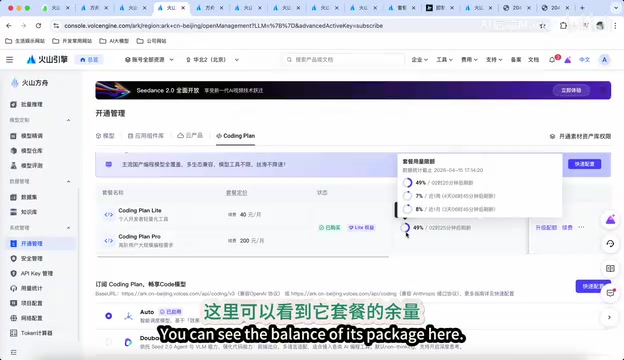
Notably, the Coding Plan offers an Auto model feature. If you're not familiar with the strengths of each model, you can simply use the Auto model — the system will automatically select the most suitable model via intelligent routing algorithms. There's a 3-4 minute delay when switching models, but you only need to configure a single model endpoint, making it very beginner-friendly.
Before configuring, you'll need to create an API Key: click "Create Key" in the console, then copy and save it once created. This key will be used across all tool configurations.
Connecting Claude Code to VolcEngine Ark Coding Plan
Claude Code configuration requires manually editing a config file, but the process isn't overly complex.
Step-by-Step Instructions
- Download and install Claude Code, confirm the version number
- Open the config file: Mac users can access it via command line or manually
- Modify ENV configuration: Primarily change three key options

Core parameters to set in the config file:
- Default model: Recommended to use
arc-code(Auto model) - API Key: Paste the key you copied earlier
- Base URL: Enter the VolcEngine Ark endpoint address as specified in the documentation
For multi-agent collaboration, you can additionally configure Doubao Seed Lite and Doubao Pro as models for different roles, along with Agent Team settings. However, for most users, configuring the four core parameters above is sufficient.
Once configured, you can install the Claude Code plugin in your editor. The Claude Code entry point will appear in the right panel — select your model and start chatting.
Connecting OpenCode to VolcEngine Ark Coding Plan
OpenCode offers two configuration methods: desktop client direct connection and manual config file editing. The former is more convenient.
Method 1: Desktop Client Direct Connection (Recommended)
- Download the OpenCode desktop client from GitHub
- Open the client, navigate to "Connection Management" → "Models" → "Connect Provider"
- Search for VolcEngine
- Enter your API Key and submit
- Once connected, you can start testing immediately
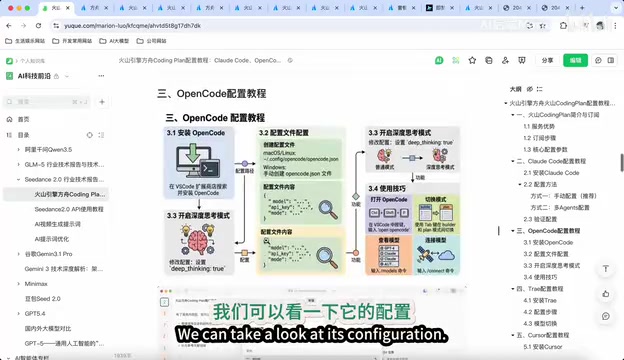
Method 2: Edit JSON Config File
Open the OpenCode JSON config file, search for the worker field, and fill in:
- Base URL: VolcEngine Ark's API address
- API Key: Your secret key
- Model list: Configure the corresponding model IDs and context window lengths
If the default context window length isn't sufficient, you can manually increase it. Additionally, OpenCode supports enabling deep thinking mode to further improve code generation quality.
Connecting Trae to VolcEngine Ark Coding Plan
Trae's configuration is done within the editor settings, making the process relatively intuitive.
Step-by-Step Instructions
- Open Trae settings and find "Add Model"
- Select VolcEngine Plan from the provider list
- Choose a model: if your target model isn't listed, select "Other Model"
- Model ID: Copy the corresponding model ID from the "Quick Configuration" page in the VolcEngine Ark console
- Enter your API Key and click connect

Once connected, you can use the corresponding model in Trae. For example, after configuring GLM-4.7, you can call that model directly in the editor for code assistance. You can also add multiple models (such as Doubao Seed Code, Kimi K2, etc.) and flexibly switch between them for different task scenarios.
Connecting Cursor to VolcEngine Ark Coding Plan
Cursor's configuration is slightly more complex, requiring modifications to both the Base URL and API Key parameters.
Prerequisites
Important note: Cursor requires a Pro subscription to use third-party models. The free version cannot connect to external models — keep this in mind.
Step-by-Step Instructions
- Open the Cursor editor and open the chat panel on the right side (Agent mode)
- Click "Add Model"
- Modify Base URL: Replace the default address with VolcEngine Ark's API address
- Enable and configure API Key: Make sure to enable the API Key option first, then enter your key
- Add the model name (e.g.,
doubao-seed-code) - Save, then select the corresponding model in the chat to start using it
Cursor requires more changes than other tools, mainly because it needs both the Base URL and API Key modified simultaneously, and you must ensure the API Key feature is enabled.
Model Selection Recommendations by Scenario
Different scenarios call for different models:
| Scenario | Recommended Model | Notes |
|---|---|---|
| Complex programming tasks | Doubao Seed2 Pro | Most capable; ideal for architecture design and complex logic |
| Daily coding | Doubao Seed Code Lite | Lightweight and fast response |
| Not sure which to choose | Auto model | Intelligent routing, automatically matches the best model |
For beginners, it's strongly recommended to use the Auto model directly to avoid decision fatigue. As you become more familiar with each model's characteristics, you can manually switch based on specific tasks.
Summary
VolcEngine Ark's Coding Plan offers a rich selection of models at an extremely low price. Each of the four programming tools has its own integration characteristics: Claude Code requires config file editing, OpenCode supports the most convenient client direct connection, Trae allows adding models through settings, and Cursor requires a Pro subscription with more configuration items. Choose the tool that fits your workflow, follow the steps in this article, and you'll be up and running in minutes — ready to enjoy the efficient experience of AI-assisted programming.
Related articles
 Tech Frontiers
A Rare Quiet Day in AI: Recursive Self-Improvement Stirs Beneath the Surface
A rare quiet day in AI sees multiple sources go silent simultaneously. Behind the calm, Recursive Self-Improvement (RSI) research continues. What this means for the industry.
 Tech Frontiers
Reve 2 vs. Ideogram 4: A Deep Dive into Layout Control in AI Image Generation
A deep comparison of Reve 2 and Ideogram 4's layout control capabilities, covering technical approaches, real-world use cases, and industry trends for designers and creators.
 Tech Frontiers
In the Weights: Check Your Influence Score in the AI World
In the Weights is an AI influence search engine that quantifies your presence in the AI world with a score. Explore how it evaluates practitioners and what it means for digital identity.