Windsurf Download, Installation & Setup Guide: Complete Workflow in 5 Minutes (2025 Latest)

Complete guide to downloading, installing, and configuring Windsurf for Windows
Windsurf is an AI coding editor built on VS Code architecture by the Codeium team, integrating code completion, intelligent chat, and code generation. This article details the Windows installation workflow: downloading from the official site, running the user-level installer, completing initial configuration (importing VS Code settings, installing terminal commands, choosing themes), and logging in with GitHub. The entire process takes about 5 minutes and can coexist with VS Code.
Windsurf is a highly popular AI coding editor recently developed by the Codeium team. Built on the VS Code architecture, it deeply integrates AI programming assistant capabilities. This tutorial will walk you through downloading, installing, and configuring Windsurf for Windows step by step — the entire process takes about 5 minutes.
What Is Windsurf? Why Is It Worth Installing?
Windsurf is essentially a code editor with built-in AI capabilities. Its interface style and workflow are highly consistent with VS Code, but it adds more powerful AI programming assistance features on top, including code completion, intelligent chat, and code generation.
VS Code (Visual Studio Code) is an open-source code editor released by Microsoft in 2015, built on the Electron framework using the Chromium rendering engine and Node.js runtime. It achieves multi-language support through the Language Server Protocol (LSP) and provides a rich plugin ecosystem via its extension API. Because VS Code's core architecture is open-source (the Code - OSS project), many third-party teams have been able to build their own editor products on top of it, such as Cursor, Windsurf, and others. The advantage of this approach is that they can directly inherit VS Code's mature editing experience, vast plugin marketplace, and stable performance, while layering differentiated AI capabilities on top.
Electron is a cross-platform desktop application framework developed by GitHub in 2013. It bundles the Chromium browser engine and Node.js runtime together, allowing developers to build desktop applications using HTML, CSS, and JavaScript. The advantage of this architecture is low cross-platform development cost — a single codebase can run on Windows, macOS, and Linux simultaneously. However, the downside is also obvious: every Electron application embeds a complete browser instance, resulting in higher memory usage. The VS Code team has achieved industry-benchmark performance for Electron applications through fine-grained process management, lazy loading, and rendering optimizations, which is why derivative editors based on the VS Code architecture generally maintain good responsiveness.
Windsurf's development team, Codeium, is a startup focused on AI code generation, founded in 2022 and headquartered in Silicon Valley, USA. The company initially started with a free AI code completion plugin supporting VS Code, JetBrains, and other IDEs, building up a large developer user base. Codeium's core technology is based on proprietary large language models specifically optimized for code understanding and generation scenarios. In 2024, Codeium launched the Windsurf editor, marking the team's strategic upgrade from a plugin to a standalone IDE product, aiming to deliver a more deeply integrated and seamless AI programming experience.
Specifically, Windsurf's AI programming assistance features fall into three main categories: Autocomplete predicts and suggests subsequent code snippets in real-time as you type, often completing entire lines or even entire functions; Chat allows developers to describe requirements in natural language, and the AI provides code solutions or technical answers based on the current project context; Generation automatically creates complete code implementations based on comments, function signatures, or requirement descriptions. Behind these features are large language models (LLMs) trained on massive amounts of open-source code, enabling the model to understand programming language syntax, common design patterns, and API usage.
Large Language Models (LLMs) are deep neural networks based on the Transformer architecture that learn language patterns through self-supervised pre-training on massive text data. In code generation scenarios, models are trained on billions of lines of open-source code (from GitHub, Stack Overflow, etc.), learning programming language syntax rules, API call patterns, common algorithm implementations, and coding styles. During inference, the model receives the current code context (such as code before and after the cursor, file structure, and project dependency information) as an input prompt, then predicts the most likely subsequent code token by token. Codeium's proprietary model offers advantages over general-purpose LLMs: it's specifically fine-tuned for code tasks, supports longer context windows to understand complete files, and is optimized for inference speed to meet the low-latency requirements of real-time completion.
For developers already using VS Code, the migration cost is essentially zero — you can even import your VS Code configurations, themes, and plugins with one click. The additional AI capabilities Windsurf provides can genuinely improve your daily coding efficiency.
Downloading the Windsurf Installer
Getting the Installer from the Official Website
Open your browser and visit the official Windsurf website (windsurf.com). Once on the site, the download entry point is displayed directly on the page. Click to enter the download page and select Download for Windows to get the Windows installer.
Tip: Before downloading, it's recommended to click the top-right corner of the page to complete account registration or login first. Using a GitHub account to log in is recommended, as it will make the subsequent configuration process smoother.
Windsurf Installation Steps Explained
Running the Installer
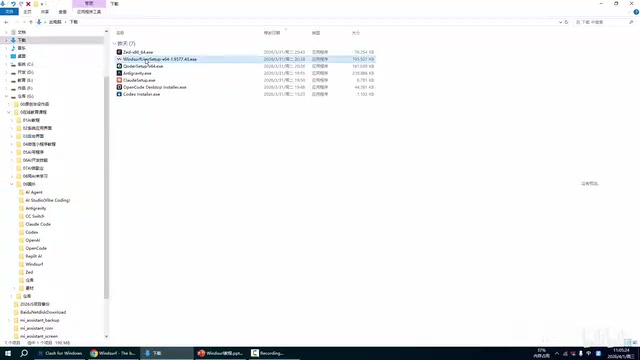
After the download is complete, locate the installation file and double-click to run it (you can also right-click and select "Run as administrator"). The system may display a security warning — click "Run" to continue.
During installation, you may see a message: "The user installer is not meant to be run as an administrator." This is because Windsurf's installer is a user-level installation package that doesn't require administrator privileges. Simply click continue when you see this prompt — it won't affect the normal installation.
Regarding the difference between user-level and system-level installation: Software installation on Windows typically comes in two modes — User Installer places program files in the current user's AppData directory, requires no administrator privileges, and is only visible to the current user; System Installer installs the program to the Program Files directory, requires administrator privileges, and is available to all users. Windsurf uses user-level installation by design, consistent with VS Code's default installation method. The benefits are faster installation, lower permission requirements, and suitability for individual developer use cases. For enterprise environments that need unified deployment across multi-user machines, system-level installers or IT management tools (such as SCCM, Intune) are typically used for distribution.
Completing the Installation Wizard
The installation wizard steps are very straightforward — just follow them in order:
- Accept the license agreement — Read and accept the agreement terms
- Choose the installation path — It's recommended to keep the default path to avoid unnecessary issues
- Additional options — Keep the default settings and click Next
- Start installation — Click the "Install" button and wait for the program to finish extracting
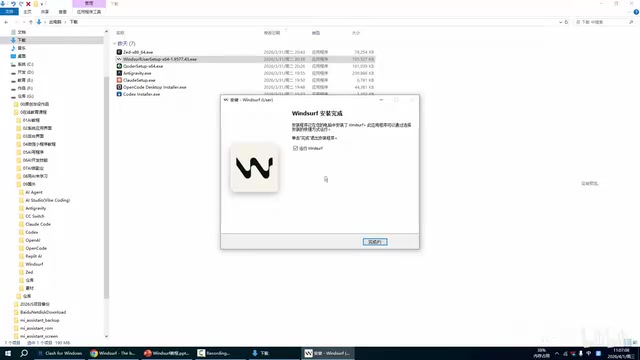
The entire installation process is quick. Once complete, it will redirect to the finish page. The page has "Launch Windsurf" checked by default — click "Finish" to automatically launch the editor.
Windsurf Initial Configuration Guide
Welcome Page and Basic Settings
When you first launch Windsurf, you'll enter the Get Started welcome page, where you need to complete the following initial configurations.
Step 1: Import VS Code Settings
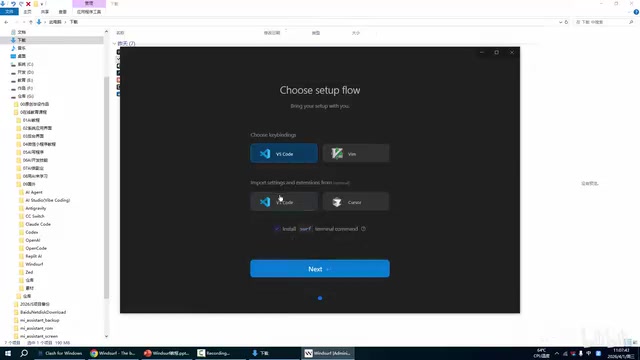
Windsurf will automatically detect whether VS Code is installed on your computer and offer a one-click option to import settings. If you've been using VS Code and want to keep your existing themes, keyboard shortcuts, plugins, and other configurations, simply choose to import. If you prefer to configure from scratch, skipping this step is fine too.
Step 2: Install Terminal Command
It's recommended to install Windsurf's terminal command tool (similar to VS Code's code command). A terminal command tool means registering a globally available command in the system's command-line environment (such as CMD, PowerShell, or Windows Terminal). Taking VS Code as an example, after installing its terminal command, you can type code . in any directory to quickly open the current folder in VS Code. Windsurf's terminal command tool works the same way — it adds Windsurf's executable file path to the system's PATH environment variable. This is very practical for developers who prefer working in the terminal, saving the steps of manually opening the editor and navigating to the project directory.
PATH is one of the most important environment variables in an operating system. It defines the list of directories the system searches for executable files when executing commands. When you type a command (like windsurf) in the terminal, the system searches for an executable file with the same name in each directory listed in PATH, in order. If found, it executes; if not found, it reports an "unrecognized command" error. On Windows, PATH is divided into two types: user-level PATH only applies to the currently logged-in user, while system-level PATH applies to all users. Installing Windsurf's terminal command actually adds its installation directory (typically %LOCALAPPDATA%\Programs\Windsurf\bin) to the user-level PATH, allowing you to invoke Windsurf directly from any terminal window.
Step 3: Choose Theme and Color Scheme
Next, you can select the editor's color theme and interface layout style according to your personal preferences. Don't spend too much time on this — you can always change it later in the settings.
Logging into Your Windsurf Account
After completing the basic settings, the most crucial step is logging into your account. Click the Sign up / Login button, and Windsurf will automatically open the login page in your default browser.

Multiple login options are supported. The most recommended method is logging in with your GitHub account. Here's how:
- Click the GitHub login button
- Complete the GitHub authorization on the popup page
- After successful authorization, the page will prompt you to redirect back to Windsurf
- Click "Open Windsurf" to confirm the redirect
GitHub is the world's largest code hosting platform with over 100 million registered developers. It's not only a core tool for code version management and collaboration but has also become a universal standard for developer identity authentication. Many development tools and services (such as Vercel, Netlify, and various AI coding tools) support third-party login through the GitHub OAuth protocol, so users don't need to register separate accounts, while the tools can also access users' basic information and repository permissions. Another potential benefit of logging into Windsurf with GitHub is that the AI assistant may leverage your code repository context to provide more accurate suggestions.
OAuth (Open Authorization) is an open standard authorization protocol, with OAuth 2.0 being the widely used version today. It allows users to authorize third-party applications to access their resources on another service without exposing their password. The GitHub OAuth workflow is roughly as follows: Windsurf redirects the user to GitHub's authorization page; after the user confirms authorization, GitHub generates a temporary authorization code and redirects back to Windsurf; Windsurf's backend server exchanges this authorization code for an access token from GitHub; then Windsurf can use this token to obtain the user's basic information (such as username and email). Throughout the entire process, Windsurf never touches the user's GitHub password — this is the security advantage of the OAuth protocol.
After redirecting back to the editor, your GitHub account information will appear in the top-right corner, indicating that login was successful. At this point, Windsurf's installation and initial configuration are all complete.
Common Issues and Notes
- Prepare a GitHub account in advance: It's strongly recommended to register a GitHub account before installation. It's not only the most convenient way to log into Windsurf but also an indispensable tool for daily development.
- Ensure a stable network connection: Windsurf's AI features rely on cloud services, so a smooth network connection is needed for normal operation. AI model inference is performed on cloud servers — the editor sends code context to the server via API requests and receives the generated results, so network latency directly affects AI response speed. Regarding the trade-off between cloud inference and local inference: cloud inference delegates computation tasks to remote GPU server clusters, with the advantage of running larger, more capable models (hundreds of billions or even trillions of parameters) without being limited by the user's local hardware; the downside is dependency on network connectivity, with latency and privacy concerns. Local inference runs smaller models on the user's device, with the advantage of offline availability, faster responses, and code never leaving the machine; the downside is being limited by local computing power, with model scale and generation quality typically inferior to cloud solutions. Windsurf currently primarily uses cloud inference, which means your code snippets are sent to Codeium's servers for processing. For enterprise users dealing with sensitive code, Codeium also offers private deployment solutions.
- System requirements: Supports Windows 10 and above, with at least 8GB of RAM recommended to ensure smooth operation of both the editor and AI features.
- Can coexist with VS Code: Windsurf and VS Code can be installed simultaneously on the same computer without interfering with each other, making it easy to compare the two editors.
Conclusion
Windsurf's installation process is very simple and straightforward — the overall experience is almost identical to installing VS Code. For developers who want to try AI-assisted programming, Windsurf provides an extremely low barrier to entry: a familiar interface paired with powerful AI capabilities that's truly worth trying. After completing the installation and configuration, you can start experiencing its core features including AI chat, intelligent code completion, and code refactoring.
Key Takeaways
- Windsurf is an AI coding tool built on the VS Code architecture; the Windows installer can be downloaded directly from the official website
- The installation process is straightforward — keep the default settings, and you can safely ignore the administrator permission prompt
- First launch supports importing VS Code configurations, minimizing migration costs
- Logging in with a GitHub account is recommended; once authorized, all AI programming features become available
- Windsurf can coexist with VS Code, making it ideal for developers to compare and experience AI programming capabilities
Related articles
 Tutorials
ChatGPT Plus Subscription Guide: Are GPT-5.5, image-2, and Codex Worth the Upgrade?
A detailed look at ChatGPT Plus features — GPT-5.5, image-2, and Codex — with a Plus vs Pro comparison and a complete step-by-step subscription guide for users outside the US.
 Tutorials
Harness AI Engineering in Practice: Using Claude Code to Master Enterprise-Level E-Commerce Development
Deep dive into Harness AI Engineering: master enterprise e-commerce development with Claude Code using the Rules, Skills, Wiki, and Changes framework.
 Tutorials
Cursor + Codex Dual-IDE Collaboration: A Practical Methodology for Open-Source Project Customization
A complete methodology for open-source project customization based on real-world experience, detailing the Cursor+Codex dual-IDE workflow, seven-stage process, MVP validation, and AI source code reading techniques.