7 Video Editing Tips to Make Your Videos Look More Professional
Professional video quality comes from small tweaks like cutting pauses, cleaning audio, and choosing edit points — not expensive gear or complex effects.
The article explains that boosting video quality isn't about expensive equipment or advanced editing skills, but a few core habits: organize footage before editing, preview everything, and do a rough cut first; prioritize audio over visual effects by reducing noise, balancing vocals, and lowering background music; make B-roll and transitions serve the narrative — excessive transitions distract; correct color before stylizing; keep subtitles short and readable, match aspect ratio to the platform, and always review the export in full. It also offers a beginner-friendly workflow and compares CapCut, DaVinci Resolve, Premiere Pro, and Final Cut Pro, while warning against common mistakes like overusing transitions, neglecting audio, too much text, overly long openings, and inconsistent color.
No expensive equipment or advanced editing skills required — the perceived quality of a video often comes down to a few small adjustments: cutting out unnecessary pauses, optimizing audio, choosing cleaner edit points, and keeping a consistent visual style. Whether it's a long-form YouTube video, short-form content, a tutorial, a product demo, or a business promo, mastering a few core techniques can make your content look far more professional.
Why editing defines a video's "professional feel"
Raw footage rarely tells a story on its own. Editing organizes information, removes distractions, controls pacing, and guides the viewer's understanding.
Good editing helps you do a few things: make information easier to understand; cut redundant shots and repetitive statements; unify audio and visual quality; make scene transitions smoother; keep subtitles and graphics clearly legible; and prepare appropriate versions for different platforms.
The core goal isn't to pile on effects — it's to make every shot earn its place.
Before editing: get your footage and your story straight
Organize files before you start cutting
Separate your assets into distinct folders: raw video, audio, music, graphics, project files, exported deliverables. Rename clips — product-demo-01.mp4 is obviously easier to identify than IMG_4587.mp4. An organized project significantly reduces time spent hunting for assets.
Watch all your footage first
Before you start editing, watch through all usable clips and mark the best takes, mistakes, repeated passages, usable supporting shots, and possible opening shots. This way, you already have a sense of the story structure before you lay anything on the timeline.
Do a rough cut first — don't rush into fine-tuning
A rough cut is about structure, not visual polish. First arrange the main clips in the correct order, cut unnecessary pauses, repeated sentences, mistakes, and overly long openings. Don't spend time polishing transitions until you've confirmed whether a scene even belongs in the final piece.
Rough cut and fine cut are two distinct stages in the editing process. The rough cut stage focuses on narrative structure and pacing skeleton — editors typically arrange all usable clips in logical order, marking what needs to be removed, without chasing precise frame positions, transition smoothness, or visual polish. The fine cut builds on the structure locked in during the rough cut, adjusting edit points frame by frame, trimming audio tails, adding transitions and visual effects, and unifying color.
The core logic of this staged approach: if structural problems are only discovered during the fine cut stage, it means a large amount of completed detailed work gets thrown out. Lock down the narrative structure first, then invest time in polishing details — this significantly reduces rework. The common practice in professional editing software of managing "rough cut timelines" and "fine cut timelines" on separate tracks reflects the same thinking.
Audio and visuals: the two main threads of professional feel
Handle audio before effects
For tutorials, interviews, and talking-head videos, clear audio is the baseline. Try these: reduce background noise, balance vocal levels, keep background music below dialogue, remove audio dropouts, and use gentle fades where appropriate. Listen through the entire piece with headphones before exporting — if dialogue is hard to make out, fix the audio first, then add visual effects.
Use B-roll to support the narrative
B-roll is supplementary footage that appears over or alongside the main shot. For example, when explaining how to use a laptop, you can cut to close-ups of the keyboard or screen instead of just filming the person talking the whole time. Relevant B-roll can mask jump cuts, demonstrate processes, and make complex concepts easier to understand. But don't stuff in irrelevant footage just to "look busy."
A jump cut is when, from the same camera position and shot size, a segment of time is removed from continuous footage of the same subject and the remainder spliced together, causing a noticeable "jump" in the image. This editing technique was once considered a technical flaw in early film and television, but in short-form video, vlogs, and tutorial content, jump cuts have become a widely accepted pacing tool for quickly compressing information and removing pauses.
The cost of a jump cut is that visual continuity is broken, and viewers can easily feel jarred. B-roll is a common way to mask jump cuts: insert a relevant supporting shot at the jump cut point, and the viewer's attention is drawn to the new image, so they won't notice the time break in the main shot. Another common approach is the "cutaway" — briefly inserting another angle and then returning to the original shot, with a similar effect. The key principle is that the inserted B-roll must be relevant to the current narration, otherwise it creates a break in understanding.
Keep transitions restrained
In most videos, a hard cut is effective enough. Fades and dissolves suit changes in time, place, or emotion. Avoid using a different fancy transition between every shot — too many effects pull the viewer's attention away from the information. A practical test: does this transition make the story better? If the answer is no, a hard cut is often more appropriate.
Correct color first, then talk about stylization
Color work has two steps: first color correction, making the image natural and consistent — including exposure, white balance, contrast, and saturation; then color grading, creating a specific visual style. Beginners should first make all clips look consistent, then explore more advanced tools in software like DaVinci Resolve.
Color correction and color grading are often used interchangeably, but they point to two different goals. Color correction solves the "is it right?" problem: fixing exposure deviations, eliminating color casts caused by incorrect white balance settings, and unifying clips shot with different cameras or at different times so the image looks natural and consistent. Color grading solves the "what does it feel like?" problem: building on technically correct footage, adjusting the color tendencies of shadows, midtones, and highlights to create a specific mood or style — cool blue tones, a warm film look, or high-contrast commercial polish.
The order — correct first, grade second — cannot be reversed. If the image itself has exposure or white balance errors, jumping straight into stylized grading only compounds the problems, making them harder to fix later. Software like DaVinci Resolve typically provides primary correction, secondary correction, and grading tools in layered form, precisely so this order naturally fits into the workflow.
Subtitles, aspect ratio, and export: don't stumble at the last step
Subtitles and graphics must actually be readable
Subtitles help viewers follow content when muted, especially for social media videos, educational content, interviews, and tutorials. Subtitles should be short, readable, with sufficient contrast, consistent fonts, and reasonable spacing. Avoid placing text over key details or in positions where platform UI elements might cover them.
Match your aspect ratio to the publishing platform
Decide your publishing channel before you start editing. Common formats include: 16:9 landscape for standard YouTube videos; 9:16 vertical for YouTube Shorts, Instagram Reels, and TikTok; 1:1 square for square social media videos. Choosing your aspect ratio in advance avoids unnecessary cropping later. When preparing final files, check the platform's current export recommendations.
Aspect ratio is the ratio of image width to height, commonly expressed as 16:9, 9:16, 1:1. 16:9 is the landscape standard, suited to YouTube long-form videos, television, and most online course platforms; 9:16 is the vertical ratio, suited to TikTok, Instagram Reels, and YouTube Shorts; 1:1 is square, common in Instagram feeds and some social media ad placements.
Aspect ratio and resolution are two different concepts: 1920×1080 and 3840×2160 are both 16:9 — the difference is total pixel count. Deciding on an aspect ratio before editing means timeline settings, framing, and subtitle safe zones are all designed around that ratio. If you finish a 16:9 timeline and only then decide to output a 9:16 version, you'll often need to re-crop or recompose the image, potentially losing important information or cutting the subject out of frame. Planning ahead avoids this rework.
You must watch the export in full
Don't assume the exported video is perfect just because the timeline looked fine. Watch the finished piece all the way through and check: audio-video sync, missing clips or black frames, subtitle timing and spelling, unexpected volume changes, color consistency, video resolution, and composition. A final check catches small problems before your audience sees them.
A complete workflow for beginners
If you're new to editing, follow this order: import and organize footage; watch clips and select the best takes; do a rough cut; improve pacing and cut repetition; clean up audio; add relevant B-roll; correct color and adjust the image; add subtitles and graphics; export with appropriate settings; watch the finished piece in full before publishing.
Using the same process for every project helps build consistent editing habits.
How to choose software and avoid common pitfalls
Which software to choose depends on budget, computer specs, and content type. CapCut is great for getting started quickly with social media videos and subtitles; DaVinci Resolve suits creators interested in advanced color work and precise editing; Adobe Premiere Pro fits professional projects and collaborative workflows; Final Cut Pro is the option for Mac users who prefer an Apple editing environment. You don't need to master all of them — pick one that fits your needs, learn the core tools first, then consider advanced features.
Common mistakes include: overusing transitions, neglecting audio quality, cramming in too much text, overly long openings, and inconsistent color. Another subtler problem: editing without a clear story. A pile of good-looking clips doesn't automatically become a good video — every scene should contribute meaningful information.
Conclusion
Improving video quality doesn't depend on complex effects or expensive software. Start with organizing files, editing with purpose, clear audio, consistent color, readable subtitles, and appropriate export settings. Practice on your next video, review what worked, and you'll gradually develop a smoother workflow that makes your content look more mature.
One-line Summary
Professional video quality comes from small tweaks like cutting pauses, cleaning audio, and choosing edit points — not expensive gear or complex effects.
Paragraph Summary
The article points out that improving video quality isn't about expensive equipment or advanced editing skills, but about a few core habits: organize footage before editing, preview everything, and do a rough cut first; prioritize audio over visual effects by reducing noise, balancing vocals, and lowering background music; make B-roll and transitions serve the narrative — excessive transitions distract; correct color before stylizing; keep subtitles short and readable, match aspect ratio to the publishing platform, and always review the export in full. The article also provides a beginner-friendly workflow and compares the use cases for CapCut, DaVinci Resolve, Premiere Pro, and Final Cut Pro, while warning against common mistakes like overusing transitions, neglecting audio, too much text, overly long openings, and inconsistent color.
Related articles

LangGraph Crash Course: Building Enterprise-Grade AI Agents and Workflows from Scratch
LangGraph crash course: learn its independence from LangChain, MIT license, FastAPI high-concurrency deployment, human approval, and memory storage for enterprise AI agents.
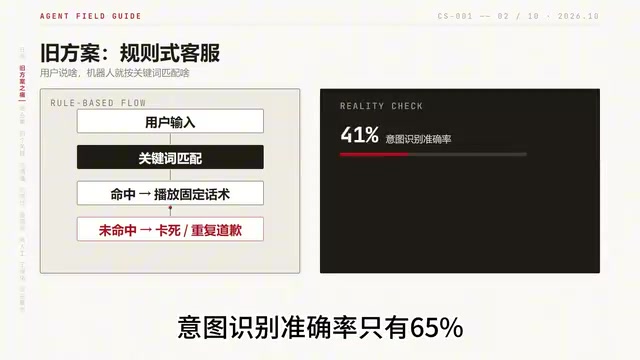
Building an AI Customer Service Agent from Scratch: A 92% Intent Recognition Case Study
A Bilibili case study: building an AI customer service agent from scratch with BERT intent recognition, dialogue state tracking, hybrid vector retrieval, and a weighted handoff model—raising intent accuracy from 65% to 92%, 78% conversation completion, handling 100K conversations daily.

Loop Engineering: An Engineering Paradigm for AI That Writes Code and Merges PRs Autonomously
Loop Engineering is transforming AI development pipelines: Stripe's Minions system merges over 1,300 machine-generated PRs weekly. This article breaks down Loop Engineering's five core actions, six components, five failure modes, and three safety disciplines, explaining why independent evaluators, state files, and budget caps matter more than full automation.