AI Agent Browser Automation Freezing Your Machine? This Skill Cuts CPU Usage by 96%

Switch AI Agent browser automation from SwiftShader to real GPU rendering and cut CPU usage by 96%.
Default headless + SwiftShader rendering in AI Agent browser automation can push CPU usage to ~70%, crippling the machine. A Bilibili creator's benchmark demonstrates a practical fix: drop headless mode, run full Chrome off-screen, enable real GPU rendering, reduce page quality, and cap frame rate to 6 FPS. The result is CPU usage falling from ~70% to ~3%, load times dropping from 3.3s to ~0.5s, with all assertions still passing identically — a compelling optimization for any Agent system running concurrent browser tasks.
When running browser automation tasks with an AI Agent, the most common pain point isn't logic errors — it's the machine grinding to a halt. CPU usage spikes, fans roar, and the computer becomes unusable for anything else. A Bilibili content creator shared real Windows Task Manager footage showing a dramatic performance gap between two approaches to the same browser verification workflow: same logic, different execution, nearly an order-of-magnitude difference in CPU usage.
The Performance Trap in Default Mode
First, the standard approach (Method A): Playwright calls Chromium Launch directly, running in headless mode with SwiftShader software rendering, loading pages at default quality with no rendering optimizations.
This setup looks conventional enough, but the cost is steep. Task Manager shows overall CPU usage quickly climbing to around 70%. On an 8-logical-core machine, that means more than 5 cores are consumed — effectively preventing any other meaningful work from running in parallel.
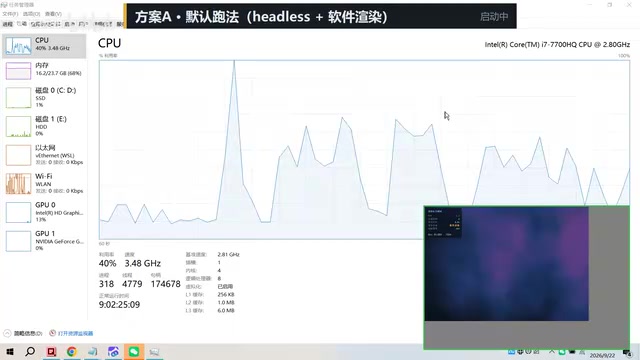
The root cause is SwiftShader software rendering. In headless mode, the browser doesn't invoke the GPU by default — all page rendering is pushed onto the CPU. For verification pages with complex graphics and animations, the CPU naturally gets hammered. This is the core reason why browser automation often makes machines feel sluggish.
SwiftShader is a pure software rasterization renderer developed by Google, built into Chromium. When the browser runs in headless mode — with no real display output target — Chromium disables GPU hardware acceleration by default and instead has SwiftShader simulate GPU graphics work on the CPU. The design intent is to ensure pages still render correctly in headless environments (e.g., for screenshots or PDF generation), but the tradeoff is that operations normally handled in parallel by the GPU — pixel fill, compositing, animations — are all offloaded to the CPU's general-purpose cores. For simple static pages, this overhead is manageable. Once a page includes CSS animations, Canvas, WebGL, or complex shadows and gradients, the CPU rendering cost multiplies. This is why verification-type pages — which tend to have dynamic interactive elements — are especially prone to maxing out the CPU.
How the Browser Verified GPU Skill Works
Method B is the core approach of this Skill, with three key changes:
- Drop headless mode, use full Chrome instead, and move the browser window off-screen (out of the visible area, without interfering with the user's desktop);
- Switch to real GPU rendering, so the graphics card handles the rendering load rather than the CPU;
- Reduce page rendering quality via URL parameters, while capping the frame rate to 6 frames per second.
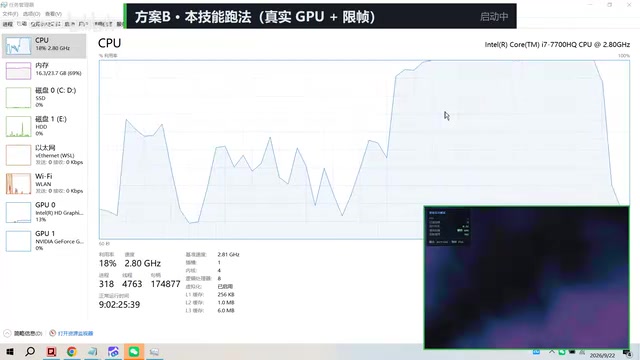
In Task Manager, the GPU utilization line clearly rises, confirming that rendering has indeed moved to the graphics card. For automated verification tasks, a page doesn't need 60fps smoothness — 6fps is more than enough to complete assertion checks. The unnecessary rendering overhead is simply eliminated.
Moving the browser window "off-screen" is a common compromise, typically achieved by setting the window position to negative coordinates at launch (e.g.,
--window-position=-10000,-10000). This tricks the operating system into thinking the browser has a real display output, which triggers the GPU hardware acceleration path — while keeping the window out of the user's visible desktop. Compared to true headless mode, this approach preserves the full rendering pipeline: the GPU's Compositor and rasterization threads operate normally. Frame rate limiting (e.g., capping at 6 FPS) further reduces overall GPU and memory bandwidth pressure by decreasing how many frames are submitted per second. For automation scripts that only need to check page state, 6fps and 60fps are functionally identical.
Benchmark Results: 96% Lower CPU, 6.8× Faster Loading
With the same verification task switched to Method B, CPU usage drops to around 3% — consuming only about 0.2 cores. Scene load time also shrinks from 3.3 seconds to roughly half a second.
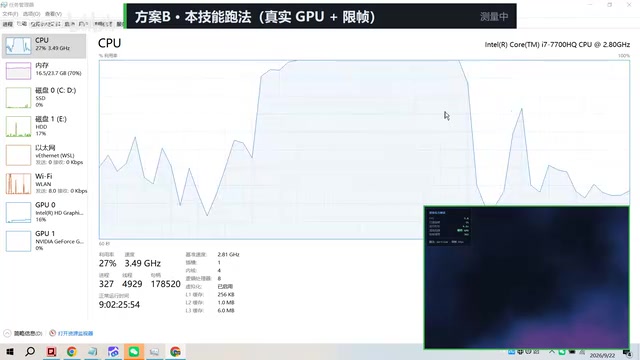
Quantified comparison:
| Metric | Method A (Default) | Method B (Skill) | Change |
|---|---|---|---|
| CPU Usage | ~70% | ~3% | ~96% reduction |
| Scene Load Time | 3.3 s | ~0.5 s | ~6.8× faster |
| Memory | Baseline | +27% | Slight increase |
Memory increases by about 27% because Method B uses full Chrome with more processes. However, the creator specifically notes: when multiple tasks share a single browser engine as a baseline, the GPU rendering path actually uses less memory overall.
Why Both Approaches Reach the Same Verification Results
A natural concern is whether reducing quality, capping frame rate, and changing the rendering path affects the accuracy of verification results. The tests give a clear answer — both approaches produce identical verification conclusions: pages render correctly, and all assertions pass. The only difference is resource consumption.
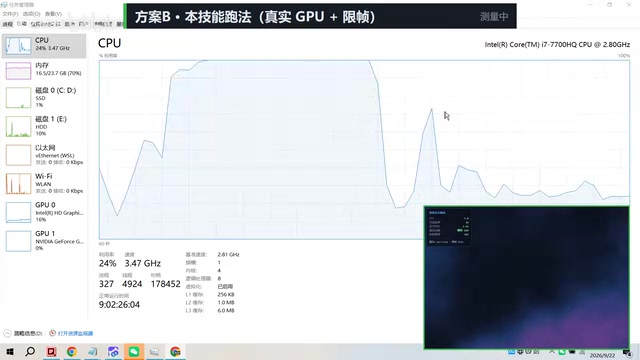
This highlights a core principle of browser automation optimization: automated verification cares about page state and assertion results, not visual smoothness. Default configurations spend significant resources on visual fidelity that is entirely irrelevant to automation. Strip that away, and functionality is unaffected while performance improves by an order of magnitude.
What This Means for Agent Developers
As AI Agents increasingly rely on browser operations to complete tasks — web verification, data scraping, form submission — rendering resource consumption is quietly becoming a scaling bottleneck. This Skill offers a reusable optimization path:
- Replace CPU software rendering with real GPU rendering, shifting the load to hardware better suited for graphics;
- Proactively reduce page quality and frame rate, cutting visual overhead that automation doesn't need;
- Retain full Chrome instead of headless mode, gaining more authentic rendering behavior and potential memory-sharing benefits.
For Agent systems running multiple browser instances simultaneously, these savings compound — directly affecting how many concurrent tasks a single machine can handle and what that costs.
One caveat: the data in this article comes from a single creator's recorded demo. Actual gains will vary depending on machine specs, page complexity, and GPU performance. Before deploying, it's worth running a comparative test in your own environment.
Related articles

Chain of Thought Isn't Just for AI: How Humans Can Use CoT to Improve Thinking Quality
Chain of Thought isn't just a prompt trick for large models. Starting from a Hacker News discussion, this article analyzes why CoT works for human thinking too, breaks down actionable ways to transfer it, and highlights the key differences between human CoT and machine CoT.
Cloudflare Teams Up with OpenAI: Closi…
Cloudflare Teams Up with OpenAI: Closing the Loop from Vulnerability Discovery to Defense with AI
Cloudflare uses OpenAI Daybreak to investigate security vulnerabilities and generate reviewable remediation plans, while developers use Codex to boost coding efficiency and quality.

Orca Multi-Agent Orchestration in Practice: A Guide to Parallel Collaboration with Claude and Codex
Orca is Stable AI's free open-source agent workbench supporting 34 agents like Claude Code and Codex in parallel. Learn its Git worktree isolation, multi-model orchestration, and mobile management.