AI-Generated Pixel Character Animation: Frame Planning, Consistency Tips, and Godot Reskinning in Practice

A complete guide to AI-generated pixel character animation: frame planning, consistency, copyright, retouching, Godot import, and state switching.
This tutorial details the complete workflow for AI-generated pixel character animation. It begins with planning frame counts, frame rates, and looping for seven animations, emphasizing how these affect action feel. To ensure character consistency, six techniques are proposed: master reference image, fixed prompt skeleton, fixed seed, continuous generation, skeletal animation, and unified post-processing. Copyright notes remind you to check commercial licenses, platform disclosure, and keep an asset log. Generate one animation at a time with a reference and controlled variables, then slice, align, and manually retouch. When importing into Godot, use Nearest filtering and Scale 1, with manual or Agent-based SpriteFrames construction. State switching requires priority and locking key animations until they finish. Finally, it covers creating three enemy assets, in-game verification, and common pitfalls.
This tutorial follows up on the previous episode and focuses on the complete workflow for AI-generated pixel character animation: from frame planning, consistency assurance, and copyright considerations, to manual retouching, importing into Godot, state switching, and enemy asset creation. You'll learn how to make seven animations look like the same character and avoid common pitfalls.
Animation Frame Planning: Balancing Duration and Rhythm
The knight character needs seven animations: idle, run, jump, fall, attack, hurt, and death. Each animation has a different frame count, frame rate, and looping mode, all of which directly affect the feel of the action.
- Idle: 4 frames, 6 fps, looping. In frames 2 and 3, the body sinks by one pixel to simulate breathing.
- Run: 8 frames, 12 fps, looping. Each leg gets a set of contact, compression, passing, and airborne poses.
- Jump: 2 frames, non-looping. Crouch to build power, tuck the legs and rise.
- Fall: 2 frames, looping. Arms slightly raised, cape fluttering upward.
- Attack: 5 frames, 15 fps, non-looping. Raise sword, wind up, slash, follow through, recover. Frame 3 is the hit frame.
- Hurt: 2 frames, leaning back with eyes closed.
- Death: 6 frames. Flash the gun, kneel, collapse, still.
Each file's width equals the frame count times 32, with a height of 32. Frame count divided by frame rate gives the action duration: idle is about 0.67 seconds per cycle, and attack is only 0.33 seconds. Frame rates and frame counts may be tweaked slightly in later lessons, so be sure to record them in the asset log.

Consistency Tips: Making Seven Animations the Same Person
The biggest challenge when generating animations with AI is character consistency. In the previous episode we learned to identify fake pixels; this episode we need to ensure the character's appearance is unified across all seven animations. There are six specific methods:
- Master reference image: First finalize a 32x32 idle frame, then upload it as a reference every time you generate.
- Fixed prompt skeleton: Change only the one variable that describes the action; leave everything else untouched.
- Fixed seed: The same prompt plus the same seed yields closer results, applicable to tools like Stable Diffusion.
- Generate continuously in the same conversation: Tell the model to keep the previous character design and only change the action.
- Use the skeletal or pose animation features of pixel tools: Generate based on a reference character rather than generating each frame independently.
- Unified post-processing: Run all frames through the same post-processing script, then have a human retouch the first frame of each animation, and correct the remaining frames against onion skinning.
The Crash Scene: Generating a Run Animation Without a Reference Image
The course demonstrates a real failure: the prompt only said "8-frame run cycle," with no reference image attached, handed to a general model to generate in one pass, then split into 8 frames with a slicing and post-processing script. When played at 12 fps, the helmet shape, sword position, and cape length changed every frame, making it look like several different people. The post-processing script couldn't fix this problem.
The fix: attach the finalized master reference image, prioritize the pixel tool's animation feature, and finally retouch by hand using onion skinning.
Onion Skinning is a common辅助 feature in animation software that displays the outline of the previous or next frame semi-transparently over the current frame. In pixel animation correction, onion skinning lets artists visually compare pose changes between adjacent frames and quickly spot whether elements like helmet position, sword angle, and cape length have shifted. Pixelorama and Aseprite both have built-in onion skin panels where you can adjust the number of frames before and after, opacity, and tinting (usually red for the previous frame and green for the next). Combined with grid alignment, onion skinning can significantly improve manual retouching efficiency and ensure the character maintains consistent body proportions and key features throughout a looping animation.
Copyright and Licensing: Must-Read Before Publishing
Commercial licensing terms for AI tools differ and may change. Free tiers may require attribution or prohibit commercial use, so check the official website before publishing. Platforms like Steam require disclosure of AI-generated content. Don't include names of well-known games or artists in prompts, and don't generate copyrighted characters. When using open-source libraries like RMBG, comply with their open-source licenses. Third-party assets like Kenny are CC0. Every asset must be recorded in the asset log: tool and version, prompt, seed, date, post-processing, and licensing notes, for traceability.
Generating Animation Frames: One Animation at a Time
Generate only one animation at a time, and attach the finalized idle frame as a reference every time. Start the prompt by emphasizing "the same knight as the reference image," describe the skeleton in the middle, and end by requesting a single horizontal strip with each frame 32x32 and evenly spaced, feet on the same baseline, all frames design-consistent, with no motion lines, text, or frame numbers. Change only three variables each time: animation name, frame count, and action description.
For example, a 5-frame attack: raise sword, wind up, slash, follow through, recover. Note that the description says "no sword light," because the style bible specifies that sword light is a separate effect and should not be drawn into character frames. Save one original image per animation to ArtSource and record it in the asset log, including the seed.
When slicing, use bottom center alignment for idle and run, and eye alignment for jump, fall, attack, hurt, and death. For acceptance, check the preview GIF: the feet should be stable during the run and the body should have vertical movement. If the whole character jitters up and down, you chose the wrong alignment or one frame has extra noise.
Manual Retouching: The Last 10% Relies on Human Eyes
AI and scripts can handle 90%, but the last 10% needs human eyes. Open the strip in Pixelorama or Aseprite and set the grid to 32x32. First find isolated pixels and change them to the adjacent main color or delete them; then check the outlines—corners must not have 2x2 lumps. Redraw them using pixel-perfect mode. Turn on onion skinning to compare adjacent frames: the helmet and sword must line up on the same foot baseline and helmet height. If a frame's color drifts, replace it with the same color from the palette. Finally, zoom back to 100% to check whether the action is immediately readable. Exaggerate key poses if necessary, and note the pixel coordinates of the sword tip in frame 3 of the attack—you'll need them in Lesson 9 when setting up the attack hitbox. After retouching, run the health-check script again to confirm no off-palette colors were introduced.
Importing into Godot: Manual and Agent Approaches
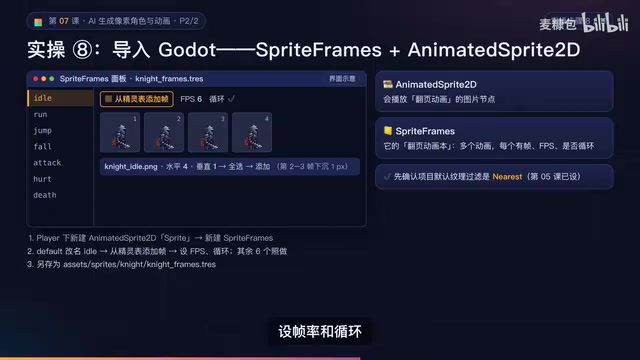
First, two terms: AnimatedSprite2D is an image node that plays flipbook animations, and SpriteFrames is its animation book, containing multiple animations, each with several frames, a frame rate, and whether it loops.
Manual approach: Put the seven strips into Assets and confirm the default texture filter is Nearest. In the SpriteFrames panel, click "Add frames from sprite sheet," select the idle strip, set horizontal 4 and vertical 1, select all and add, set frame rate to 6, and enable looping. Create a new AnimatedSprite2D under Player, name it Sprite, create a new SpriteFrames, rename Default to Idle, add frames, and set frame rate and looping. Do the same for the other 6 animations, referring to the frame planning table for parameters. Finally, save the resource as KnightFrames.tres for reuse.
When there are many frames, the Agent approach is faster and less error-prone. Have the Agent AI create a config file with the file name, frame count, frame rate, and looping for each animation, using the values from the frame planning table. Then write an editor script that reads the config, creates an atlas texture region for each frame (frame number times 32), builds using the add frame, set frame rate, and set loop methods, deletes the extra Default, and saves as a resource file. Validate before reading: if the image width does not equal frame count times 32, report an error and skip that animation.
Acceptance: Press Ctrl+Shift+X in the script editor to run, and the output panel prints a seven-line summary; double-click the resource file to see seven animations with the correct frame counts. In the future, to add an animation, just modify the config and run again.
Nearest (nearest-neighbor) texture filtering is a rendering setting that pixel art games must enable in Godot. The default linear filtering interpolates textures, causing blurred pixel edges and gray fringes. Change the default texture filter in project settings to Nearest, or set the filter mode on individual texture resources, to keep pixel edges sharp. In Godot 4, you can also disable Mipmaps and compression in the import panel to further avoid distortion when scaling. For AnimatedSprite2D, make sure the Sprite node's Scale is 1; otherwise, even with correct filtering, non-integer scaling will still distort pixels.
State Switching and Reskinning
Reskinning means changing only the appearance without touching gameplay: keep the collision shapes and feel parameters from Lessons 5 and 6, replace the color blocks with AnimatedSprite2D, and keep left-right movement exactly the same. On the right, a CC0 asset protagonist is used instead of the knight for demonstration.
Steps: Delete or hide the color block, add a Sprite, do not scale (Scale must be 1), adjust position and offset so the feet align with the bottom edge of the collision box, and keep the collision shape unchanged.
Switching priority from high to low: death, hurt, attack, airborne, run, idle. When airborne and rising, play jump; otherwise play fall. If horizontal speed exceeds the threshold, play run. Attack, hurt, and death must be locked during playback until the animation-finished signal allows switching; otherwise the attack will only flash for one frame. Facing is determined by Facing, Flip Edge, and when the direction key is released, the last facing is maintained.
For acceptance, open the debug menu's show collision shapes, take a screenshot to confirm the feet align with the bottom edge of the collision box, and the image is not blurry.
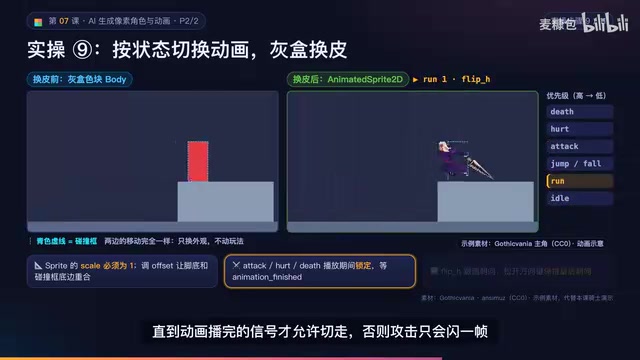
State Machine is a common pattern for managing animation switching in game character control. It defines a set of states (such as idle, run, attack) and the transition conditions between them. In this tutorial, the priority order from high to low (death > hurt > attack > airborne > run > idle) is a simplified state machine logic. Actions like attack, hurt, and death need to be locked until the animation-finished signal triggers, which avoids animation flickering caused by per-frame overriding. In implementation, you can use enums or strings to represent the current state and check input and animation completion signals each frame to decide whether to transition. A well-designed state machine makes character behavior clear, extensible, and easy to debug.
Creating Three Types of Enemy Assets
Enemy assets are likewise "base plus variables," changing only the character description, canvas, visible size, and pose. On the left is a concept sketch generated by a general model; note that 16x16 enemies have very little detail, and pixel-specific tools usually work much better. Slime and bat use a 16x16 canvas, while the skeleton archer uses 32x32 plus a one-frame sword. The slime needs squash and stretch when moving, the bat's wings need clear upper and lower extreme poses, and the skeleton archer's bow must be clearly visible in silhouette. After generating with a general model, process with the isolated-noise-set-to-zero parameter to avoid deleting the eyes. Then have the AI create a placement scene with appearance for each of the three enemies: root node, animated sprite, and collision shape. Ground enemies have their origin at the bottom center of the feet, while the bat's origin is at the body center. The level generation script from Lesson 8 relies on this convention to place enemy behavior and collision layers; Lesson 9 will add more.
In-Game Verification and Asset Log
Run the reskin level and record a 20-second video showing idle, run, jump, fall, attack, and turn. Have the Agent run the project via MCP and check the debug output, requiring no resource loading failures and no SpriteFrames-related errors. Then complete the asset log—every asset that enters Assets needs a line. Finally, commit the knight's seven animations, three enemy assets, and the pixel post-processing script in GitHub Desktop. It's recommended to also commit the finalized original images in ArtSource for copyright traceability and regeneration.
Common Pitfalls and Acceptance Checklist
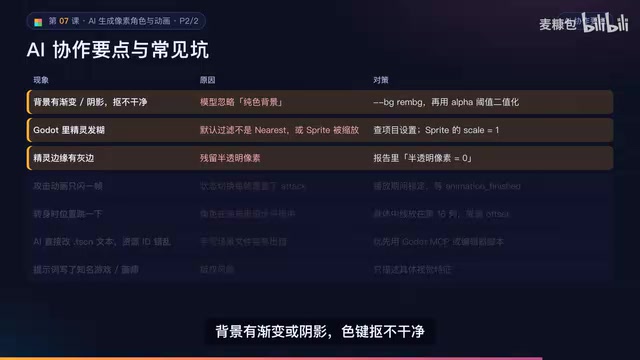
Common pitfalls include: wrong size, inconsistent frames, noise everywhere, blurry when scaled down, run lacking vertical movement, and jump misaligned due to wrong alignment. Here are seven more:
- The background has gradients or shadow colors that can't be cleanly keyed out; switch to RMBG and then binarize.
- Sprites are blurry in Godot; check whether the default filter is Nearest and whether the Sprite's scale is 1.
- Gray fringes on edges are leftover semi-transparent pixels.
- The attack animation only flashes one frame because state switching overrides the attack every frame; lock it until playback finishes.
- The character jumps position when turning because the character is not horizontally centered in the canvas; make the body's center line fall on column 16.
- AI directly editing scene file text easily causes resource ID corruption; prefer having the Agent modify through MCP or editor scripts.
- Including names of well-known games or artists in prompts carries copyright risk; describe only specific visual features.
Acceptance checklist for this lesson: palette file and two scripts are usable; the 7 strips have correct dimensions; the health-check report shows zero off-palette and zero semi-transparent; the animation resource's frame count, frame rate, looping, and planning table match; running the game shows correct animation switching; the 5-frame attack plays fully; facing left flips at 10; the collision area screenshot shows feet aligned; all three enemy scenes show clear looping animations; the asset log is complete; no resource errors and everything is saved.
Homework
Basic: Add a second-hit combo attack animation (5 frames, 15 fps), run it through the entire pipeline, and import it. Advanced: Create a golden-armor recolor skin and have the AI write a recolor script that batch-replaces the entire sprite sheet according to a color mapping table without regenerating. Challenge: Have the AI write an overview script that scales all sprite sheets up 4x and tiles them into a single overview image, labeling file name, size, and color count—this is the prototype for the batch quality check in Lesson 19.
The character is done, but the world is still gray blocks. Next lesson we'll generate a 16x16 tile set, parallax backgrounds, and use a text-based level approach to have the Agent turn a Tiled map into a real 1-1 level. Remember, you're the director and AI is your team. See you in Lesson 8.
One-line Summary
A complete guide to AI-generated pixel character animation, covering frame planning, consistency, copyright, retouching, Godot import, and state switching.
Paragraph Summary
This tutorial details the complete workflow for using AI to generate pixel character animations. First, plan the frame counts, frame rates, and looping for seven animations, emphasizing how frame rate and frame count affect action feel. To ensure character consistency, six techniques are proposed: master reference image, fixed prompt skeleton, fixed seed, continuous generation, skeletal animation, and unified post-processing. On copyright, it reminds you to check AI tool commercial licenses, platform disclosure requirements, and keep an asset log. Generate one animation at a time with a reference image and controlled variables, then slice, align, and manually retouch details. When importing into Godot, note Nearest texture filtering and Scale 1, and two ways to build SpriteFrames: manual and Agent. State switching requires priority and locking key animations until playback finishes. Finally, it covers creating three enemy assets, in-game verification, and solutions to common pitfalls.
Related articles

How Did Da Vinci Prove the Sun Is Hot? A Neglected Chapter in Science History
How did da Vinci use a concave mirror experiment to overturn Aristotle's cold sun theory? This article traces this neglected chapter in science history, revealing the embryo of scientific thinking in the 15th century and da Vinci's cold observations on solar heat and the nature of life.
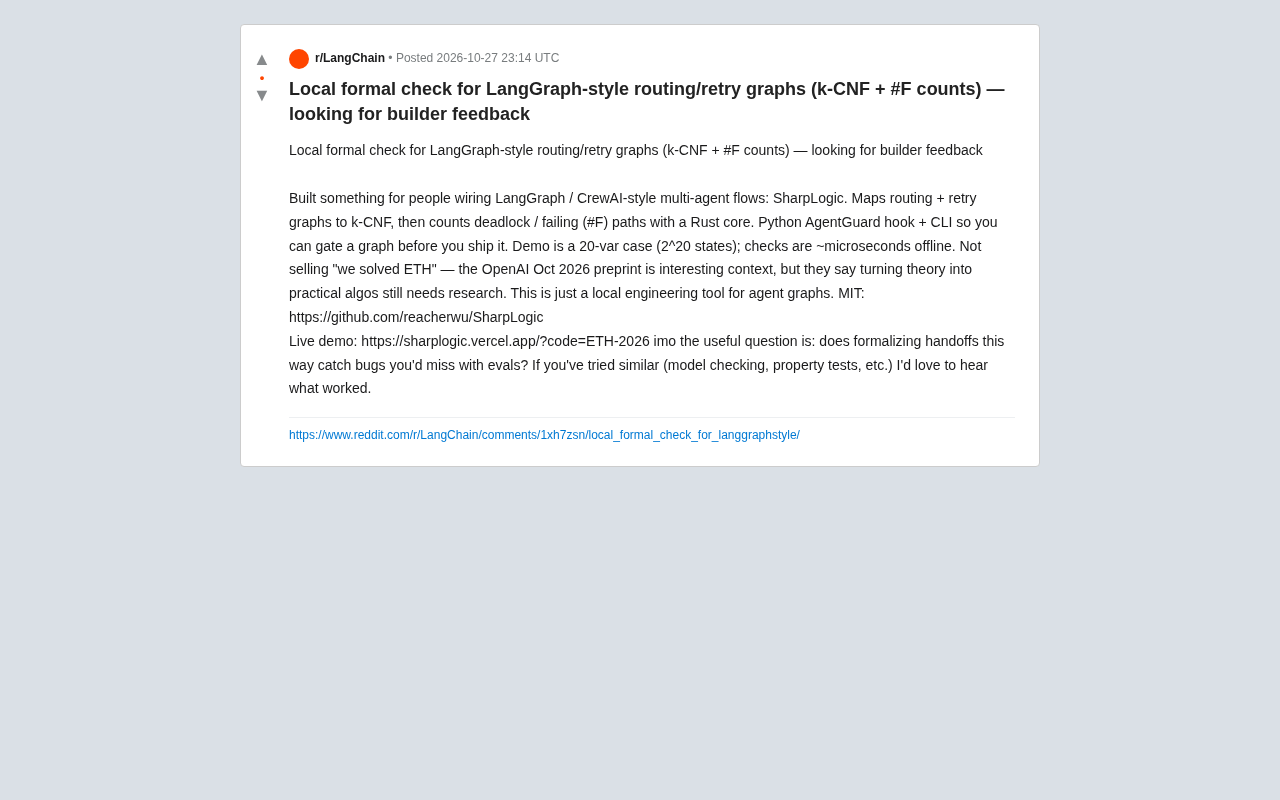
SharpLogic: Formalizing Bug Detection for LangGraph Routing Graphs with k-CNF
SharpLogic, an open-source project, maps LangGraph-style multi-agent routing and retry graphs to k-CNF, using a Rust kernel to count deadlocks and failing paths (#F counting), offering a Python AgentGuard hook and CLI for pre-release formal gate checks. This article analyzes its principles, its complementary relationship with evals, and the community's concern about modeling costs.
PPO Training of a Franka Robotic Arm for Pick-and-Place: A Reinforcement Learning Starter Project
A reinforcement learning project using PPO to train a Franka Panda robotic arm for pick-and-place in PyBullet, covering tech stack choices, task design challenges, and future text/voice command interaction plans—a good reference for beginners.