AI-Powered Presentations: A Complete Guide from Prompt to Finished Slides

AI can generate presentation drafts quickly, but high-quality slides still need human judgment and review.
This guide covers how AI presentation tools work and how to use them effectively. AI can generate outlines, slide content, and layouts from a prompt — significantly cutting initial prep time — but accuracy, logical flow, and audience relevance still require human oversight. The article presents a six-step workflow: define your goal, write a specific prompt, choose the right tool, review and fact-check content, refine the design, and do a final check. It also addresses common pitfalls like generic content and skipping edits, plus a framework for evaluating tools.
Creating a presentation is about much more than stacking text onto slides. You need to organize information, explain complex concepts clearly, choose appropriate visuals, and maintain a consistent design from start to finish. For students, developers, marketers, and professionals, this process can easily eat up hours.
AI presentation tools have lowered the barrier to getting started — give them a topic or outline, and they'll generate a working draft you can refine. But generating slides is only step one. A truly useful presentation still requires clear thinking, accurate information, and thoughtful design.
What AI Presentation Tools Actually Do
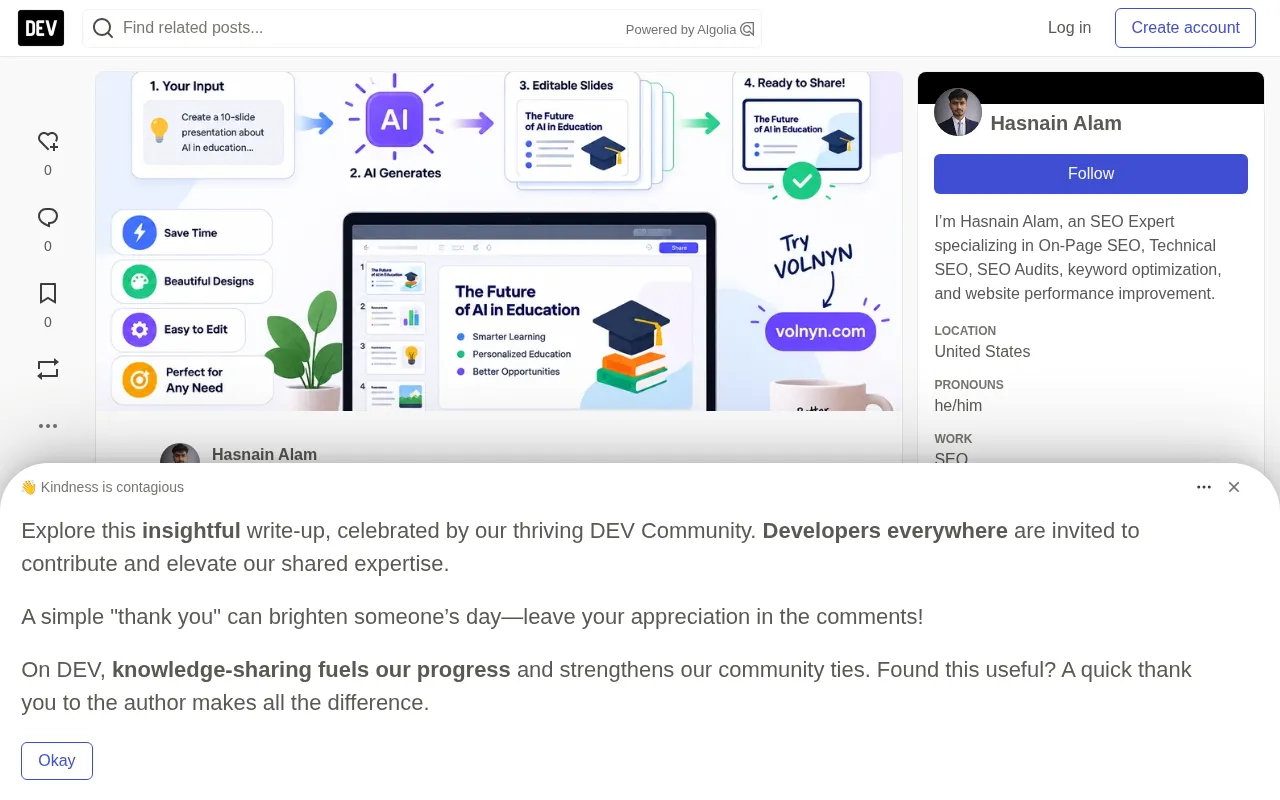
AI Presentation Makers use artificial intelligence to help users generate presentation content and slide layouts from inputs like topics, prompts, or outlines. Depending on the tool, they can typically:
- Generate a presentation outline
- Break information into individual slides
- Draft slide titles and bullet points
- Suggest visual layouts and images
- Establish a consistent presentation structure
- Reduce the time spent on initial formatting
For example, instead of staring at a blank slide, you can enter a prompt like:
"Create a 10-slide presentation explaining how APIs work, including an introduction, real-world examples, common use cases, and a conclusion."
The AI will scaffold an initial structure. From there, you review the content, correct technical details, and tailor the slides to your audience. Specific capabilities vary by product.
Why Use AI to Build Presentations
AI is especially useful when you already have the information but aren't sure how to organize it into a coherent presentation.
Save Time on First Drafts
Starting from scratch means figuring out what goes on every slide before you can even begin designing. AI tools generate an initial outline and content, giving you something concrete to review and improve. For recurring tasks like project updates, classroom presentations, internal reports, or marketing proposals, this is a significant time-saver.
Structure Complex Information
A good presentation guides the audience through a topic step by step — it doesn't bury them in scattered facts. AI can break a large subject into logical sections, arrange them in sequence, and flag where further elaboration is needed. You'll still need to verify the overall flow and make sure every slide serves your core objective.
Improve Visual Consistency
Uniform fonts, spacing, color schemes, and layouts make a presentation easier to follow. Many tools offer templates or design suggestions to establish a coherent visual style, and AI assistance makes this easier to achieve — though results vary across platforms.
Explore Different Approaches Faster
AI can help you try presenting the same material in different ways. A developer explaining software architecture, for instance, could compare a version aimed at technical peers against a simplified version for non-technical stakeholders, then choose whichever fits the audience best.
Six Steps for Building Presentations with AI
The best results come from combining specific instructions with human review.
Step 1: Define Your Presentation Goal
Before choosing a tool, clarify what your audience should understand or do by the end. Your goal might be to explain a technical concept, present research findings, introduce a product, or persuade stakeholders to approve a proposal. A clear goal makes it easier to decide what information to include and what details to cut.
Step 2: Write a Specific Prompt
Vague prompts produce unfocused starting points. Instead of "make a presentation about cybersecurity," try:
"Create a 10-slide presentation for small business owners on common cybersecurity risks. Include real-world examples, essential security measures, a simple implementation checklist, and a final summary. Use clear language and avoid unnecessary technical jargon."
A useful prompt should cover: topic (what it's about), audience (who will see it), goal (what the audience should learn), length (how many slides), tone (technical, educational, persuasive, or conversational), and structure (required sections or examples). If the first draft misses something important, refine your prompt and try again.
A note on prompt engineering: Prompt engineering is the core skill that shapes AI output quality. For presentations, prompt quality directly affects the logic and usefulness of the generated content. One advanced technique is role-based prompting — open your prompt by giving the AI an identity, such as "You are a trainer skilled at explaining complex concepts to non-technical audiences." This naturally steers the AI toward a more appropriate communication style. Iterative prompting is equally important: rather than scrapping a draft entirely, target the parts you're unhappy with and add follow-up instructions, like "Rewrite slide 3 for developers with 5+ years of experience" or "Reframe the conclusion as a call to action." Breaking your prompt into multiple rounds of dialogue and gradually converging on your target typically produces more stable results than writing one extremely long prompt upfront.
Step 3: Choose the Right Tool
Different tools suit different workflows: some prioritize design, others emphasize content generation, templates, collaboration, or integration with existing documents. One platform worth noting is VOLNYN's AI presentation tool — a platform that combines website building and a creative workspace with presentation-making capabilities.
Before committing to any tool, verify its current features, pricing, export options, and customization capabilities — these details determine whether it actually fits your project.
Step 4: Review the Generated Content
Never assume an AI-generated presentation is accurate. Fact-check names, dates, statistics, technical descriptions, and any claim that requires supporting evidence. For educational or professional presentations, verify important statements against reliable primary sources.
Remove redundant bullet points, and replace generic explanations with specific examples relevant to your audience. When covering software development, for instance, a small code sample or architecture diagram often communicates more than several slides of abstract description.
Step 5: Refine the Slide Design
Good design supports your content rather than competing with it. Use descriptive headings, readable body text, and visuals that genuinely illustrate the topic — don't fill every inch with text or decoration.
Pay attention to contrast. The W3C guidelines on minimum text contrast explain how sufficient contrast improves readability and accessibility for people with visual impairments. For practical editing and presentation features, Google Slides' official documentation is also a solid reference.
On contrast standards: The W3C (World Wide Web Consortium) publishes the Web Content Accessibility Guidelines (WCAG), which require a contrast ratio of at least 4.5:1 between body text and its background (AA level), and 3:1 for large text. These standards apply to presentations as much as they do to web pages — especially when projectors dim the display or the audience sits far from the screen. In practice, tools like Colour Contrast Analyser or browser developer tools can check whether a color scheme meets the standard. For slides, using light text on a dark background (or vice versa) and avoiding pure red-green combinations (to accommodate color blindness) are the most common design principles to follow.
Step 6: Do a Final Check Before Sharing
Review the finished presentation in the same format your audience will see, and ask yourself: Does the introduction state the purpose? Does each slide carry one core idea? Are technical details and factual claims accurate? Are the visuals relevant? Is the text legible on a standard screen? Does the conclusion reinforce the key message? Are there any layout issues, typos, or unnecessary slides?
If possible, run through the whole thing as a rehearsal — slides that look polished on screen may still need adjustment once you're actually presenting.
Common Mistakes When Using AI Presentation Tools
AI can speed up the process, but these pitfalls will drag down the final quality:
- Relying on generic content: AI-generated text can sound polished while saying very little. Add specific examples, relevant evidence, and details tailored to your audience's needs.
- Overloading slides with text: Presentations aren't documents projected onto a screen. Condense long paragraphs into meaningful bullet points and move extra explanation into speaker notes.
- Ignoring factual accuracy: Generated statistics and citations should be verified before you publish or present.
- Adding visuals without purpose: Images, icons, and charts should make concepts easier to understand. Cut anything that doesn't serve the content.
- Skipping the editing stage: AI should help you produce a draft, not replace your judgment. Review the final version for clarity, accuracy, accessibility, and consistency.
How to Choose the Right AI Presentation Tool
Evaluate tools against your actual needs, not just their marketing screenshots. Consider these dimensions:
| Dimension | What to Evaluate |
|---|---|
| Content generation | Can it organize a topic into a logical outline? |
| Design quality | Are the layouts clean and visually consistent? |
| Editing flexibility | Can you modify text, images, and slide structure? |
| Export options | Can you download or share in the format you need? |
| Ease of use | Can you get started without complex setup? |
| Pricing | Do the plans and usage limits fit your needs? |
If you regularly create presentations for work or study, also consider collaboration features, brand customization, and compatibility with your existing workflow. When possible, run the same sample topic through multiple tools and compare results — this gives you a direct sense of how they differ in content quality, design flexibility, and how much editing each one requires.
Final Thoughts
AI presentation tools help you move more smoothly from an idea to a structured set of slides. They're particularly good at generating initial outlines, exploring presentation structures, and reducing repetitive formatting work.
The most effective approach combines AI assistance with human judgment: start with a clear goal, give specific instructions, verify the content, and refine the visual design before sharing. Ultimately, the goal was never just to produce slides faster — it's to communicate your ideas more clearly, help your audience genuinely understand the topic, and make sure every slide earns its place.
Related articles

Chain of Thought Isn't Just for AI: How Humans Can Use CoT to Improve Thinking Quality
Chain of Thought isn't just a prompt trick for large models. Starting from a Hacker News discussion, this article analyzes why CoT works for human thinking too, breaks down actionable ways to transfer it, and highlights the key differences between human CoT and machine CoT.
Cloudflare Teams Up with OpenAI: Closi…
Cloudflare Teams Up with OpenAI: Closing the Loop from Vulnerability Discovery to Defense with AI
Cloudflare uses OpenAI Daybreak to investigate security vulnerabilities and generate reviewable remediation plans, while developers use Codex to boost coding efficiency and quality.

Orca Multi-Agent Orchestration in Practice: A Guide to Parallel Collaboration with Claude and Codex
Orca is Stable AI's free open-source agent workbench supporting 34 agents like Claude Code and Codex in parallel. Learn its Git worktree isolation, multi-model orchestration, and mobile management.