AMD GPU + Windows 11 Local Deployment of MiniMax H3: Text-to-Image, Image-to-Image & Multi-Image Generation Tutorial

How AMD GPU users can locally deploy MiniMax H3 via ComfyUI on Windows 11 for three image generation modes.
This guide, based on a Bilibili creator's hands-on walkthrough, helps AMD GPU + Windows 11 users locally deploy MiniMax H3 via ComfyUI. It covers text-to-image, image-to-image, and multi-image generation (up to 9 reference images), explains why the first run is slow (caching), and provides a five-step manual deployment process. Virtual memory must be set to 128GB+. An included upscaling tool can enhance drafts to near 5×4K quality.
AMD GPU users have long been on the margins of the AI image generation space — most mainstream workflows and pre-built packages are optimized for NVIDIA's CUDA ecosystem first. This tutorial is based on a hands-on walkthrough shared by a Bilibili creator, focusing on how to locally deploy the MiniMax H3 model using ComfyUI on a Windows 11 system with an AMD GPU, covering three core capabilities: text-to-image, image-to-image, and multi-image generation. Below is a structured summary based on the original video.
Hardware Setup & Package Selection
The creator's test platform uses an AMD GPU (around the RX 6900 XTX tier), paired with 32GB of RAM and 128GB of virtual memory. He explicitly notes that RX 90-series, 70-series, and 60-series cards are all supported, though 60-series cards require an additional fix (covered in a separate previous video).
For beginners, the easiest path is to use the pre-built integration package. The package uses a "modular" upload structure — workflow files are placed at the top level and can be extracted individually, while model files need to be downloaded separately into their respective directories. This design lets users download only what they need.
One important reminder: virtual memory must be set to at least 128GB. This is a hard requirement for stable model operation and one of the most common reasons local deployments fail.
What is Virtual Memory? Virtual memory is a technique where the OS uses hard drive space to simulate RAM. When physical memory runs low, the system writes temporarily unused data to a "page file" on disk, freeing up RAM for active tasks. Large AI models like MiniMax H3 demand far more VRAM and RAM than typical software — the model weights alone can be tens of gigabytes, and inference requires substantial intermediate tensor space. Setting 128GB of virtual memory tells the system it can borrow that much disk space as a buffer, allowing the model to load and run without crashing even with only 32GB of physical RAM. Keep in mind that virtual memory read/write speeds are far slower than physical RAM, so it ensures stability but cannot match real RAM in performance.
Results Across Three Generation Modes
Text-to-Image
Text-to-image generates an image from a text description. The creator used the default prompt to generate a photorealistic portrait of a Western-looking subject. He noted a key performance characteristic: the first generation is noticeably slower. In testing, the first image took 188 seconds; the second, with caching active, dropped to 103 seconds, with a theoretical minimum of around 14 seconds per image. This "slow first, fast after" pattern also applies to image-to-image and multi-image generation — it's the caching mechanism at work.
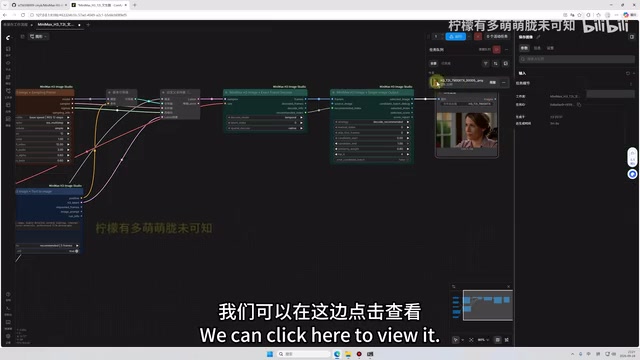
Image-to-Image
Image-to-image is typically used to make targeted edits to an existing image. In the demo, the creator replaced the clothing on an AI-generated character with a qipao (cheongsam). The workflow is intuitive. The first generation took 256 seconds; subsequent runs benefit from the same caching speedup.
Multi-Image Generation
Multi-image generation is the advanced highlight of this tutorial — it supports up to 9 reference images. The wiring logic is straightforward: drag a connection from one image node to the next, adding as many as you need. For example, alongside a main subject image, you can feed in additional reference images for a hat or a watch, and the model will synthesize all inputs into a new image.
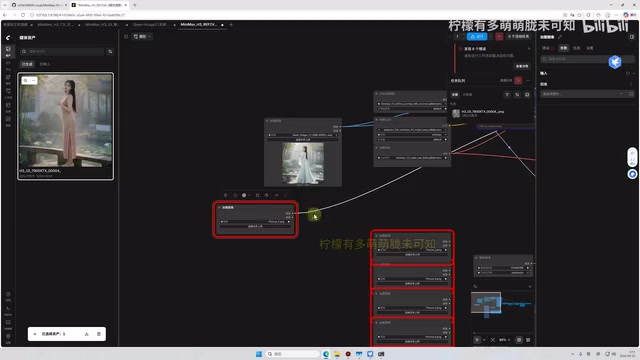
Two common pitfalls to watch out for: first, if you connect a certain number of images, you must provide that exact number — leaving any empty will cause an error; second, red markers appearing in the interface are not errors and won't affect execution, so don't worry about them.
Why "Slow First, Fast After"? This behavior stems from GPU computational graph compilation and caching. With AMD GPUs running on ROCm or DirectML backends, the first inference run requires compiling the computational graph into hardware-specific low-level instructions — a time-consuming one-time step. The compiled result is cached locally, so subsequent runs with the same graph structure skip compilation entirely and run much faster. NVIDIA platforms have analogous mechanisms known as CUDA Graph or TensorRT engine caching. A slow first generation does not indicate a broken deployment — it's expected one-time initialization overhead. If the first image after each program launch is slow, that's normal behavior.
Full Local Deployment Walkthrough
For users who prefer a manual setup, the creator walks through a complete step-by-step process:
Step 1: Download the portable ComfyUI. Select the latest AMD version of ComfyUI, create an H3 folder anywhere on your C, D, or E drive, and extract the files into it.
Step 2: Install Git. Download the X64 version and proceed through the installer with default settings. Git is required to pull nodes and dependencies later.
Step 3: Open a command-line environment. Navigate to ComfyUI's AMD directory, type CMD in the address bar to open a command prompt, then activate the corresponding Python environment before running any install commands.
Step 4: Install nodes and dependencies. Paste the Git command to clone the required nodes, then install their dependencies. The creator emphasizes that the core generation node must be installed — without it, text-to-image, image-to-image, and multi-image generation will all fail.
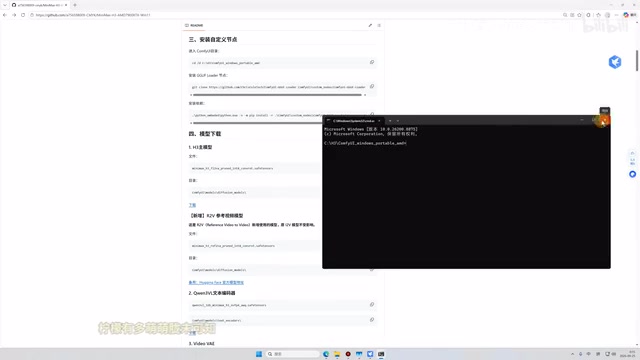
Step 5: Download and place model files. The GitHub page provides download links for all required models — text encoders, video, audio, etc. — along with the exact target directories under ComfyUI/Models/. Follow the directory structure as labeled.
Once these steps are complete, double-click the launcher to start ComfyUI — your browser should open the interface automatically. If it doesn't, manually copy the local address and paste it into your browser. Then drag the workflow file into the interface and you're ready to go.
What is ComfyUI? ComfyUI is a node-graph-based frontend for Stable Diffusion that lets users build image generation workflows by visually connecting functional nodes, rather than using a fixed UI. Each node represents a processing step (e.g., load model, encode prompt, sample, decode image), and the connections between nodes define the data flow. This design is highly flexible — users can freely combine nodes to build complex pipelines or import shared workflow files for instant reuse. Compared to tools like WebUI, ComfyUI offers finer hardware control, making it especially well-suited for local deployment tuning — which is one reason AMD GPU tutorials favor it. Git is a prerequisite for pulling ComfyUI's custom nodes, since most community-developed nodes are distributed as code repositories.
Image Enhancement & Parameter Tuning
Beyond basic generation, the integration package also includes a repair/upscaling tool. The idea is to generate a draft at a lower resolution quickly, then use the tool to upscale and refine — achieving results approaching 5×4K quality. This "fast low-res draft → upscale" workflow is highly practical when balancing speed and quality.
For sampling steps, the default is 12 steps (essentially 12 iterations). You can reduce this to 4 or 6 steps for faster generation at the cost of some image quality — adjust based on your needs.
Overall Assessment
The greatest value of this tutorial is that it fills a real gap: local AI image generation on AMD GPUs with Windows. MiniMax H3 supports not just the text-to-image trio, but also image-to-video, text-to-video, first-and-last-frame-to-video, and reference-video-to-video — a remarkably broad feature set.
For beginners, the integration package is the safest starting point. Users with some technical background can follow the manual deployment steps to understand what each node and model does. Just keep in mind: local deployment has clear hardware requirements (especially for virtual memory), and a slow first run is completely normal — don't interpret it as a failed deployment.
Related articles

Chain of Thought Isn't Just for AI: How Humans Can Use CoT to Improve Thinking Quality
Chain of Thought isn't just a prompt trick for large models. Starting from a Hacker News discussion, this article analyzes why CoT works for human thinking too, breaks down actionable ways to transfer it, and highlights the key differences between human CoT and machine CoT.
Cloudflare Teams Up with OpenAI: Closi…
Cloudflare Teams Up with OpenAI: Closing the Loop from Vulnerability Discovery to Defense with AI
Cloudflare uses OpenAI Daybreak to investigate security vulnerabilities and generate reviewable remediation plans, while developers use Codex to boost coding efficiency and quality.

Orca Multi-Agent Orchestration in Practice: A Guide to Parallel Collaboration with Claude and Codex
Orca is Stable AI's free open-source agent workbench supporting 34 agents like Claude Code and Codex in parallel. Learn its Git worktree isolation, multi-model orchestration, and mobile management.