Antigravity Installation Guide: A Free AI Coding IDE with Gemini and Claude Models

Installation and setup guide for Google's Antigravity AI coding IDE with free Gemini and Claude models
This is Episode 4 of the Vibe Coding series, introducing Antigravity — Google's AI-powered development environment. Built as a deep enhancement of Android Studio, it offers free access to top-tier models including Gemini 3.1 Pro and Claude Opus, with support for Agent-driven automated programming. The article covers prerequisites, download and installation steps, AI mode selection (manual mode recommended), Google account login, built-in model testing, and previews the next episode on Figma + MCP + Antigravity for complete project development workflows.
Introduction
Welcome to Episode 4 of the Vibe Coding series. Today we're focusing on a very powerful AI coding tool — Antigravity.
What is Vibe Coding? It's a new programming paradigm that emerged in 2025, coined by OpenAI co-founder Andrej Karpathy. The core idea is that developers no longer write code line by line. Instead, they describe their intent in natural language, and AI models generate, debug, and iterate on the code. Developers take on more of a "product manager + reviewer" role. AI IDE tools like GitHub Copilot, Cursor, and Windsurf have rapidly gained adoption, upgrading AI from a "code completion assistant" to an "autonomous coding Agent." Antigravity is an important player in this wave.
Antigravity is an AI-powered development environment launched by Google, built as a deep enhancement of Android Studio. Android Studio itself is Google's official Android development IDE built on the JetBrains IntelliJ IDEA platform. Antigravity builds on this mature ecosystem by deeply integrating top-tier large models including Gemini 3.1 Pro, Claude Opus, and Claude Sonnet, while supporting Agent-driven automated programming modes. This is highly similar to Microsoft's strategy of integrating GPT-4 into VS Code/GitHub Copilot, reflecting the full-scale competition among tech giants in the "AI-native development environment" space.
More importantly, these models are currently free to use. For developers who want to experience multi-model AI programming, Antigravity is undoubtedly a key piece in the Vibe Coding ecosystem.
Prerequisites Before Installing Antigravity
Before installing Antigravity, you need to ensure two prerequisites:
- Stable network access: Since Antigravity is a Google product, you need to be able to access Google services normally
- Google account: You need a working Gmail account to log in and activate the built-in AI model services
Both conditions are essential. Make sure to verify your network connectivity and account status before starting the installation.
Antigravity Download and Installation Steps
Step 1: Download the Antigravity Installer
Open Antigravity's official download page, click the "Download" button, and select the version that matches your operating system. Currently, Windows, macOS, and Linux are all supported.
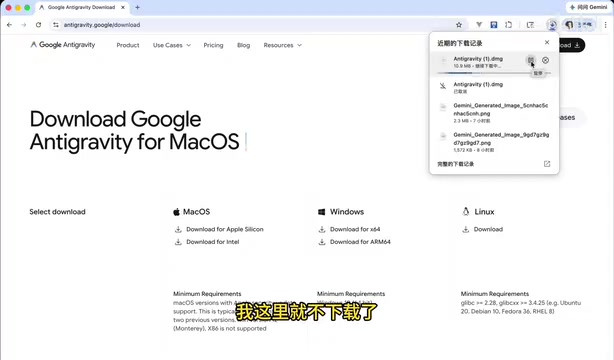
Once the download is complete, double-click the installer to launch the setup program and wait for the installation to finish.
Step 2: Initial Configuration
When you first launch Antigravity, you'll enter an initialization wizard:
-
Import settings: The system will automatically detect existing local development environments (such as VS Code, Cursor, etc.) and ask whether to import related configurations and code directories. Choose based on your personal needs, or simply click "Next" to skip.
-
Choose a theme: Select the interface theme style that suits you (dark/light, etc.).
-
Choose AI mode (important): There are four options here. We strongly recommend selecting the second option.
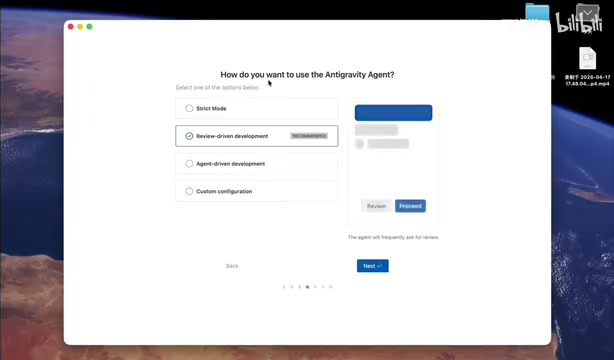
The key difference between these four options lies in the degree of AI autonomy. Understanding this requires knowing the concept of Agent-driven development:
In Agent mode, the AI has a complete "perceive-plan-execute" closed-loop capability — it can autonomously read project files, invoke terminal commands, run tests, and self-correct based on error messages, all without requiring human intervention at every step. This relies on "Tool Use/Function Calling" technology, where the model is granted permissions to operate the file system, execute Shell commands, call external APIs, and more. This is why mode selection is crucial:
- Second option (recommended): Equivalent to "manual mode" — the AI asks for your approval before each critical operation, effectively preventing accidental overwrites of important files or execution of dangerous commands
- Agent Driven Development: Equivalent to "autopilot" — the AI autonomously executes code writing, running, and other operations without requiring your confirmation
For beginners, manual mode is safer and more controllable. You can switch to fully automatic mode once you're familiar with the tool.
Step 3: Log in with Your Google Account
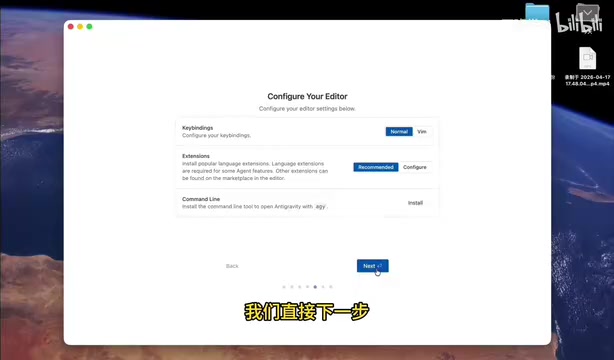
Select your Google account to log in. After authorization, the entire installation and configuration process is complete. Once logged in successfully, Antigravity is officially ready to use.
Testing Antigravity's Built-in AI Models
After installation, let's verify that the built-in models are working. Open the Agent panel on the right side, and you'll see that the latest version of Antigravity includes the following models:
- Gemini 3.1 Pro: Google DeepMind's flagship multimodal model, outstanding in code generation and logical reasoning
- Gemini Flash: A lightweight, fast version known for low latency and high throughput, suitable for scenarios requiring quick responses
- Claude Sonnet: Anthropic's workhorse model, striking a balance between performance and speed — an ideal choice for daily coding assistance
- Claude Opus: Anthropic's most powerful flagship model, with competitive advantages in long-text comprehension, complex architecture design, and code refactoring
- Plus its own smaller built-in models
About the Claude series: Claude is developed by Anthropic, a company founded by former core OpenAI members. It's known for its "Constitutional AI" training methodology and has unique advantages in safety and instruction following. Having both Google and Anthropic's top models integrated in the same IDE means you can flexibly dispatch based on task characteristics — for example, using Claude Opus for complex architecture design and Gemini Flash for quick code completion.

Through actual testing, both Gemini 3.1 and Claude models can be called normally with proper output responses. This means you can freely switch between different AI models within a single IDE and choose the most suitable model for your programming tasks.
Antigravity Interface and User Experience
Antigravity's interface layout is very similar to VS Code. For developers accustomed to VS Code or Cursor, there's virtually zero learning curve. The right side features an integrated Agent chat panel where you can interact directly with AI for code generation, question answering, code refactoring, and more.
Summary and Outlook
Through this tutorial, we've completed the installation and basic configuration of Antigravity. Its core advantages include:
- Free multi-model access: Integrates both Gemini and Claude model series at no additional cost
- Agent-driven development: Supports AI autonomous programming mode, significantly boosting development efficiency
- Low migration cost: Interface is highly similar to VS Code, making it extremely easy to get started
In the next episode, we'll share how to combine Figma + MCP + Antigravity to complete a full project development workflow from UI design to code implementation.
Here's a brief preview of the underlying technical logic: MCP (Model Context Protocol) is an open protocol released by Anthropic in late 2024. Think of it as the "USB port" of the AI world — any tool that implements an MCP server can be directly called by AI clients that support MCP. With Figma integrated via MCP, AI can directly read the component structure, style parameters, and layout information from design files, and automatically convert them into frontend code. This truly connects the "design-to-code" automation pipeline and represents the frontier of "Design to Code" in frontend development.
Related articles
 Tutorials
ChatGPT Plus Subscription Guide: Are GPT-5.5, image-2, and Codex Worth the Upgrade?
A detailed look at ChatGPT Plus features — GPT-5.5, image-2, and Codex — with a Plus vs Pro comparison and a complete step-by-step subscription guide for users outside the US.
 Tutorials
Harness AI Engineering in Practice: Using Claude Code to Master Enterprise-Level E-Commerce Development
Deep dive into Harness AI Engineering: master enterprise e-commerce development with Claude Code using the Rules, Skills, Wiki, and Changes framework.
 Tutorials
Cursor + Codex Dual-IDE Collaboration: A Practical Methodology for Open-Source Project Customization
A complete methodology for open-source project customization based on real-world experience, detailing the Cursor+Codex dual-IDE workflow, seven-stage process, MVP validation, and AI source code reading techniques.