Automating Customer Email Summaries with Local AI: An OGAD Desktop Tutorial

OGAD Pro uses a local model to auto-generate structured summaries when customer emails arrive — fully offline with step-by-step verification.
This article explains how to use OGAD (Off Grid AI Desktop) Pro to have local AI automatically generate structured summaries when customer emails arrive, avoiding the back-and-forth of switching between windows. The setup has three steps: connect a Google or Microsoft account in Integrations, create a 'when email arrives' routine in God's Scheduled tasks with clear instructions, then separately verify the task itself (using Run now) and the trigger (waiting for a new matching email). The recommended summary format is 'three facts, one open question, one suggested action,' keeping the original request separate from the model's suggestions. Note that the trigger is periodic polling roughly every five minutes, not instant push; existing emails won't trigger; and the email reading tool isn't a sending tool, so preparing drafts is the safer approach. A troubleshooting section covers common issues like no results, old emails not triggering, and too many matches.
A customer sends a design review update, you're scrambling on another project, and you need to quickly figure out what changed and whether you have to reply today. Instead of switching windows and digging around, let local AI generate a structured summary the moment the email arrives.
OGAD (Off Grid AI Desktop) Pro offers exactly this path: when it detects a matching new email, it triggers an assistant routine, identifies the customer's request, deadlines, and pending decisions, then surfaces the result in the God interface. With a local text model selected, the summary is generated entirely on your own machine. The prerequisites are connecting your email account, enabling the routine, and keeping your computer available — email checks require an internet connection, and the trigger mechanism is periodic polling, not instant response.
First, decide what the summary should help you decide
Suppose a customer asks in an email, "Can we review on Friday?" A useful summary should point out: the specific change being requested, the exact date as written, and what additional information the customer still needs to provide. It should never misinterpret "can we review on Friday" as "the final delivery date is Friday" — those two sentences mean completely different things. The summary should also separate the sender's original request from the model's suggested next step.
A practical format is: three facts, one open question, one suggested action. You can always open the original email for full context. The routine reduces the work of locating key information; it doesn't replace the email itself as the source of truth.
Tool calling is the key capability that determines whether a local model is up to the task of email summarization. A model that supports tool calling can not only generate natural language but also actively invoke external functions based on instructions — in this case, "read a specific email in the mailbox." The model outputs a structured call request (e.g., read_email(folder="inbox", limit=10)), which OGAD executes and returns the content to the model for further reasoning. If the model lacks this capability, it can only answer from thin air or rely on already-injected context, often producing summaries that look reasonable but don't match the actual email. So when selecting a model in God, confirm it's flagged as supporting tool calling, and validate it first with a small task like "find the most recent customer email and identify the subject and date." Tool calling also defines permission boundaries: the model can only reach tools that are explicitly authorized, and won't access unopened emails or attachments on its own.
Connect an account and verify with a manual request
Use the current desktop beta with Pro enabled. In Integrations, connect the Google or Microsoft account that receives customer messages, and complete the permission flow. If the connection process asks you to provide your own app credentials, finish that setup before creating a routine.
Choose a downloaded local text model that supports tool calling. In God, have it find the customer's most recent email and identify the subject and date. This step validates both the account connection and the model's tool-calling ability.
Keep in mind: don't assume the email preview provides all attachments or the complete thread. Have the assistant explicitly state when it needs more text. If a deadline only exists in an attachment it hasn't read yet, the summary must flag that date as "unconfirmed."
The OAuth permission flow is an unavoidable step when connecting a Google or Microsoft account. It's not a login that OGAD designed itself — it's a token-based authorization mechanism issued by the email provider: you sign in via your browser and check the permitted access scopes (e.g., "read email" but not "send email"), and the provider returns a revocable token to OGAD. This means two things: first, reading and sending are two separate permissions — checking the read scope does not grant sending capability; second, you can revoke that authorization at any time in your email account's security settings, immediately cutting off OGAD's access. If the connection wizard asks for "your own app credentials," it means this deployment doesn't include a shared OAuth client, and you'll need to register an app in the provider's developer console, obtain a client ID and secret, then enter the callback URL back into OGAD.
Add an email routine
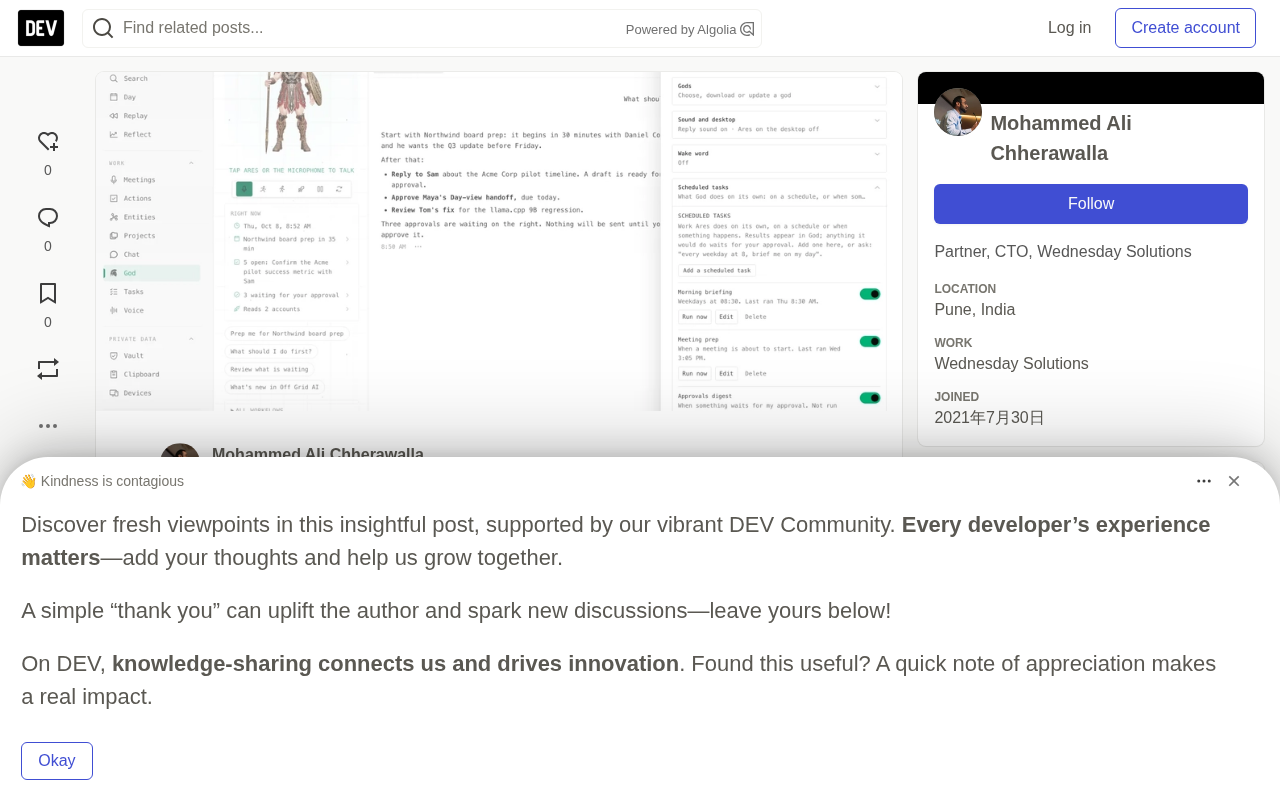
Go to God settings, expand Scheduled tasks, and select Add a scheduled task. Give it a clear name, such as "Customer review updates." In What to do, enter your instructions; in When, select "When an email arrives"; in From (optional), enter the customer's full email address, then save and confirm it's enabled.
Example instruction:
Read the new email that triggered this routine. Confirm the sender is client@example.com. Summarize the request in three bullet points. Quote any dates exactly as written, and append one open question and one suggested action. Note the account, sender, subject, and message time so I can find the original email. If the available text is incomplete, state what you couldn't read. Do not send any reply or modify any account data.
Replace the example address before saving. The From field is a text filter on event details, not an exact sender identity rule. Entering the full address reduces broad matching, and keeping the sender verification in the task instructions makes the expected scope clearer.
Verify the task and the trigger separately
Use Run now to check whether the instructions produce a useful answer — this validates the task itself, but doesn't prove that future emails will trigger it.
Trigger verification requires keeping the routine enabled, the account connected, then waiting for a new matching email to arrive and checking the result. While an email routine is enabled, OGAD checks for new email roughly every five minutes, plus the time for the account request and model response. The first successful check establishes a baseline point; existing emails in the inbox won't be treated as newly arrived. If you need a summary of earlier emails, request them separately using a date range.
The current check mechanism reads a limited, recent number of messages per account — it's not a reliable record of every email in a busy inbox. Deadlines that can't wait still depend on regular email notifications.
Periodic polling is the essence of the trigger mechanism here: OGAD doesn't maintain a long-lived connection to the mail server or receive push notifications — instead, it actively queries "is there new email?" roughly every five minutes. This has three direct consequences. First, latency is cumulative — the polling interval plus the account request round-trip plus model inference time means it typically takes several minutes from email arrival to summary generation. Second, "new" is determined relative to the baseline of the last successful query; the first time you enable it, the current inbox is treated as the baseline, so existing emails won't trigger. Third, polling only reads a limited, recent number of messages per account, so in a high-volume inbox it may miss messages that arrive between two queries. If you need push-level real-time responsiveness, you'd need to drive it via the provider's webhooks or push notifications, but that usually requires additional server-side configuration.
Turn the summary into actual work
After reading the summary, open the original email to confirm the request. Then you can have God prepare a draft reply for your review, or cross-reference the request against relevant project notes. For example:
Draft a reply confirming the two agreed-upon changes and asking whether Friday is the review day or the delivery day. Leave the draft here for me to check.
Keep in mind: connecting an email reading tool doesn't automatically provide a sending tool. Sending email through other enabled tools or browser tasks is a separate operation with its own permissions and approval requirements. A routine that only prepares drafts is still valuable without automatic sending.
The permission separation between drafting and sending deserves its own emphasis. The email reading tool only grants read capability — it doesn't come with a sending tool. Even if OGAD has a sending or browser automation tool installed, its enabling, authorization, and approval are a separate process. Therefore, a routine that "only prepares drafts for human review before manual sending" has minimal permissions and is the safest workflow. Conversely, if you let the model send autonomously, any summary deviation or tone misjudgment goes straight into the customer's inbox and is hard to retract after the fact. The prudent approach is to have the assistant always leave prepared replies in draft state, and let you decide whether to adopt the suggested action from the brief — this preserves the efficiency of automation while keeping the final judgment on the human side.
Common troubleshooting
| Problem | What to check |
|---|---|
| No new results | Routine enabled, computer awake, OGAD running, account connected |
| Old emails not triggering | First check establishes baseline; request earlier emails directly |
| Too many matching emails | Use a more specific address or text filter, check the sender |
| Summary missing details | Check whether the full text or attachments are available |
| Task runs but can't read email | Check account permissions and the selected model's tool support |
Keep the scope narrow until the routine reliably produces the brief you need. Edit the instructions when output is too long or mixes facts with guesses. Disable it after the project ends.
This guide is based on the routines and account implementation in beta 122. It's recommended to start with one customer, verify the summary result for a single new message in OGAD, then add more email rules.
Related articles

Chain of Thought Isn't Just for AI: How Humans Can Use CoT to Improve Thinking Quality
Chain of Thought isn't just a prompt trick for large models. Starting from a Hacker News discussion, this article analyzes why CoT works for human thinking too, breaks down actionable ways to transfer it, and highlights the key differences between human CoT and machine CoT.
Cloudflare Teams Up with OpenAI: Closi…
Cloudflare Teams Up with OpenAI: Closing the Loop from Vulnerability Discovery to Defense with AI
Cloudflare uses OpenAI Daybreak to investigate security vulnerabilities and generate reviewable remediation plans, while developers use Codex to boost coding efficiency and quality.

Orca Multi-Agent Orchestration in Practice: A Guide to Parallel Collaboration with Claude and Codex
Orca is Stable AI's free open-source agent workbench supporting 34 agents like Claude Code and Codex in parallel. Learn its Git worktree isolation, multi-model orchestration, and mobile management.