Automating Drupal Blog Publishing with n8n and AI: A Complete Hands-On Tutorial

Chaining OpenAI with the Drupal API via n8n for a fully automated blog pipeline from topic to publish.
This article covers an automated content production workflow built with n8n. It reads topics from Google Sheets, generates 3,000-word articles and images via an OpenAI Agent, then auto-publishes through Drupal's REST API. It details the five stages—topic management, AI writing with system prompts, image processing, three-layer Drupal permission configuration, and the JSON publishing structure—plus production hardening tips.
In content operations, getting a single blog post from topic research to image generation to field completion often involves a huge amount of repetitive work. A technical creator on YouTube demonstrated how to connect OpenAI with the Drupal API using n8n, compressing the entire process into a single workflow execution—pulling pending topics from an Excel topic list, having AI generate 3,000-word articles and images, then using Drupal's REST API to automatically upload images and publish posts.
Overall Architecture: One Workflow Connecting Five Stages
The logic behind this automated pipeline isn't complicated, but every step targets a real pain point in content production. The workflow reads topics from Google Sheets, hands them to an AI Agent to write the body text, calls an image generation API to produce accompanying images, and finally pushes both the article and images live through Drupal's content and file APIs.
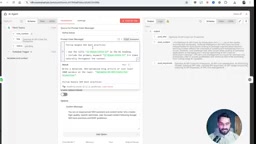
The creator specifically emphasized that this workflow isn't limited to Drupal. In a previous video, he connected the same approach to WordPress—the core difference lies only in the API structure of the publishing step. For those familiar with n8n, switching to a different CMS just means swapping out the last few HTTP nodes.
Where Do Topics Come From: Excel or RSS
There are two ways to source content. The first is maintaining an Excel topic list with one topic per row, paired with a status field to track publication status; the second is connecting an RSS node to dynamically pull trending topics from news sites.
The demo chose the Excel approach. The reasoning is practical: while RSS guarantees fresh content, topic quality is uncontrollable and tends to produce randomly generated titles. In the creator's own words, if you want "i apni marzi ka article" rather than random content, predefining topics in a spreadsheet is more reliable.
The workflow filters for the first pending record via the status field and sets a "return first row only" condition to ensure each execution processes just one article. After successful publication, an update node changes that row's status to done and writes back the row number, so the next execution automatically moves to the next pending topic, preventing duplicate publishing.
AI Writing: System Prompts Are the Key to Quality
The writing node uses an OpenAI Agent, but what really determines output quality isn't model size—it's the layered prompt design. The creator explicitly distinguishes between user prompts and system prompts: the former describes the current task, while the latter carries all SEO rules, content guidelines, and Drupal coding standards.
"All instructions, rules, and best practices should go in the system prompt, not the task prompt."
In the demo, the "at least 3,000 words" requirement and the instruction to "follow Google's latest search best practices" went into the task prompt, while the structured output format was constrained to JSON via an Output Parser node, with fields including title, content, and keywords. To extend fields—say, adding tags or a short description—you just define another item in the parser and the model fills it in automatically.
Output Parser and Structured Output
The Output Parser is a node in n8n used to constrain the output format of AI models, requiring the model to return data matching a specified JSON Schema. In this workflow, the parser defines three fields: title, content, and keywords, and the model generates content strictly following that structure. The benefit is that downstream nodes can reference these fields directly without extra text parsing. To add tags or a short description, simply add the corresponding fields to the parser's schema and the model adapts automatically. Structured output not only improves reliability but also reduces formatting errors caused by the model going off-script.
Image Generation and Processing: More Than Just One API Call
The image node also uses the OpenAI interface, but the process is more detailed than you'd expect. After generation, the image is first resized, because articles need two sizes: a main image and a thumbnail. The creator uses two separate fields to hold them, with the same image processed at two different sizes and bound separately.
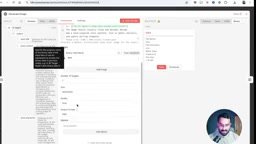
He also demonstrated a practical trick: if you need to overlay a logo on the image, use edit image mode with binary data passed in, and the model composites it at the specified position. Binary mode returns binary data rather than a link, which is actually more convenient when uploading to Drupal's file API later—it can go directly as the body of a multipart request.
Drupal-Side Configuration: Three Layers of Control—Consumer, Scope, and Permissions
This is the highest-barrier part of the entire chain. Drupal requires installing the web services, REST API, and consumer-related modules first, then completing three configuration steps in order.
The first layer is generating a key pair. Click generate in settings and the system writes the public and private keys to the specified directory; if the local environment lacks write permission for the directory, this step will fail outright—a common pitfall the creator flagged.
The second layer is creating a consumer. In the demo, a consumer was created for the web client using the client credentials grant type and bound to a scope. A scope is essentially a permission boundary—it can restrict a given consumer to only reading and writing articles, without touching other site content.
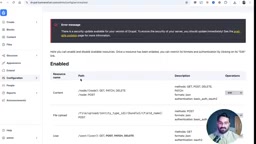
The third layer is the method-level toggles in REST UI. Only after installing the REST UI module can you see which operations are enabled for the content, file, and user APIs respectively—for example, turning off the delete method on the content API and keeping only create and update. If this step is missed, no matter how finely tuned the consumer permissions are, they won't help.
Consumer and Client Credentials Authorization
A Drupal Consumer is a client entity within the OAuth2 authorization system, representing an application that calls the API. It authenticates via client_id and client_secret, and the client credentials grant type suits server-to-server scenarios where no user login is involved. After generating the key pair, the consumer must be bound to a scope, which defines the range of resources and operations the consumer can access—for example, allowing only read/write on the article content type. This way, even if the client_secret leaks, an attacker can only operate within the scope-limited permissions and can't reach sensitive data. When configuring a consumer, you also need to enable methods for the corresponding resources in REST UI; both must be in place to take effect.
REST UI and the Permission Matrix
The REST UI module provides a graphical interface letting administrators enable or disable REST resource methods (such as GET, POST, PATCH, DELETE) one by one. Methods are controlled independently for each resource (such as content, file, user), and appropriate permissions must be assigned to each role or consumer. If only the create and update methods on content are enabled, then any authorized consumer can perform only those operations. This layer complements scope: scope determines which permissions a consumer can request, while REST UI determines which endpoints are actually exposed by the system. Both must be correctly configured to ensure API security and availability.
Publishing Articles: Understanding Drupal's JSON Structure
The article push node is the endpoint of the entire workflow and also the most structurally complex part. The request body follows Drupal's standard API nested format: the outer layer is data, inside which type is specified first, then the content type's machine name is referenced via target_id. The body text goes into the description field, with format declared as basic HTML, because the editor field requires an explicit text format.
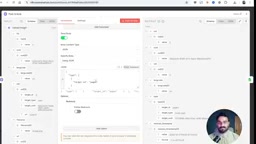
Image field handling is slightly different. After uploading an image, the FID returned by the file API needs to be filled into the image field as target_id, while alt text and title can directly reuse the article title. The creator notes that if these subfields aren't required in the content type, leaving them empty won't cause an error, but filling them in is better for SEO.
Drupal JSON:API Nested Data Format
Drupal's REST API (especially JSON:API) requires request bodies to follow a specific nested structure. For content entities, the outer layer is typically a data object, where the type field specifies the resource type (e.g., node--article), attributes contains field values, and relationships is used to reference other entities. In this article's example, the image field references a file entity via target_id, and this ID comes from the file upload API's response. The body text's description field also needs format specified (e.g., basic_html), because Drupal's text fields rely on text format filters to render content. Understanding this nesting relationship is key to successfully calling the API; otherwise, structural errors will easily return a 400 response.
Hardening Recommendations for Production
The demo workflow was simplified for clarity, and the creator offered adjustments for production environments: choose a high-end model for writing with medium reasoning effort enabled, then attach a reviewer agent after generation to check facts and prose with an even higher-tier model, polishing again if necessary.
Another suggestion is to add a human approval step. Attach a Gmail node before publishing, send the draft to your own inbox, and only trigger the subsequent publishing node after confirmation—otherwise the workflow exits. This preserves the efficiency of automation while preventing unreviewed content from going live.
For those who want to extend further, the tail of this workflow can easily connect to social platform nodes like Facebook, enabling one-time production and multi-channel distribution.
One-line Summary
Connecting OpenAI with the Drupal API via n8n to build a fully automated blog production pipeline from topic selection to publishing.
Paragraph Summary
This article introduces an automated content production workflow built by a technical creator using n8n. The workflow reads topics from Google Sheets, generates 3,000-word articles and images through an OpenAI Agent, then automatically uploads images and publishes posts via Drupal's REST API. The article breaks down five stages in detail: topic management (using a status field to avoid duplicates), AI writing (system prompts carrying SEO rules), image generation and processing (resize and binary mode), Drupal-side three-layer permission configuration (key pair, consumer scope, REST UI method-level toggles), and the JSON structure at publishing time. Finally, it offers production hardening recommendations, including adding a reviewer agent and a human approval node.
Related articles

Chain of Thought Isn't Just for AI: How Humans Can Use CoT to Improve Thinking Quality
Chain of Thought isn't just a prompt trick for large models. Starting from a Hacker News discussion, this article analyzes why CoT works for human thinking too, breaks down actionable ways to transfer it, and highlights the key differences between human CoT and machine CoT.
Cloudflare Teams Up with OpenAI: Closi…
Cloudflare Teams Up with OpenAI: Closing the Loop from Vulnerability Discovery to Defense with AI
Cloudflare uses OpenAI Daybreak to investigate security vulnerabilities and generate reviewable remediation plans, while developers use Codex to boost coding efficiency and quality.

Orca Multi-Agent Orchestration in Practice: A Guide to Parallel Collaboration with Claude and Codex
Orca is Stable AI's free open-source agent workbench supporting 34 agents like Claude Code and Codex in parallel. Learn its Git worktree isolation, multi-model orchestration, and mobile management.