AWS MCP Server Configuration Guide: Connect Claude Directly to Your Cloud Environment

Connect Claude to AWS in minutes using OAuth-based MCP Server for real-time cloud infrastructure access.
AWS MCP Server serves as a standardized bridge between AI assistants and AWS cloud resources, enabling tools like Claude to read real-time data from EC2, CloudWatch, and more. This guide walks through five steps: verifying your AWS CLI session, cleaning up legacy MCP configs, installing the official server with the correct region parameter, completing OAuth authorization, and running real tasks to verify the connection. Security is underpinned by two core guarantees: short-lived OAuth tokens that tie AI access to active human consent, and strict IAM permission boundaries that prevent the agent from exceeding your own access rights. For stricter control, IAM condition keys can lock the agent to read-only mode.
Imagine typing "show me all our active servers" in your terminal and watching your AI assistant pull real infrastructure data from your AWS environment in real time. That's exactly what AWS Model Context Protocol (MCP) Server enables. It builds a secure, standardized bridge between your AI assistant and your cloud resources — upgrading tools like Claude from "just a chatbot" to an engineering partner that can actually read and interact with your real architecture.
This article is based on a YouTube tutorial, walking through the complete process of connecting to AWS MCP Server via OAuth, with additional detail on the critical permissions and security boundaries involved.
Why You Need AWS MCP Server
The core value of MCP lies in context. A standalone LLM has no way of knowing which EC2 instances are running in your AWS account or whether your CloudWatch metrics are spiking. The MCP Server acts as a translation layer: it parses your natural language requests into the corresponding AWS API calls, securely retrieves real-time data, and returns it in a human-readable format.
This demo uses a streamlined OAuth approach, whose biggest advantage over traditional methods is bypassing the complex local proxy configuration. That means the entire authentication and connection process can be completed in minutes, without wrestling with cumbersome middleware.
You'll need three things before you start: an active AWS account, a configured AWS CLI, and a client — either Claude Code (command line) or Claude Desktop (desktop app).
MCP (Model Context Protocol) is an open standard protocol proposed by Anthropic in late 2024, designed to solve the "last mile" integration problem between large language models and external data sources or tools. Its design philosophy resembles the unifying logic of USB-C: as long as something implements the MCP Server spec, any compatible AI client (called an MCP Host) can interact with it in a consistent way — regardless of whether the backend is a database, API, or file system. In the AWS context, the MCP Server maps natural language requests to AWS SDK/API calls and converts the returned JSON-structured data into context the model can understand. This differs from traditional function calling — MCP is a standalone process that communicates with clients via a standardized JSON-RPC protocol, natively supporting multi-tool aggregation and permission isolation without requiring you to manually describe available tool schemas in your prompt every time.
Step 1: Verify Your AWS CLI Session
Build on solid ground. Open your terminal and run the following command to confirm your local credentials are active:
aws sts get-caller-identity
If the command successfully returns your account information, your local credentials are ready and you can proceed to the next step.

Step 2: Clean Up Old Integration Configs
Before installing, you need to clear the slate. Leftover legacy MCP Server entries provide duplicate tools, which can confuse the AI agent and even cause tasks to fail.
Open your claude.json configuration file and look for any entries named aws.api-mcp-server or aws.knowledge-mcp-server. Delete those lines entirely.
A clean config file ensures Claude only sees the tools we're about to give it, avoiding hallucinations or incorrect AWS commands caused by overlapping servers. This step is easily overlooked in practice, yet it's one of the most common sources of downstream confusion.
Step 3: Install the Official AWS MCP Server
With the cleanup done, you can install the official AWS MCP Server. CLI users should enter the add command in their terminal, pointing to AWS's endpoint URL, and specify the HTTP transport flag.
Pay special attention to us-east-1 in the URL — you need to replace it with your own AWS region, such as eu-west-1 or ap-southeast-2, otherwise you'll be connecting to the wrong region.
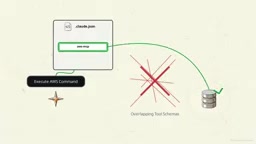
If you're using the Claude Desktop app, you'll need to modify the JSON config file mentioned earlier to add the server. Desktop users also have one extra change: append the ?oauth=initialize parameter to the end of the URL.
The reason is that the desktop client doesn't have the same automatic discovery mechanism as the CLI — adding this flag forces the browser login window to appear when authentication is needed. Once you point the client at this correctly formatted endpoint, the secure channel between your local assistant and your cloud environment is established.
Step 4: Test the Connection and Complete OAuth Authorization
Now let's verify the connection. Switch to Claude and ask a question about your infrastructure — for example, "What AWS regions are available?"
Since this is the first outbound connection, Claude will automatically open a browser window and redirect you to the AWS login page. Enter your existing AWS credentials, then click "Allow" on the authorization screen to grant the server the permissions it needs.
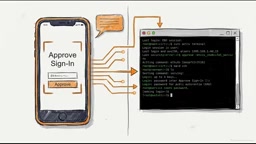
These permissions are tied to a temporary session token. If your agent suddenly stops responding at some point, an expired session is almost always the culprit. The fix is simple: go back to your terminal and run the AWS login command to refresh your credentials.
The design choice to rely on short-lived tokens is intentional — it ensures that the AI's continued access is always strictly bound to your current, authenticated human consent, rather than being open-ended.
The OAuth flow used here follows the OAuth 2.0 Authorization Code Flow. When Claude makes its first request, the MCP Server detects that no valid token exists and redirects the browser to AWS's identity provider (IdP) to complete human verification. Once the user logs in and clicks "Allow," the server issues a short-lived access token and a refresh token. Access tokens typically expire after one hour; after that, the client needs to use the refresh token to obtain a new one, or go through the login flow again. The security rationale is clear: even if a token is intercepted, the attack window is extremely limited. Every token issuance also leaves an audit trail traceable in AWS CloudTrail. Compared to long-lived Access Key/Secret Key credentials, short-lived tokens dramatically reduce the blast radius of any credential compromise.
Step 5: Execute a Real Task
In the Claude Code interface, type /mcp to check the status of active servers — you should see aws-mcp displayed as connected.
Now give it a real task: list the names of all currently running EC2 instances. Claude will parse your request, translate it into the correct AWS API call, securely retrieve the live data, and organize it into a readable list.
Want to verify the results? Open the EC2 panel in the AWS Management Console and compare. When both lists match exactly, the integration is working — Claude is now genuinely reading and understanding your live cloud infrastructure.
Once the connection is established, there's plenty more to explore: analyzing CloudWatch metrics, troubleshooting logs, diagnosing permission errors, or even generating CDK infrastructure code based on your existing architecture.
Security Boundaries: The Agent Can't Exceed Your Permissions
A critical security premise: the agent operates entirely within your personal IAM permission boundary. It cannot access any data you yourself are not authorized to access, nor execute any command you yourself are not authorized to execute.
If you want stricter limitations, you can configure IAM condition keys to restrict the agent to read-only access — letting it analyze the environment without being able to modify it. For complex cross-account workflows, the official AWS Agent Toolkit documentation also covers alternative authentication methods such as SIGV4 proxy.
Connecting your AI assistant to your cloud environment via AWS MCP Server is fundamentally about giving it the context it needs to be a genuinely capable engineering partner. It's no longer a bystander — it becomes a participant that can read, analyze, and help operate your infrastructure, always within the permission framework you've authorized.
IAM (Identity and Access Management) is AWS's core permission management system, using policies to define who can perform what actions on which resources. IAM condition keys are additional conditions within policy statements that further constrain when permissions take effect. For example, you can add
"aws:RequestedRegion": "us-east-1"to restrict an agent to operating only in a specific region, or use"iam:PermissionsBoundary"to set a permission ceiling, ensuring that even if a policy itself grants broad permissions, the effective permissions never exceed the boundary. For teams that want AI agents to perform read-only analysis, a practical approach is to create a dedicated IAM role with theReadOnlyAccessmanaged policy attached, and run the MCP Server under that role's identity. This fundamentally cuts off write operations at the root, rather than relying solely on the agent's "self-restraint."
Related articles

Chain of Thought Isn't Just for AI: How Humans Can Use CoT to Improve Thinking Quality
Chain of Thought isn't just a prompt trick for large models. Starting from a Hacker News discussion, this article analyzes why CoT works for human thinking too, breaks down actionable ways to transfer it, and highlights the key differences between human CoT and machine CoT.
Cloudflare Teams Up with OpenAI: Closi…
Cloudflare Teams Up with OpenAI: Closing the Loop from Vulnerability Discovery to Defense with AI
Cloudflare uses OpenAI Daybreak to investigate security vulnerabilities and generate reviewable remediation plans, while developers use Codex to boost coding efficiency and quality.

Orca Multi-Agent Orchestration in Practice: A Guide to Parallel Collaboration with Claude and Codex
Orca is Stable AI's free open-source agent workbench supporting 34 agents like Claude Code and Codex in parallel. Learn its Git worktree isolation, multi-model orchestration, and mobile management.