Build an AI Agent for Free: Memory & Tool Calling with n8n + Gemini

Build a free AI agent with memory and tool calling using n8n and Google Gemini.
This article presents a completely free AI agent setup: using the open-source n8n Community Edition as the foundation and Google's lightweight Gemini Flash model as the brain — no coding required, no cost involved. The agent is built from five nodes: a trigger node, an AI Agent core node, the Gemini model, a Simple Memory module for multi-turn conversation, and Wikipedia plus Calculator tools for real-time lookup and precise computation. With a system prompt defining its behavior, the agent autonomously decides which tools to call and logs every decision step — demonstrating the three pillars of modern AI Agents: model, memory, and tools.
Build an AI Agent for Free: Memory & Tool Calling with n8n + Gemini
Want an AI agent that remembers your conversations and autonomously calls tools — without spending a dime? With the open-source workflow tool n8n and Google's free Gemini model, you can make it happen in minutes. This article breaks down a complete tutorial from the YouTube channel AI Side Business, walking you through how to build your first AI Agent with memory and tool-calling capabilities from scratch.
Why Choose the n8n + Gemini Stack
n8n is a visual workflow automation tool whose self-hosted Community Edition is completely free. Its node-based drag-and-drop design lets anyone — even without a programming background — chain together complex automation logic.
Pair it with Google's Gemini model and the entire solution costs nothing. Gemini offers a free API tier, and the lightweight Gemini Flash model used in the tutorial responds quickly while staying within the free tier — making it a perfect "brain" for your agent.
The core value of this stack: you don't need to pay for model API access or rent a server to run a fully autonomous Agent. For individuals or small teams looking to dip their toes into AI automation on a budget, the barrier to entry has never been lower.
n8n's self-hosted model means your workflow data runs on your own machine or server — not a third-party cloud — which is especially important for privacy-sensitive use cases. It can be installed via one-click Docker deployment or a local npm install, and accessed through a browser at your local port. Compared to similar tools like Zapier or Make (formerly Integromat), n8n's free Community Edition imposes no strict limits on the number of workflows or executions, making it ideal for long-term personal use. As of 2025, Gemini's free API quota is fairly generous for individual developers — the Flash series' per-minute request limits and daily token caps are more than sufficient for everyday testing and light usage, with pay-as-you-go pricing kicking in only beyond those limits.
Building the Agent: Five Nodes, One Complete System
The agent's skeleton is made up of a few key nodes — the logic is clean and easy to replicate.
Step 1: Trigger Node and the AI Agent Core Node
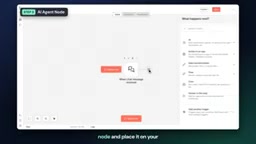
On a blank canvas, click the plus button, search for and add the Chat Message Received node. This is the starting point of your workflow — every time you send a message in n8n's chat window, it triggers the entire flow.
Next, add the AI Agent node. This is the heart of the entire setup. It connects the language model, memory module, chat window, and various tools, and it decides which tool to call before generating a response.
Step 2: Constrain Behavior with a System Prompt
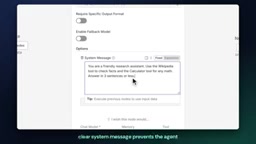
Open the AI Agent node's parameters, click to add Options, and select the System Message field. This is where you write instructions that tell the agent how to behave.
The example prompt used in the tutorial instructs the agent to act as a "friendly research assistant" — using the Wikipedia tool for factual questions, the Calculator tool for math problems, and keeping all responses to three sentences or fewer.
A well-written system prompt effectively prevents the agent from going off-topic or rambling, while ensuring it uses tools correctly. This is often overlooked by beginners, yet it's one of the most critical factors in determining how well your agent performs.
Step 3: Connect Gemini as the Model Brain
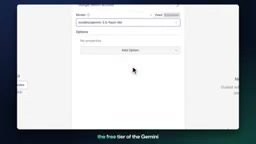
Click the Model connector on the AI Agent node, search for Google Gemini Chat Model, and add it. Connecting Gemini requires creating credentials: select "Create New Credential" from the credentials dropdown and name it Google Gemini Account.
Getting your API key is straightforward — go to aistudio.google.com, sign in with your Google account, click "Get API Key" to create a new key, then paste it into the API Key field and leave the Host field at its default. n8n stores your credentials securely and masks the key in the UI.
For the model name, select the lightweight Gemini Flash model — it's fast and falls within the free usage tier.
Giving Your Agent Memory and Tools
A truly useful Agent can't have the memory of a goldfish, nor can it get away with guessing answers out of thin air. Memory and tools are exactly what transform it from a "chatbot" into an "agent."
Adding a Memory Module
Click on the Agent node, search for Simple Memory, and add it to your workflow. This module maintains a sliding window of recent messages, allowing the agent to remember previous turns in the conversation — making multi-turn exchanges feel natural and coherent rather than starting from scratch each time.
Simple Memory uses a Sliding Window mechanism: it retains only the most recent N turns of conversation and passes that history into the model's context on each call. The advantage is simplicity — no external database required. The trade-off is that earlier conversations outside the window are forgotten, making it unsuitable for scenarios requiring long-term memory. If you need persistent memory across sessions, you can replace Simple Memory with one of n8n's other memory nodes — such as Redis- or PostgreSQL-based storage — which write conversation history to a database and preserve context across multiple sessions.
Adding Wikipedia and Calculator Tools
Click the Tool connector on the AI Agent node, search for Wikipedia, and add it. This tool lets the agent automatically look up factual information — no API key required.
Click the Tool connector again, search for and add the Calculator tool for precise computation. This step is crucial — it ensures the agent performs exact arithmetic when dealing with numbers, rather than having the language model "estimate" an answer that might be wrong.
Adding these two tools demonstrates a core Agent capability: faced with a question, the Agent independently decides whether to call a tool, and which one, without any manual intervention.
Live Test: Watching the Agent Make Its Own Decisions
After saving the workflow, open n8n's built-in chat window and send a test message — for example, asking "What year was n8n founded, and how many years ago was that (as of 2026)?"
After sending, you'll see the agent respond directly in the chat window, keeping its answer to three sentences. Even more valuable is the Logs Panel on the side — here you can clearly observe how the agent made its decisions: it proactively queried Wikipedia to retrieve the founding year, then called the Calculator to compute the difference.
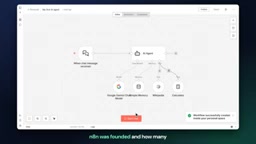
You never had to specify which tools to use — the Agent allocated tasks on its own based on the nature of the question. This is precisely what distinguishes an "agent" from an ordinary chat model.
The Logs Panel reflects the ReAct (Reasoning + Acting) paradigm, the dominant execution framework for modern agents: the model first "reasons" about what information or actions the current problem requires, then "acts" by calling the appropriate tool, uses the returned result to continue reasoning, and repeats until it generates a final answer. This "Think → Act → Observe → Think Again" loop can be traced step by step in the logs — it's the most intuitive way to understand the fundamental difference between an Agent and a standard single-pass inference model. Watching the logs also helps you evaluate whether your system prompt is clear enough — if the agent repeatedly calls the wrong tool or skips tools and guesses instead, it usually means the prompt doesn't describe when and how to use each tool clearly enough.
Wrap-Up and What's Next
At this point, you've built a fully functional AI agent — complete with memory, real-time tool access, and zero cost. The tutorial author also provides a JSON download link for the workflow in the video description, which you can import directly for instant deployment.
The significance of this setup goes beyond being "free." It demonstrates the three fundamental building blocks of a modern AI Agent at minimal learning cost: a model (the brain), memory (context), and tools (the ability to act). Once you understand this structure, you can swap in a more powerful model, connect additional tools (such as database queries, email sending, or API calls), and expand it into an automated assistant that serves real business needs.
For anyone who's wanted to get into AI automation but been put off by cost and technical complexity, n8n + Gemini is a genuinely accessible place to start.
Related articles

Chain of Thought Isn't Just for AI: How Humans Can Use CoT to Improve Thinking Quality
Chain of Thought isn't just a prompt trick for large models. Starting from a Hacker News discussion, this article analyzes why CoT works for human thinking too, breaks down actionable ways to transfer it, and highlights the key differences between human CoT and machine CoT.
Cloudflare Teams Up with OpenAI: Closi…
Cloudflare Teams Up with OpenAI: Closing the Loop from Vulnerability Discovery to Defense with AI
Cloudflare uses OpenAI Daybreak to investigate security vulnerabilities and generate reviewable remediation plans, while developers use Codex to boost coding efficiency and quality.

Orca Multi-Agent Orchestration in Practice: A Guide to Parallel Collaboration with Claude and Codex
Orca is Stable AI's free open-source agent workbench supporting 34 agents like Claude Code and Codex in parallel. Learn its Git worktree isolation, multi-model orchestration, and mobile management.