Build an AI Data Analysis Assistant with n8n + Google Sheets + WhatsApp

Build a natural language data analysis bot by connecting WhatsApp, ChatGPT, and Google Sheets with n8n — no coding needed.
This article breaks down a low-code AI data assistant built on n8n: a WhatsApp Trigger listens for user messages, ChatGPT acts as the reasoning core (Agent), Google Sheets serves as the queryable data backend, and results are sent back via WhatsApp. No coding required. The core pattern is "trigger → Agent → tool → reply." Users simply ask questions in natural language and receive spreadsheet-based summaries. The setup is quick to replicate but has clear limits: Google Sheets struggles with large or multi-table datasets, LLMs can make occasional calculation errors, and production WhatsApp deployment requires formal API access.
A WhatsApp Bot That Automatically Analyzes Your Spreadsheets
Imagine this: you send a message on WhatsApp saying "How much did I spend last month?" and within seconds you get a precise spending summary back — no human involvement, just an automated workflow powered by n8n, ChatGPT, and Google Sheets running behind the scenes.
That's exactly what this article breaks down. The creator demonstrates how to combine three common tools — n8n (a low-code automation platform), Google Sheets (as the data source), and WhatsApp (as the interaction interface) — to assemble a lightweight "AI data analyst." No coding required; the key is simply connecting the right nodes together.
Step-by-Step Breakdown
Step 1: The WhatsApp Trigger
The workflow starts with a WhatsApp Trigger node. Its job is to listen for incoming messages — when a new message arrives, it automatically wakes up the rest of the workflow. This means users don't need to open any app or dashboard; they just ask a question in the chat window to kick off the entire analysis pipeline.
Step 2: Configure the Agent and Its Brain
After the trigger, add an Agent node. The Agent itself is just a "coordinator" — the actual reasoning power comes from the large language model you plug into it. The creator chose ChatGPT as the Agent's "brain," responsible for understanding natural language questions, deciding which tools to call, and organizing the final answer. This is the intelligent core of the whole setup.
The architectural pattern behind the Agent node is commonly known as ReAct (Reasoning + Acting) — the model alternates between "thinking" and "acting" during its reasoning process. Specifically, after receiving a user's question, the model first determines which tool to call (e.g., querying Google Sheets), waits for the tool's response, then continues reasoning based on that result before generating an answer. The key difference from simply asking ChatGPT directly is that a standalone LLM can only draw on its training data, whereas an Agent can actively fetch real-time external information. n8n's Agent node encapsulates this dispatch logic, so you only need to attach the "brain" (the LLM) and the "tools" (various APIs and data sources) — no need to manually implement the call loop.
Step 3: Connect the Google Sheets Tool
To give the Agent the ability to query data, you need to equip it with tools. Here, the Google Sheets tool is added: paste the target spreadsheet's URL, then select the specific sheet from the list. Once configured, the Agent can actively read the spreadsheet contents when prompted — filtering, summarizing, and calculating as needed.
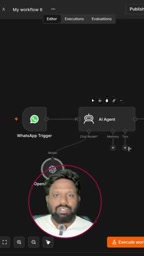
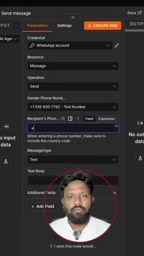
Step 4: The WhatsApp Reply Node
The analysis results need somewhere to go. Finally, add a WhatsApp Send Message node so the Agent can push answers back to the user. For setup, simply select the test phone number and enter your own mobile number to complete the loop.
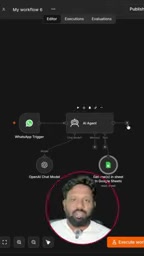
How It Works in Practice
Once configured, the creator ran the workflow and sent a test message: "What was my spend last month?" The workflow immediately kicked off — the Agent called the Google Sheets tool to read the data, analyzed the spending records, and replied with the results via WhatsApp.
The entire process demonstrates a complete "natural language query → structured data analysis → conversational reply" loop. For everyday users, the experience feels like chatting with an assistant who knows your finances inside out.
The Value and Limitations of This Approach
The biggest highlight of this case is its extremely low barrier to entry. It chains three mature tools together visually, involves virtually no programming, and can be replicated by anyone in about fifteen minutes. At its core, it's a minimal demonstration of the Agent + Tool pattern: the LLM handles intent understanding, Google Sheets serves as a queryable data backend, and WhatsApp handles both input and output.
From an application perspective, this pattern transfers to many scenarios — personal expense tracking, quick sales data reports for small teams, inventory status queries, and more. As long as the data can live in a spreadsheet, you can query it conversationally.
That said, it's worth being clear-eyed about its limitations. Google Sheets is suited for small-scale data; performance and accuracy will suffer with large datasets or complex multi-table joins. LLMs occasionally make errors in numerical calculations, so critical financial data should still be verified. And the WhatsApp test number configuration shown is for demonstration purposes only — production deployment requires applying for proper API access.
Formal WhatsApp API access must go through Meta's official WhatsApp Business Platform. Businesses and developers need to apply for verification and comply with usage terms; individual developers can also obtain API access through third-party providers such as Twilio or 360dialog. The "test number" shown in the video is a sandbox environment Meta provides for developers, which only supports sending messages to pre-registered phone numbers and cannot be used for public-facing services. For production deployments, you'll also need to consider message template approvals, conversation window restrictions (free-form replies are only allowed within 24 hours of a user-initiated message), and other platform rules — all of which affect when and how your workflow can trigger and interact.
Wrapping Up
This is a textbook example of rapidly building an AI data assistant using a low-code approach. Its value isn't in technical complexity, but in clearly demonstrating the universal automation pattern of "trigger → Agent → tool → reply." Once you internalize this pattern, you can swap out Google Sheets for a database, replace WhatsApp with Telegram or WeCom, and mix and match components to build an AI workflow that fits your specific needs.
Related articles

Googlebook In-Depth Review: Can Google's New Laptop Replace the Chromebook?
In-depth Googlebook review: Google Book OS on Android 17, Pixel ecosystem integration, Gemini semantic search, and how it stacks up against Chromebook and MacBook Air on price and apps.

Python in Practice: Build an MCP Server from Scratch to Give LLMs Real-Time Web Data
Step-by-step guide to building an MCP server with Python and FastMCP, connecting it to Claude Code and Claude Desktop, and enabling LLMs to answer questions with live web data.

The Battle for ICANN's New Top-Level Domains: Meta and OpenAI Race to Claim .agent and .agi
Meta and OpenAI compete for .agent and .agi in ICANN's new TLD round; GTA VI nears launch amid leaks; Joe Rogan signs ~$250M Spotify renewal.