Build Your First AI Agent with Zero Code: A Claude Code Practical Guide

Build reusable, reviewable AI agents in Claude Code with zero code using folders, rulebooks, and skills.
Using Jamie's small-batch coffee roastery as an example, the article shows how to build an AI agent in Claude Code with zero code to handle weekly chores. The key difference: chatbots answer questions, agents take goals and complete them autonomously. The workflow covers creating a dedicated folder as the agent's home, choosing a model and autonomy mode, writing a rulebook in claude.md, connecting tools like Gmail, sorting tasks into do-for-me, draft-for-approval, and needs-me piles, and delivering a four-part brief in plan mode. Sub-agents work in parallel, independent reviewers verify quality, routine processes become one-click skills, artifacts provide cross-device dashboards, and sensitive actions always require user approval.
Build Your First AI Agent with Zero Code: A Claude Code Practical Guide
Are you tired of treating AI as a chatbot—ask a question, get an answer, and you still have to do all the work yourself? YouTube creator Jamie uses the example of a small-batch coffee roastery to show how to build an AI agent in Claude Code with zero code—one that can handle your weekly chores for you. This agent can organize to-do lists, draft emails, and even maintain a business dashboard, all without a terminal and without programming.
An Agent Is Not a Chatbot: From "Answering" to "Completing"
Jamie makes the core distinction right at the start of the video: a chatbot is "you ask, it answers," while an AI agent is "you give a goal, it completes it." For example, if you ask a chatbot to "prepare the farmers' market booth," it gives you a checklist and you follow it yourself; an agent, by contrast, can directly "create booth signage and a price list and save them"—it plans, writes files, and checks its work until the task is done.
An AI agent in an app usually consists of four parts: a brain (the AI model), hands (the available tools), a rulebook (your instructions), and work habits (plan, execute, check, loop). Claude Code already has the first three built in—you just need to give it a "home," a rulebook, and the right tools.
Preparation and Basic Setup: Folder, Brain, and Latitude
Before you start, you need the Claude Desktop app (Mac or Windows) and a paid Claude plan. Jamie uses the Pro plan, and everything in the video works on Pro. If you want the agent to draft emails, you also need to connect Gmail.
Step 1: Create the Agent's "Home"
Open Claude Desktop, click the code icon at the top of the sidebar, select "This Computer" below the message box, then click the folder menu and choose an empty folder. Jamie created a folder called "Monday Agent." This folder is the agent's home—the rulebook and skill files live here, and all outputs are saved here too. One agent, one folder, to avoid mixing up different tasks.
Step 2: Choose the Brain and Mode
Next to the folder menu is the model menu. Jamie chose Opus 5.5, which suits complex work and everyday tasks and is included in the Pro plan. The mode menu controls the agent's latitude. New sessions default to auto mode, where Claude doesn't ask you about every step, but a safety reviewer checks each action and blocks high-risk operations (such as deleting files or sending content).
The "auto mode" in Claude Code is not a free-for-all: every tool call (reading files, writing files, searching the web, calling connectors) first passes through an independent safety reviewer (guardrail), which intercepts high-risk actions (such as deleting files, sending content externally, or performing operations that may incur costs) and requires user confirmation. The point of switching modes is to balance efficiency and controllability—auto mode reduces interruptions and suits scenarios with clear task boundaries and low cost of error, while Plan mode forces the agent to first output a reviewable execution plan and only proceeds to actual operations after user approval. Understanding this layered mechanism helps you choose the appropriate level of autonomy for different tasks later on.
Writing the Rulebook: claude.md
Every new session is fresh—Claude doesn't carry last week's conversation into it. But the rules you want it to follow every time should be written in a file called claude.md. You don't have to write it by hand; you can click the microphone button and tell Claude about your business.
Jamie tells Claude: "I run Basecamp Brew Co., a small-batch coffee roaster in a mountain town. Our main coffee is Ridgeline Espresso. Keep messages short and friendly, no jargon. Never send emails, only draft. Ask me before spending money. Put all outputs in the output folder. Please create a claude.md file with these."
This file is plain text that records your business, tone, and rules. Anthropic recommends keeping the rulebook under 200 lines, because overly long rulebooks are followed less reliably. Note that the rulebook is strong guidance, not a lock. Things that truly must never happen require hard blocks—for example, Claude must request permission when sending emails.
Connecting Tools and Dividing Task Permissions
Out of the box, Claude can read and write files and search the web. To interact with other apps, you need connectors. Jamie clicks Customize in the sidebar, then Connectors, finds Gmail, and connects it. Now the agent can read the inbox and compose drafts.
Before building, there's a key decision: for each type of task, how autonomous should the agent be? Jamie sorts tasks into three piles: do for me, draft for my approval, and needs me. The criteria are two questions: does the agent have the tools to do it? And what happens if it gets it wrong? Booth signage is easy to redo, so the agent can do it directly; emails to suppliers can't go wrong, so they go in the draft pile; orders involving money are left to Jamie herself.
Giving a Four-Part Brief in Plan Mode
With the real files in the folder (Jamie added a price list, inventory spreadsheet, wholesale customer list, and contact list), it's time to tell Claude what to build. Click "Auto" next to the send button and select "Plan" mode. In plan mode, Claude can read, think, and ask questions, but it can't make any changes until you approve the plan.
Jamie dictates the brief using a four-part structure: goal, tasks, rules, output form. She says: "Build a Monday morning agent for Basecamp Brew Co. When I say 'brew it' and give this week's chores, sort them into three piles: do for me, draft for my approval, needs me. Use a separate assistant for each task. Never send emails, only draft. Save this process as a skill called 'brew it' so I can run it every week. Also, build a roasting and restocking dashboard showing Ridgeline green bean inventory, weekly roast volume, and weeks remaining. Flag restock when fewer than three weeks remain. Give wholesale café orders their own column showing completed items and items waiting on me. Definition of done: each task is checked by an independent reviewer before being marked complete."
Claude asks questions, such as how many pounds of green beans a typical weekly roast uses. Jamie answers 45. Claude then generates a plan, which opens on the right. You can select text in the plan to add comments or click to modify. Once it looks right, click accept and use auto mode.
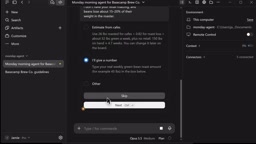
Iteration and Skills: Making the Agent Smoother with Use
The first version of the dashboard was decent, but Jamie wanted it to match how she thinks: green beans are measured in pounds, but coffee is sold in bags, and restock warnings should be more prominent. She gives specific feedback: "When inventory is below 150 pounds, show roughly how many 12-ounce bags that makes; enlarge the status and restock line; put the wholesale café column below inventory." After Claude's adjustment, it shows about 164 bags, even accounting for weight loss during roasting.
In the brief, Jamie asked to save the Monday process as a skill called "brew it." A skill is a plain-text file containing the steps for a task. The rulebook is what the agent always knows; a skill is a job it knows how to do. To run a skill, just type a slash and the name, or simply say "brew it." One agent can learn multiple skills, so you don't have to explain things repeatedly.
Running and Reviewing: Sub-Agents and Independent Checks
Paste in this week's chores and type "brew it." The agent executes according to the checklist in the skill: read files, check inventory, categorize chores, then assign an assistant to each chore, with each assistant checked by a reviewer. These assistants are called sub-agents, and you can see them working simultaneously under "Background tasks" on the right. Each sub-agent has its own clean workbench, independent of the others.
When done, it gives a summary: one task completed, five waiting on Jamie, nothing sent or purchased. Then it asks whether 150 pounds is still the current inventory; Jamie says 25 pounds were roasted this week, and updates the dashboard. Inventory drops to 125 pounds—about 136 bags or 2.8 weeks—and the status shows "restock immediately." It also asks whether 25 pounds is the new normal; Jamie says no, 45 is.
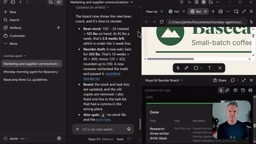
The reviewer checks each task. Two tasks are sent back: three coffee names on the booth signage are truncated and don't match the price list, and a winter drinks research link is broken. The assistants fix them, and a new reviewer checks again and passes them. Anthropic points out that when Claude reports completion but hasn't actually finished, it's usually because it can't check its own work. An independent reviewer who never saw the conversation isn't influenced by the reasoning that produced the work.
A sub-agent is an independent execution unit spawned by the main agent at runtime. Each sub-agent has its own context window and tool permissions and receives only the one task assigned to it, so it isn't disturbed by the reasoning behind other tasks. The main agent is responsible for decomposing goals, scheduling sub-agents, and aggregating results—this "orchestrator–executor" structure lets multiple chores proceed in parallel. Anthropic recommends configuring an independent reviewer who has never seen the generation process for key outputs, because a generator checking its own work tends to carry forward the same assumptions that caused the error; an independent reviewer judges only against the rulebook and the output itself, making it easier to catch objective defects like truncation or broken links.
Email Drafts and Hard Permissions
Open the Gmail drafts folder, and you'll see the restock email to supplier Sam for 350 pounds of Ridgeline green beans, and the reply to Jess about wholesale pricing. Neither has been sent—they're waiting on Jamie. She can add an expected delivery date and then click send herself. There are two layers of protection here: "only draft" in claude.md is guidance, while Claude having to request permission before sending email through Gmail is a hard block. Rules are guidance; permission prompts are the lock on the door.
Cross-Session and Mobile Control
Next Monday, start a fresh session in the same folder, paste in the new chores, type "brew it," and it runs with the same process and the same rules—no re-explaining needed. The rulebook and skills are stored in the folder.
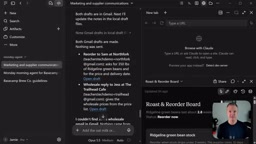
The dashboard is saved as an artifact, accessible across devices. In the Claude app on your phone, tap the menu and then Artifacts to see the dashboard. You can also type /rc (remote control) on your computer, then type "brew it" in the phone app and add tasks, and the agent executes on your computer. Note that the agent runs on your computer, so your computer needs to be on; the phone is just a remote control. If you want tasks to run on a schedule when your computer is off, you can use Claude's scheduled tasks feature.
An artifact is a persistent, cross-device-accessible form of output in the Claude app, well suited to dashboards, tables, reports, and other content you need to view repeatedly. Unlike ordinary conversation replies, an artifact exists independently of a single session and can be opened from the Artifacts entry on mobile. /rc (remote control) is a session-takeover mechanism: the desktop keeps the agent running while the phone acts as a remote control to send instructions and tasks. The practical implication of combining the two is that computation and file operations always happen on your computer, and the phone only issues instructions and views results—so your computer must stay on and the session active. If you want scheduled execution without keeping your computer on, you need to switch to server-scheduled capabilities like scheduled tasks.
The Recipe for Building Any Agent
Jamie wraps up with a general recipe: create a folder as a home for the new agent; write the rulebook in claude.md; connect the tools you need; divide tasks into three piles; give a four-part brief in plan mode; give specific feedback on the first version; save routine processes as skills; set up independent checkers; and personally send anything that leaves your computer.
Pick a chore you do every week, write a four-part brief, and build your own agent this week.
Related articles
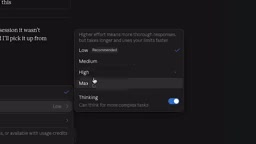
11 Tested Rules to Slash Claude Token Costs to the Bare Minimum
Claude Token costs too high? Creator Doobie rewrote 11 token-saving rules after 30 days of logs: keep effort at medium, use /clear when switching tasks, don't let cache expire, downgrade auxiliary agents to Haiku—with official Anthropic data and cost comparisons.
Claude Code Advisor Mode Explained: How Fable 5.2 and Sonnet 5.5 Collaborate on Code
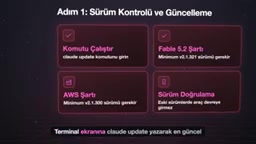
A deep dive into Claude Code's experimental Advisor mode: how Fable 5.2 and Sonnet 5.5 split the work, access requirements, version thresholds, three ways to enable it, Fable's special billing rules, and a fact-check of the "3.4x cost reduction" claim against official docs.
Claude Code Advisor Mode: Two-Model Collaboration for Cost-Effective Coding
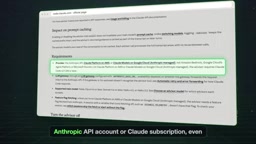
Explaining Claude Code's experimental Advisor Mode: primary model writes code, strong model intervenes at key points. Covers version requirements, three activation methods, model pairing rules, and real cost boundaries, clarifying the community's 3.4x savings claim.