Building a FAQ Knowledge Base with Supabase Vector Store: n8n Automated Q&A in Practice

Automate a semantically searchable FAQ knowledge base with n8n, Supabase, and OpenAI Embeddings.
This article walks through an n8n RAG pipeline that reads FAQ data from Google Sheets on a schedule, embeds it with OpenAI, and stores it in a Supabase pgvector table. It covers table creation SQL, API credential setup in n8n, and the Default Data Loader configuration. The result is a fully automated knowledge base that requires no manual intervention — content teams simply update the spreadsheet. This is Part 1 (knowledge base build); Part 2 will cover retrieval and response generation.
Building a system that automatically answers customer questions comes down to one thing: a high-quality, searchable knowledge base. This article, based on a YouTube tutorial, breaks down how to use an n8n workflow to load FAQ data into a Supabase vector store — laying the foundation for intelligent, automated Q&A. This is Part 1 of the full solution: build the knowledge base first, then worry about querying it.
Why Supabase for Vector Storage
A vector store converts text into vector embeddings and stores them, so when a user asks a question, the system can retrieve the most semantically relevant answers — rather than relying on simple keyword matching. This is precisely what sets modern Q&A automation apart from traditional FAQ pages.
The tutorial author chose Supabase as the vector storage platform because it's already well-proven in AI automation workflows, and because it's built on PostgreSQL with support for the pgvector extension, enabling vector search directly within the database. Compared to self-hosting a dedicated vector database, Supabase significantly reduces deployment and maintenance overhead — making it especially approachable for individual developers and small teams.
The full automation is split into two parts: Part 1 (this article) focuses on building the knowledge base in Supabase, while Part 2 covers how to query that knowledge base inside a Q&A workflow. Laying a solid foundation first is a philosophy the author emphasizes throughout.

pgvector is an open-source PostgreSQL extension designed specifically for storing and retrieving high-dimensional vector data. It supports both exact k-nearest neighbor (KNN) search and approximate nearest neighbor (ANN) search, with distance metrics including cosine similarity and Euclidean distance. Because pgvector runs directly inside PostgreSQL, developers don't need to introduce separate vector database services like Pinecone or Weaviate — structured business data and vector data can be managed in the same database, dramatically reducing architectural complexity. Supabase ships with pgvector pre-installed and provides a visual SQL editor along with managed infrastructure, making all of this available out of the box.
Workflow Trigger and Data Source
After creating a new workflow in n8n, the first step is adding a Schedule (Trigger) node. The tutorial configures it to fire every 10 minutes, meaning the workflow periodically checks the data source and syncs updates to the knowledge base. This scheduled sync pattern is well-suited for scenarios where FAQ content is continuously updated.
Next, add a Google Sheets – Get Rows node. The Google Sheet acts as the raw data source for the knowledge base, with each row representing one Q&A entry. The author pre-populated the sheet with 5 Q&A records; running the node pulls all of them into the workflow.
Using a spreadsheet as the data source has an obvious advantage: non-technical team members can maintain the FAQ directly in familiar Google Sheets without touching any code, and the workflow automatically syncs updates into the vector store.
Preparing the Table and SQL in Supabase
To make Supabase store vector data, you first need to run a table creation script in its SQL editor. This step involved a real-world stumble in the tutorial: the author's first SQL attempt failed outright, so he used Claude AI to generate a working version, then executed it in two separate steps — ultimately successfully creating a table named client knowledge base.
This table contains the fields required for a vector store: id, content, metadata, embedding, and more. The embedding column stores the text vectors, metadata holds supplementary information, and content stores the raw text. This structure is the standard schema for Supabase vector stores, and is a prerequisite for semantic search to work.
It's worth noting: SQL scripts copied from the internet won't always run without issues — your Supabase project version and whether the pgvector extension is enabled can both affect the outcome. When errors occur, using an AI tool to debug quickly, or starting from a ready-made script provided by the tutorial, is the safer approach.
Connecting Supabase and Configuring API Credentials
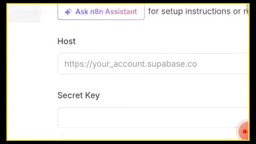
Once the table is created, you need to establish a connection to Supabase from within n8n. Two credentials are required:
- Host (address): Copy from the Data API settings page of your Supabase project. Make sure to strip any extra protocol prefixes from the URL and keep only the actual host.
- API Secret / Key: Copy the service key from your project settings and paste it into n8n's credential configuration.
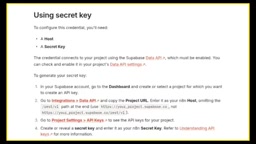
Once configured and saved, the connection is established. The author recommends giving this credential a memorable name, since the Q&A workflow in Part 2 will reuse it. After connecting, select the client knowledge base table you created earlier as the target in the vector store node.
Embedding Model and Data Loading
To write text into the vector store, it must first go through embedding processing. The tutorial connects an OpenAI Embeddings node to generate the vectors — this is a non-negotiable step in the pipeline. Without embedding, text cannot be transformed into vectors suitable for semantic retrieval.
In addition to the embeddings node, you'll need to configure a Default Data Loader. The author loads two types of data here: first organizing it in JSON format, then mapping fields according to a Question & Answer structure, so that FAQ data is written into Supabase in a consistent, well-structured format.
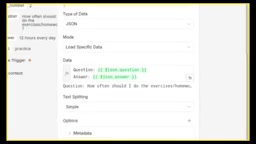
After running the workflow, returning to Supabase and inspecting the client knowledge base table confirms that all FAQ data — along with its vectors — has been successfully written. At this point, the knowledge base build automation is fully operational: it reads Q&A entries from Google Sheets on a schedule, embeds them via OpenAI, and stores them in the Supabase vector store.
Embedding is the process of mapping text into high-dimensional dense vectors. Take OpenAI's text-embedding-ada-002 or text-embedding-3-small models as examples — each piece of text is transformed into a 1,536-dimensional array of floating-point numbers. Texts with similar meanings end up closer together in vector space, which is precisely why semantic retrieval outperforms keyword matching: even if a user's question is worded completely differently from the FAQ entry, the system can still surface the most relevant answer as long as the meaning is similar. One important caveat: the embedding model used at index time must match the one used at query time. Whichever model you use to generate vectors when loading data, you must use that same model to embed the query — otherwise the vectors exist in different coordinate spaces and similarity calculations break down.
Summary and Next Steps
The real value of this pipeline is that it automates knowledge base maintenance: content teams only need to update the FAQ in Google Sheets, and the n8n scheduled job handles embedding and indexing automatically — no manual intervention required. The author acknowledges this is the most complex automation on his channel, and stresses the importance of truly understanding each step — especially the SQL portion.
It's worth emphasizing: this article only covers building the knowledge base. The actual Q&A capability — customer asks a question → vector search retrieves relevant answers → response is returned — will be implemented in Part 2. Readers looking to deploy the full solution should get this data pipeline running first, then layer on the retrieval and response generation logic.
For developers looking to get started with RAG (Retrieval-Augmented Generation) applications, this tutorial offers a low-friction entry point: n8n handles orchestration, Google Sheets provides the data source, Supabase stores the vectors, and OpenAI handles embedding. Each component has a clear responsibility, and the whole setup is highly replicable.
RAG (Retrieval-Augmented Generation) is the dominant paradigm for building knowledge Q&A systems today. The core idea: rather than relying on knowledge the large language model memorized during training, the system first retrieves the most relevant text passages from an external knowledge base at inference time, then injects those passages as context into the prompt, allowing the model to generate answers grounded in real, up-to-date source material. This approach effectively mitigates model hallucinations while allowing the knowledge base to be updated independently of the model — no retraining required. The Supabase vector store built in this article is the infrastructure for the "retrieval" step of the RAG pipeline; Part 2 will build the "generation" step on top of it — feeding the retrieved FAQ content to a language model to produce complete, user-facing responses.
One-line Summary
Automate a semantically searchable FAQ knowledge base using n8n + Google Sheets + Supabase + OpenAI
Paragraph Summary
This article breaks down an n8n-based RAG knowledge base setup: Google Sheets serves as the FAQ data source, with a scheduled trigger syncing data every 10 minutes; a vector table with embedding, content, and metadata columns is created in Supabase (PostgreSQL + pgvector); an OpenAI Embeddings node converts text into vectors, which are then written to the database via a Default Data Loader in Q&A JSON format. The table creation SQL may error depending on your project version — AI tools can help debug. The entire pipeline fully automates knowledge base maintenance: content teams update the FAQ in the spreadsheet, and the workflow handles the rest. This is Part 1, covering only knowledge base construction; retrieval and response generation will be covered in Part 2.
Related articles

How Big Can Stars Really Get? The Physical Limits of the Largest Stars
Red supergiants are the largest stars by volume, with radii up to 2,000 times the Sun, engulfing the inner solar system. But there is no precise upper limit on stellar size—models predict up to 15,000 solar radii. The most massive blue stars are far smaller than red supergiants—biggest and heaviest are two different things.

Apple HomeView Smart Display Full Feature Breakdown: Wall-Mount or Desktop, $299
Apple launches HomeView, a $299 smart display with wall-mount and desktop options, 12MP camera for facial recognition, smart home control, music playback, and recipe step-by-step cooking. Full breakdown of watch faces, apps, privacy, and cooking integration.

Where Did the Promised New Studio Go? Craft Computing Answers After Five Years
Craft Computing's host responds to viewer questions: the new studio promised five years ago was shelved as construction costs soared from $30,000 to $75,000, and was replaced by a 168-square-foot garage conversion.