Building a Personal AI Chief of Staff on Your Computer: An OGAD Practical Guide

OGAD Pro's God assistant integrates accounts and local notes to generate actionable, verifiable personal work briefings.
OGAD Pro's God assistant tackles scattered information by integrating connected accounts, saved work records, and task lists into an actionable morning briefing. Start with one account and a few notes, use a clear prompt for a sourced three-hour briefing, and adopt a five-part structure covering next event, prep work, unfinished commitments, suggested action, and missing context. Configure cross-conversation rules in Name and rules, then add scheduled tasks once results prove useful. Local inference applies only to local models; remote models and live account data still involve external services, and scheduled tasks require the computer to stay awake and running.
Every morning when you open your computer, do you face the same dilemma: the next meeting is buried in your calendar, key decisions are hidden in yesterday's notes, and some unfinished task is still stranded in another conversation. Information is scattered across different apps, and just switching between them and piecing things together takes enormous effort.
OGAD (Off Grid AI Desktop) Pro tries to solve this problem. It has a built-in AI assistant called God that integrates connected accounts, saved work records, and task lists to generate an actionable work briefing for you. With a local model selected, model inference runs entirely on your computer — you only need an internet connection when connecting to services like email and calendar.
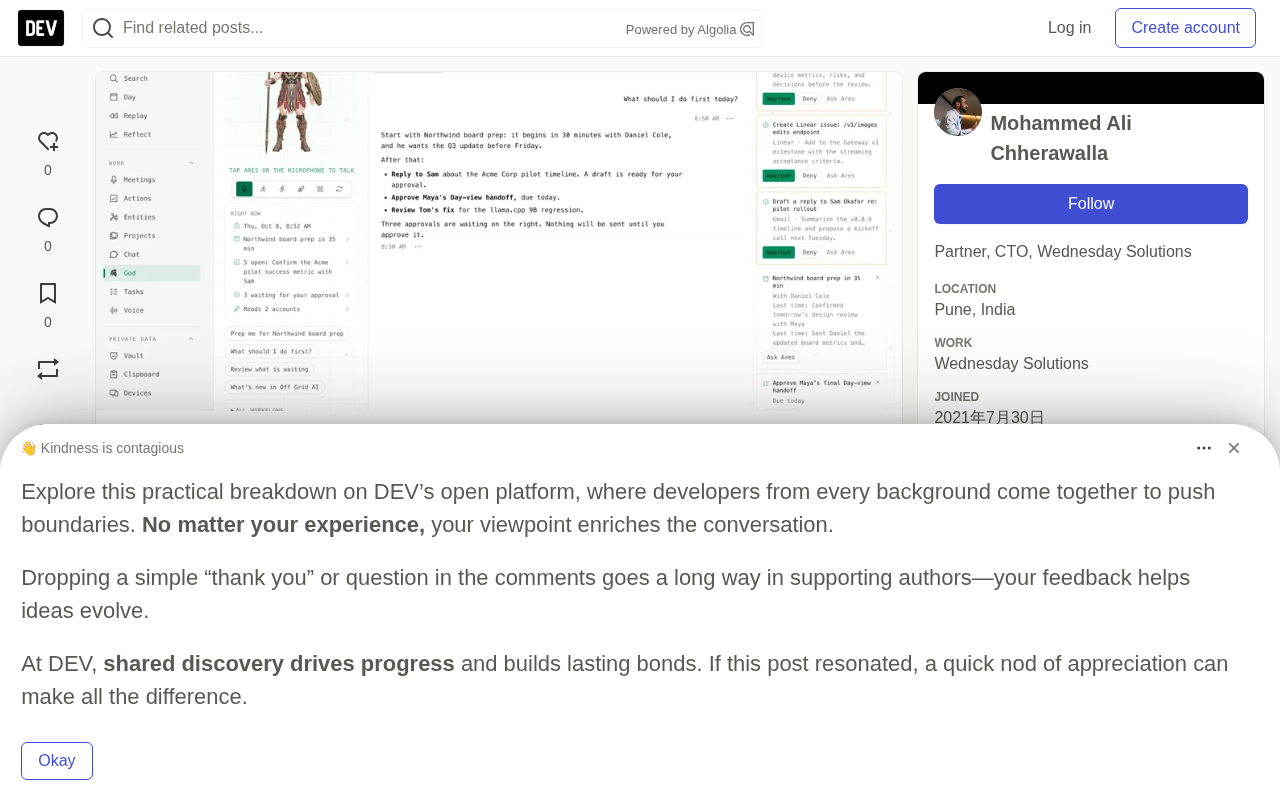
What a Personal AI Chief of Staff Can Do
Its core value lies in preparation: gathering relevant facts, identifying unfinished items, and suggesting a sensible order of handling. A good morning briefing should tell you what your next meeting is, what decisions need to be made, and which task will become a blocker if delayed.
The assistant can read information from connected Google or Microsoft accounts, and can also call up work content saved in OGAD. If screen capture is enabled, retained historical context can help answer questions about earlier work — but capture is optional, and the assistant cannot recover activity that was never captured or provided.
Scheduled tasks extend this capability to repetitive work: you can set up a workday briefing, a pre-meeting review, or generate a summary when a specific event is triggered. Actions that require approval still need your manual confirmation — connecting an email account by itself does not automatically grant permission to send messages.
Tool Calling is a critical capability that local models need. An ordinary conversational model can only generate text, whereas a model that supports tool calling can proactively issue structured requests during its response — for example, querying a calendar API, reading saved notes, or retrieving historical records — and then integrate the returned real data into its final answer. The reason God can generate briefings with source citations is precisely because of this mechanism: the model determines "I need to know today's meetings," so it calls the calendar tool, gets the results, and then organizes its language. This is also why we emphasized earlier that you should "choose a local text model that supports tool calling" — if the model doesn't support it, the assistant can only talk in the abstract and cannot reach your real data.
Start with a Small Task
Suppose you manage two client projects at the same time and want to know whether to prepare for the design review first or finish the proposal first. Don't connect all your data sources right away — start with one account and a small number of relevant notes as a test.
- Install the current OGAD beta and enable Pro
- Download and select a local text model that supports tool calling, and confirm it can answer chat requests normally
- Open Integrations, connect the accounts you need, and complete login and authorization step by step
- Open God and start with Chat mode
- Request a briefing with a clear time range and a short output format
Try this prompt:
Prepare my next three hours of work. Read today's connected calendar and related saved work. List the next meeting, one preparation task, and unfinished commitments due today. Cite the source for each fact. Keep hard deadlines separate from your suggestions. Do not send messages or modify calendar events.
Before acting, open the first source to verify. Confirm meeting times and time zones — a note saying "aim to finish by Friday" and a note saying "committed to a Friday deadline" are two different things. Have the assistant keep that distinction visible.
Make the Briefing Actually Serve Decisions
A checklist that lists everything is hard to act on. You need a short structure that links each recommendation to its evidence:
| Briefing Section | What It Should Contain |
|---|---|
| Next fixed event | Meeting name, start time, account it belongs to |
| Preparation work | Documents or decisions needed for that event |
| Unfinished commitments | What was committed, the source, the explicit deadline |
| Suggested first step | One action you can complete right now |
| Missing context | Facts the assistant cannot verify |
Take the design review as an example: the answer may point to an unresolved layout choice, and you can further ask for a comparison of two options in the notes. For the proposal, the assistant may find a promised delivery date, but the prioritization is up to you.
In God's Name and rules settings, you can configure instructions that apply across conversations. For example: "The morning briefing should not exceed five items. Deadlines must show their source. Ask before any external action." These instructions guide the assistant's behavior, but you still need to verify factual conclusions yourself.
Turn Preparation into a Daily Routine
Once manual briefings prove useful, go to Scheduled tasks in God's settings, add a routine that contains the same instructions, and choose the days and times. Check the saved schedule and use Run now to run it once immediately and see the result.
Routines run through OGAD and require the computer to stay awake, the app to be running, and the model and accounts to be available. A scheduled plan cannot turn a shut-down laptop into a cloud worker. Check the result of the next scheduled run to confirm it used the data sources you expected.
Start with a single routine. If you add a morning briefing, meeting preparation, and an end-of-day review all at once, duplicated information will obscure which routine needs adjusting.
The Boundaries of Voice and Local Inference
God also offers voice mode and optional wake word settings, which are useful when you're preparing for a meeting or your hands are occupied. Before using hands-free control, check the selected voice model and microphone status. Chat mode is a better starting point because you can examine the request, the sources, and the answer at the same time.
Claims about local inference must be tied to the model currently active. When you select a remote model, the context needed to answer is sent to that endpoint. Even if the model itself runs locally, reading live account data still involves the account service provider.
The difference between local inference and remote inference essentially comes down to "where the model weights run." When you choose a local model, your prompt, note content, and retrieved context all stay in your computer's memory and don't pass through an external server; but the act of reading Gmail or Outlook calendar still has to go through Google's or Microsoft's interfaces, with data traveling to and from your account provider. Choosing a remote model is different: the model runs on a third-party endpoint, and all the context needed to answer — including event titles, times, and even note fragments retrieved from the calendar — is sent over as a request. So the "local" label only describes the inference step; it doesn't cover the data acquisition step. Users need to evaluate the privacy boundaries of these two paths separately.
What to Do When the Briefing Is Incomplete
When an event is missing, check whether it exists in the connected accounts. When old work content is missing, confirm whether OGAD retained it, or whether you ever provided the relevant notes. When the assistant can't use an integration, check the connection status and the model's tool support.
This guide is based on beta version 122 and the feature code it includes, and does not report any measured productivity gains. The first criterion is your own three-hour briefing: are the sources accurate, is the next step clear, and is missing information clearly flagged?
Try OGAD with one account and one morning briefing first. Once the first result actually helps you make a decision, then add scheduled tasks.
The execution dependencies of Scheduled tasks are easy to misunderstand. An OGAD routine is essentially a script triggered within the local application process. It requires the computer to be awake, the OGAD app to be running, the selected model to be available, and the authorization for connected accounts to still be valid. If any link is broken, the routine will silently fail or be skipped. This means it cannot replace a cloud scheduler: after you close the laptop or let the system go to sleep, the morning briefing will not "catch up" in the background. When troubleshooting, first confirm whether the computer will be on at the next scheduled time, then check whether the app is running persistently, and finally verify whether the model and account connections are still valid.
One-line Summary
OGAD Pro's God assistant integrates accounts and local notes to generate actionable, verifiable personal work briefings.
Paragraph Summary
OGAD Pro's built-in God assistant aims to solve the problem of information scattered across multiple apps by integrating connected accounts, saved work records, and task lists to generate an actionable morning work briefing. Its core value lies in preparation: gathering facts, identifying unfinished items, and suggesting an order of handling. The article recommends starting with a single account and a few notes, using a clear prompt to request a three-hour briefing with source citations, and adopting a briefing structure with five parts: next event, preparation work, unfinished commitments, suggested action, and missing context. Instructions configured in Name and rules can apply across conversations, and scheduled tasks should be added only after confirming they work. The article also points out that local inference applies only to local models, while remote models and live account data reading still involve external services, and scheduled tasks depend on the computer staying awake and running.
Related articles

Workbuddy for Absolute Beginners: How a Desktop AI Agent Fits Into Real Workflows
A beginner's guide to the Workbuddy desktop AI agent: installation, claiming credits, file management, and building automated workflows—compared with CodeX for fit and cost, helping professionals shift from AI question-askers to AI managers.

OpenAI's New Agent Stack: Computer Use, Decisions API, and Ultra-Fast Workflows
OpenAI Dev Day unveiled a new agent stack: Computer Use outperforms humans, Decisions API delivers ultra-low-latency classification via Luna, Agents API opens the same Computer Use capabilities, and GPT-6.1 Sol costs only one-seventh of Astra. Core updates, benchmark data, and developer insights.

Liang Wenfeng Open-Sources DeepInfo Inference Framework, Takes On U.S. Ban
DeepSeek open-sources its DeepInfo inference framework after its models, featuring GPU/CPU cross-pipelining, small-model prediction with large-model verification, and full Huawei Ascend and NVIDIA chip support—facing the U.S. federal ban head-on. This article analyzes its significance for AI deployment and open-source strategy.