Cherry Studio Hands-On Tutorial: Building a Local Knowledge Base and AI Agent

Build a local knowledge base and custom AI agent with Cherry Studio — no coding required, done in minutes.
Cherry Studio is a desktop AI client that unifies multiple large model services, local knowledge bases, and agent orchestration in a single interface. This tutorial walks through three core stages using Alibaba Bailian as an example: connecting to a model via API key (which is only shown once at creation), building a vector knowledge base with an embedding model (which cannot be changed after creation), and creating an agent by binding a model, system prompt, and knowledge base together. The entire workflow requires no programming and can be reused for any domain by simply swapping the prompt and knowledge base.
What Is Cherry Studio
Cherry Studio is a desktop AI client that supports multi-model integration, compatible with Windows, macOS, and other operating systems. Its core value lies in consolidating scattered large model services, local knowledge bases, and agent orchestration into a single interface — allowing everyday users to build their own AI assistants without writing a single line of code.
This tutorial is based on a hands-on demonstration by a Bilibili content creator and covers three key stages: connecting to a large model, building a local knowledge base, and creating an agent with a defined persona. The entire workflow requires no programming and can be completed in just a few minutes.
One easily overlooked detail during installation: avoid placing the app in your system drive (C drive) to prevent consuming system storage. Once installed, the "Settings" option in the bottom-left corner of the main interface is the entry point for all subsequent configuration.
Connecting to a Large Model and Configuring API Keys
Connecting to a model is the first step in using Cherry Studio. Under "Settings" → "Model Services", you can search for and select a provider. The demonstration uses Alibaba's Bailian platform (Qwen model series), though mainstream services like DeepSeekAd are also supported.
The key to configuration is obtaining an API key. Clicking "Get API Key" redirects you to the Alibaba Bailian website, where you can log in and create a new API-KEY in the console. There's a critical pitfall to watch out for: API keys are stored in encrypted form and are only displayed in full at the moment of creation. Once you close the page, you can no longer view the complete key — you must copy or download it on the spot, or you'll have to create a new one.
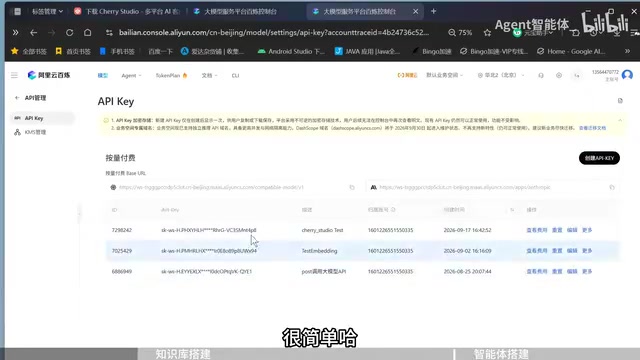
Paste the copied key into the corresponding field in Cherry Studio, save it, then click "Test" to verify the connection. A "Connection Successful" message confirms that the key is valid and the platform is linked.
Alibaba Bailian offers a substantial number of models — clicking "Sync Models" will pull them all at once (the demo showed as many as 280). If you want to add a specific model individually, go to the "Model Plaza" on the Bailian website, copy the model name, return to Cherry Studio to search and click "Add", or use "Add Manually" to paste the model name directly.
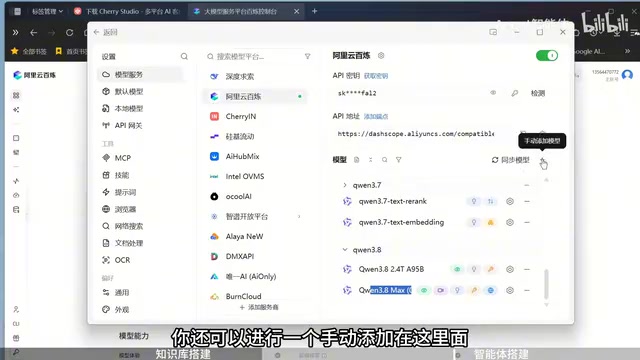
After configuration, return to the chat interface, select the newly added model (e.g., Qwen 3.8 Flash), and start a conversation to verify the model is working correctly.
Creating a Local Knowledge Base
The knowledge base is the core feature that lets AI "understand your documents." In the left sidebar, click "Knowledge Base" → "Create Knowledge Base", give it a name, and then select an Embedding Model.
The embedding model determines how documents are parsed into vectors, and there's one important rule: once a knowledge base is created, you cannot swap out the embedding model — you'd have to rebuild the entire knowledge base. This is because different models generate incompatible vector spaces; mixing them causes retrieval to break down entirely. So choose your embedding model carefully before creating the knowledge base.
Once created, click "Files" to bulk-import your documents (you can use Ctrl+A to select all). Cherry Studio will then process and parse the files — essentially splitting documents into chunks and converting them into vectors for storage. This typically takes a few seconds to about ten seconds.
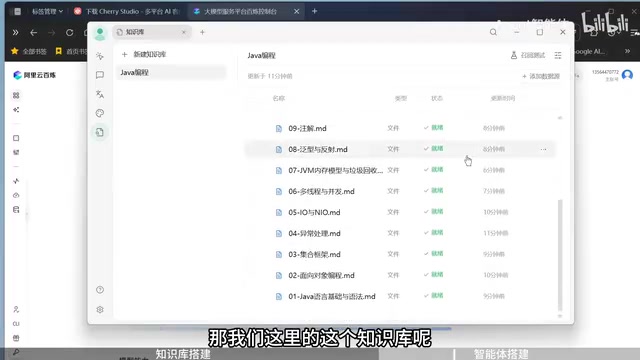
Using the knowledge base is just as straightforward: in the chat window, click the "+" icon, select the relevant knowledge base, and ask your question. For example, asking "What is object-oriented programming thinking?" will yield a response that not only answers the question but also cites the source — pointing to the specific section of the uploaded document the answer came from. This traceable, source-backed response is the biggest advantage of a local knowledge base over bare model chat.
An Embedding Model is a specialized model that converts text into high-dimensional numerical vectors. It works by mapping words, sentences, or entire documents into a continuous vector space, where semantically similar content is positioned closer together. When querying a knowledge base, the user's question is likewise converted into a vector, and the system retrieves the most relevant document chunks by computing the cosine similarity between the "query vector" and the "document vectors" before passing them to the large model to generate a response. This is why vectors from different embedding models are incompatible — each model defines its own vector space dimensions and distribution. Building a knowledge base with Model A and querying it with Model B is like searching a library indexed in English using Chinese — the two simply don't align. Common embedding models include Alibaba's text-embedding series and OpenAI's text-embedding-ada. When choosing one, it's generally advisable to use an embedding model from the same platform as your primary language model, to reduce the configuration complexity of cross-platform calls.
Creating an AI Agent
An Agent is a "ready-made assistant" that binds together a model, a persona, and a knowledge base. In the Cherry Studio main interface, find the "Workspace" entry in the launchpad, then click "Add Agent" at the top to get started.
The creation process involves a few steps: name your agent (e.g., "Java Programming Agent"), leave the run mode set to the default Agent mode, and select a driving model (the demo uses Qwen 3.8 Max).
Next comes the System Prompt, which is the core element that defines the agent's personality and response rules. If you're not confident writing prompts yourself, you can use third-party AI tools like Doubao or Kimi to generate one — just describe your needs clearly (e.g., "I need a system prompt for a Java programming agent"), and these tools can produce a well-structured prompt in about a minute. Simply copy and paste it back into Cherry Studio.
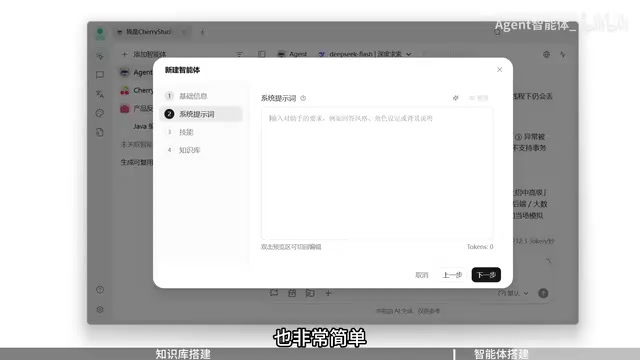
The final step is to bind a knowledge base — select the one you created earlier, click Finish, and your agent is ready to go.
The results are striking: when asked the same question, "What is OOP?", the agent delivers a structured response complete with headings and analogies (comparing procedural programming to following a recipe step by step), while also pulling relevant material from the linked knowledge base. Compared to bare model chat — where the model just answers each question without knowing who it is — the agent has a clear identity, defined persona, and curated knowledge source, making its responses noticeably more focused and professional.
The System Prompt is a hidden top-level instruction in the large model conversation framework. It is injected into the conversation context before the user sends any message, essentially serving as a pre-configured "behavioral constitution" for the model. It can define the model's role ("You are a professional Java developer"), response style ("Always include code examples to illustrate your points"), prohibited behaviors ("Do not answer questions unrelated to programming"), and output format requirements. The quality of the system prompt directly determines how useful the agent will be: vague prompts lead to off-topic responses, while clear, well-bounded prompts can make the same base model exhibit dramatically different levels of expertise. When using tools like Doubao or Kimi to generate prompts, include your target audience, common question types, and expected output format in your description — this will significantly improve the quality of the generated prompt.
One Workflow, Reusable for Any Scenario
This entire workflow can be summarized in three steps: Create an Agent → Write a System Prompt (define persona and rules) → Bind a Knowledge Base. The model can be the same Qwen instance you already configured — no need to swap it out each time.
The real value lies in its reusability. Whether you want a product manager assistant, an English learning companion, a customer service chatbot, or any other role, the process is identical — just swap out the system prompt and the corresponding knowledge base to rapidly spin up a brand-new domain-specific agent.
For users who don't code but want a customized AI assistant, Cherry Studio reduces the entire chain of "connect a model, build a knowledge base, configure an agent" to its lowest possible barrier to entry — making it a worthwhile choice for anyone getting started with local AI tooling.
Related articles

How Big Can Stars Really Get? The Physical Limits of the Largest Stars
Red supergiants are the largest stars by volume, with radii up to 2,000 times the Sun, engulfing the inner solar system. But there is no precise upper limit on stellar size—models predict up to 15,000 solar radii. The most massive blue stars are far smaller than red supergiants—biggest and heaviest are two different things.

Apple HomeView Smart Display Full Feature Breakdown: Wall-Mount or Desktop, $299
Apple launches HomeView, a $299 smart display with wall-mount and desktop options, 12MP camera for facial recognition, smart home control, music playback, and recipe step-by-step cooking. Full breakdown of watch faces, apps, privacy, and cooking integration.

Where Did the Promised New Studio Go? Craft Computing Answers After Five Years
Craft Computing's host responds to viewer questions: the new studio promised five years ago was shelved as construction costs soared from $30,000 to $75,000, and was replaced by a 168-square-foot garage conversion.